

UGREEN 13-in-1 Thunderbolt 4 Dock (40Gbps) with 90W Charging for Laptops
Product description
What this is and what it solves
The UGREEN 13-in-1 Thunderbolt 4 Dock is a high‑capacity docking station designed to expand a laptop’s connectivity. It aims to centralize essential ports in one hub, so you can run external displays, fast data transfers, a wired network, memory cards, audio, and charging from a single source. If you frequently work with multiple devices, creative tasks, or a cluttered desk, this dock promises a more organized setup without juggling several adapters.
Performance and display capabilities
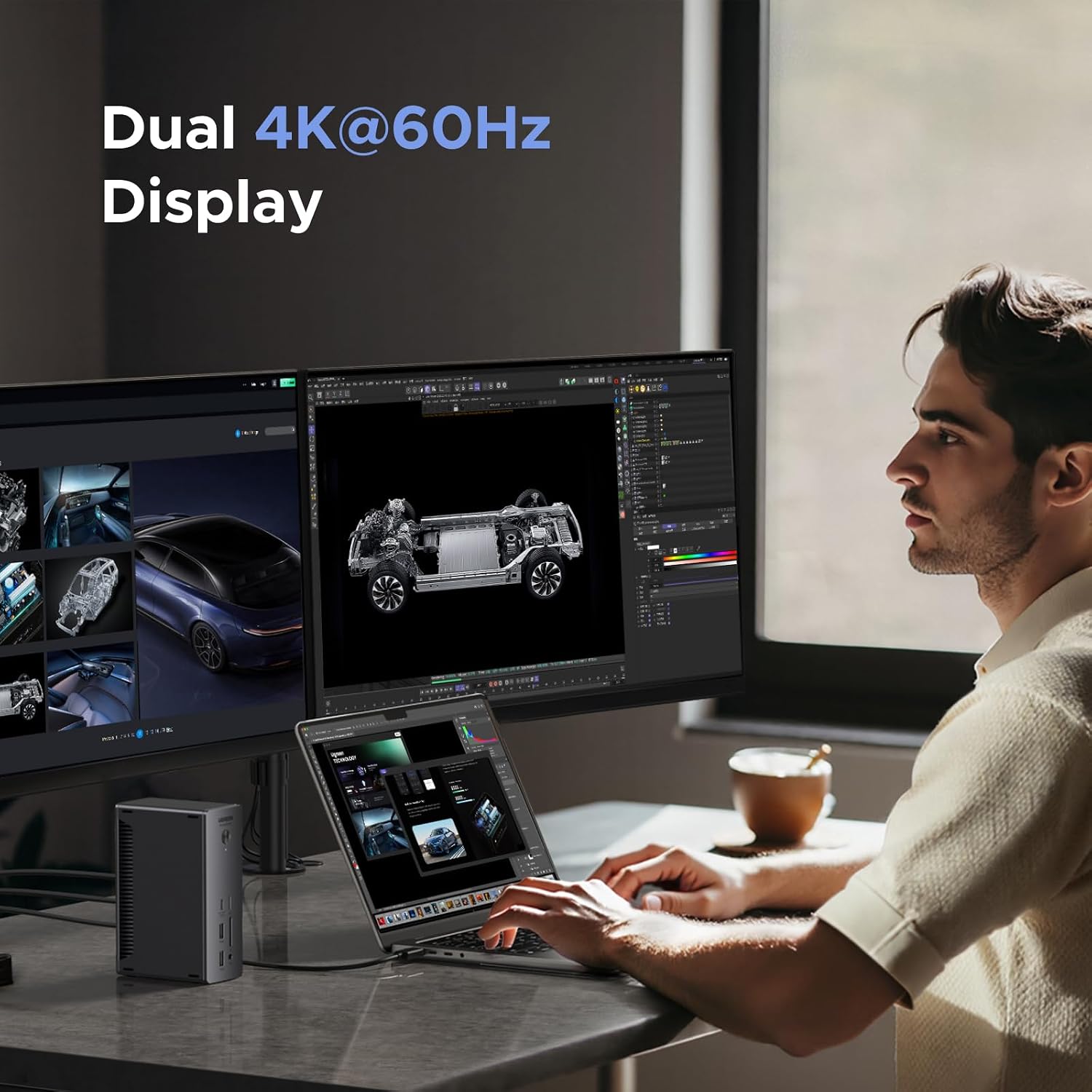
On paper, the dock supports Thunderbolt 4 speeds up to 40Gbps, with the ability to drive dual 4K@60Hz displays or a single 8K@30Hz display (Windows). Mac users with newer Apple silicon can run dual 4K@60Hz, while certain base Mac models may be limited to 4K@60Hz. The exact behavior depends on the host computer’s Thunderbolt/USB4 capabilities and the connected display chain. Note that the DisplayPort output is the source of display capability, and DP to HDMI requires an active adapter for certain configurations.
Power and charging when docked
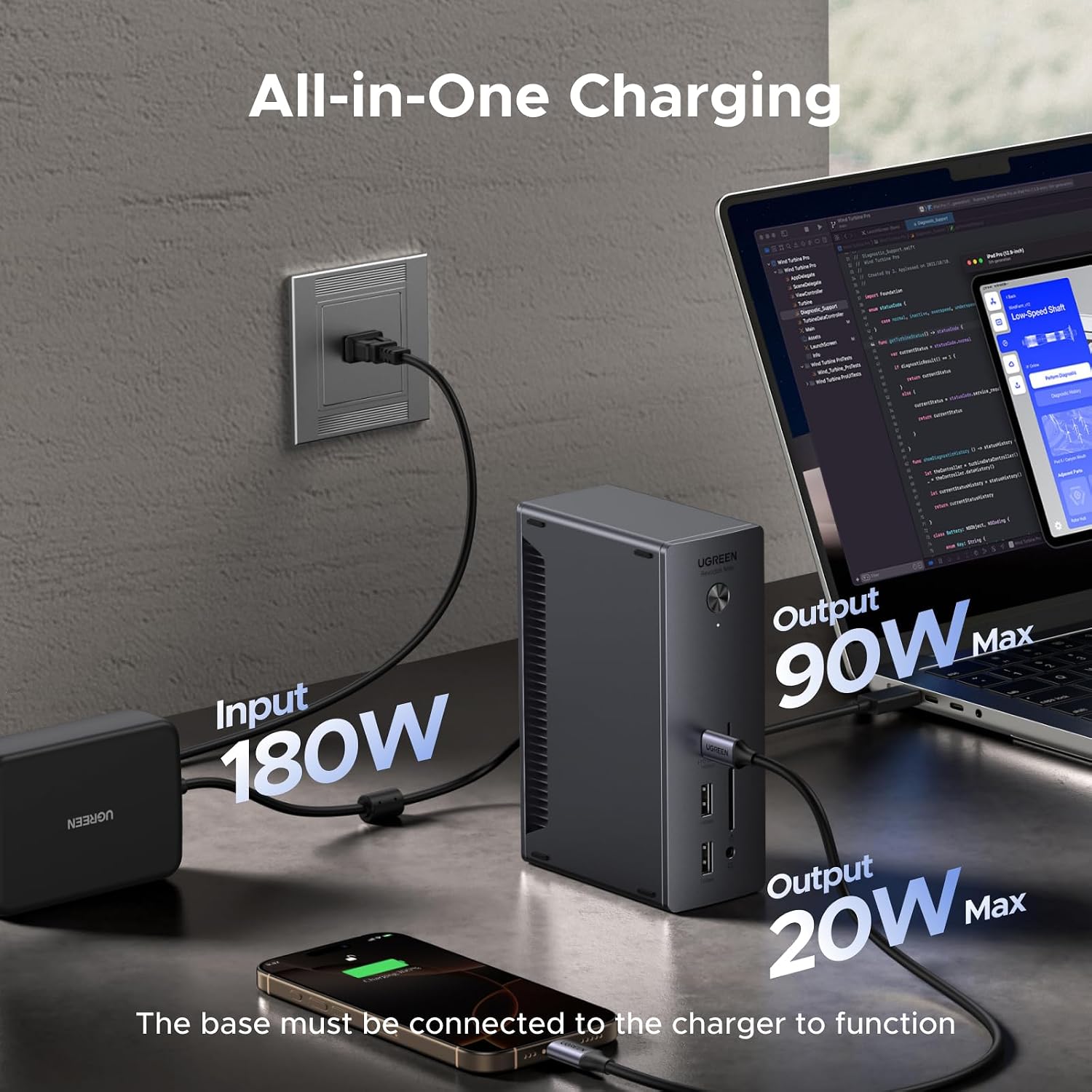
A notable benefit is the high‑power charging path. The dock ships with a 180W GaN power adapter, delivering up to 90W charging to a connected laptop while in use. The dock must be connected to its power supply to function, which is common for multi‑port hubs that handle high bandwidth and charging simultaneously. If you rely on pass‑through charging, this setup can simplify desk arrangements by reducing the need for a separate charger.
Ports, readers, and general compatibility
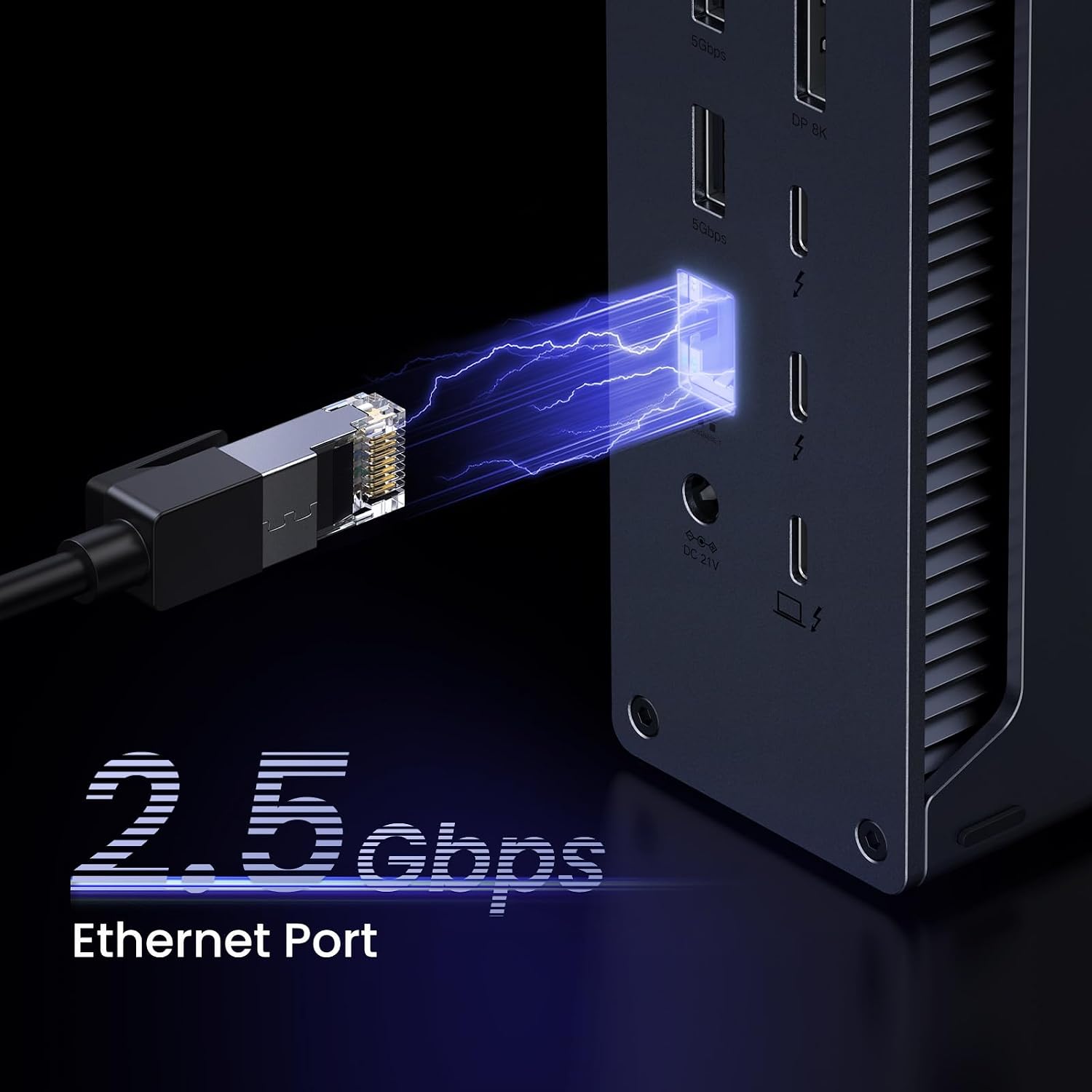
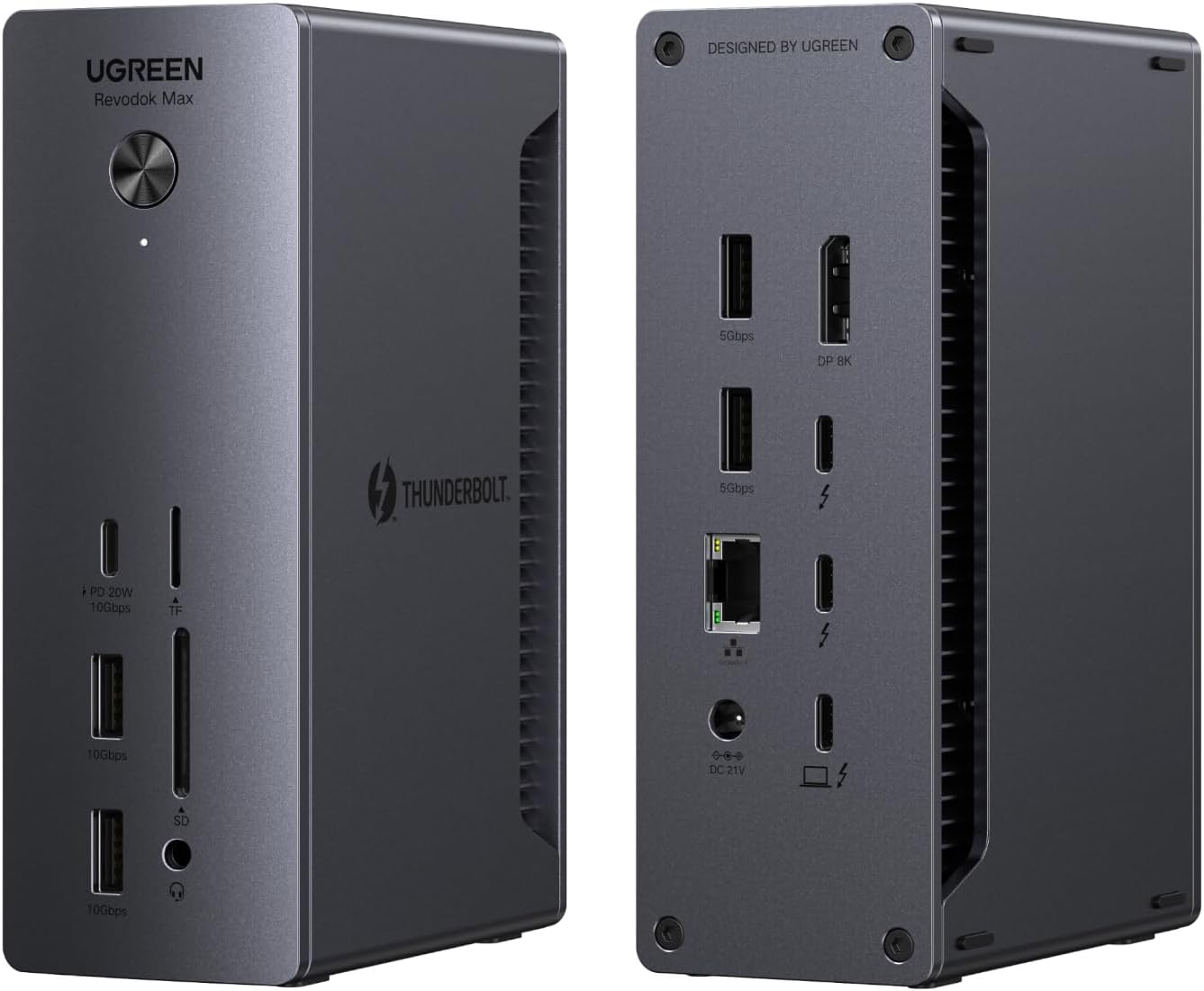
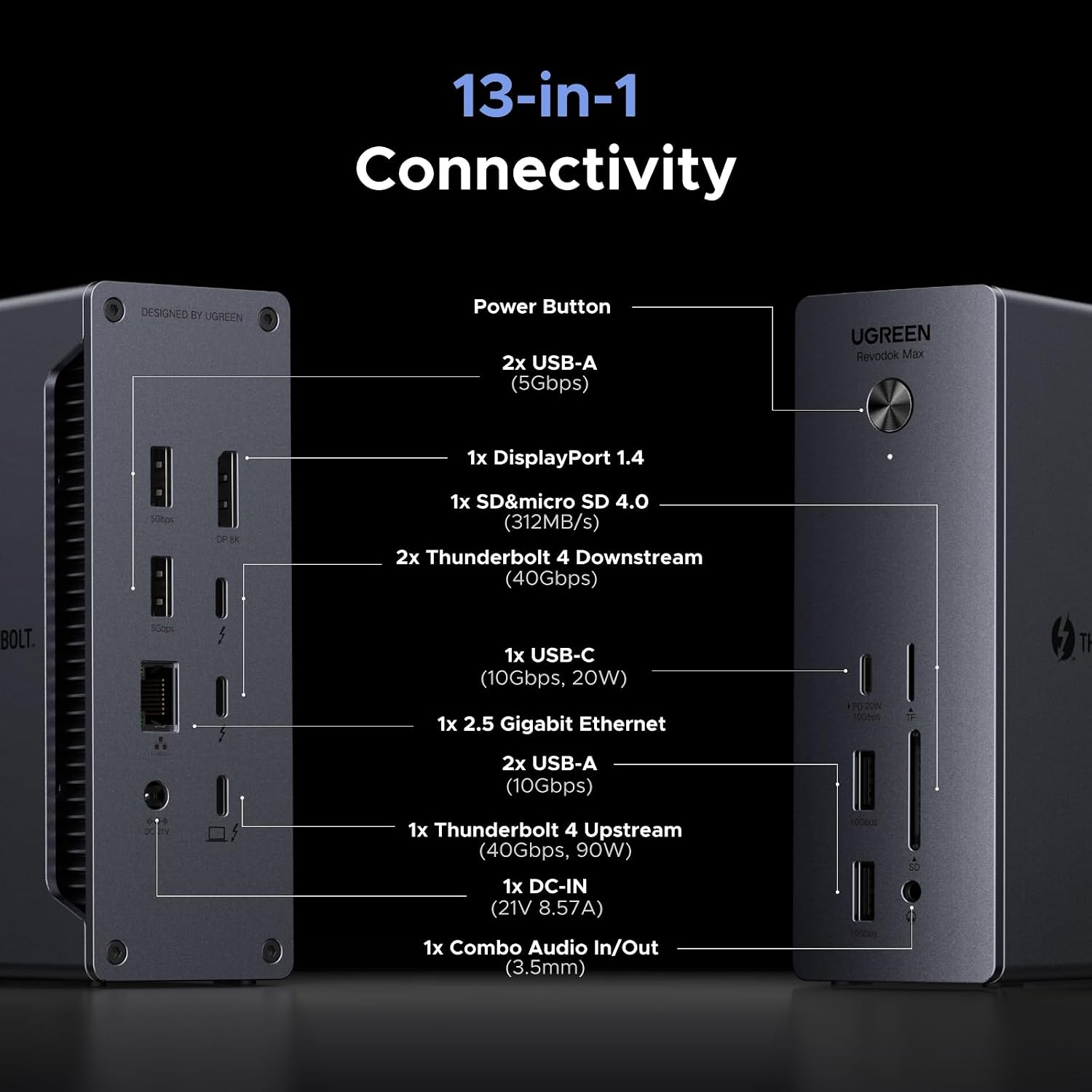
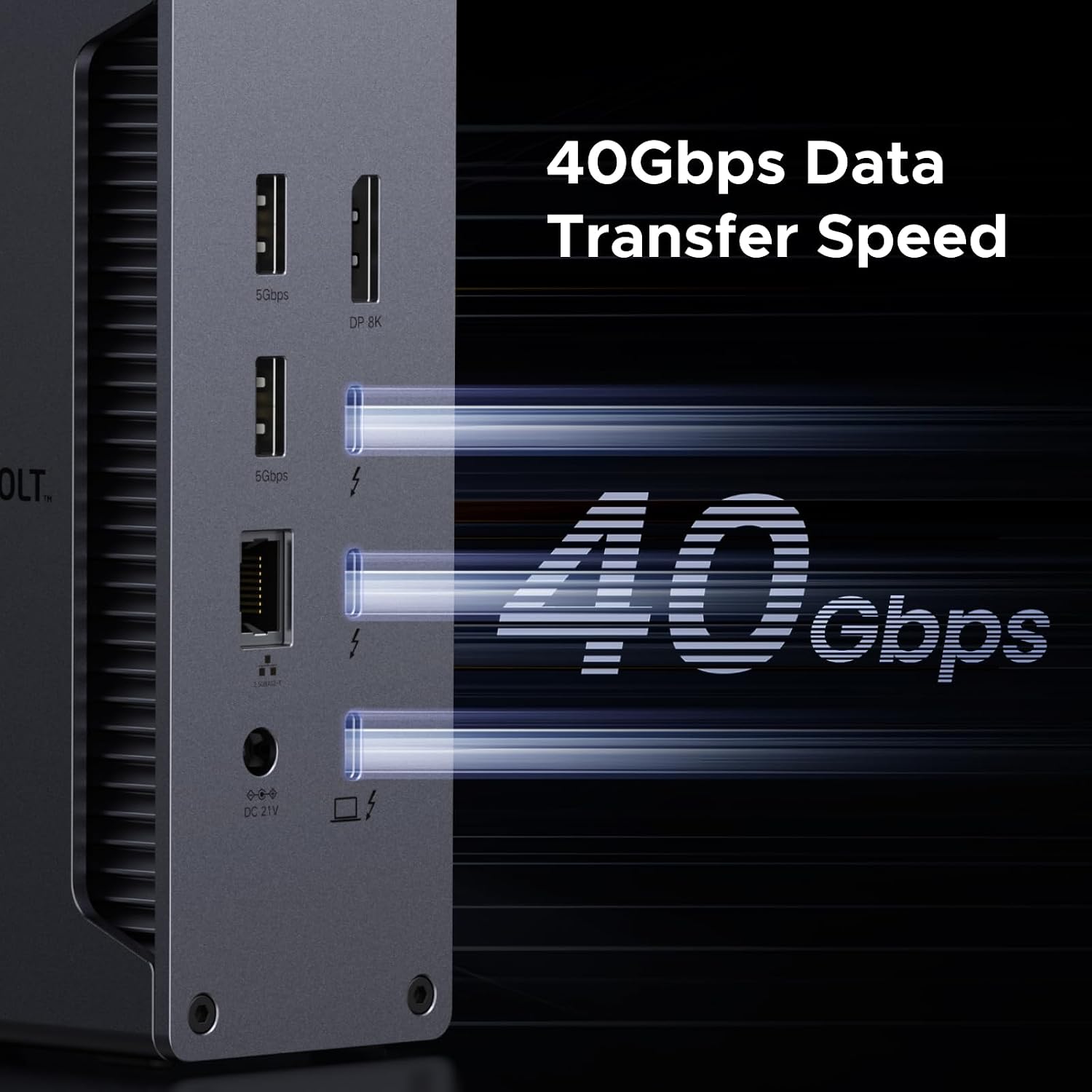
The port mix is designed to cover the essentials: two Thunderbolt 4 ports for daisy‑chaining or upstream/downstream connections, a DisplayPort 1.4, 2.5Gb Ethernet for fast wired networking, SD/TF 4.0 card readers, USB-C 3.2 (10Gbps), two USB-A 3.2 (10Gbps) and two USB-A 3.0 ports, plus a trio of 3.5mm audio jacks. This configuration supports flexible storage, quick data transfer, USB peripherals, and reliable local networking for a full workstation experience. Compatibility is described as broad: works with Thunderbolt 4/3, USB4, and USB‑C laptops and tablets, including Macs (macOS 11.4+). It’s marketed as a general purpose dock for MacBooks and Windows laptops, though the practical multi‑display capability aligns best with higher‑end systems or configurations that support DP 1.4 outputs. It’s worth noting that full multi‑display performance on Mac devices may vary by model.
Who it’s for
This dock fits creative professionals who need multiple high‑resolution displays, editors or designers who rely on fast data transfer, and power users who want a clean, single‑hub desk setup. It also suits anyone who wants to reduce cable clutter while keeping a single charger plugged in. If your workflow includes simultaneous external displays and fast peripheral access, this model has the right breadth of ports to support that workflow.
Who it’s not the best match for
If your laptop is a stricter entry‑level USB‑C/USB4 model with limited DP support, you might not reach the full dual 4K@60Hz potential. If your primary goal is a compact, pocketable dongle rather than a desktop‑class hub, this 13‑in‑1 is inherently larger and heavier. Also, if you depend on DP++ for HDMI directly from DP, you’ll want an active adapter for HDMI displays—passive adapters won’t work in all scenarios.
When it makes sense to buy
Consider this dock when you need to consolidate a workstation into a single hub that can handle high bandwidth, multiple displays, and charging at once. It’s particularly compelling if you routinely switch between devices or want to connect a mixture of drives, SD cards, and peripherals without swapping adapters.
When to pass
If you don’t require more than a single external monitor, or if your setup is strictly USB‑C with limited DP requirements, a smaller hub might be more cost‑effective. If your computer’s power delivery needs exceed 90W or you expect 24/7 heavy charging, verify power delivery specs with your portable, as some workloads may push beyond intended limits.
What to check before buying
- Ensure your host device supports Thunderbolt 4/3 or USB4 with DP 1.4 to realize dual 4K or 8K output.
- Confirm the dock is connected to its 180W power adapter for full functionality.
- If you plan to use HDMI, be prepared to use an active DP-to-HDMI adapter for certain configurations.
- Review your laptop’s charging needs to confirm 90W through the dock meets its requirements.
Practical usage example
A creative professional can connect a MacBook Pro or Windows laptop to the dock via Thunderbolt, drive two 4K displays for a broad editing canvas, attach a high‑speed external SSD for project files, slot in SD cards for quick transfers, and keep the laptop charged while running resource‑heavy apps—everything on a single desk‑side hub.
Technical snapshot (brief)
- Ports: 2x Thunderbolt 4, 1x DP 1.4, 1x 2.5Gb Ethernet, SD/TF 4.0, 1x USB-C 3.2, 2x USB-A 3.2, 2x USB-A 3.0, 3.5mm audio
- Power: 180W adapter delivering up to 90W to laptop
- Display: Dual 4K@60Hz or 8K@30Hz (Windows), Mac behavior may vary by model
- Compatibility: Thunderbolt 4/3, USB4, USB-C laptops and tablets, macOS 11.4+ and Windows 10+
Final verdict
Is it worth it? Worth considering if you need a robust, all‑in‑one docking solution that handles high data throughput, multiple displays, and laptop charging from a single unit. It offers a broad feature set that reduces desk clutter, though you should align expectations with your specific device capabilities and display setup. If your use case centers on a lighter, single‑display arrangement, you might explore smaller options first. If you prioritize maximum display flexibility and seamless charging in one package, this dock stands out in its category.
FAQ
Q: Will I get dual 4K@60Hz on all laptops? A: Not necessarily. It depends on the host computer’s capabilities and DP 1.4 support. Some Macs may limit to a single 4K@60Hz depending on model. Q: Do I need to keep the dock plugged in? A: Yes. The dock requires the 180W power adapter to function and to deliver up to 90W charging to the connected laptop. Q: Can I connect HDMI displays directly? A: For HDMI output, use an active DP-to-HDMI adapter or cable, passive adapters may not work here. Q: Is there any limitation on USB device types? A: The port mix supports common USB peripherals at up to 10Gbps for USB-C and USB-A ports, and 4.0 for SD/TF readers, but real‑world performance depends on the host system and connected devices.