

Dell Pro Laptop Docking Station WD25: USB-C, 100W Power, DisplayPort & HDMI
Product description
What it is and what it solves
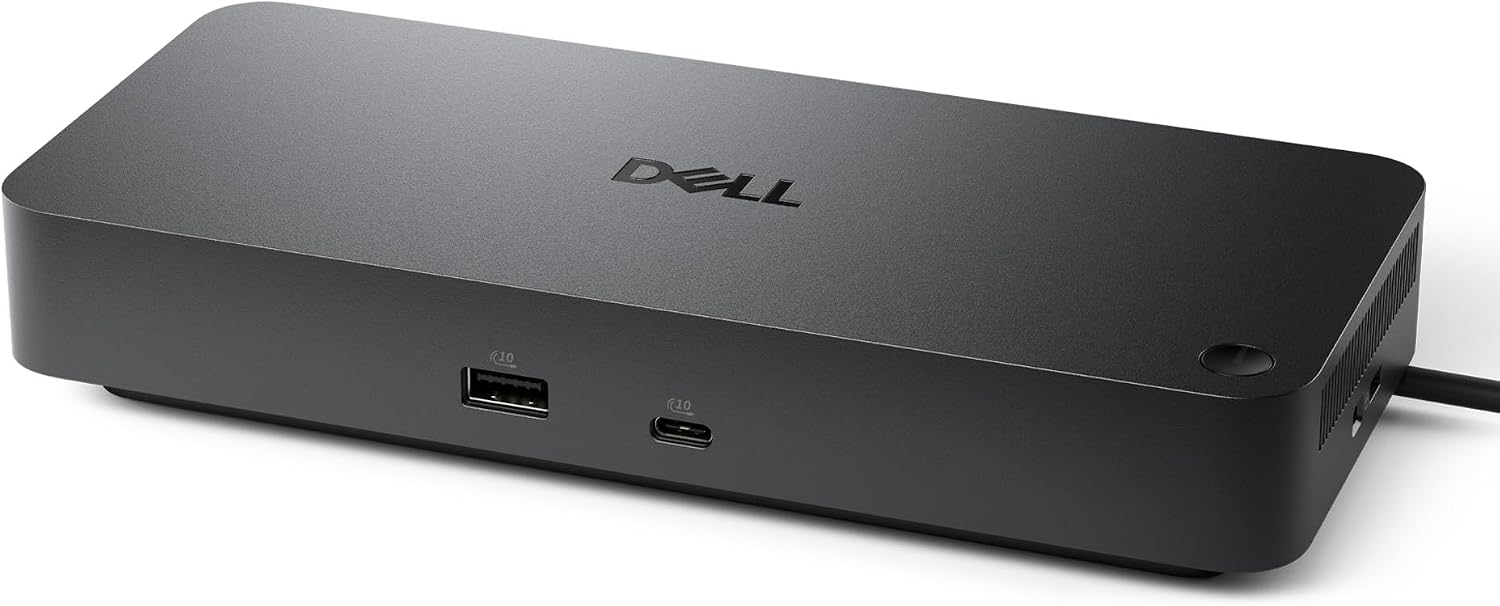
The Dell Pro Laptop Docking Station WD25 is a versatile docking solution designed to simplify and speed up everyday workflows. It aims to power essential productivity across modern AI-enabled PC environments and expand display capabilities, all while keeping IT management practical. If you’re seeking a single hub that can charge, connect peripherals, and drive multiple displays from a laptop, this dock positions itself as a reasonable fit for mixed Dell and non-Dell setups.
What stands out
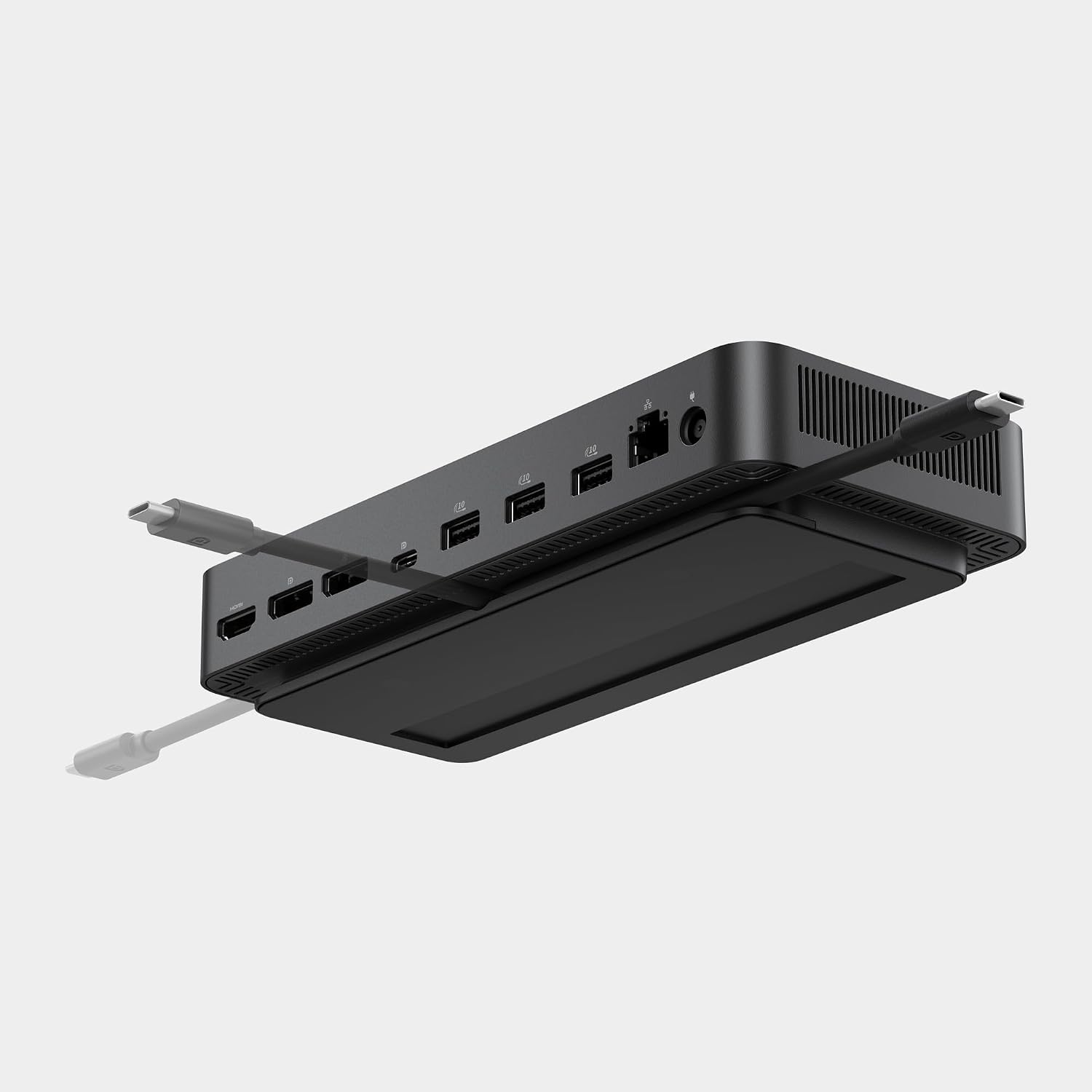
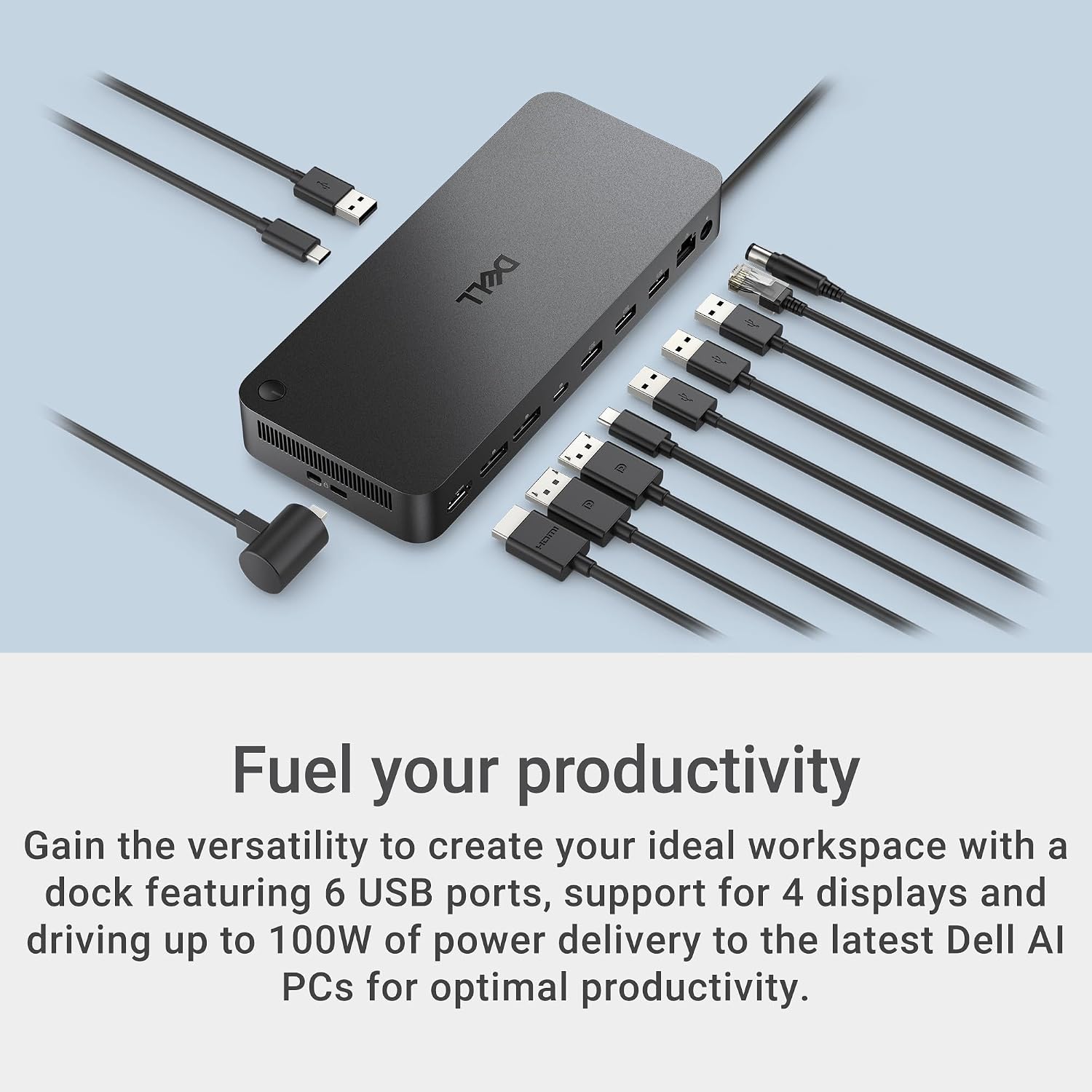
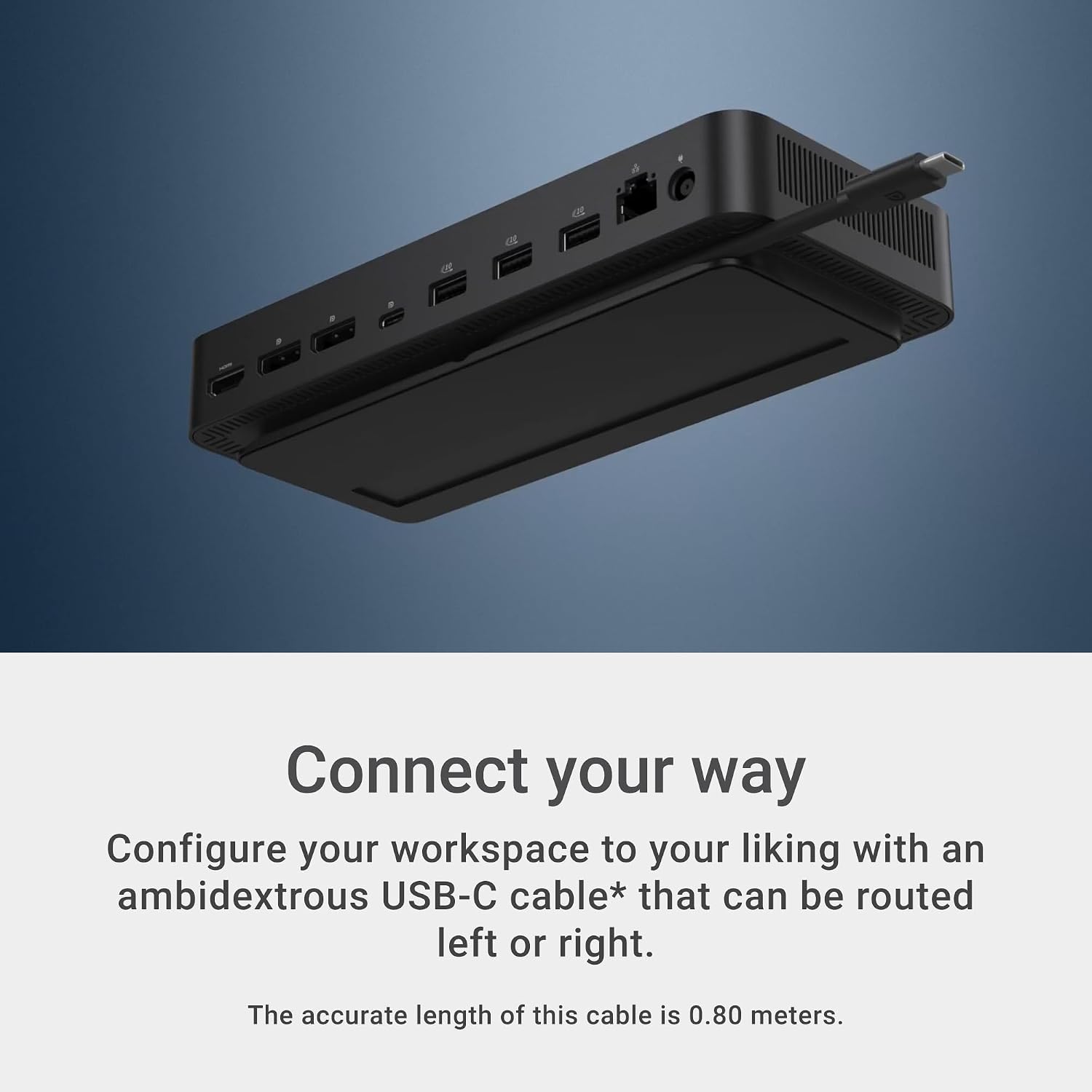
On the surface, the WD25 emphasizes compatibility and power delivery, offering up to 100W to support mainstream Dell AI PCs and non-Dell PCs. It also supports native display expansion—up to four high-resolution displays—so you can spread out apps, documents, and dashboards without swapping cables. A notable design detail is the ambidextrous USB-C cable, which can be routed left or right to fit different desk configurations. Dell markets a robust USB-C connector for enhanced durability, which can be appealing in busy office environments where plugging and unplugging is routine.
Who it’s for
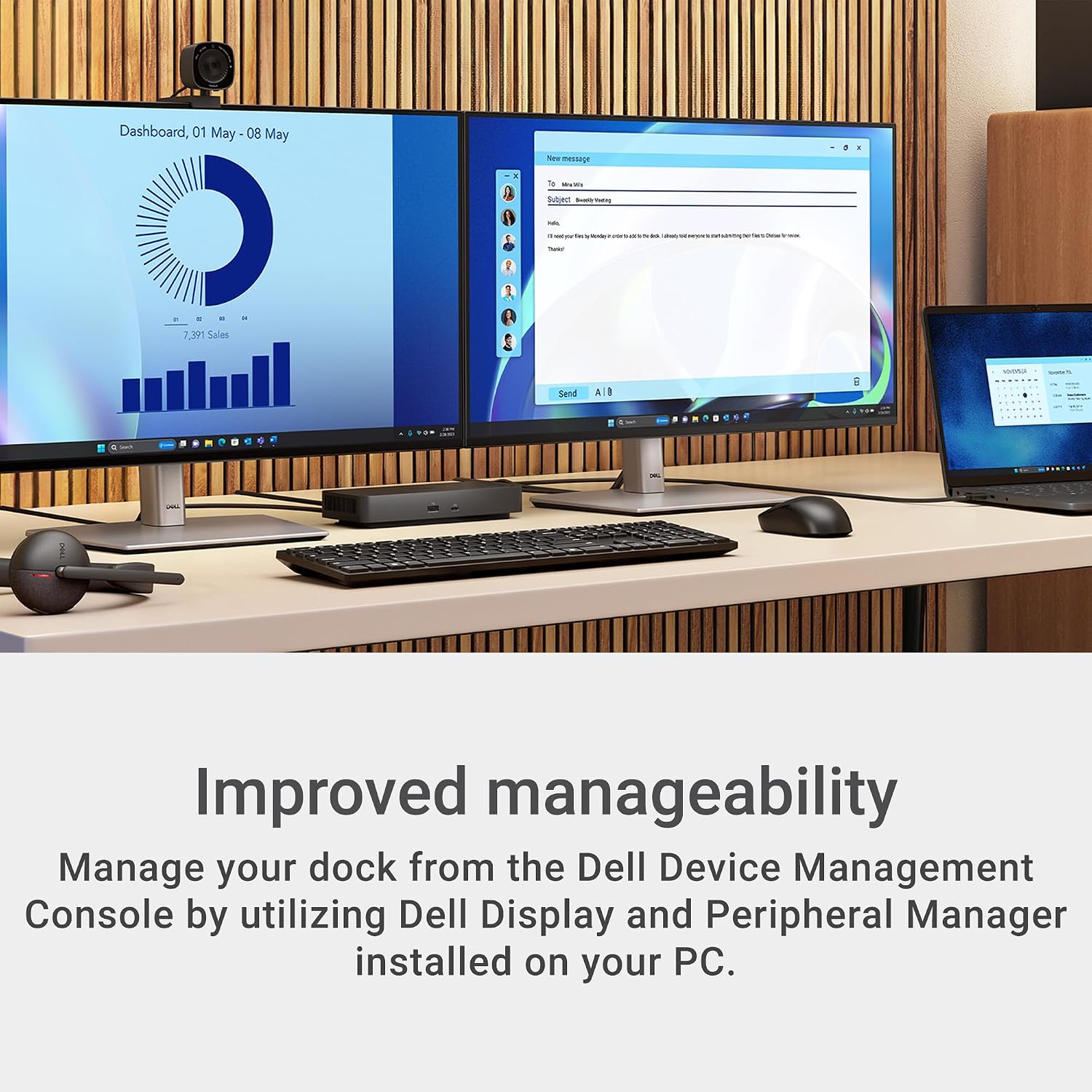
This dock seems best suited for professionals who use a laptop as a primary workstation and want a tidy, expandable desk setup. It’s especially relevant if you work with multiple high-res displays and need a convenient charging solution for your laptop and peripheral devices in a single hub. The emphasis on compatibility with both Dell and non-Dell PCs also broadens its appeal for mixed-ecosystem teams.
When it makes sense to buy
Consider the WD25 if you need a single, centralized docking station that can: - Deliver up to 100W power to support laptop charging during demanding tasks. - Expand to up to four high-res displays for multitasking and data visualization. - Provide a stable, manageability-friendly solution as part of a commercial docking family. - Benefit from a design that includes an ambidextrous USB-C cable and a durable connector. Additionally, if sustainability matters to you, the dock is built with a significant portion of postconsumer recycled materials and packaged with recycled or renewable materials.
What to check before buying
- Confirm your laptop’s power needs and whether 100W is sufficient for sustained heavy workloads.
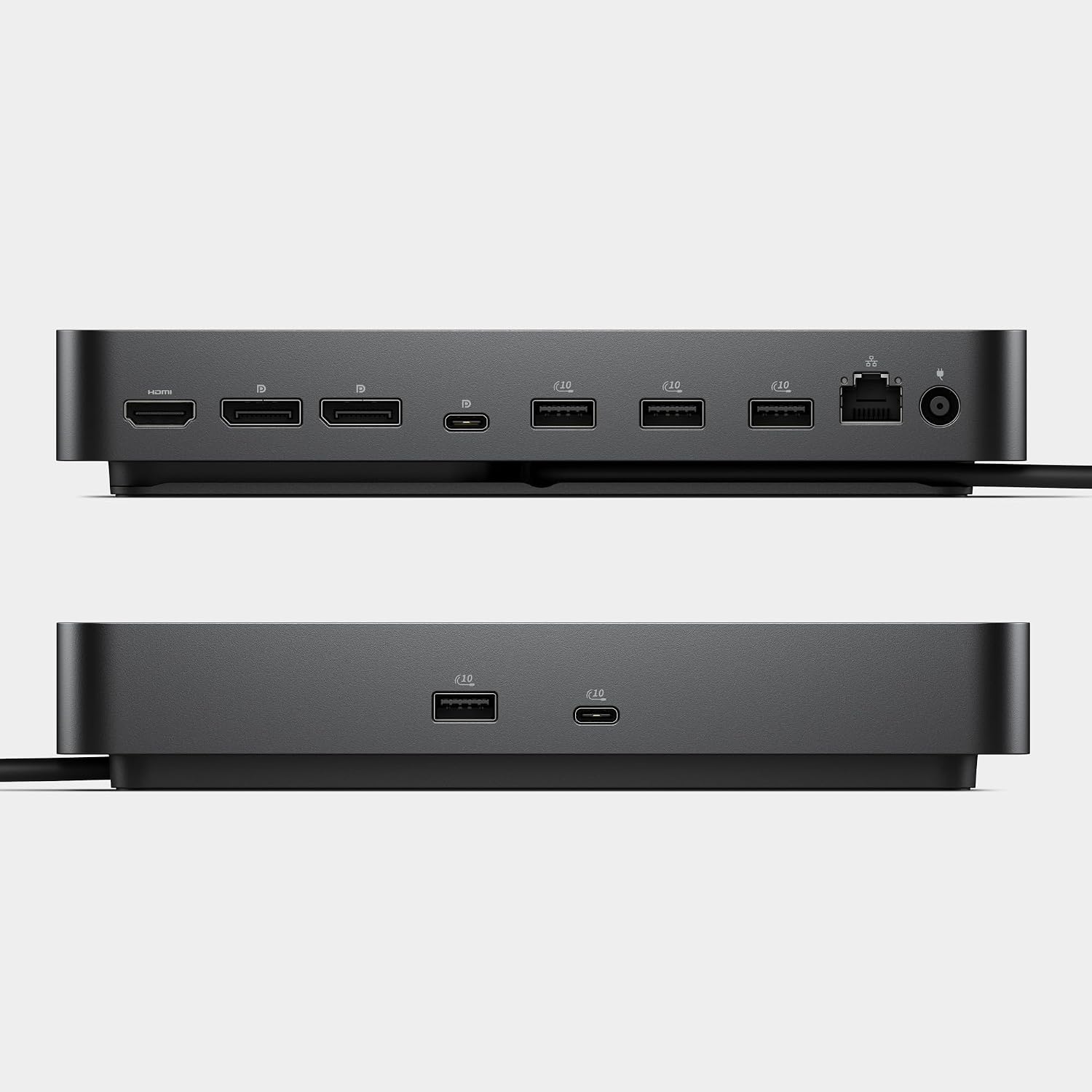
- Verify the number and type of video outputs you require (DisplayPort, HDMI) and ensure the dock’s outputs align with your monitors.
- Consider your desk layout to make the most of the ambidextrous USB-C cable routing.
- If IT manageability is a priority, review how this dock integrates with your organization’s management workflow within the Dell docking ecosystem.

What you get vs. what you might miss
Compared to simpler docks, WD25 aims to balance power, display capacity, and manageability in a single package. It may not be the best fit if you only need one or two displays or if your laptop requires more than 100W to maintain peak performance under load. Also, some users prioritizing ultracompact setups might find a larger dock less ideal for tiny workstations.
Practical use case
Imagine yourself editing a complex spreadsheet on one display, researching on another, and keeping focus on email or chat on a third—while the laptop charges through the dock. The 100W power delivery helps keep the laptop from throttling due to battery drain during heavy tasks, and the multi-display setup helps keep your workflow fluid without swapping cables mid-project.
Final decision
Is it worth it? If you need a comprehensive docking solution for a mixed PC environment with strong display expansion and reliable charging, the WD25 offers a coherent bundle that emphasizes compatibility, durability, and sustainability. It’s a solid pick if your priority is to reduce cable clutter while maintaining a scalable workstation footprint. You may want to skip it if your setup only demands one or two displays, or if your laptop model requires more than 100W of sustained power.
FAQ
- How many displays can WD25 drive natively? Up to four high-resolution displays.
- What power does it deliver to a laptop? Up to 100W for compatible devices.
- Is the USB-C cable ambidextrous? Yes, it can be routed left or right to fit different desks.