

MOKiN USB-C Docking Station for 3 Monitors with 2x HDMI, 1x DisplayPort, 1Gbps Ethernet and 100W PD
Reviews
Price
Product description
The essentials
If you’re trying to turn a single laptop into a proper desk setup, the MOKiN USB-C docking station is built for that exact job: connecting up to three external monitors while also adding wired Ethernet and multiple USB ports. The pitch is simple—plug in once, then run your everyday peripherals without constantly swapping cables.
On paper, it’s a solid “home/office docking” model rather than a niche workstation add-on. The three-display support relies on the laptop’s output support (and the docking’s ability to do MST/SST), so it’s worth checking your device can actually drive triple screens. Still, if your laptop is compatible, having 2 HDMI plus 1 DisplayPort is an everyday-friendly mix.
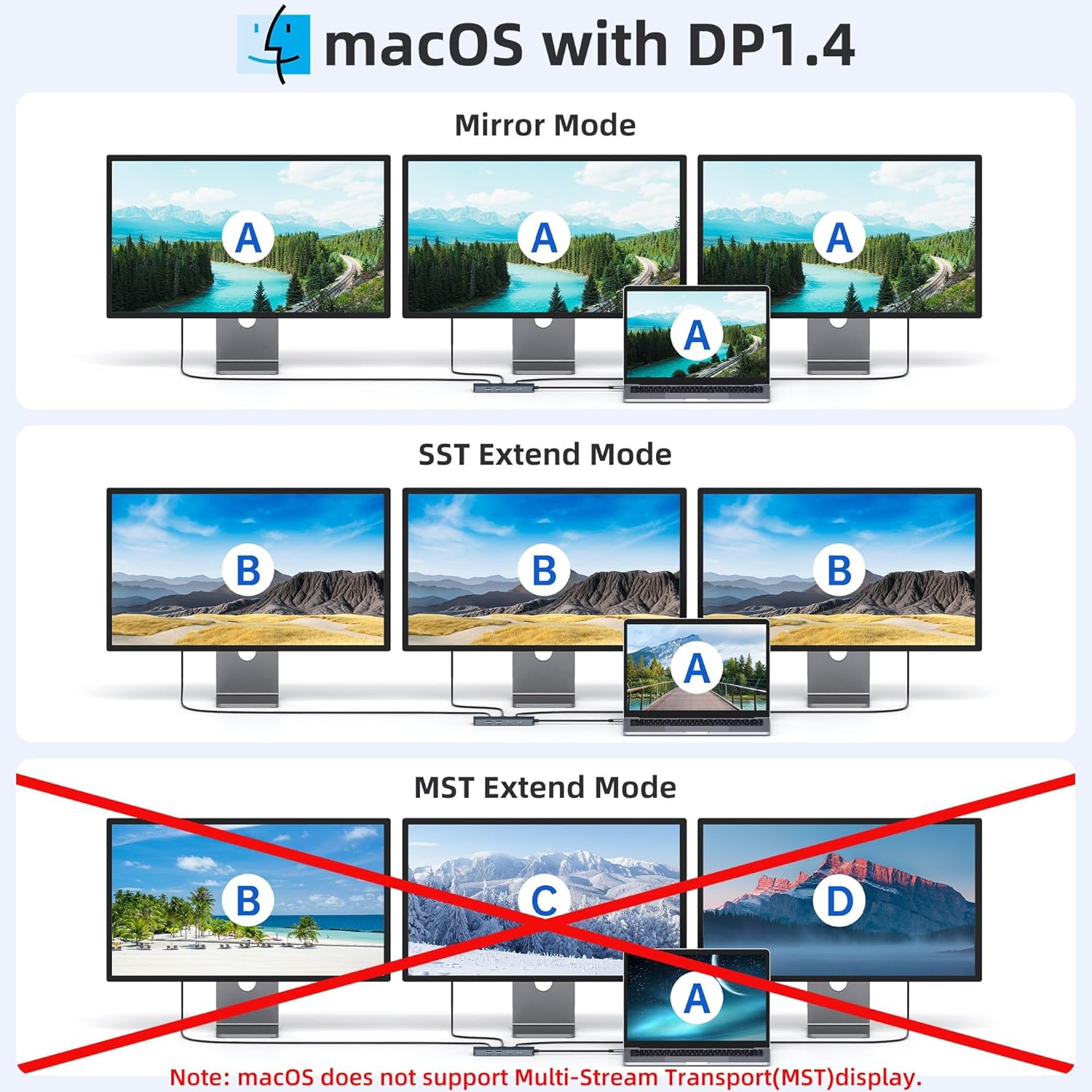
There are a couple of quirks to be aware of: macOS is specifically noted as not supporting triple display, and one of the USB-C ports is data-only (not for powering anything).
Key points
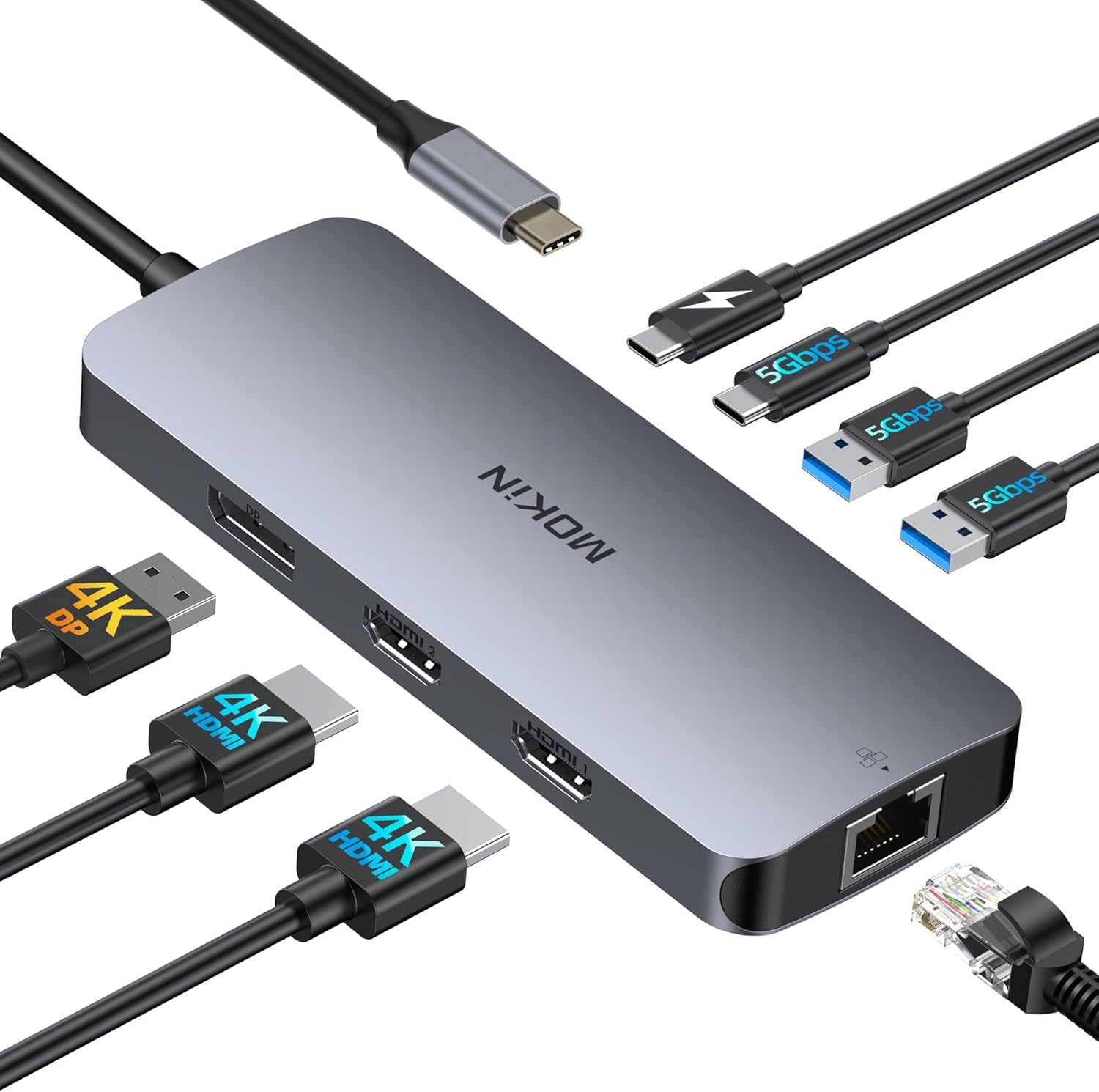
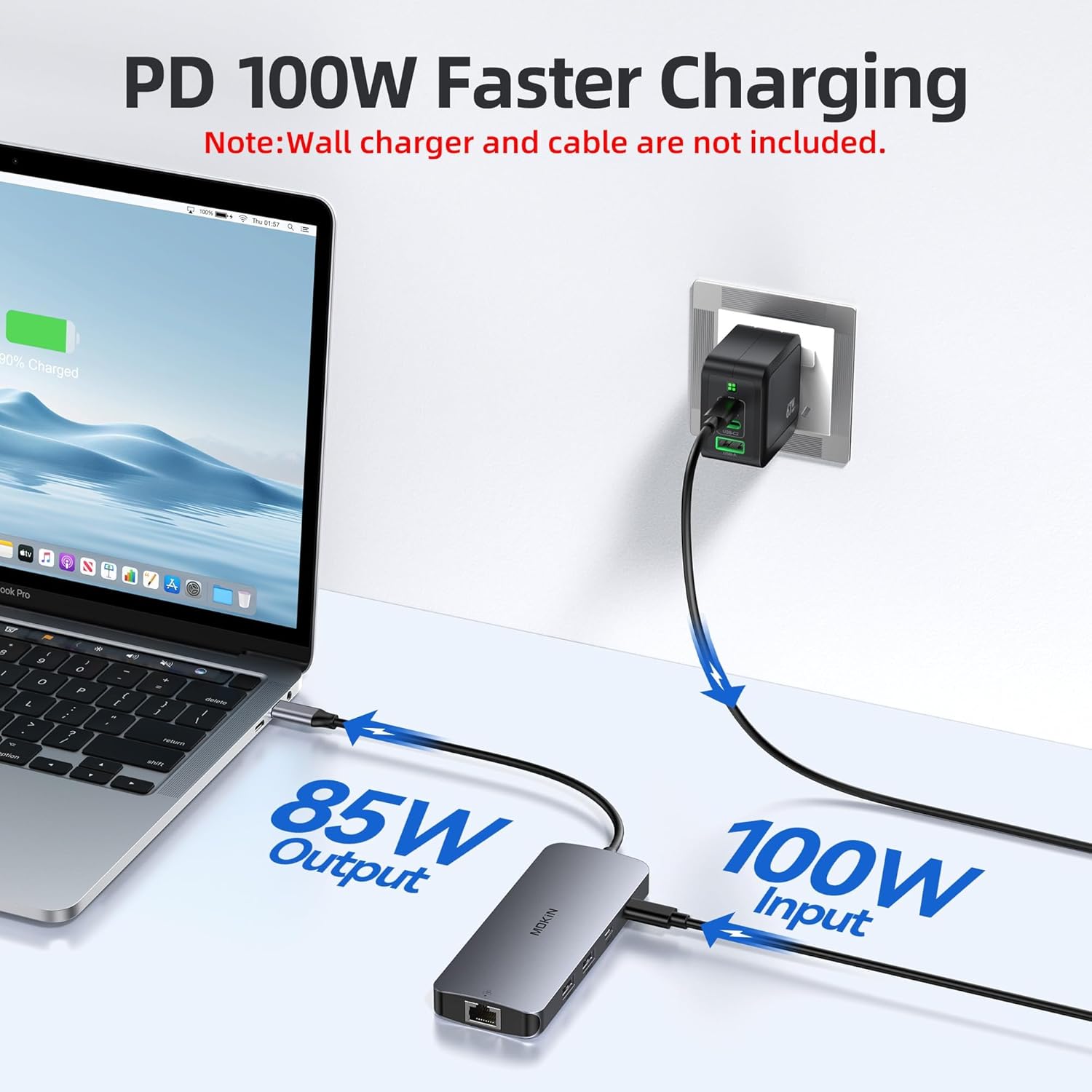
What stands out most is the combination of practical desk extras: dual HDMI and one DisplayPort for triple-monitor layouts, a built-in RJ45 Ethernet port rated up to 1Gbps, and a USB mix for mouse/keyboard and other accessories. You also get a 100W USB-C PD charging port to keep your laptop topped up while docked.
It’s also relatively flexible for device matching because it’s described as compatible with a range of USB-C or Thunderbolt 3/4 laptops, including popular lines like Dell XPS, Lenovo Yoga series and Surface models. If you work across home and office and want a consistent “one-cable” setup, this is the sort of dock that makes life easier.
That said, it’s not perfect for everyone. Triple-display performance and behaviour depend heavily on your laptop and operating system. If you’re on macOS and expecting three different external screens at once, you’ll need to think twice.
Tech specs
- Type: USB-C docking station / multiport adapter
- Format: Multi-monitor docking (dual HDMI + DisplayPort)
- Name: MOKiN USB C Docking Station 3 Monitors
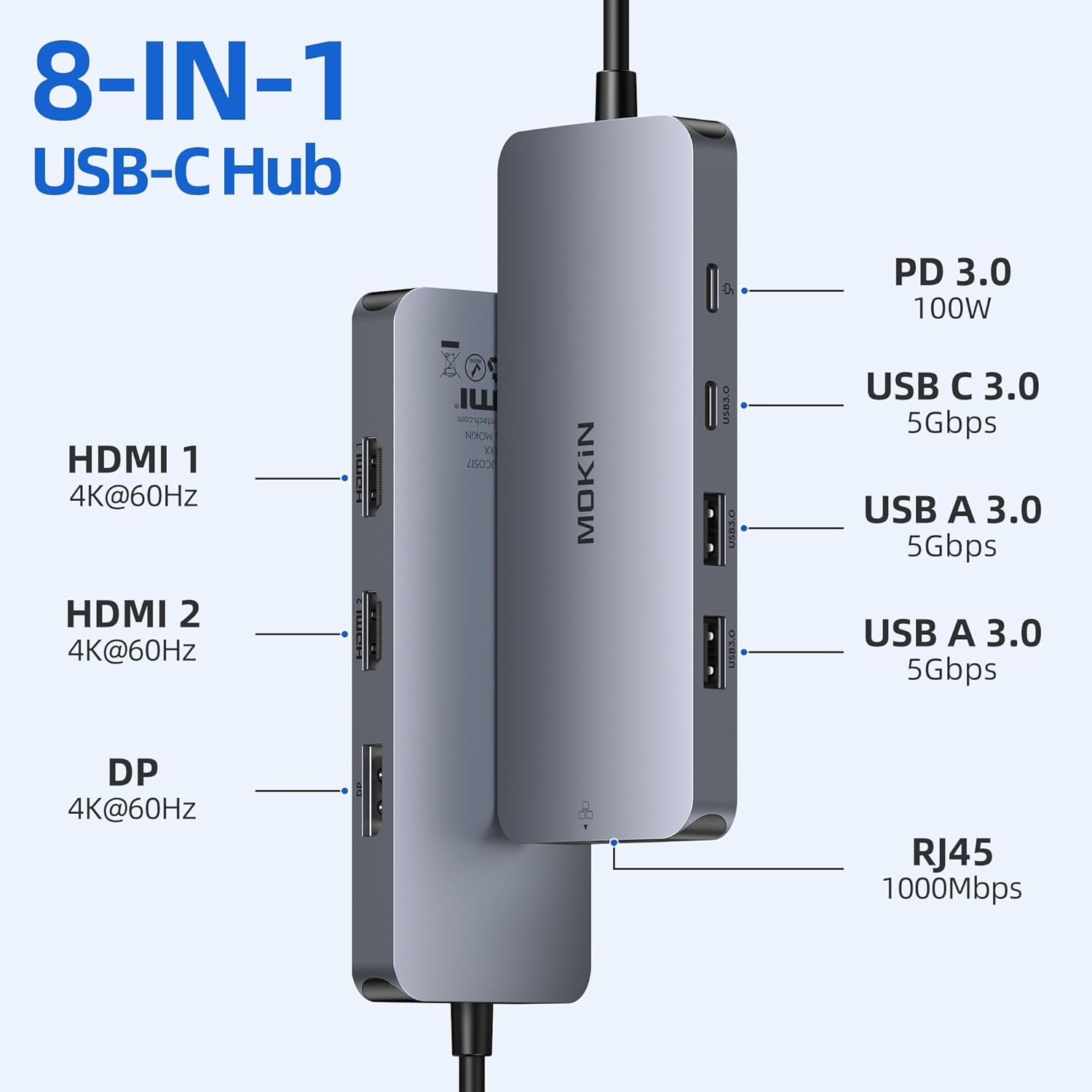
- Display outputs: 2x HDMI and 1x DisplayPort (triple monitor support)
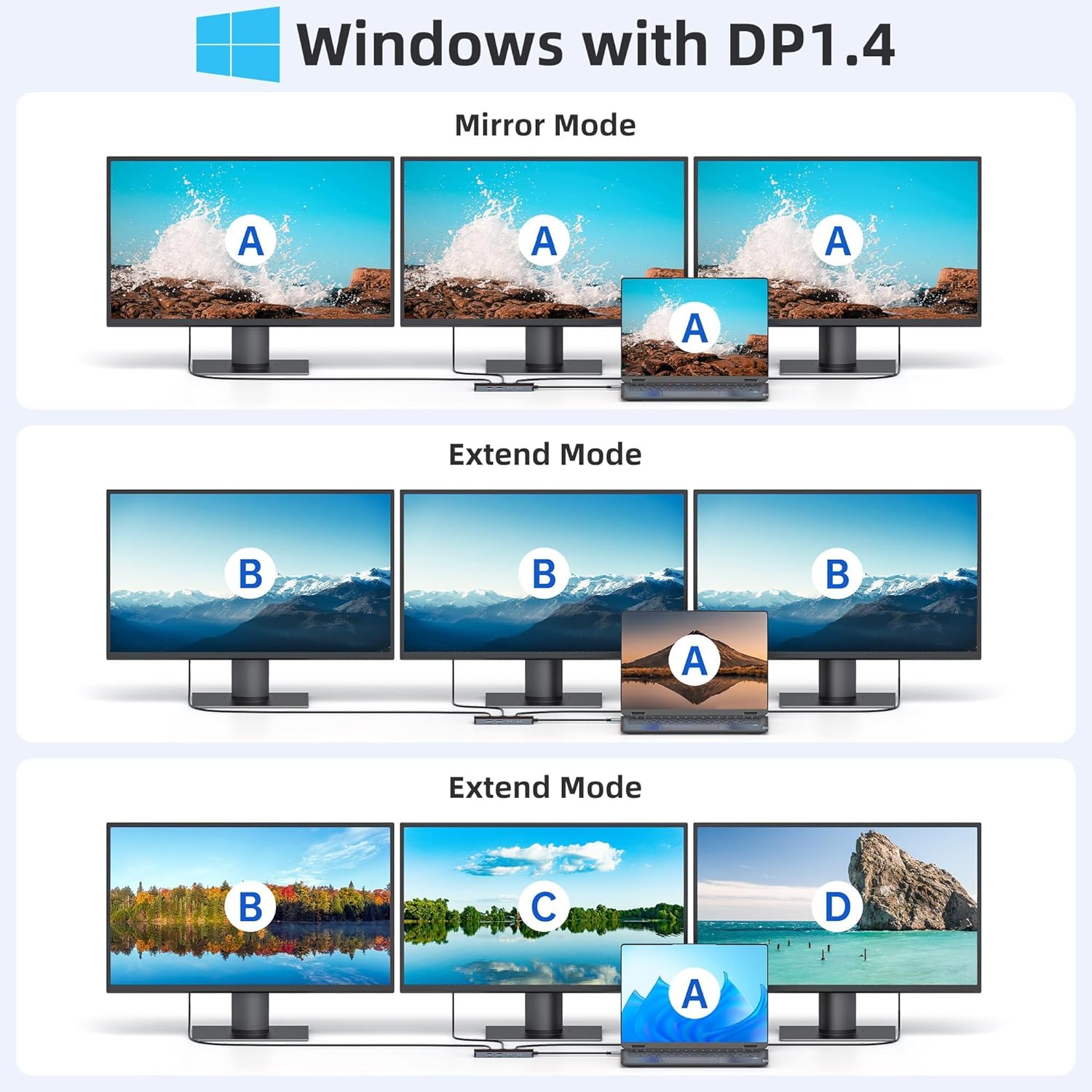
- Video modes: Windows MST and SST (mirror and extension)
- HDMI refresh/support: 4K60Hz (for each HDMI)
- DisplayPort refresh/support: 4K60Hz
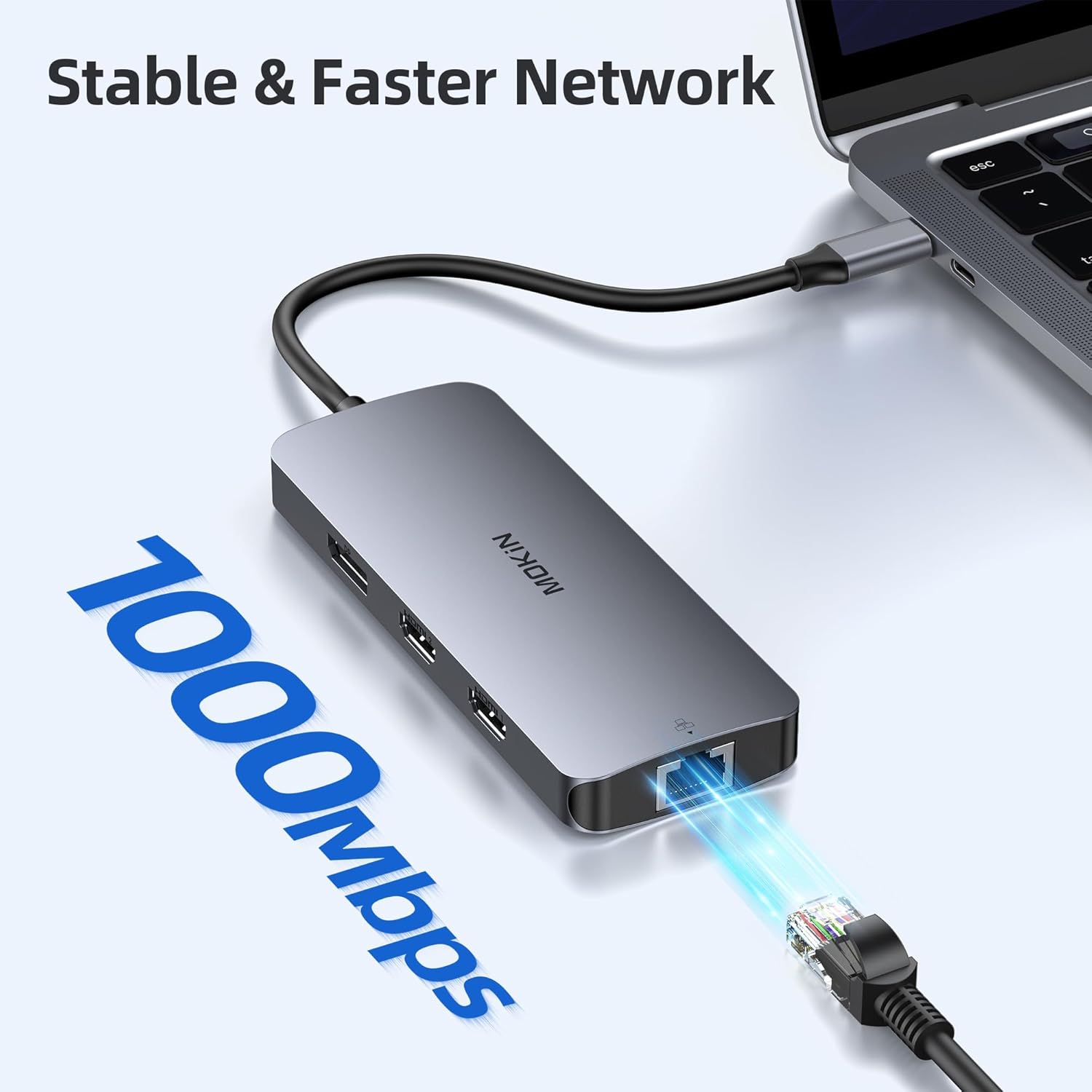
- Ethernet: RJ45 up to 1Gbps
- Charging: 100W PD charging (input 100W, output 85W)
- USB ports: 1x USB-C 3.0 and 2x USB-A 3.0
- USB data speed: up to 5Gbps
What you’ll notice day to day
In everyday use, this dock is most compelling when you set up your monitors, Ethernet and peripherals once, then just dock/undock your laptop. For example, you could run one HDMI screen for a main work window, the second HDMI for documents or chat tools, and the DisplayPort screen for spreadsheets or a calendar—then plug in your keyboard and mouse via the USB-A ports. Ethernet also tends to feel more stable than relying on Wi‑Fi, especially for video calls or large file transfers.
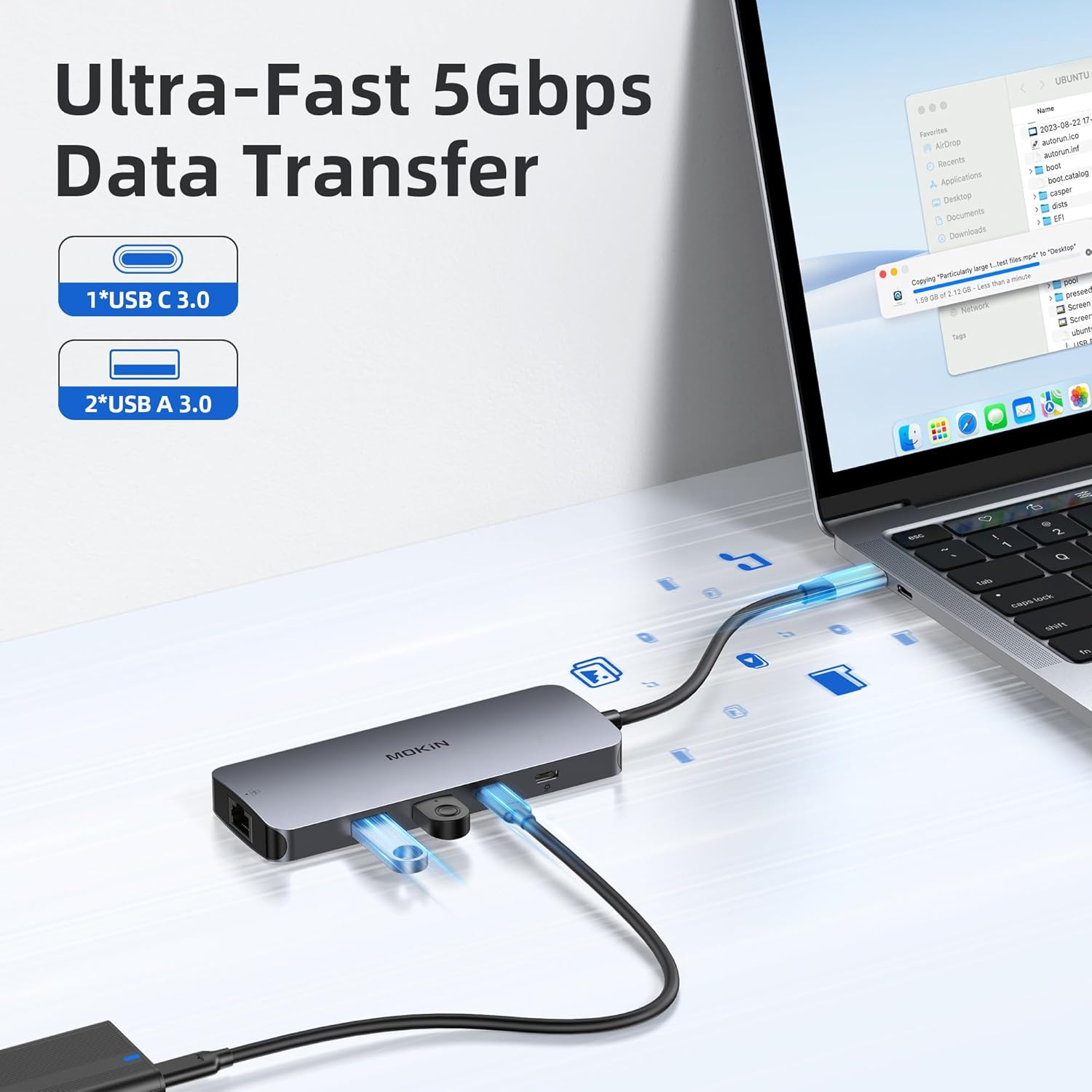
The USB-C 3.0 and USB-A 3.0 ports are specified as up to 5Gbps, which is the kind of speed you’d expect for everyday accessories like a mouse, keyboard or basic storage transfers.
The PD charging is intended to keep your laptop powered while you work. Just bear in mind the docking’s notes: the second USB-C port is described as for data transfer only, not as power or monitor expansion.
Where it shines (and where it may not)
It’s a good fit if you want a straightforward triple-monitor dock with both HDMI and DisplayPort options, plus a built-in gigabit Ethernet connection and USB ports for desk peripherals. It suits office work, home setups and anyone who prefers a consistent cable layout rather than plugging multiple leads into the laptop every time.
It may not be the best choice if you’re mainly using macOS and you expect true triple-screen output. The guidance provided says macOS is only compatible with mirror and non-mirror modes, not triple-monitor support.
Also, keep expectations realistic: if your laptop doesn’t support the needed output mode for triple displays (or its graphics setup isn’t set up for it), the dock can only work within those limits. In other words, the dock helps, but it can’t override laptop compatibility.
Who it’s for
This is aimed at people who want a practical desk upgrade: triple-monitor productivity, wired networking, and charging in one place. It’s particularly relevant if you’re using a USB-C or Thunderbolt 3/4 laptop and you already own (or plan to buy) monitors that accept HDMI and/or DisplayPort.
If you’re running a simpler single-monitor workflow, you might find a smaller dock is enough. If you need advanced graphics features beyond standard MST/SST behaviour, you’ll want to verify compatibility and display mode expectations first.
Is it worth it?
Buy it if you want a desktop-style USB-C docking station that can handle up to three monitors via 2x HDMI and 1x DisplayPort, includes an RJ45 Ethernet port up to 1Gbps, and provides USB-C PD charging (rated input 100W, output 85W) for keeping your laptop powered while docked.
Skip it if you’re on macOS and triple-monitor support is your main requirement, because the notes say macOS isn’t compatible with triple display here. Also consider skipping if you don’t have a laptop that can actually use the docking’s Windows MST/SST modes for the extended or mirrored layouts you want.
Worth considering if you’re setting up a home office or office station and you value plug-in convenience more than experimenting with settings every day.
Mini FAQ
Is it suitable for triple monitors on Windows?
The dock is described as supporting Windows MST and SST, including mirror and extension modes, so it’s intended for triple-monitor use on compatible Windows laptops.
Does it work with macOS for three external displays?
No—macOS is noted as not compatible with triple-monitor support here. It’s described as compatible with mirror and non-mirror behaviour rather than full triple-screen.
How fast is the Ethernet port?
The RJ45 Ethernet is specified as up to 1Gbps.
Does the dock charge the laptop?
Yes, it includes USB-C PD charging. The stated input is 100W and the output is 85W.
Are the USB-C and USB-A ports good for peripherals?
They’re specified as USB 3.0 ports with data transfer speeds up to 5Gbps, which suits common peripherals and typical desk accessories.