

Belkin Triple Display DisplayLink Docking Station Hub with 3x HDMI, 2x DisplayPort, Gigabit Ethernet and 85W Power Delivery
Product description
The essentials
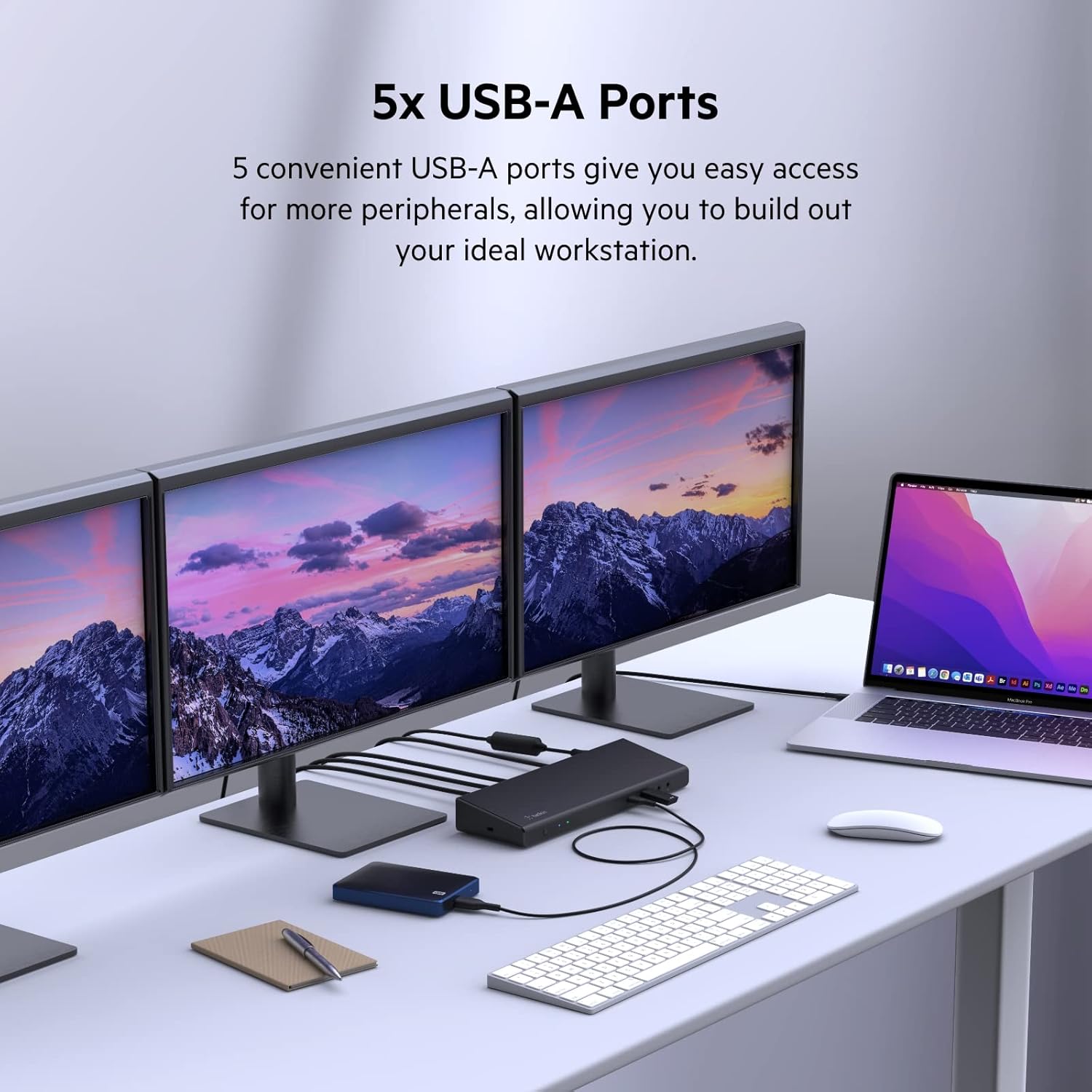
If you regularly work between a laptop and a proper desk setup, a triple-display dock can be the difference between “fine” and actually productive. This Belkin triple display docking station is built around a single USB-C connection and is designed to extend your workstation to up to three external screens using a mix of 3x HDMI and 2x DisplayPort video ports.
What makes it stand out on paper is the DisplayLink approach for universal display connectivity, plus a fairly chunky set of extras: 5x USB-A ports, an additional USB-C port, Gigabit Ethernet, and audio in/out. It also includes power delivery, aiming for up to 85W pass-through charging while you run peripherals and displays.
That said, it’s not a magic wand. Triple-screen setups depend on your laptop, software, and how you plan to use those monitors. DisplayLink solutions tend to behave well for general desktop work, but they may not be the first choice if your priority is the lowest possible latency or highly demanding, latency-sensitive graphics.
Key features that affect day-to-day use
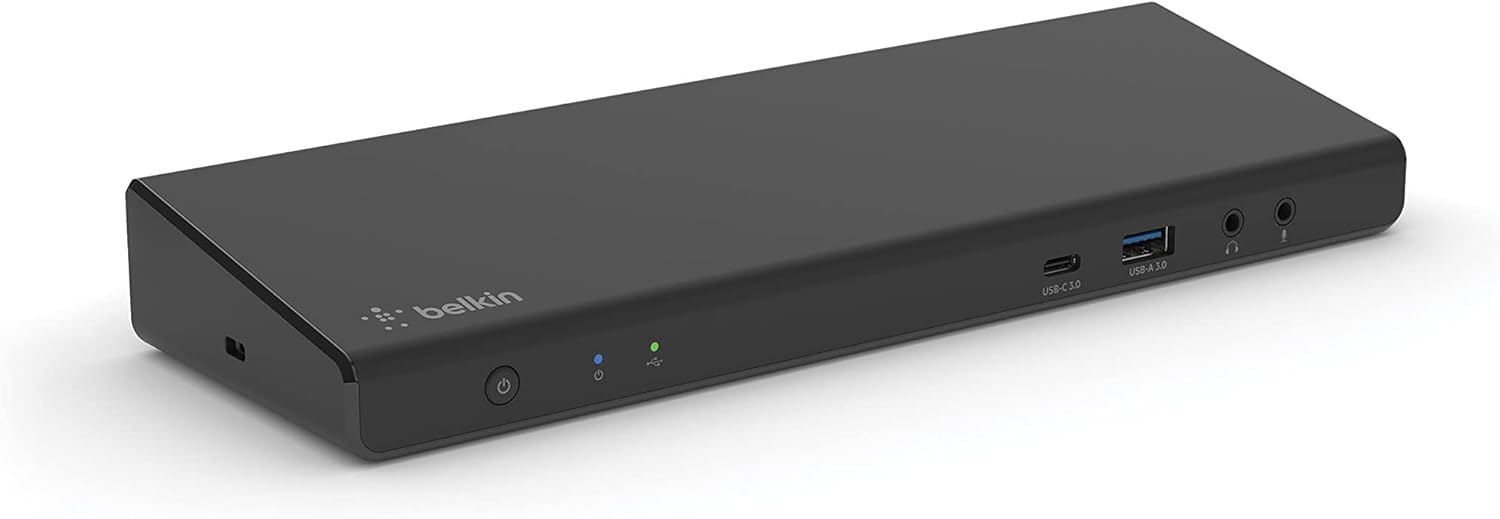
This dock is the “desk hub” type of device rather than a minimal connector.
On the display side, you get a total of 5 video outputs (3 HDMI + 2 DisplayPort) and support for connecting up to three extended displays. The stated maximum is up to 4K video resolutions, which is useful if you’re trying to build a modern multi-screen workspace.
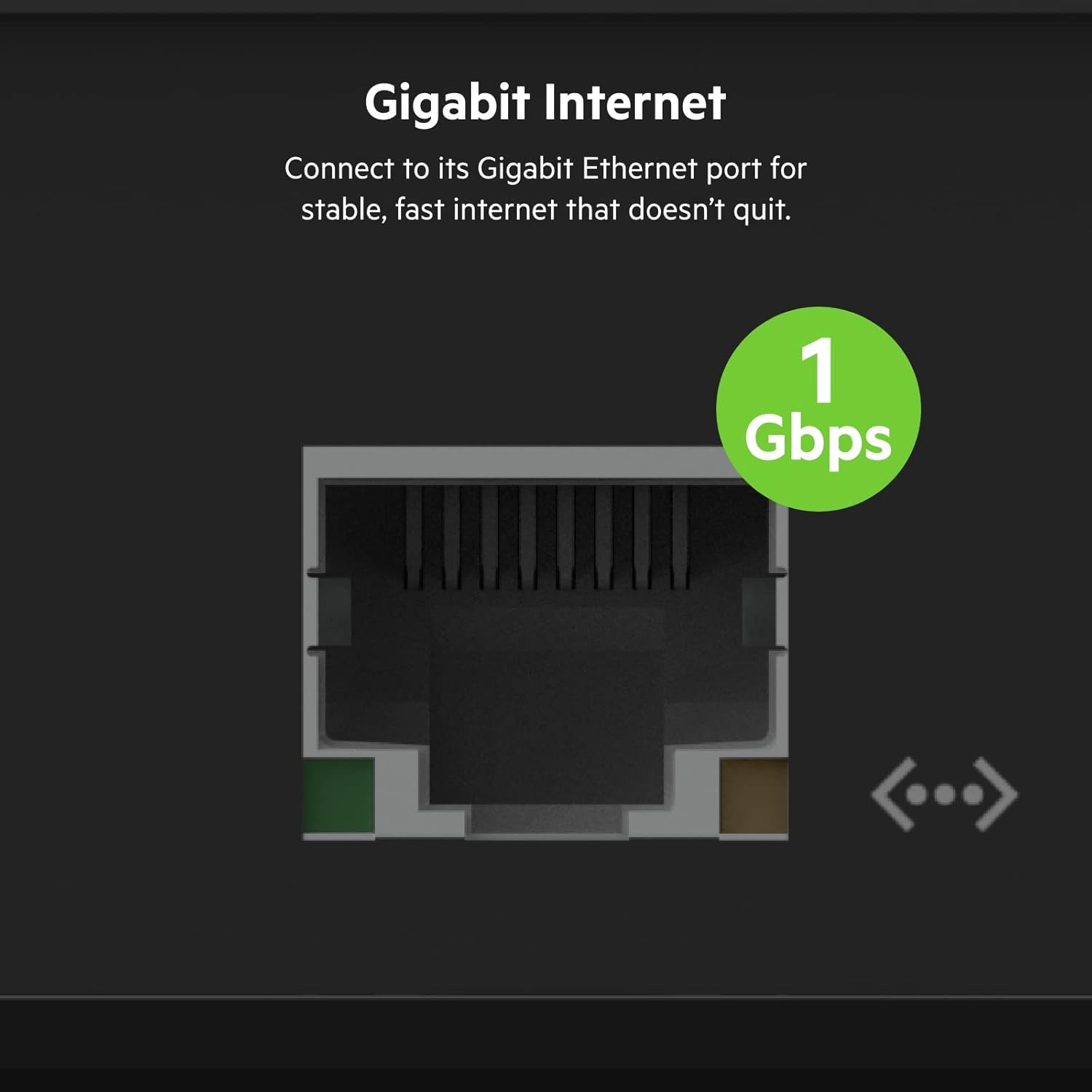
On the connectivity side, you also get Gigabit Ethernet for stable wired networking—handy if Wi-Fi can be flaky in your office or if you’d rather keep calls and transfers consistent.
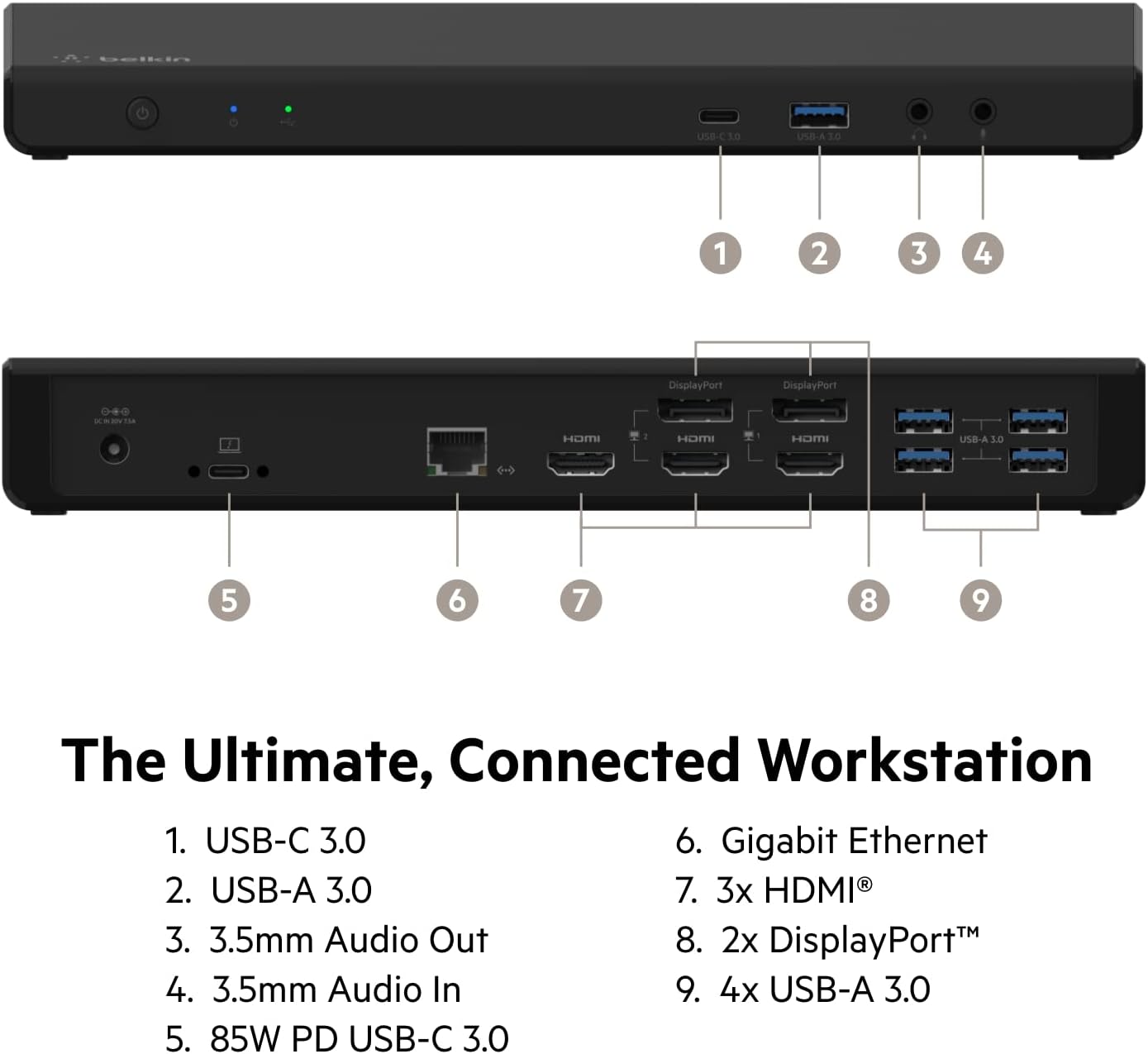
And for peripherals, there are 5x USB-A ports plus 1 USB-C port. The practical benefit is that you can leave your keyboard, mouse, external storage, and card reader plugged in at the dock instead of constantly swapping cables.
For audio, there are audio in/out ports. If you use speakers or a headset with a wired connection, this can tidy up your setup.
Power delivery and charging expectations
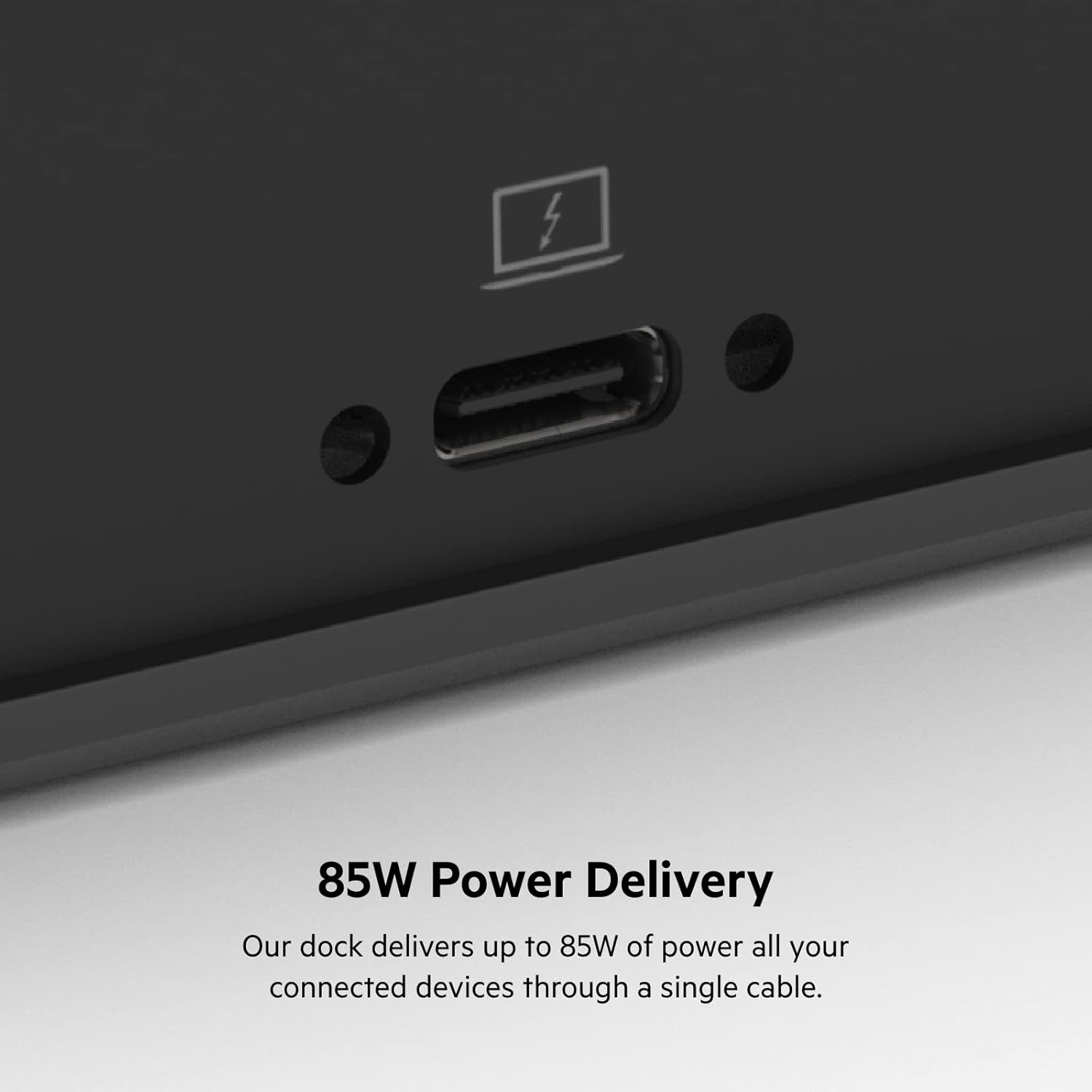
The dock includes up to 85W Power Delivery. The key phrase here is “simultaneous pass-through charge”, meaning you can power your laptop while also running connected devices.
The realistic limitation: the actual charging behaviour you see will depend on your laptop’s power requirements and what else you’re connected to the dock. If you have a higher-wattage laptop or plan to drive power-hungry USB devices, it’s worth thinking about whether 85W will cover your typical usage comfortably.
It includes a 150W power supply unit and the USB-C to USB-C cable needed to keep the docking station powered and charging your laptop.
What to know about DisplayLink universal connectivity
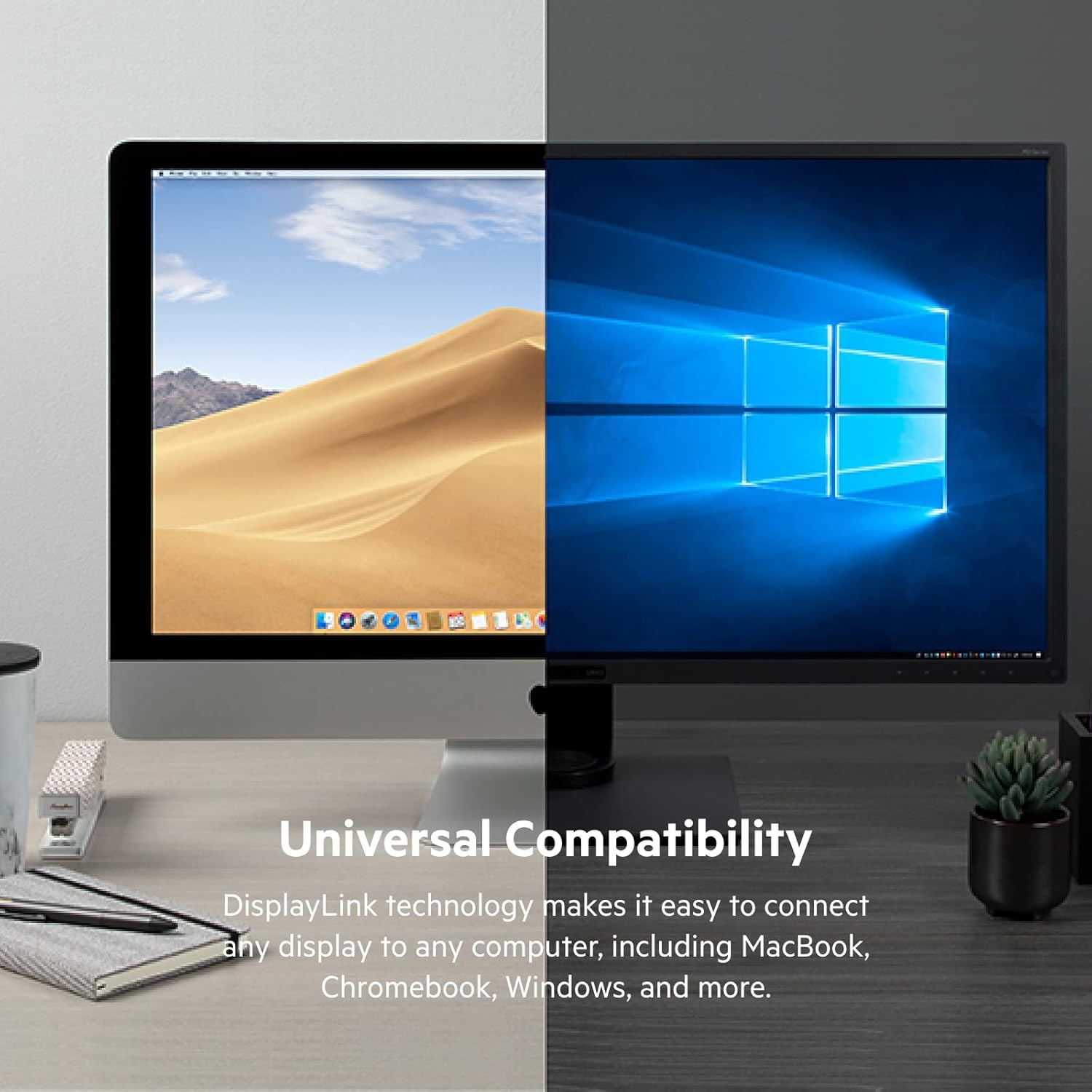
Belkin positions this dock for universal display connectivity across different laptop types, including MacBook (including MacBook Pro 14” M2 Pro and MacBook Pro 16” M2 Max), Chromebook, and Windows laptops, using DisplayLink technology.

This is where it can be a strong fit: if you want one docking approach that’s less tied to a specific laptop brand’s native video-out behaviour, DisplayLink is often the route people take when they’re building a consistent desk setup.
Still, it’s worth keeping expectations sensible. DisplayLink performance can vary by workload—think general desktop use, productivity apps, and multi-window workflows. If your work involves graphics-heavy, real-time 3D, or tasks where ultra-low latency is critical, you may want to check how DisplayLink behaves in your specific scenario before committing.
Tech specs
- Type: USB-C docking station with DisplayLink
- Video ports: 3x HDMI and 2x DisplayPort
- Display support: up to 3 extended displays
- Max video resolution: up to 4K
- Power delivery: up to 85W pass-through charging
- USB ports: 1x USB-C and 5x USB-A
- Network: Gigabit Ethernet
- Audio: 3.5mm mic/speaker audio in/out
- Data transfer: up to 5Gbps
- Power supply included: 150W power supply unit
- Cable included: USB-C to USB-C cable
Who it’s for (and who should skip it)
It makes sense if you want to run a triple-display workstation with one USB-C cable and you value the “everything in one place” layout: Ethernet, multiple USB-A devices, and audio alongside the monitors.
It may not be the best match if: - You only need one or two screens and want something simpler and cheaper. - You’re doing latency-sensitive, high-end graphics work where display technology choice can matter more. - You expect the highest possible performance for every content type without any trade-offs.
It’s a solid fit if you’re setting up a home office, a multi-screen productivity desk, or a workplace where different laptop types may be used and you want a consistent docking experience.
Usage tips
When you’re setting this up, a sensible approach is to connect everything in stages: start with the laptop and one monitor first, confirm the display is working, then add the second and third displays. This reduces the chance of fiddly troubleshooting when multiple cables are involved.
A practical example: imagine a typical desk layout where you keep documents on one screen, a spreadsheet on another, and communication tools on the third. With the dock’s multiple video outputs and USB ports, you can keep your peripherals connected permanently, then only plug in a single USB-C cable when you sit down.
Also, if you rely on stable internet for calls or file transfers, using the Gigabit Ethernet port can be a noticeable quality-of-life upgrade versus Wi-Fi.
Quick FAQ
Final verdict
A Belkin triple display DisplayLink docking station is a purchase worth considering if you want universal multi-monitor connectivity via one USB-C connection, plus Gigabit Ethernet and plenty of USB ports, while also charging your laptop with up to 85W power delivery.
It’s not the ideal choice if you only need basic connectivity for one display, or if your work is extremely latency-sensitive and you want to avoid any potential compromise that sometimes comes with DisplayLink-style solutions. If your goal is a comfortable, desk-ready triple-screen setup for productivity, this fits the brief pretty well—just make sure it aligns with your laptop and the way you actually use those displays.