

Dell 27 Monitor S2725QC: 4K UHD IPS, 120Hz, FreeSync Premium
Product description
What it is
The Dell 27 Monitor S2725QC is a 27-inch 4K UHD display built around an IPS panel, aimed at delivering sharp visuals and accurate color for both work and entertainment. It emphasizes a smoother workflow with a high refresh rate and adaptive sync, while reducing eye strain during long sessions.
Why it matters
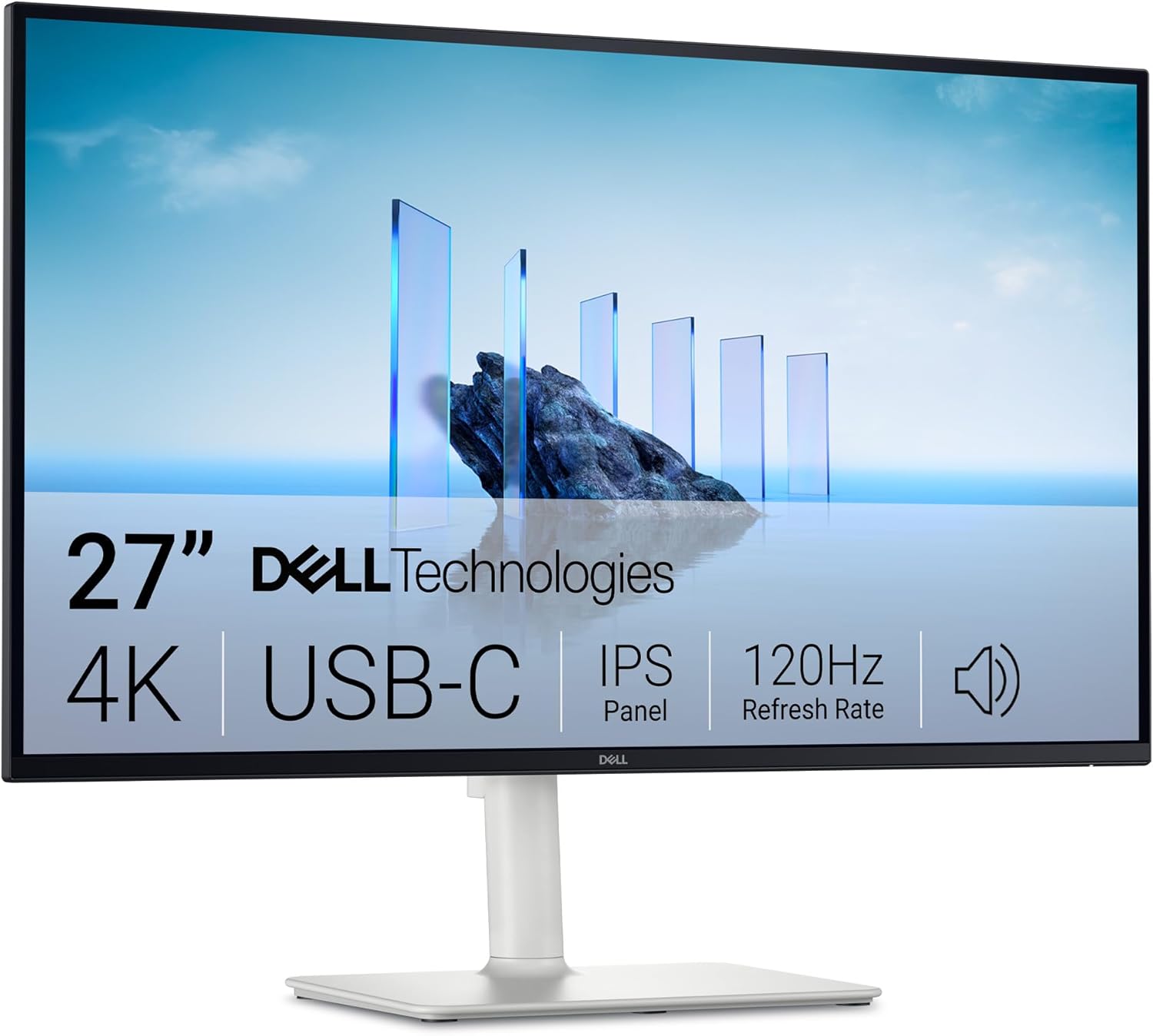
On paper, the combination of 4K resolution, 120Hz refresh with FreeSync Premium, and 99% sRGB coverage translates to crisp text, vibrant images, and responsive visuals. The ComfortView Plus low blue light feature promete color accuracy while aiming to reduce eye fatigue over extended use. If you’re juggling detailed design work, video editing, or immersive media, these specs can translate into clearer, more comfortable viewing and faster response in interactive tasks.
What stands out in everyday use
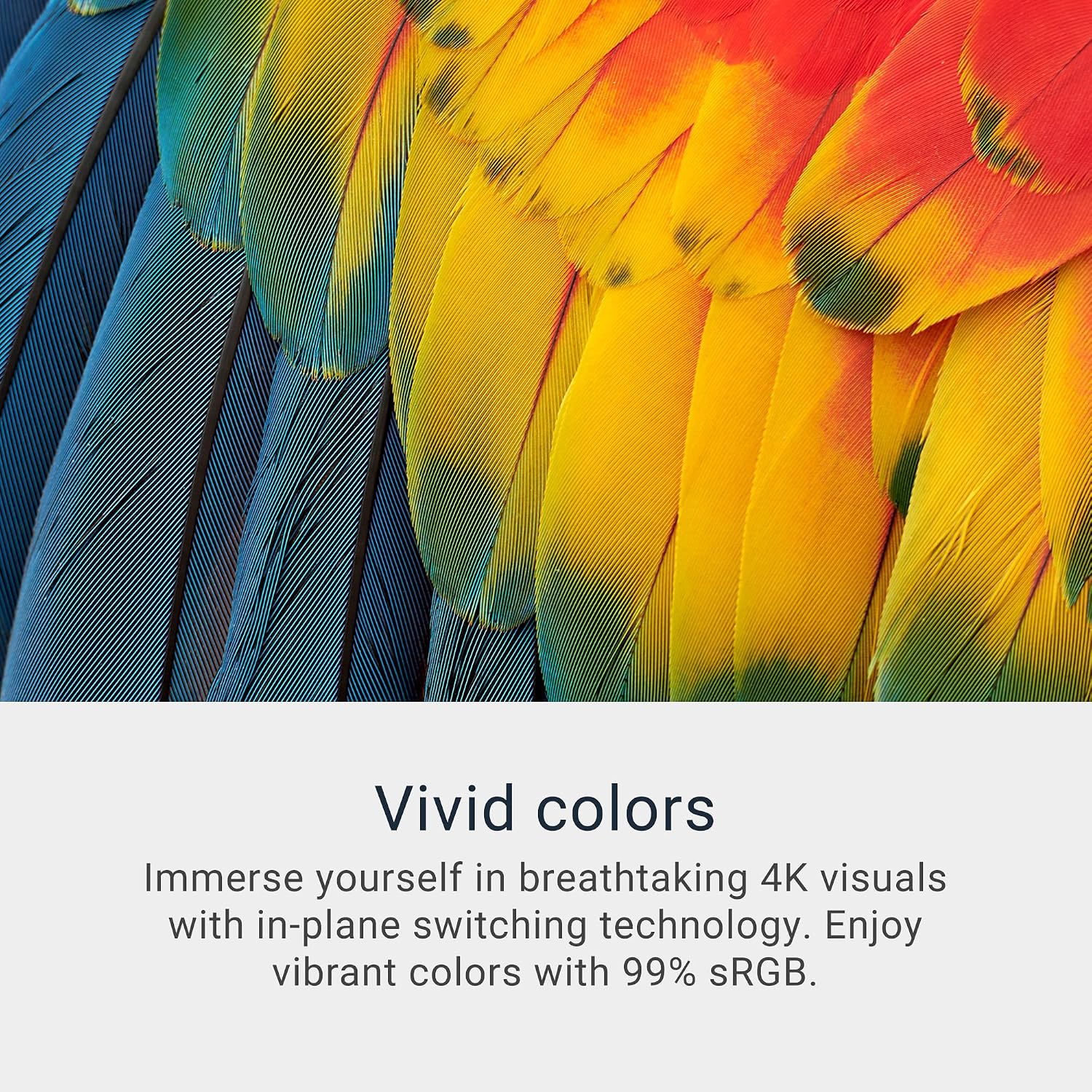
- Color and detail: 4K resolution and 99% sRGB help make graphics pop with depth thanks to a 1500:1 contrast ratio and HDR readiness.
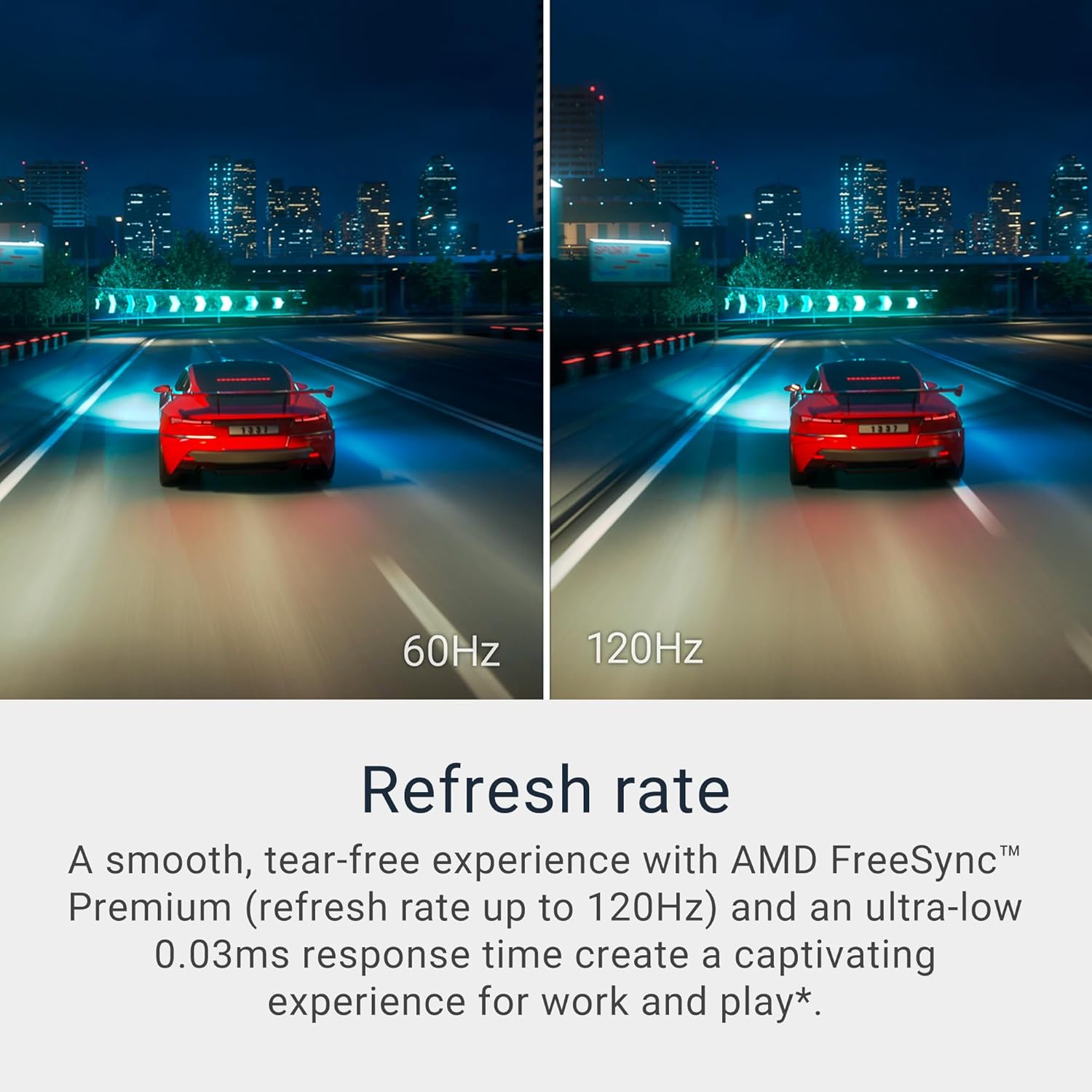
- Smoothness and speed: A tear-free experience with FreeSync Premium up to 120Hz, paired with a very quick 0.03ms response time in practice, reduces motion blur for fast-paced tasks or games.
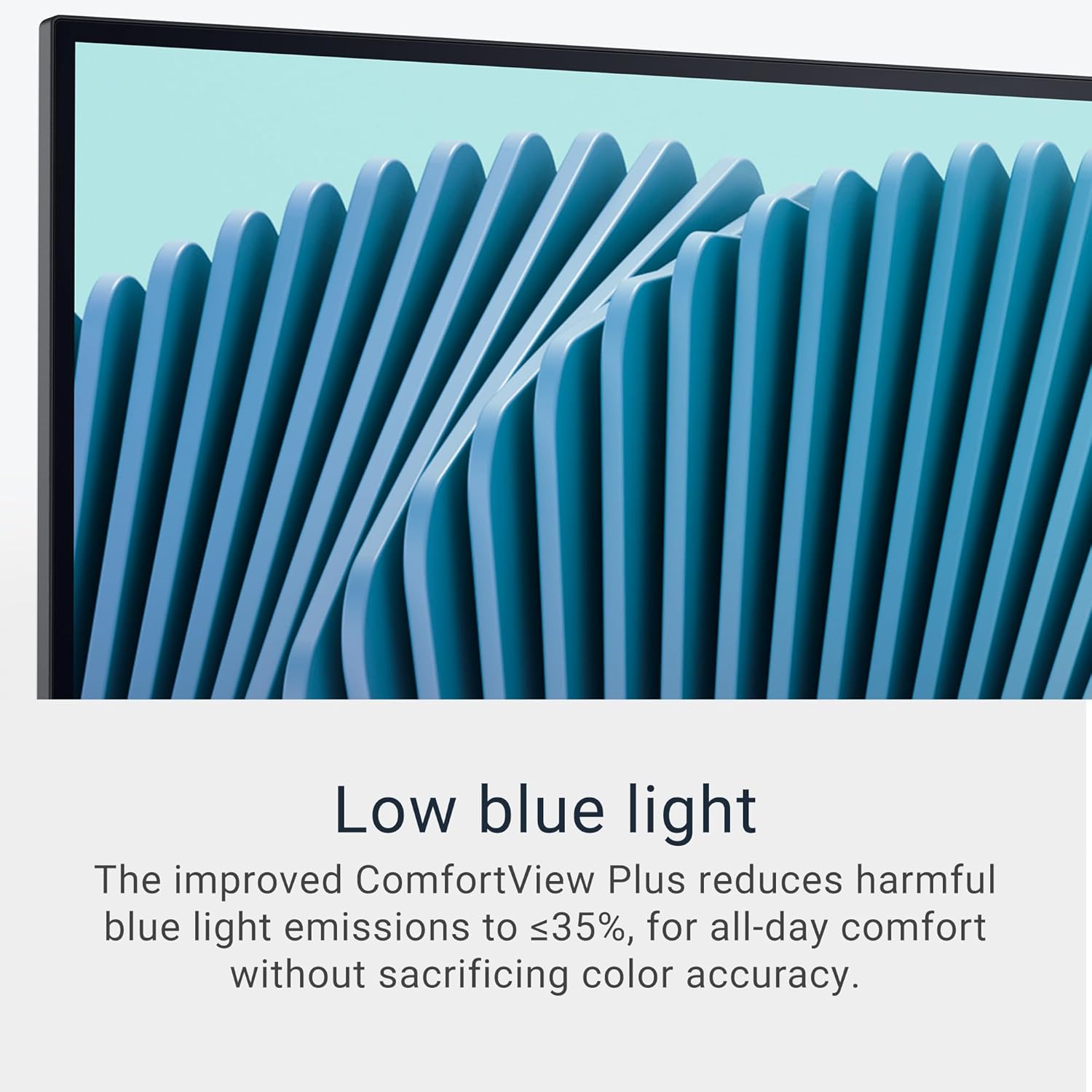
- Comfort and clarity: The ComfortView Plus implementation reduces blue light to ≤35% while attempting to keep colors accurate, which can matter for long hours in front of the screen.
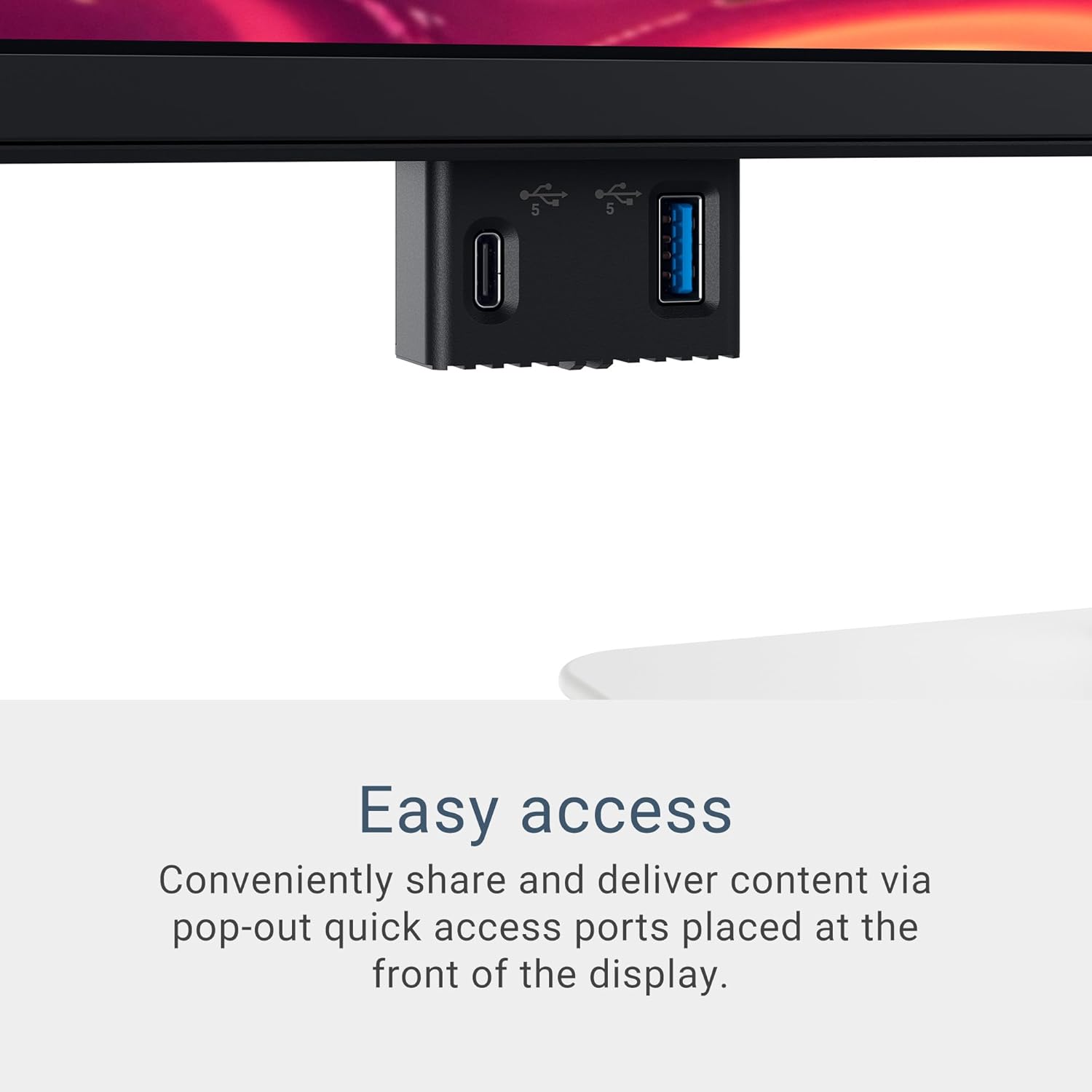
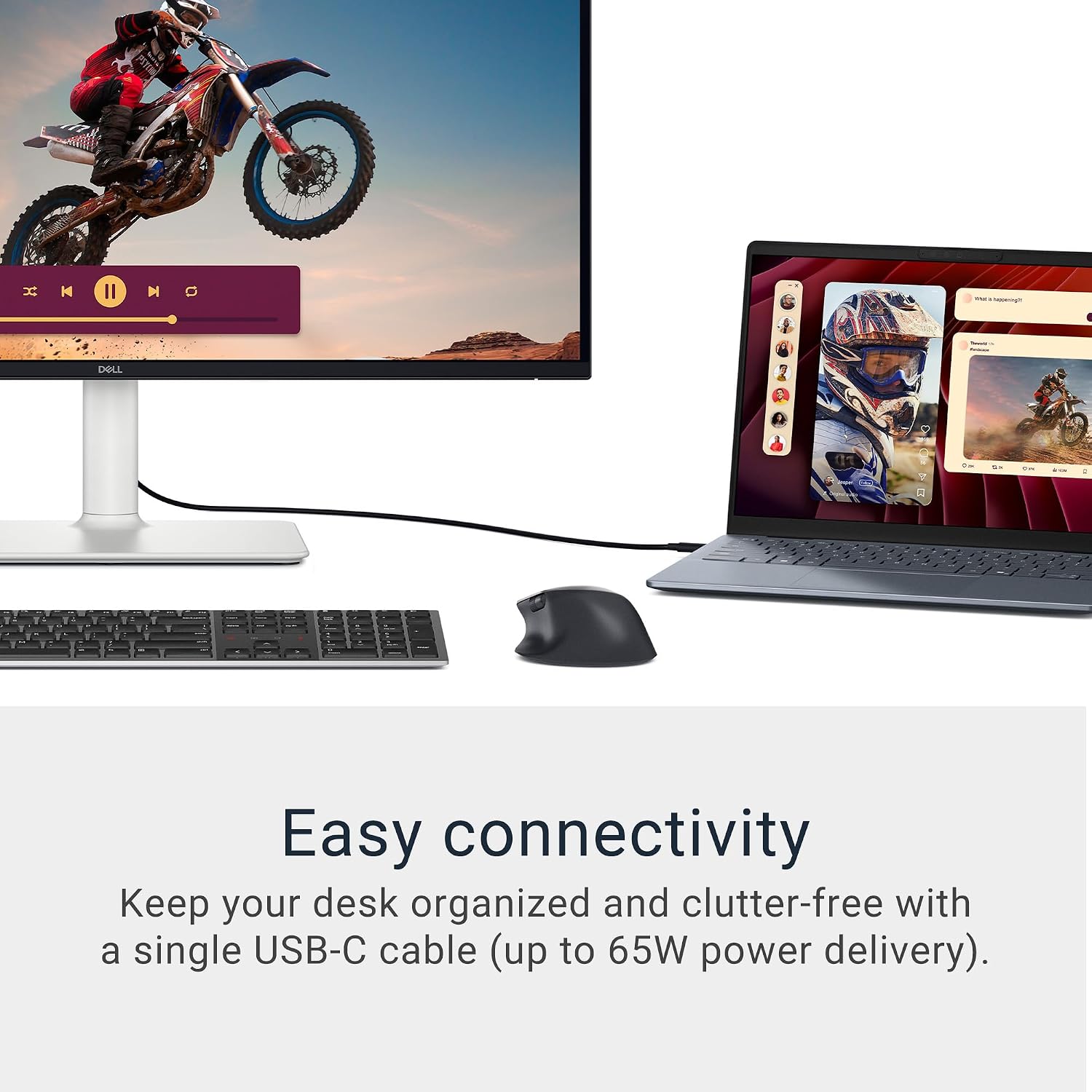
- Clean setup: USB-C connectivity can deliver up to 65W power, helping minimize cable clutter on a tidy desk.
What it’s best for
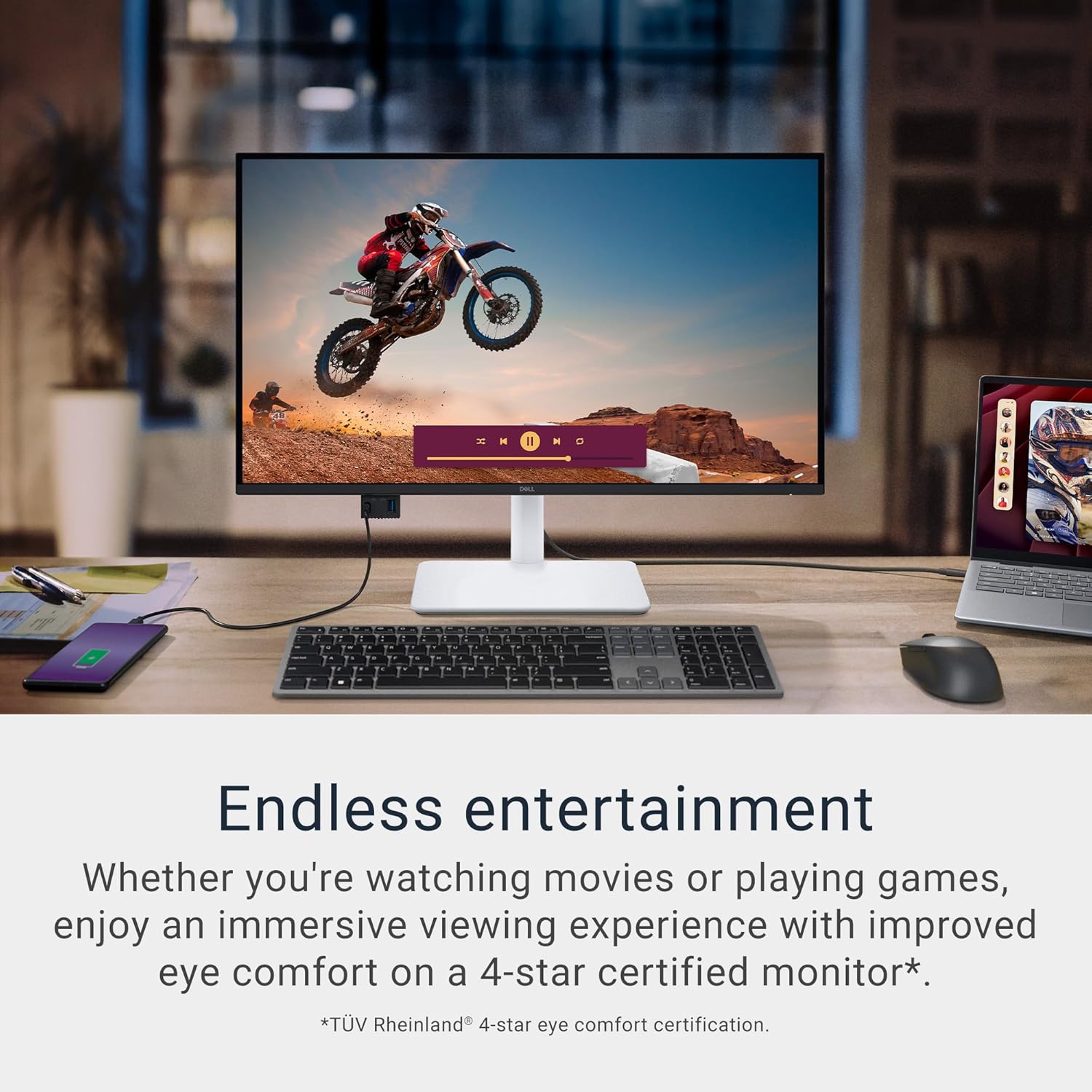
This monitor fits well for creators who need sharp 4K detail and reliable color, gamers who want a smooth, tear-free experience, and productivity users who value a large, crisp workspace. It’s also convenient if you want a single-cable setup for a cleaner desk.
Where it might fall short
Not every use case benefits equally. If you don’t need 4K or if your system’s GPU isn’t ready to drive 4K at high refresh, you might not feel the full benefit. Also, while ComfortView Plus helps reduce eye strain, it isn’t a magic cure for long sessions and the experience depends on ambient lighting and default color calibration.
Who it’s for and who might want to pass
- It’s worth considering if you’re doing color-critical work at a desktop scale, enjoy high-detail content, or want a flexible USB-C workflow.
- If you primarily rely on a budget setup, or you’re prioritizing portability over screen real estate and color depth, you may find other options that better fit those needs.
What to check before buying
- Ensure your computer can push 4K at 120Hz or be comfortable stepping down to a practical 4K/60Hz depending on your GPU.
- Consider how you’ll calibrate colors for your workflow, and whether you’ll rely on the monitor’s HDR readiness or a separate color workflow.
- Look at your desk space and mounting options to confirm the stand and VESA compatibility meet your setup.
How it compares to common alternatives
Compared to standard 1080p or 1440p displays, this model trades a higher pixel density and richer color for more GPU demand. If you want “heavy duty” 4K with a high refresh rate, this is a strong mid-to-high range option for mixed use (work + play). For pure gaming at high frame rates, ensure your GPU can drive 4K120 efficiently, otherwise, you may prioritize a 1440p or 4K60 setup with a higher headroom in graphics power.
Practical usage example
Imagine editing a 4K video: you’ll notice fine details in textures and smoother gradient transitions, which helps you make precise color tweaks. In a work sprint, the large, crisp text makes reading long documents more comfortable, and switching between apps with reduced motion blur can feel quicker.
Final decision
Is it worth it? If you prioritize a high-resolution, color-accurate display with a responsive gaming edge and a clean USB-C workflow, this Dell monitor offers a compelling balance of features. It may not be the best choice if your GPU won’t regularly drive 4K120 or if you’re strictly budget-focused.
FAQ
- How does ComfortView Plus affect color? It reduces blue light output to ≤35% while aiming to preserve color accuracy for daily use.
- Can I use USB-C to power my laptop? Yes, up to 65W power delivery via USB-C keeps your desk less cluttered.
- Is 120Hz beneficial at 4K? It helps with smoother motion in fast tasks and some games, but you’ll want a capable GPU to sustain high frame rates at 4K.