
Samsung 22” S40GD Borderless Business Monitor (LS22D402GANXGO) with IPS, 100Hz & Eye Saver Mode
Product description
If you want a clean, office-friendly monitor that still behaves nicely for videos and casual gaming, the Samsung 22” S40GD (LS22D402GANXGO) is built around exactly that idea. It pairs an IPS panel for consistent-looking colors with a 100Hz refresh rate meant to reduce lag and motion blur in fast moments. It’s not trying to be a deep esports machine, but on paper it feels like a solid “work + entertainment” setup.
The big question is whether this fits your desk habits. The spec sheet points to eye comfort (Eye Saver Mode and reduced screen flicker/blue light) and flexible positioning (height adjustment and pivot). If your current monitor is stuck at a bad angle or you often end up squinting during long sessions, that ergonomic design matters more than many people expect.
Key takeaways (what you’ll notice)
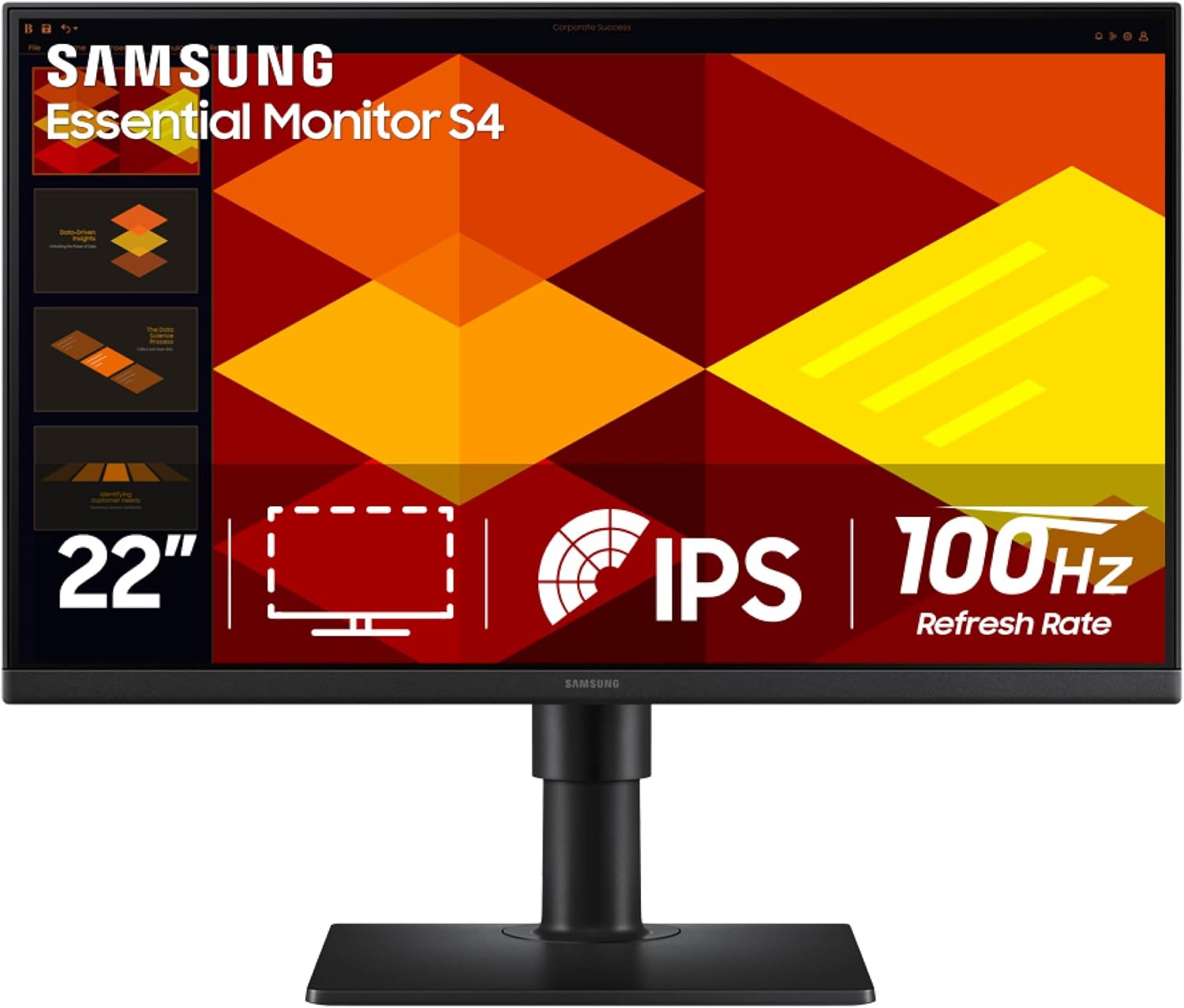
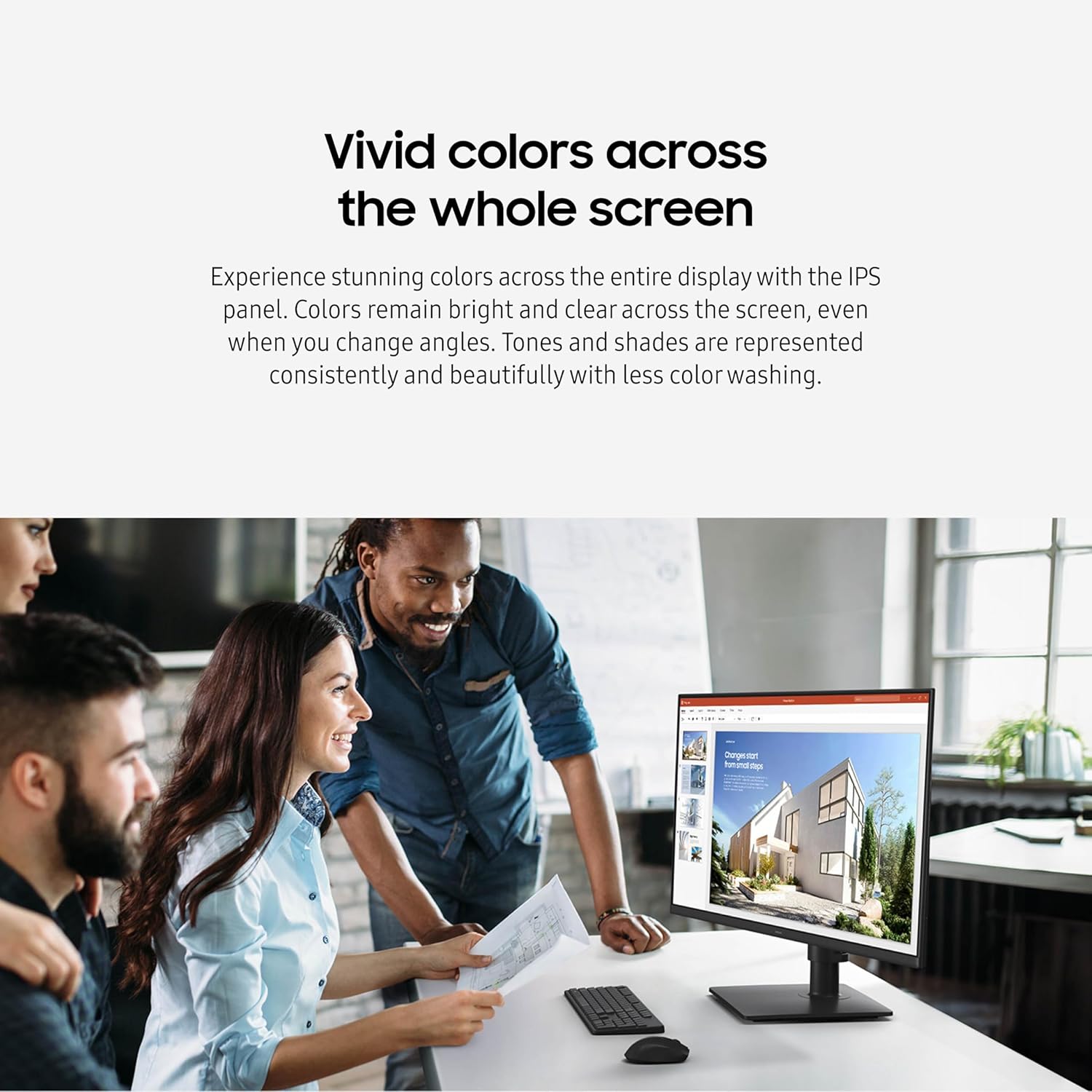
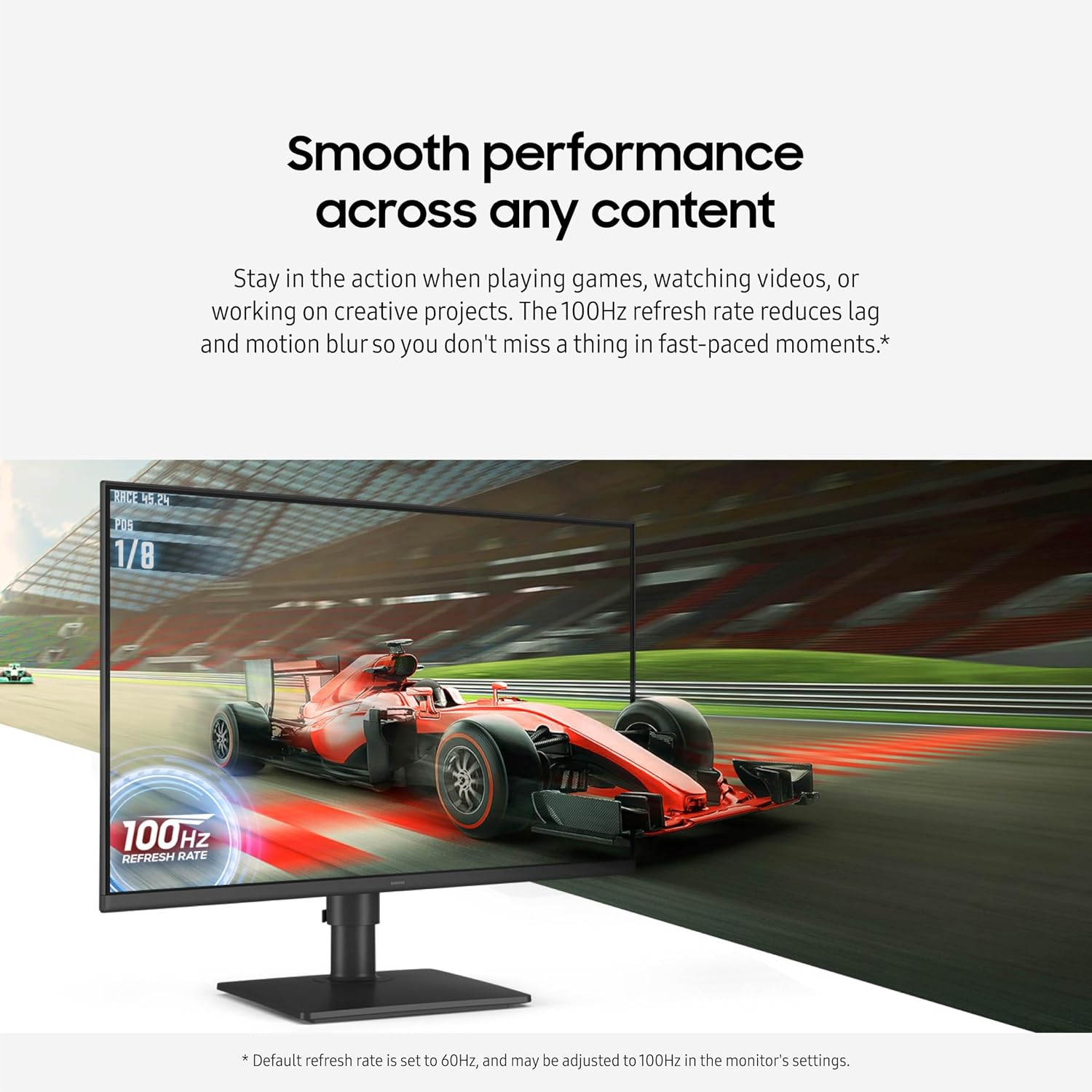
The IPS panel is the core reason colors look even across the screen, including from different angles. Pair that with a 100Hz refresh rate and the monitor aims to feel smoother when you’re moving through content—whether that’s browsing, watching videos, or playing. Samsung also includes Game Picture Mode with “optimized” game settings per genre, which can help you get a clearer picture without manually tweaking everything.
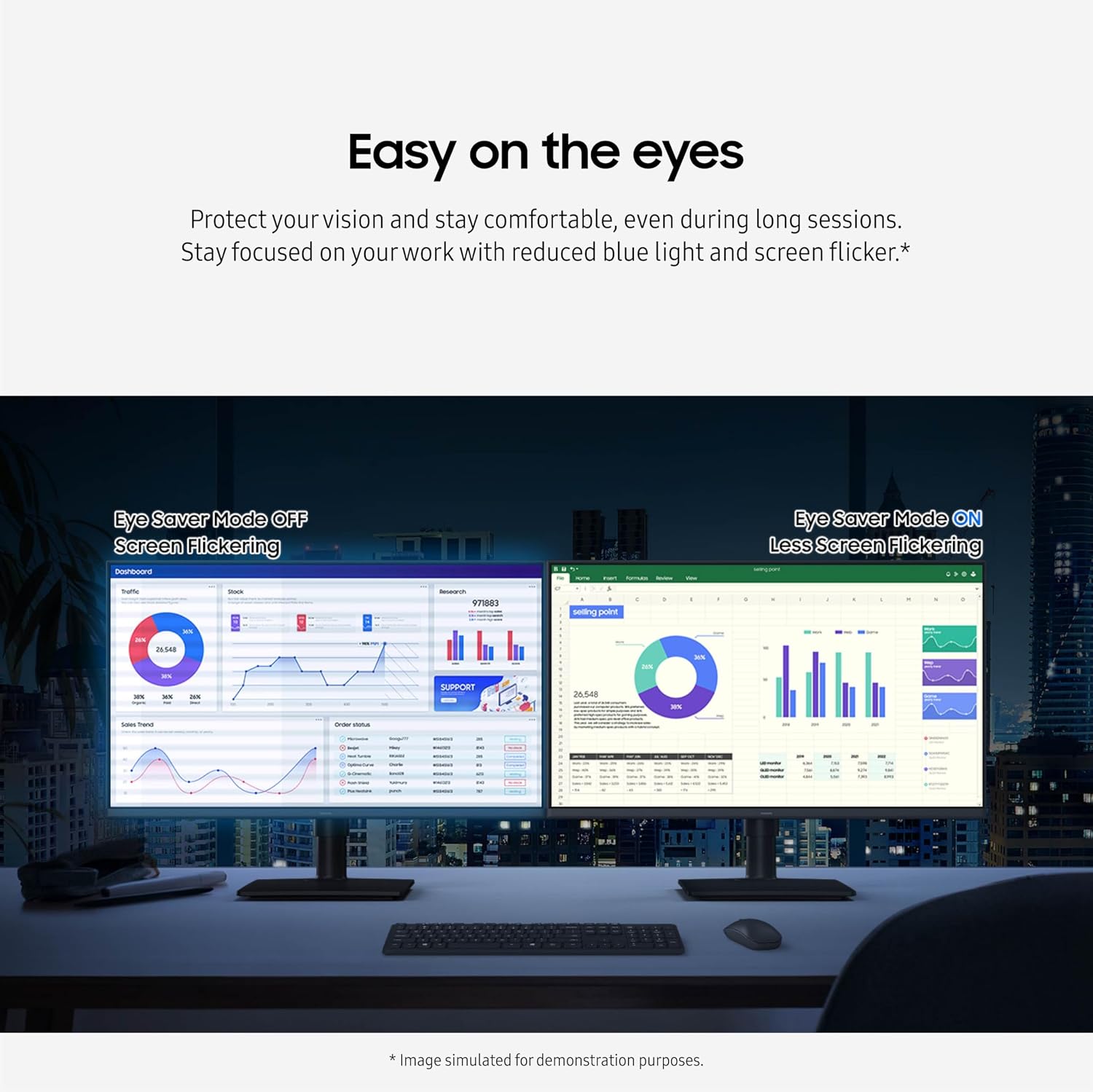
Comfort is another theme here. Eye Saver Mode is designed to reduce eye strain during longer sessions by cutting down on blue light and screen flicker. It’s the kind of feature you won’t “see” like a spec, but you may feel after a few hours at your desk.
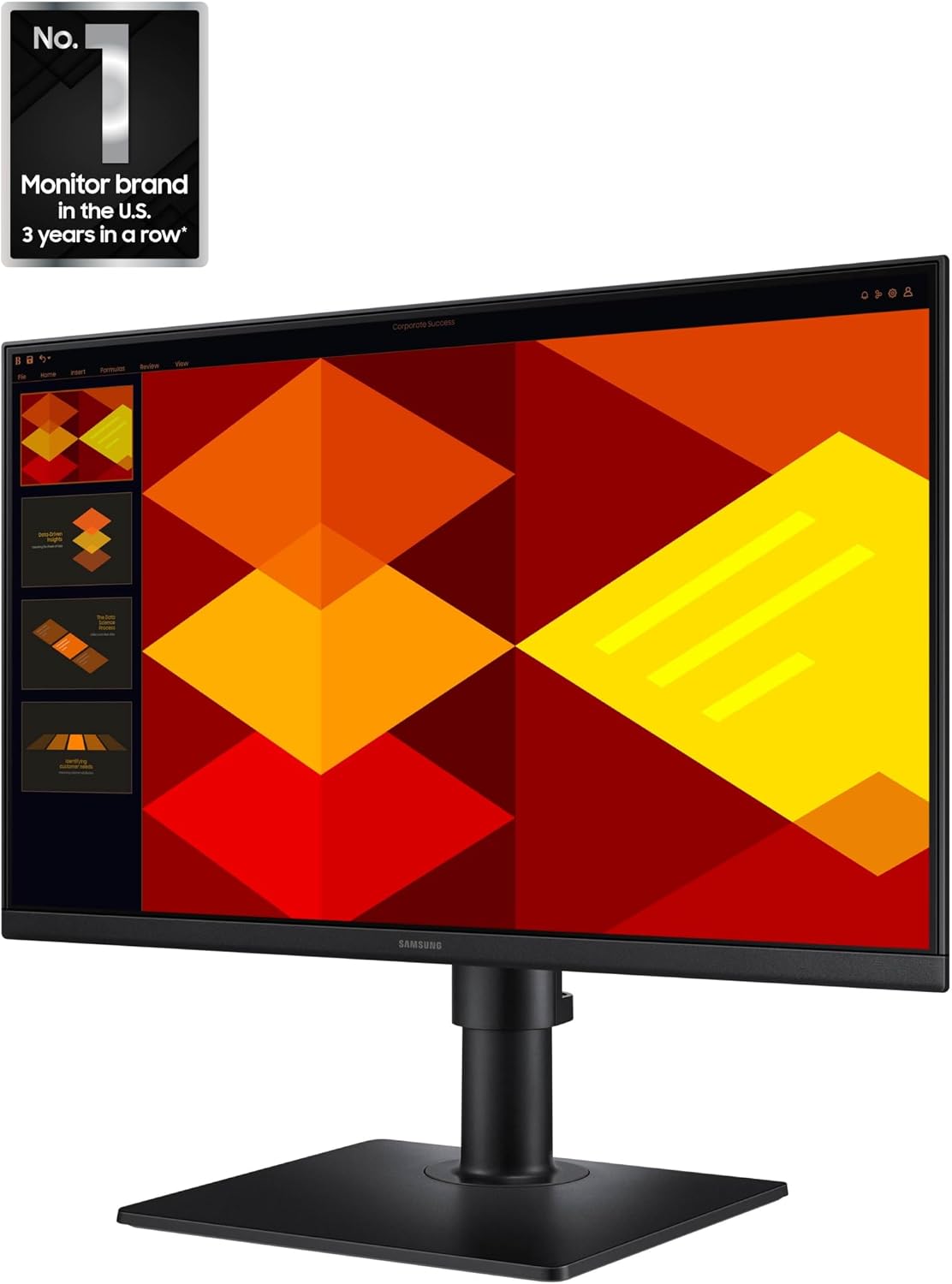
One more practical detail: the monitor is described as borderless with ultra-thin bezels, so it’s easier to integrate into a multi-screen workspace or just enjoy a bigger view area. The slim, modern look is likely meant to suit business environments too.
What stands out in daily use
The 100Hz refresh rate is the most performance-focused element mentioned. Over a 60Hz baseline, the difference can be noticeable in motion—especially for scrolling, fast video scenes, and games where you react quickly. Still, it’s worth keeping your expectations realistic: the marketing talks about reduced lag and motion blur, but there’s no mention of esports-grade response times, so it may land more in the middle of the pack for high-competitive play.
IPS is where this monitor tries to be forgiving. If your viewing angle changes—like when you lean back, sit slightly off-center, or share the screen—IPS is intended to keep colors bright and consistent, with less “color washing.” That’s a meaningful advantage compared to panels that fade quickly when you’re not perfectly centered.
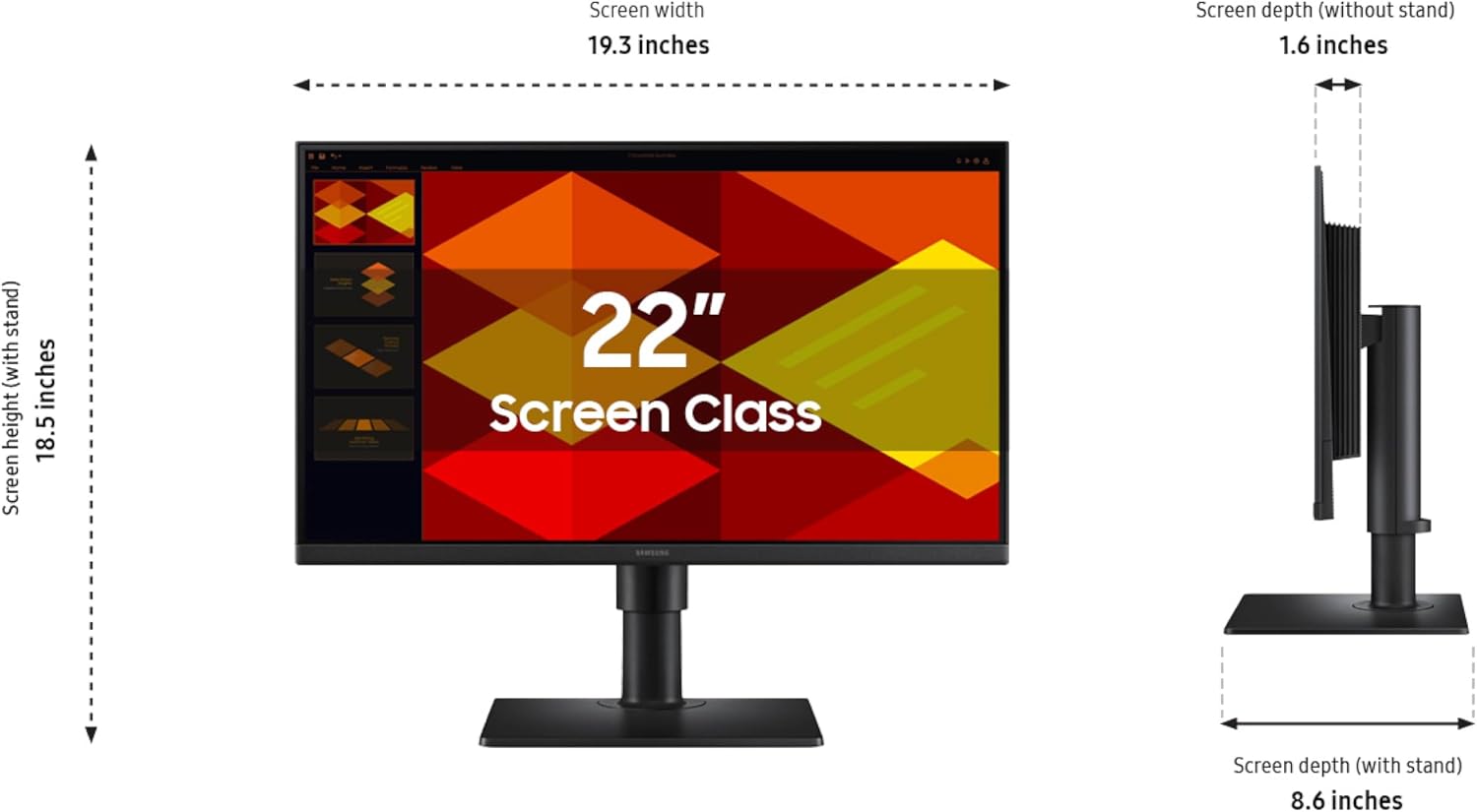
On the ergonomics side, the combination of height adjustment and pivot gives you more control than fixed stands. If you ever switch between standard and vertical orientation (for documents or certain layouts), the pivot capability is the sort of feature that makes the monitor feel more versatile over time.
Game Picture Mode and genre-based settings: helpful or gimmick?
Game Picture Mode is positioned as a way to quickly adapt the display for different types of games. The description also mentions you can adjust color and contrast to see scenes more clearly, while Game Picture Mode fills the screen and keeps details visible.
On balance, it sounds convenient if you don’t want to spend time tuning settings for each title. But if you’re the kind of person who already has specific calibration preferences, you may find you still end up tweaking manually. In other words, it’s helpful “out of the box,” not necessarily something that will replace your own picture settings.
Eye comfort for long sessions
Eye Saver Mode is aimed at comfort during extended use. The monitor is described as reducing blue light and screen flicker, which matters if you do a lot of daily screen time—spreadsheets, reports, creative work, or just long video sessions.
That said, no monitor is a magic fix. If you tend to push through fatigue without breaks, you’ll still want to use good habits like occasional pauses and adjusting brightness to your room lighting.
Connectivity and setup style
The product description highlights that you can plug devices straight into the monitor for more flexibility. That’s the practical benefit of having easy connections at the monitor itself, especially if your desk setup changes between work devices.
However, the details of which specific ports and where they are located aren’t included here. Before you buy, it’s worth checking your device cables and confirming the monitor has the connectivity you need.
Who it’s for (and who should skip it)
It makes sense if you want a 22” business-oriented monitor that aims for smooth motion with 100Hz, consistent colors with an IPS panel, and everyday comfort features for long work sessions. The ergonomic adjustments (height change and pivot) also fit people who care about posture and viewing angle.
It might not suit you as well if you’re chasing the most demanding competitive gaming performance, because the information provided focuses on reduced lag/motion blur and optimized game visuals, not specialized high-end competitive specs. Also consider skipping if your current setup requires very specific ports, since this entry doesn’t list them.
Is it worth it?
Buy the Samsung 22” S40GD (LS22D402GANXGO) if you want a compact, borderless 22” monitor that’s designed for day-to-day work comfort—plus smoother motion than a typical 60Hz experience—with IPS color consistency across viewing angles. It’s a sensible “work + entertainment” pick on a desk where you’ll benefit from height adjustment and the option to pivot for vertical viewing.
You may want to pass if you need exact port details for your devices, or if your gaming focus is purely about top-tier competitive performance rather than a well-rounded, easier-to-live-with display. If you’re okay with a more balanced approach, this one checks a lot of the boxes people actually feel during long sessions.