

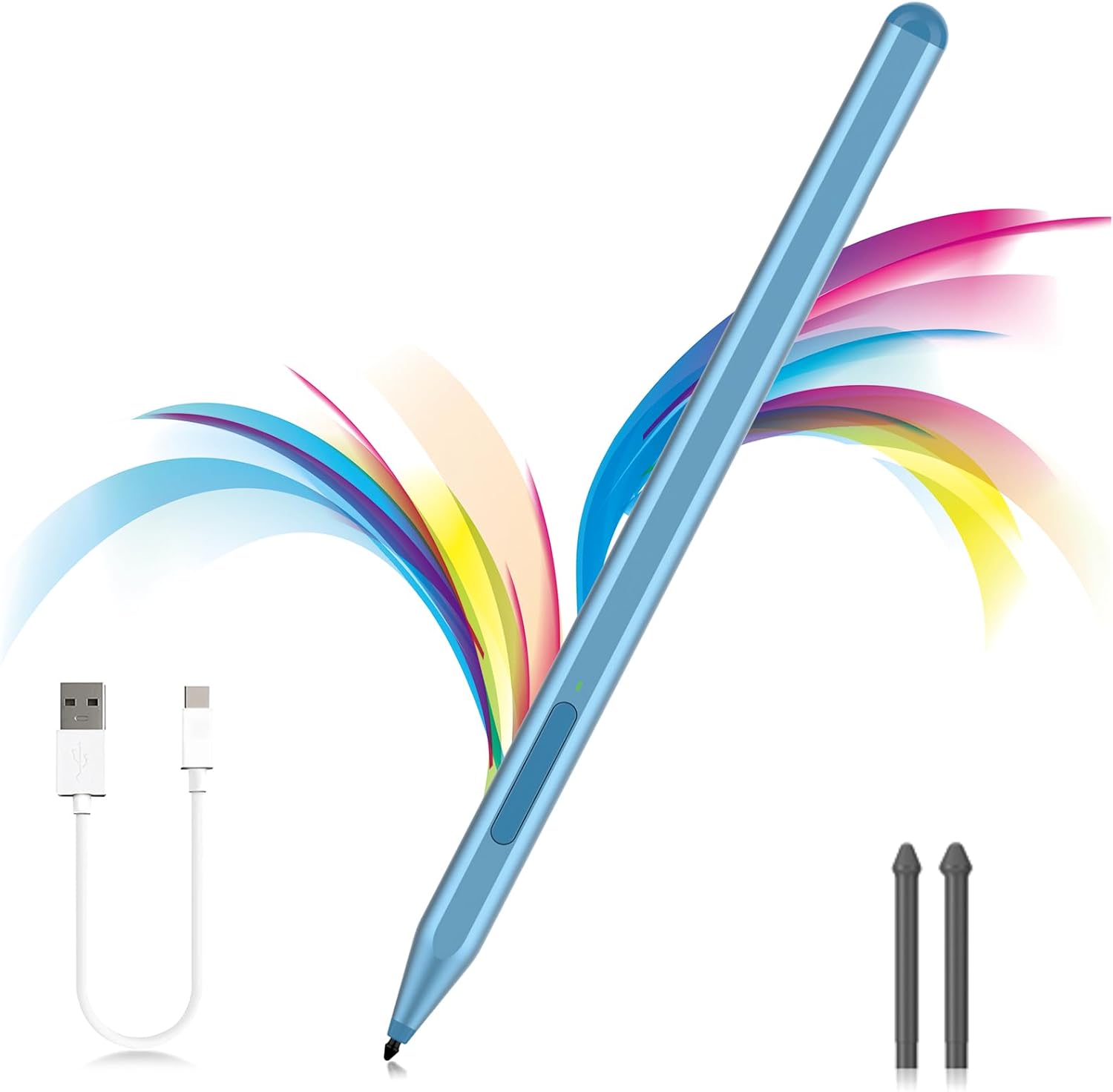
Milikilo F97 Stylus Pen for Microsoft Surface Pro & Surface Go (with eraser side button, palm rejection, tilt, 1024 pressure)
Product description
What it is and why you’d buy it
This Milikilo F97 is a pressure-sensitive stylus built for a long list of Microsoft Surface tablets and 2-in-1s, including Surface Pro models (from Pro 4 up to Pro 12), Surface Go devices, and several Surface Book / Studio / Book variants. On paper, it’s aimed at people who want the familiar “pen-on-screen” workflow: note-taking, sketching, marking up documents, and everyday right-click/erase actions without adding a separate Bluetooth setup.
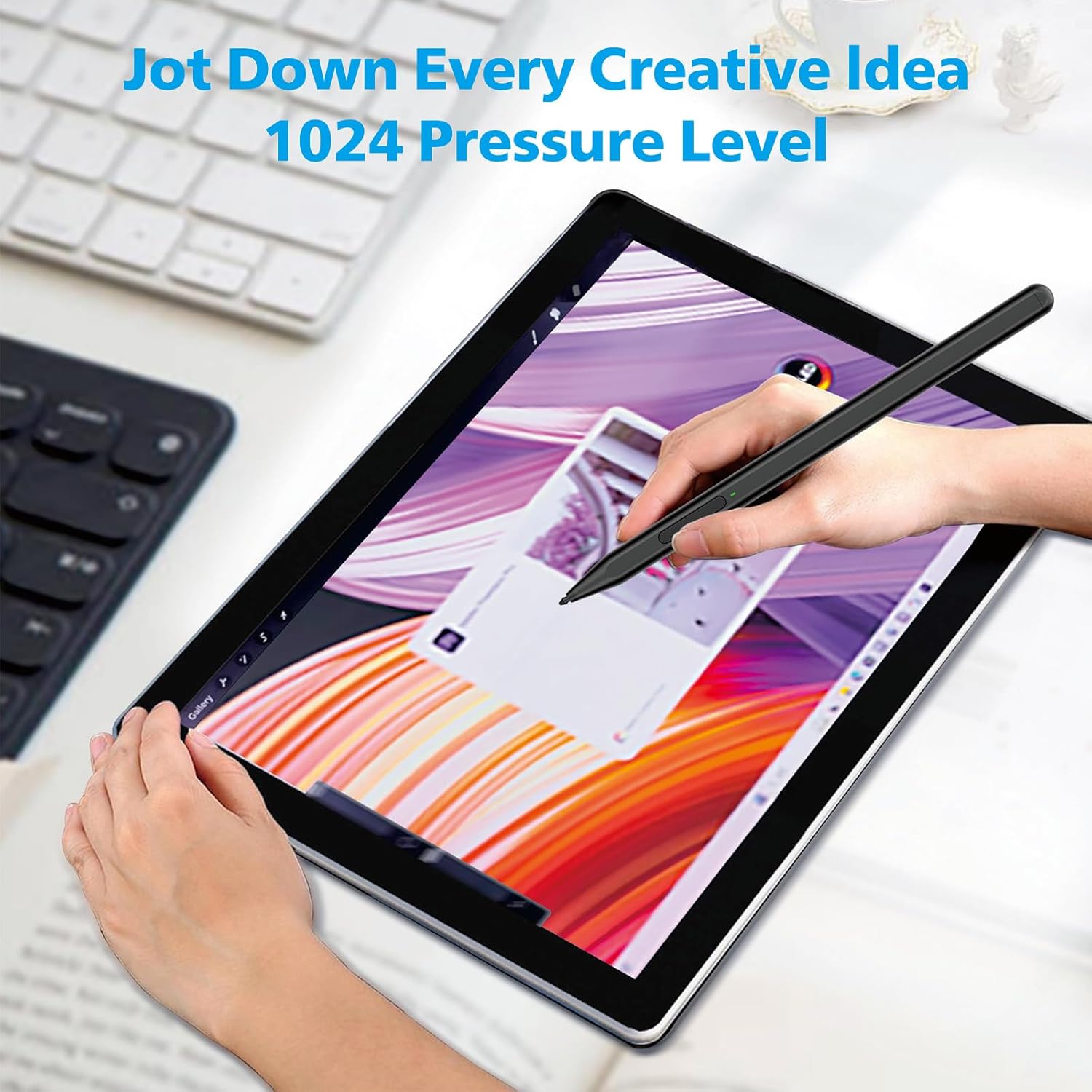
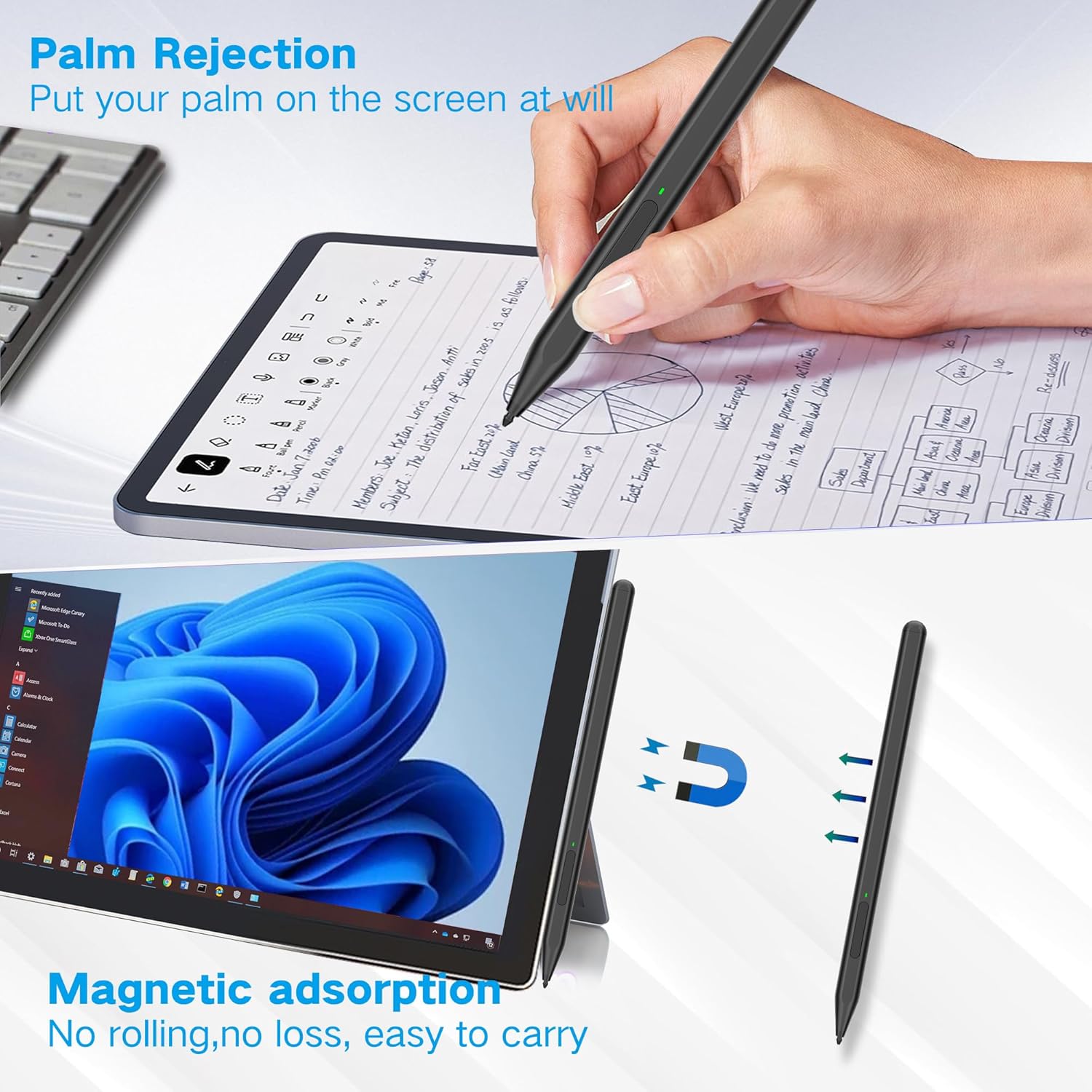
The headline features are practical rather than flashy: palm rejection (so your hand can rest on the display), a tilt function (so shading/line width feels more natural when drawing), and 1024 pressure levels for finer control. It also uses a side button arrangement that supports an eraser and a right-click function, which is handy for productivity if you’re constantly switching between writing and interacting.
Before you get excited, there’s one important caveat: compatibility is model-specific. The info provided explicitly says it does not work with the Surface Laptop Go series (which is separate from Surface Laptop and Surface Go). So while the list is broad, it’s not “universal Surface” in the casual sense.
Key features that affect day-to-day use
The F97’s value comes from the stuff you notice while working, not from long spec lists.
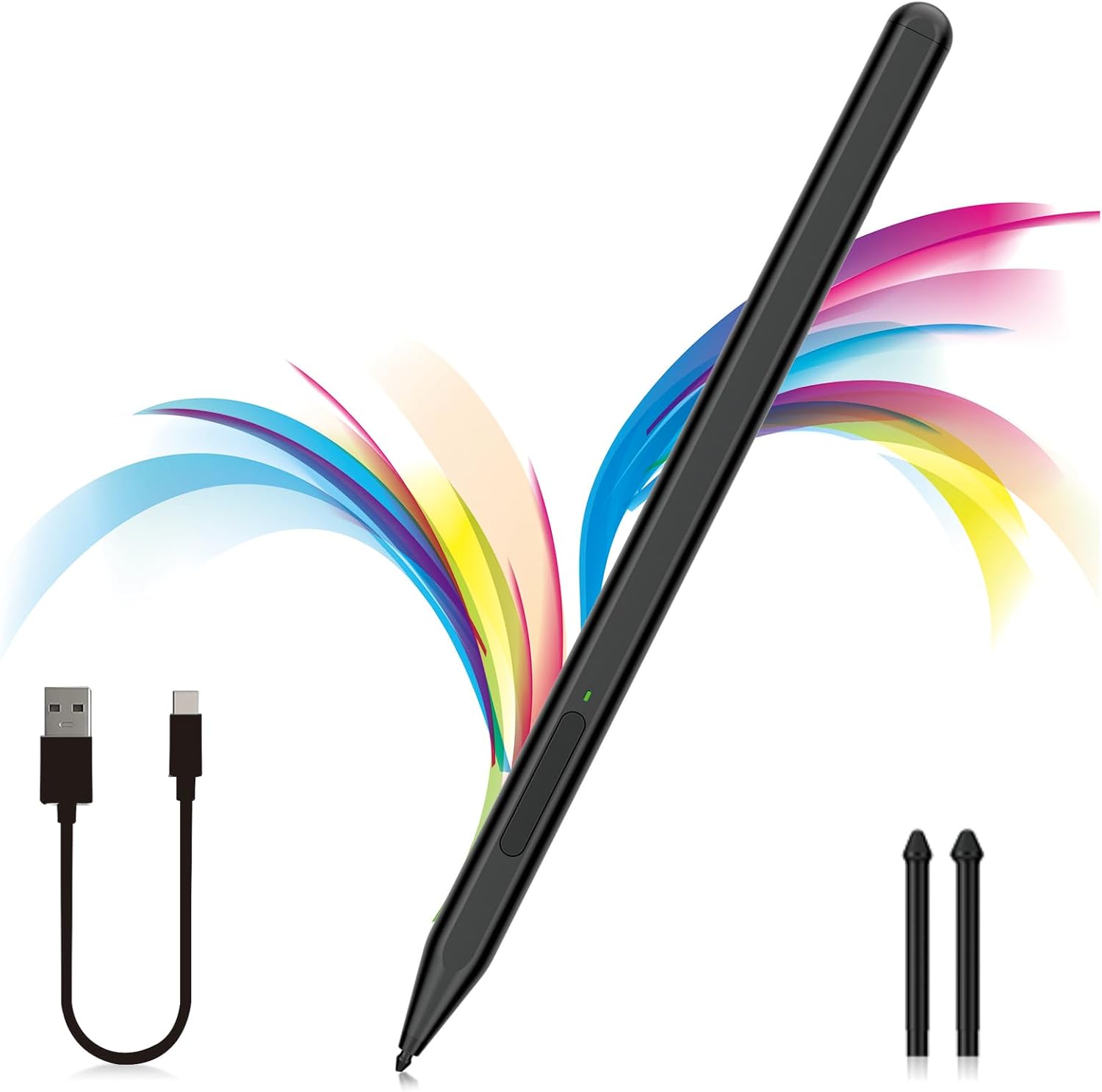
For writing and drawing, palm rejection means you can rest your hand naturally on the screen without constant accidental touches. That alone can make the difference between a pen that feels comfortable and one that keeps interrupting your flow.
The tilt function is another “you feel it” feature. Since the line can become thicker as you tilt the stylus at a larger angle, it can suit outline work and shading more than a flat, purely uniform brush/line style.
For control, the stylus is described as offering 1024 pressure points. In practical terms, that should help with thinner lines for lighter pressure and fuller marks for firmer strokes—useful for annotations as well as more creative sketching.
Controls: eraser and right-click side buttons
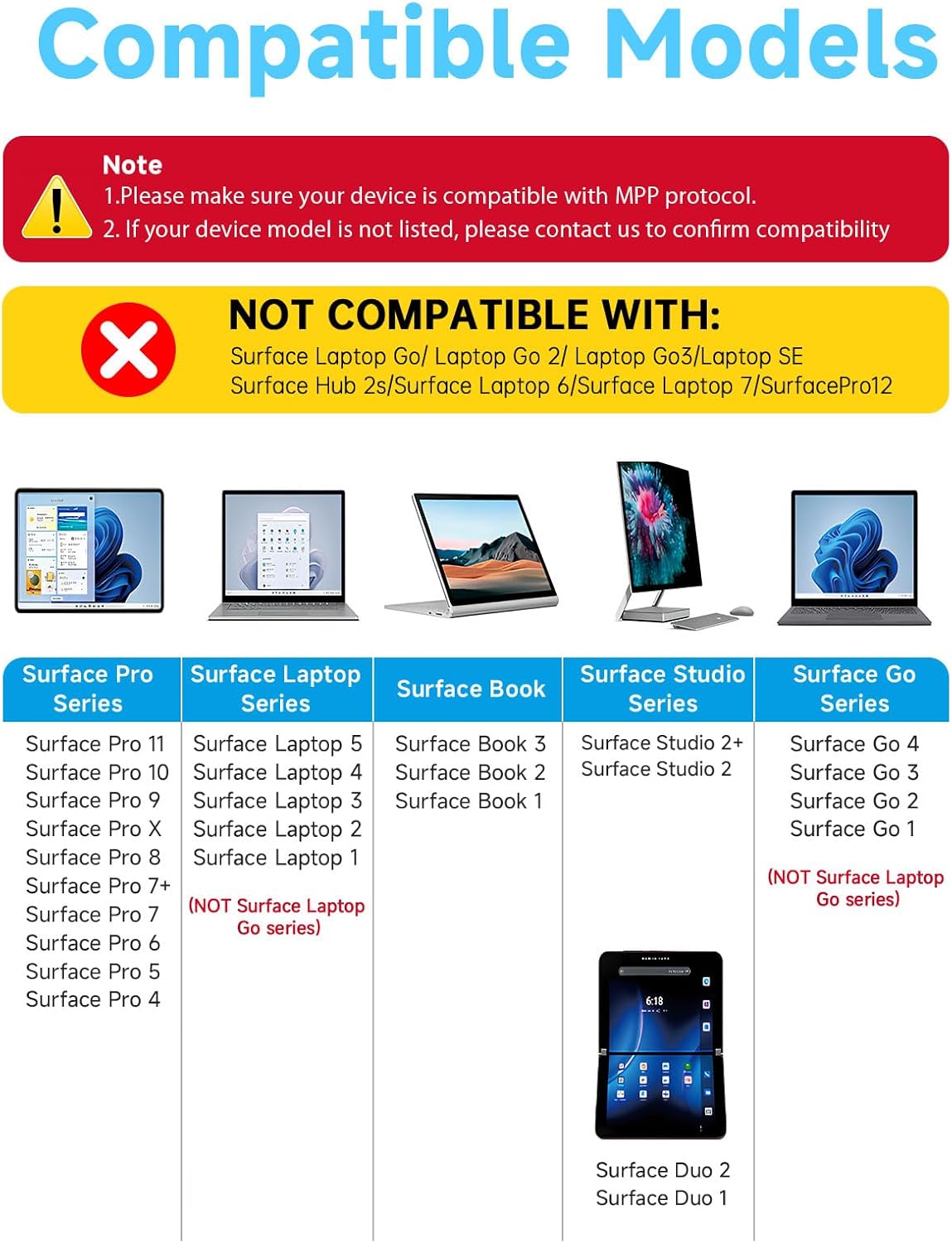
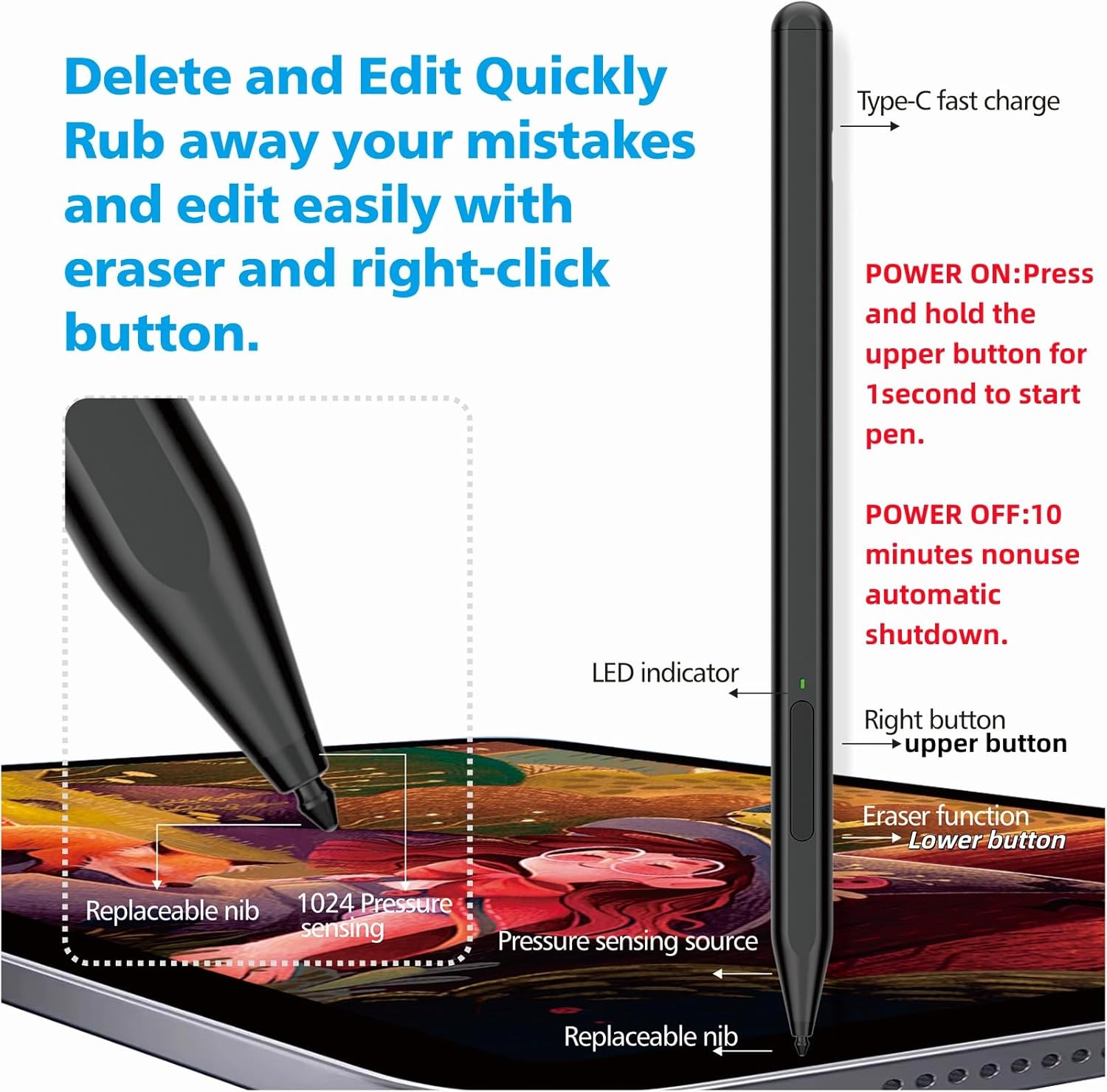
This stylus is set up with a lower key for the eraser and an upper key for the right mouse button. If your workflow includes highlighting, quick edits, or frequent navigation while you write, that right-click can be a genuine time-saver.
It’s not always perfect—depending on the app, your software’s pen/shortcut mapping can vary—but having physical controls is generally more convenient than relying solely on on-screen menus.
Charging and standby (no fiddling required)
The F97 uses a Type-C fast charge approach, and the description states it takes around 40 minutes for a full charge, with up to 80 hours of battery life (as claimed). It also mentions smart standby: it will automatically enter sleep mode after 10 minutes of inactivity.
One small limitation to factor in: the pen “cannot be turned off manually”, so you’re relying on the sleep behaviour rather than turning it off when you’re not using it.
The “no Bluetooth required” element is also a big plus for straightforward setup. You press the side button, an indicator light appears green, and then you use it directly—useful when you just want to get notes down without pairing steps.
Compatibility: where it fits, and where it doesn’t
This stylus supports up to the MPP1.15 protocol and is described as working with most Microsoft Surface devices listed in the provided model range.
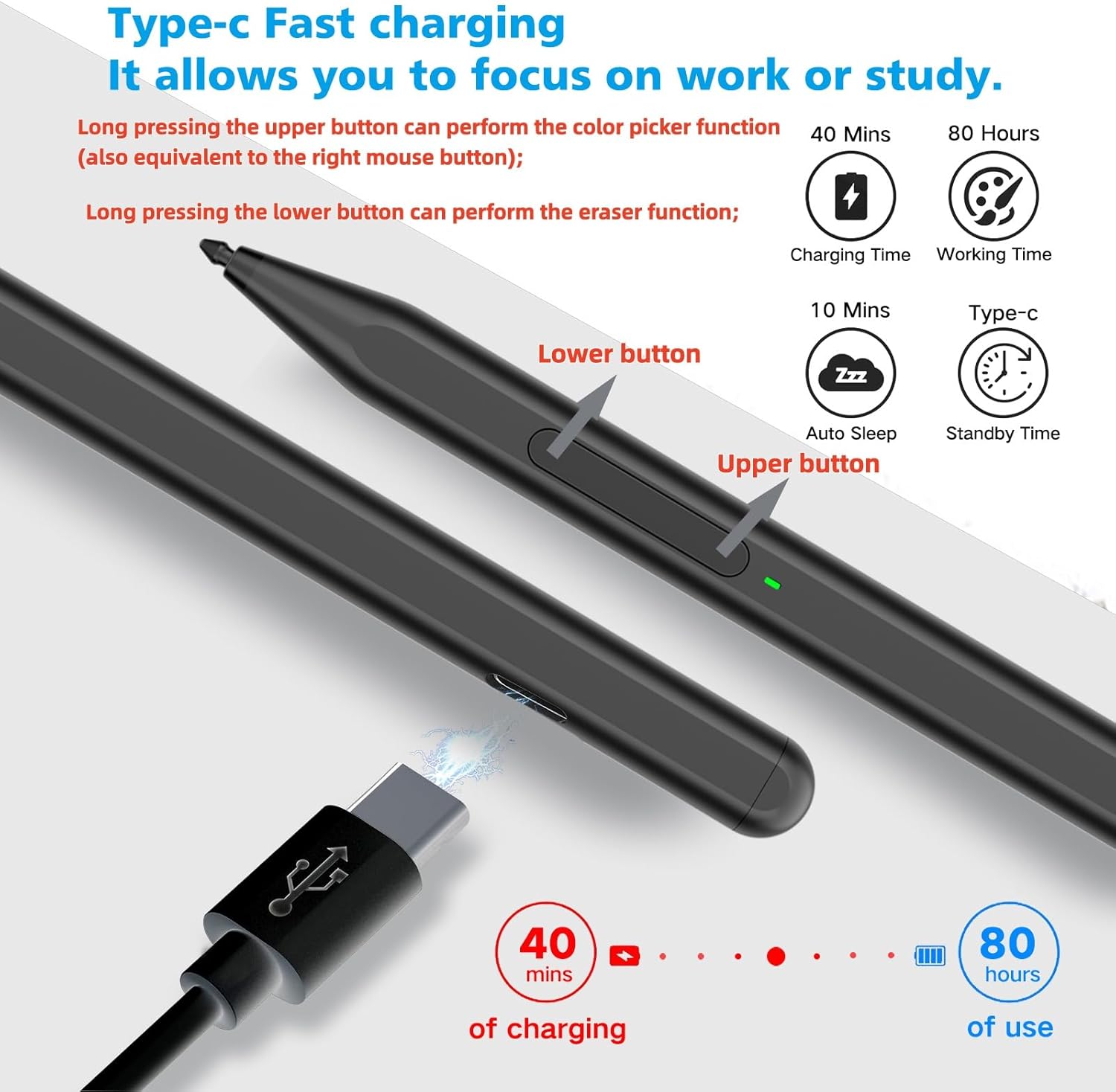
Supported examples include: - Surface Pro 4 / Pro (5th Gen) / Pro 6 / Pro 7 / Pro 7+ / Pro 8 / Pro 9 / Pro X / Pro 10 / Pro 11 / Pro 12 - Surface Book / Book 2 / Book 3 - Surface Laptop 1–5 (and models listed as Laptop, Laptop 2–5) - Surface Go / Go 2 / Go 3 / Go 4 - Surface Studio 2 / Studio 2+
Not compatible (explicitly stated) with: - Surface Laptop Go, Laptop Go 2, Laptop Go 3, and Laptop SE - Surface Hub 2s - Surface Laptop 6 and Surface Laptop 7
So if you own one of the “Go” or “Laptop Go” variants, it’s worth double-checking the exact model name before buying. Confusing similar-sounding lines is easy, and this is one of those cases where the difference matters.
The essentials: what you get in the box
The pack includes: - 1x F97 Surface Pen - 1x USB-C cable - 2x replacement tips - 1x user manual
Replacement tips are a sensible inclusion if you plan to use the stylus regularly—tips are the part that wears down first in real life.
Who it’s for (and who should look elsewhere)
It makes sense if you want a Surface-compatible stylus for writing, annotating, and drawing with palm rejection, tilt shading support, and quick eraser/right-click controls. It also suits students and business users who frequently jot notes, and creators who want more expressive line behaviour than a basic pen.
It may not be the best match if: - you have a Surface Laptop Go series device (as noted, it won’t work for those models) - you own a Surface Laptop 6 or Surface Laptop 7 (also listed as not compatible) - you expect it to behave like a specific proprietary pen for a single Surface model line—this is designed around the MPP1.15 support and the listed Surface ranges, not every Surface device equally
When it makes sense to buy it
If your Surface device is on the supported list, this stylus ticks a lot of the “use it daily” boxes: no Bluetooth pairing step, comfortable palm rejection, and controls that can speed up editing. The inclusion of extra tips is also a practical touch if you’re planning long-term note-taking or drawing.
Mini FAQ
Does it need Bluetooth to work?
The provided details say it does not require Bluetooth connection. You press the side button to use it directly on compatible devices.
What does the side button do?
The lower key is for the eraser function and the upper key is for the right mouse button.
Can I replace the pen tips?
Yes. The box includes 2 replacement tips, so you can swap them when they wear.
What’s the main limit I should watch for?
Compatibility by Surface model is the big one. It explicitly does not work with the Surface Laptop Go series and also lists other non-compatible devices.
What does “tilt function” mean in practice?
As the stylus is tilted at a larger angle, the line can become thicker—useful for shading and outline work.
Final verdict
The Milikilo F97 is a solid, everyday stylus for a wide range of supported Surface tablets—especially if you care about palm rejection, tilt-based line changes, and having eraser/right-click controls on the pen itself. The deal-breaker is compatibility: it’s not for certain Surface lines (notably Surface Laptop Go and some newer Laptop models listed as not compatible). If your Surface model is on the supported side, it’s the kind of stylus that should genuinely get used, not just sit in a drawer.