
HUION Inspiroy 2 M graphics tablet with PW110 pen, 8 shortcut keys and custom scroll (Black)
Product description
What this tablet is for at home
The HUION Inspiroy 2 M is a pen graphics tablet aimed at people who want to draw, study, and do everyday digital work from home. It’s designed around the kind of “pen on paper” feeling you’d expect from a basic sketching setup, with claims of precision and control and no noticeable lag or wobble (at least as stated). The key point here is that it’s built to let you get into drawing and note-taking without wrestling with awkward settings every time you sit down.
In practical terms, it suits the person who sketches regularly, marks up documents, or learns software tools where shortcuts speed things up. The inclusion of a programmable scroll wheel and 8 custom shortcut keys suggests the workflow is meant to feel more efficient than a tablet where everything relies on the on-screen menus.
The PenTech 3.0 experience, on paper (and in use)
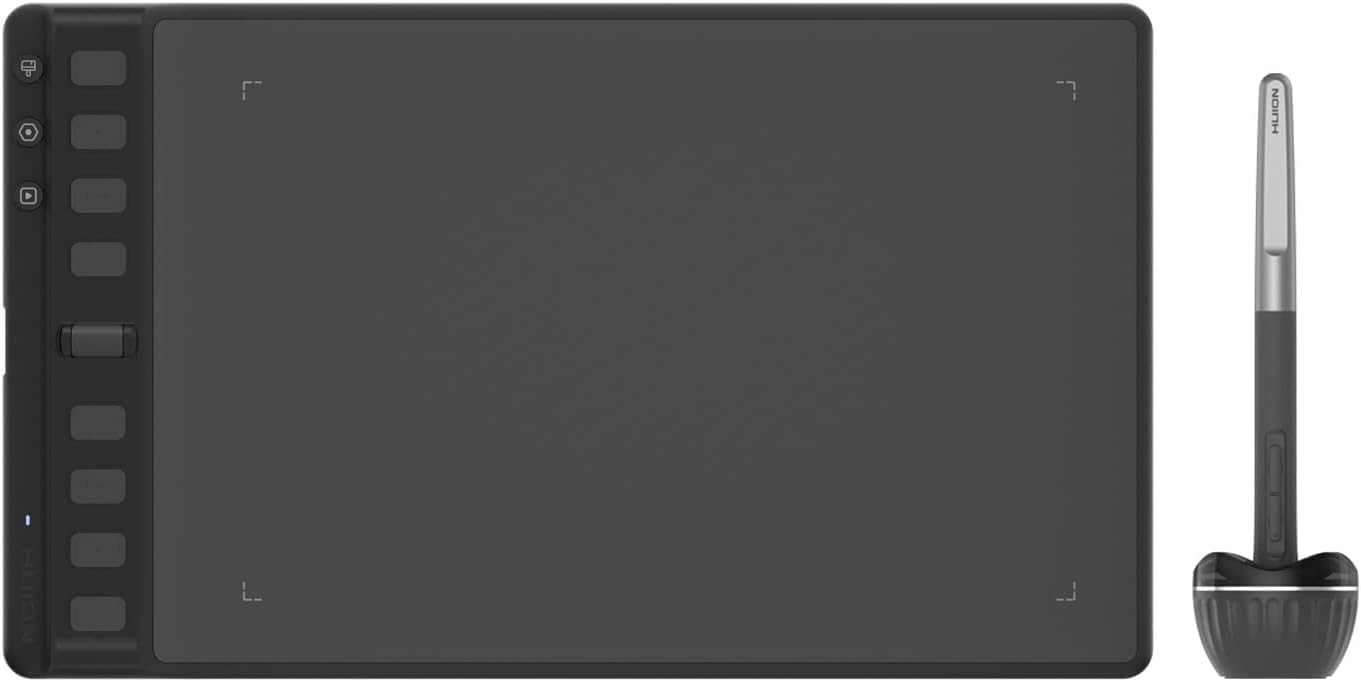
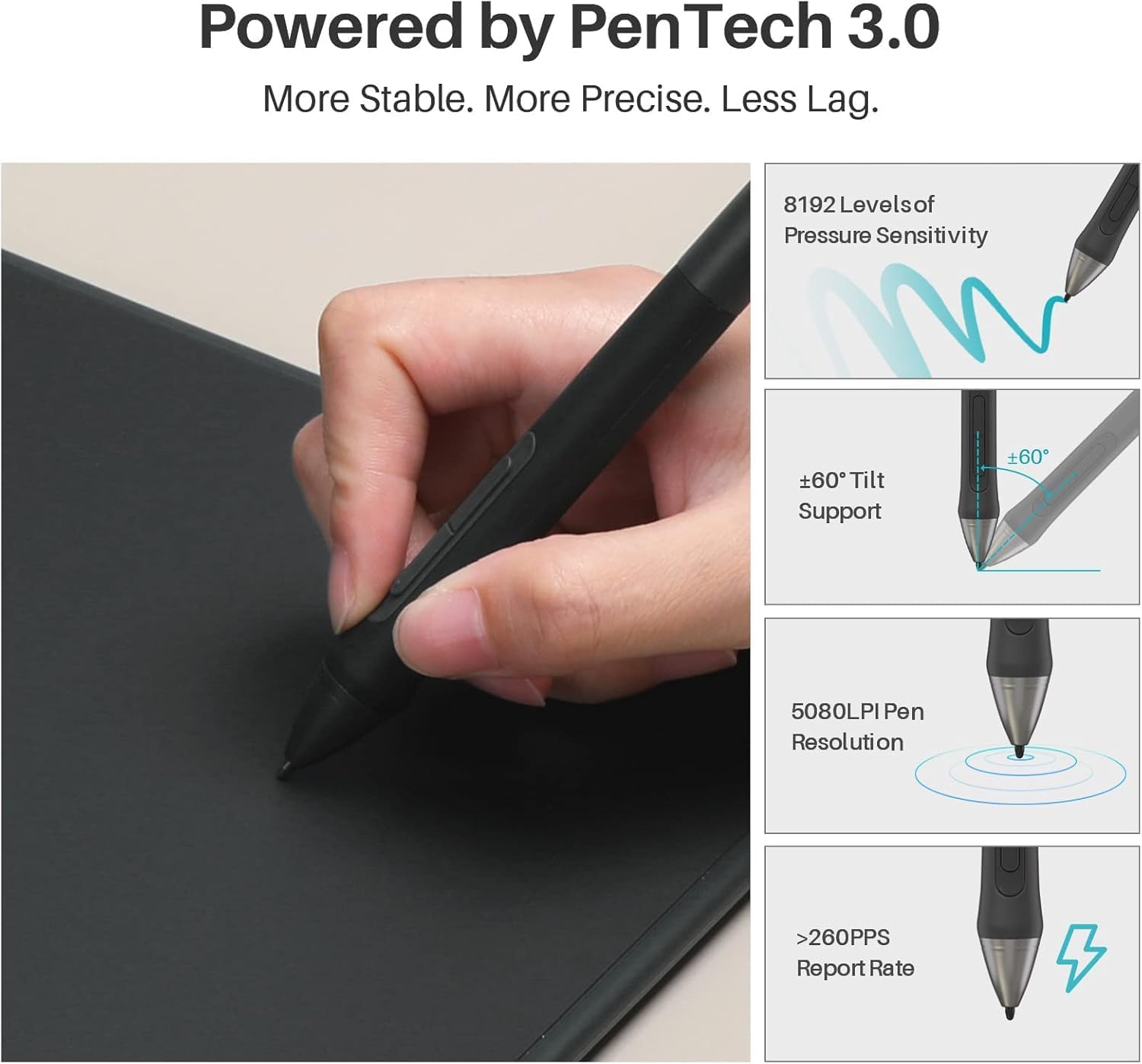
A big part of the pitch is the Advanced PenTech 3.0 upgrade, presented as improving precision and control versus PenTech 2.0. The manufacturer also says there’s no noticeable lag or wobble and that lines behave “just like a standard pen”. That’s exactly the sort of claim you care about when buying a drawing tablet, because inconsistent tracking is one of the most frustrating problems during line work.
That said, do keep expectations grounded: “no noticeable lag” is subjective, and real results can depend on your setup, software, and how you calibrate or use the pen. If you’re coming from a high-end display tablet, this may still feel more “workstation-style” than “creative monitor”. But for many home users, smooth tracking and responsive control is the main thing that makes practice enjoyable.
What you’ll notice day to day: keys, scroll, and comfort
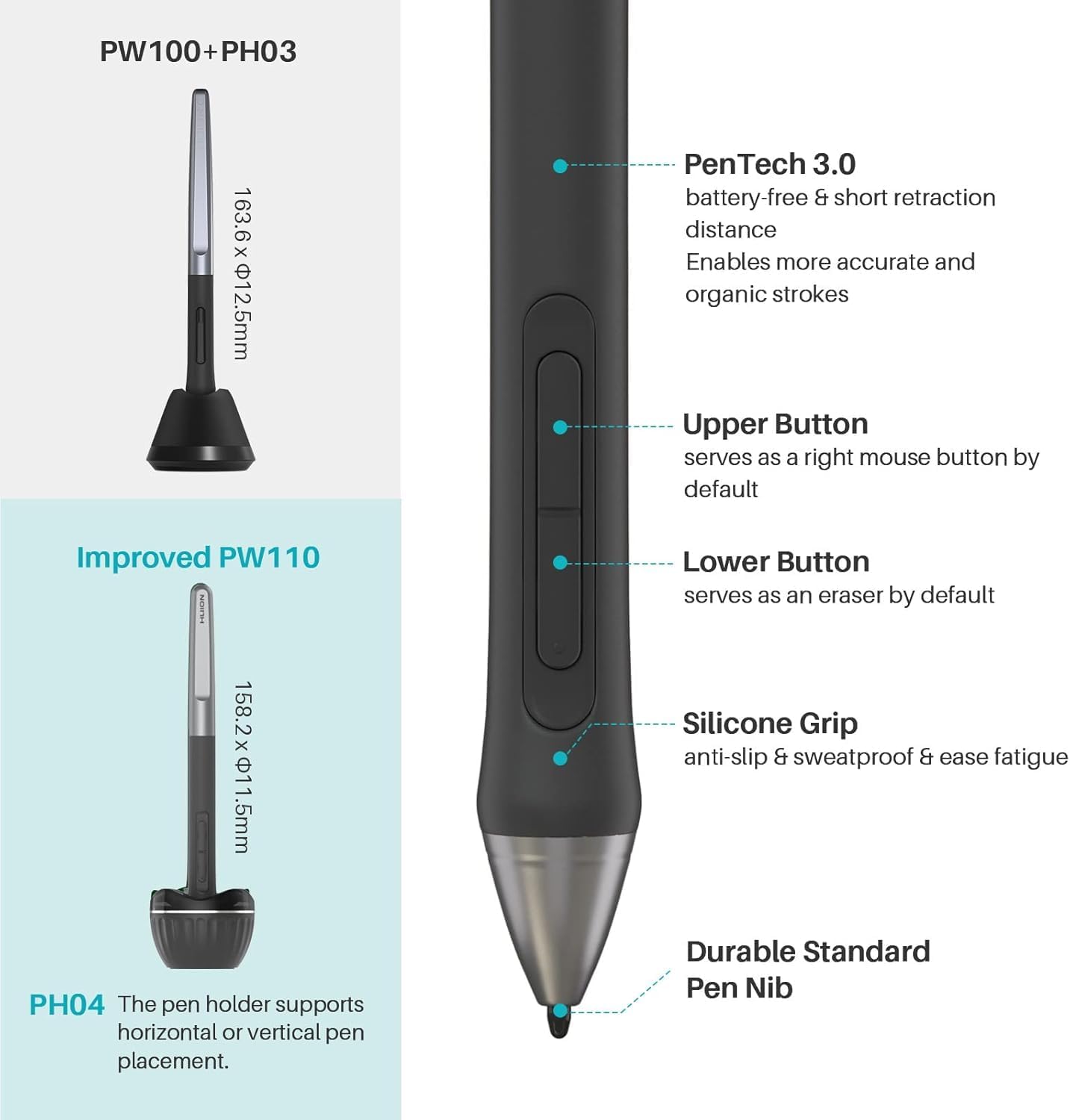
The Inspiroy 2 M comes with a slimmer stylus (PW110) featuring a soft silicone grip, plus side buttons that are positioned for easier access. The idea is comfort over longer sessions—important if you’re studying for hours or doing repetitive tasks like outlining, colouring, or annotating.
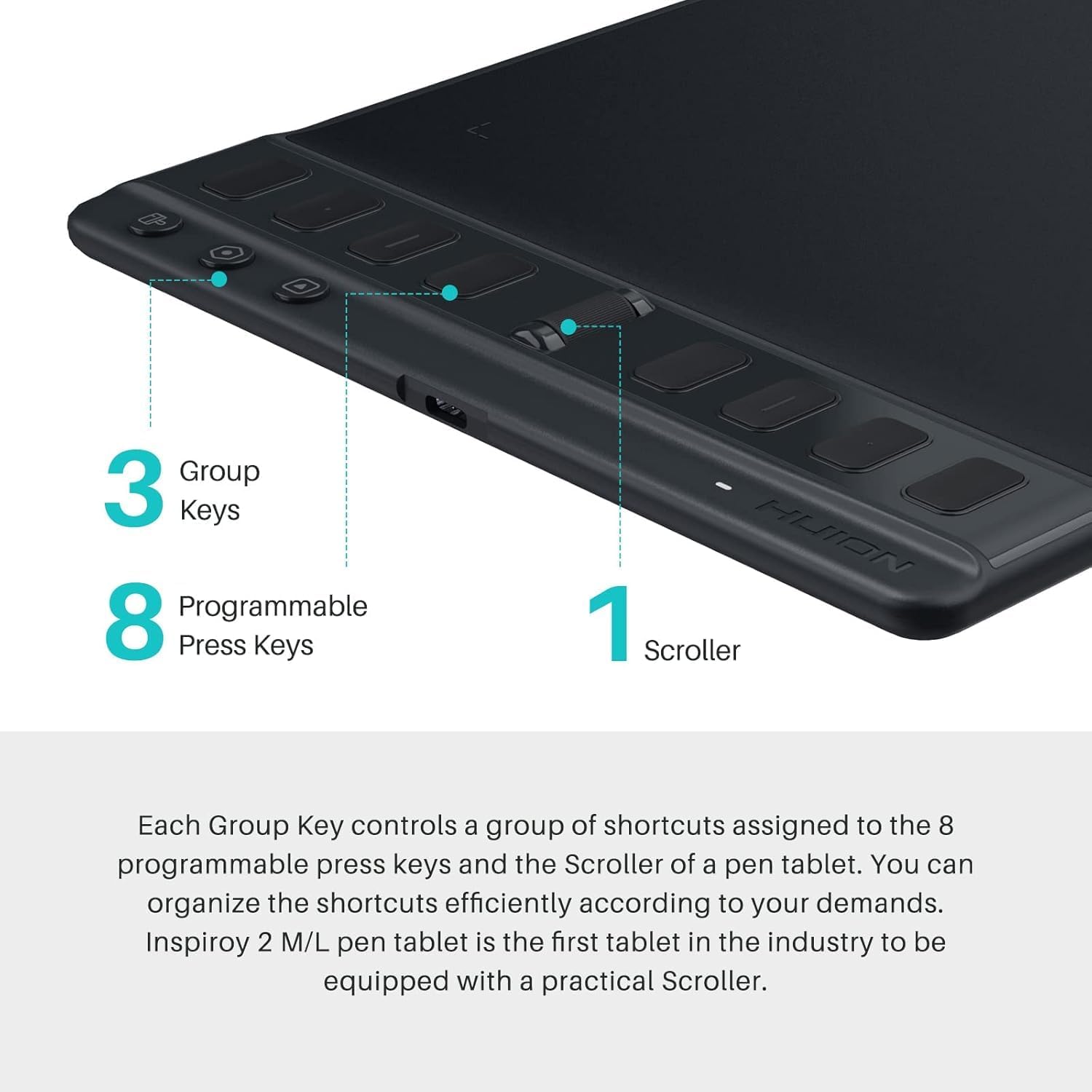
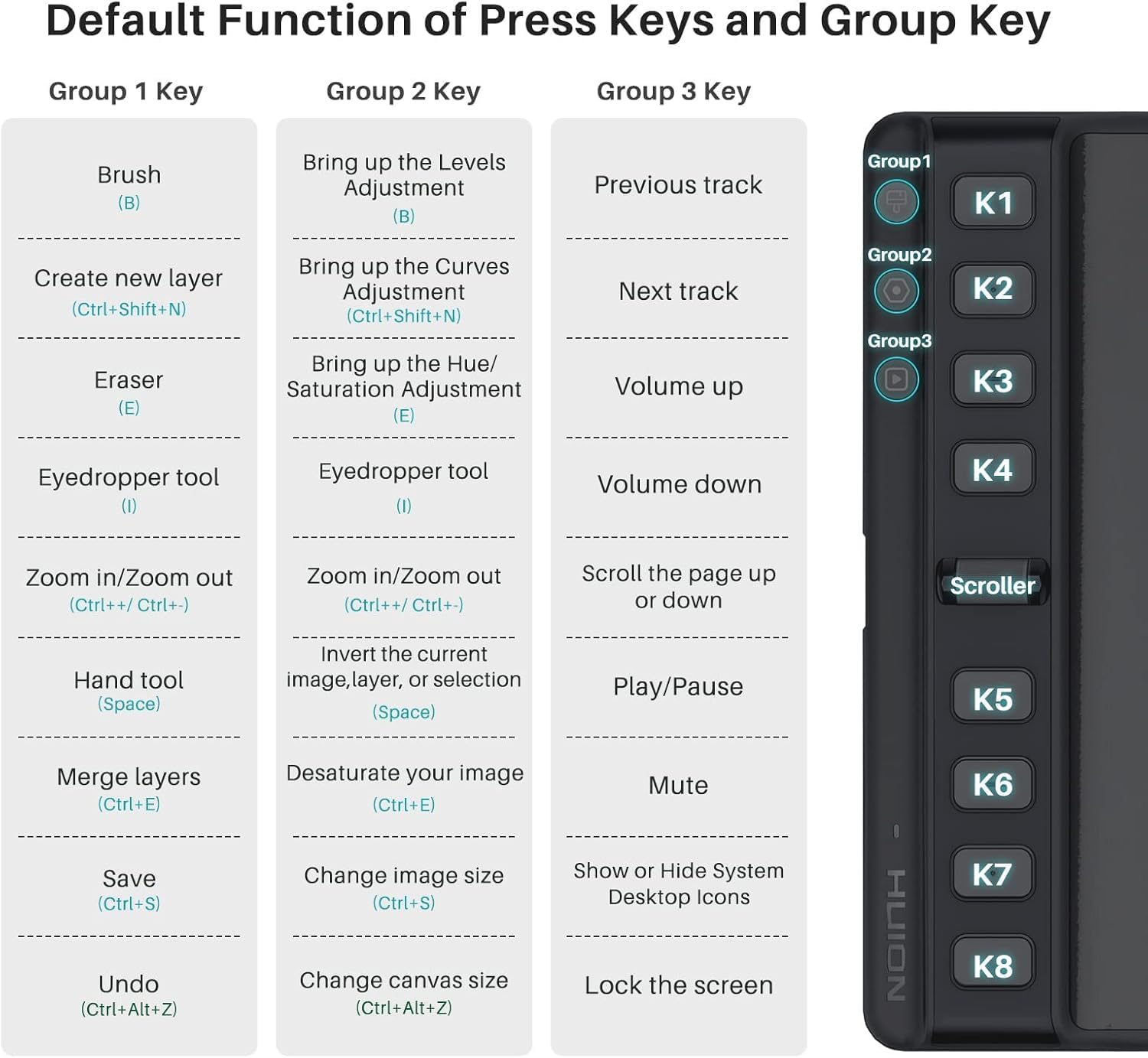
On top of that, you get a unique scroll wheel and 8 press keys that can be customised to your preferred shortcuts. The tablet also allows changing settings for different apps. This is where the value usually shows: instead of constantly reaching for menus, you can map frequent actions (like zoom, brush size changes, layer controls, or common tools) to physical controls.
One limitation to factor in: the level of usefulness depends heavily on whether the apps you use support the shortcuts you want and whether you take time to set the keys up properly.
Mobile friendly for sketching on the go (Android)
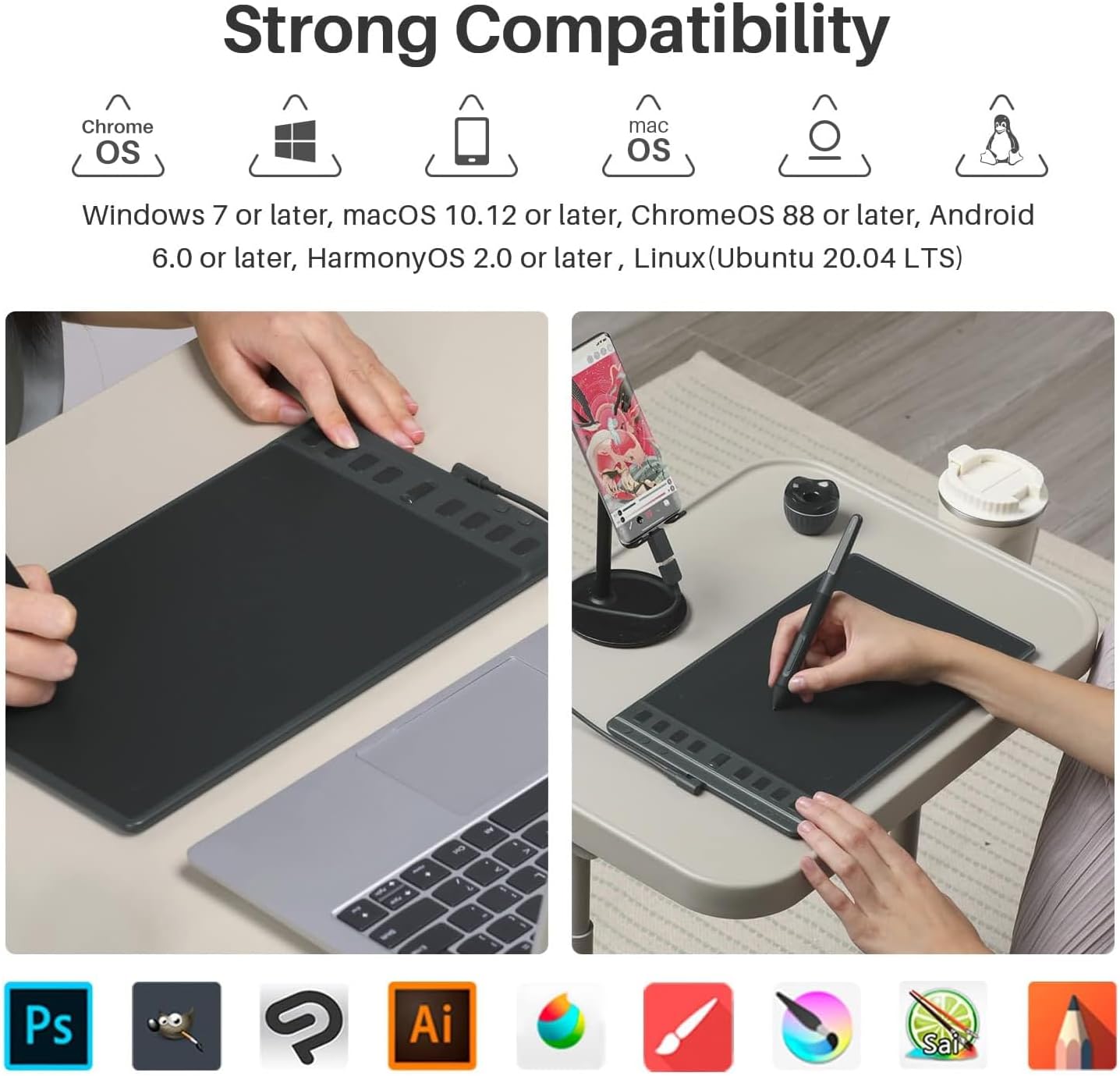
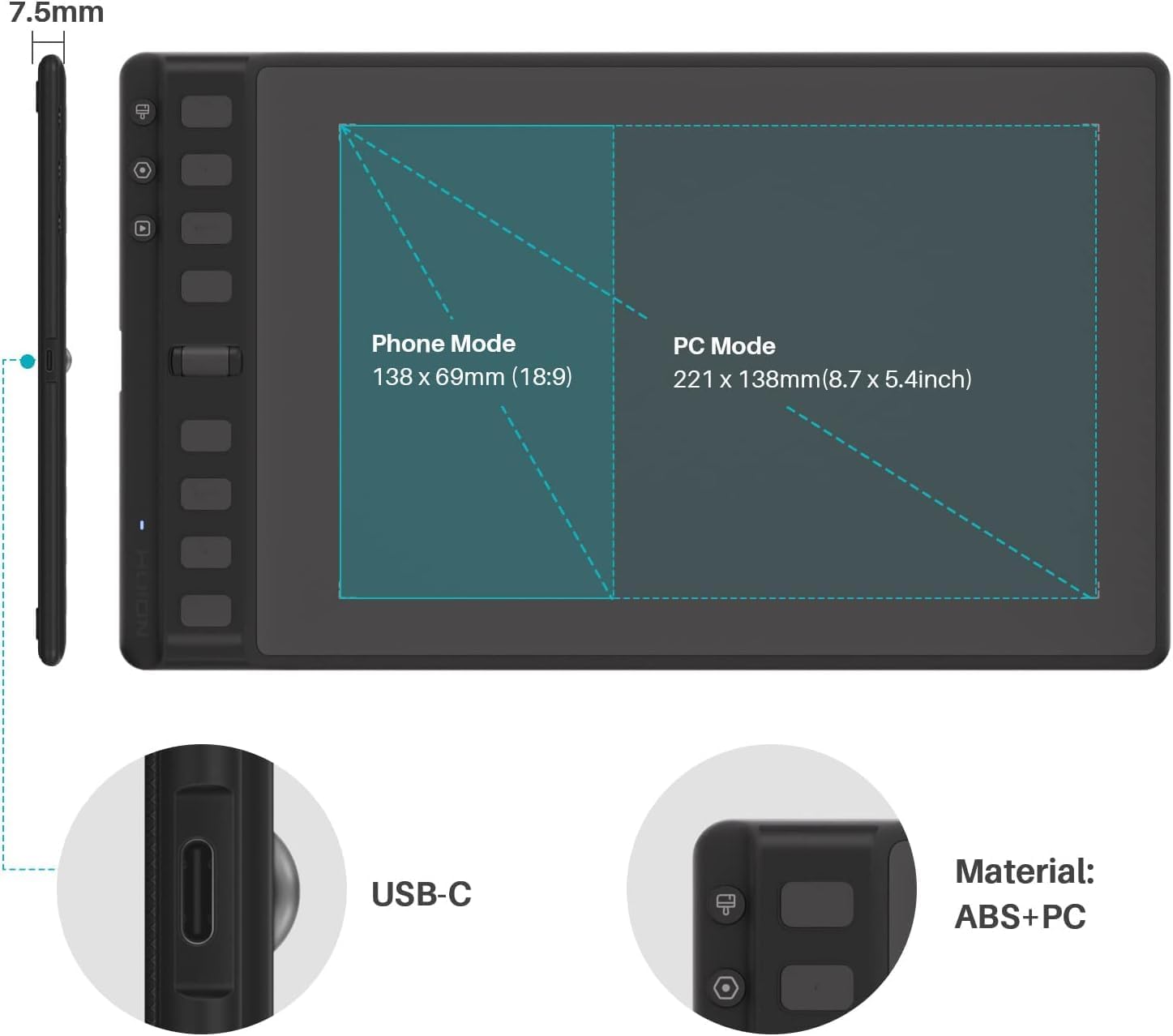
There’s an explicit “mobile friendly” angle: you can enjoy creating on the Inspiroy 2 and see drawings and paintings come to life on an Android smartphone or tablet. The stated requirement is Android OS version 6.0 or later.
This is handy if you like the idea of sketching at home and then continuing or viewing on a mobile device. Just be aware that real-world comfort will depend on how the device behaves with your workflow—mobile setups can be more fiddly than desk setups, especially if you’re switching between apps.
Compatibility: where it works, and where you may need to check
The Inspiroy 2 is described as compatible with: - Mac (macOS 10.12 or later) - PC (Windows 7 or later) - Linux (Ubuntu) - Certain Android devices (Android OS 6.0 or later)
It’s a broad compatibility picture, which is good if you’re choosing once and using across a home computer and possibly an Android tablet/phone. Still, “certain Android devices” is a small warning flag: if you’re specifically buying for Android, it’s worth double-checking your exact device and OS level before you commit.
Should you buy it?
It’s worth considering if you want a home graphics tablet that focuses on precision and control, with comfort features on the stylus and practical shortcuts via 8 programmable keys and a scroll wheel. It makes sense if you draw and study regularly, and you’d benefit from mapping frequently used actions to physical buttons.
It might not be the best choice if you’re expecting everything to feel identical to a higher-end professional display tablet, or if you don’t plan to customise shortcuts—because that’s one of the main ways this tablet is trying to improve everyday speed.
If you prioritise a straightforward pen-based setup for home use across Mac/PC/Linux (and possibly Android), the Inspiroy 2 M fits that role. If your workflow is heavily mobile-first, do pay attention to the “certain Android devices” wording and ensure your devices meet the OS requirement.
Quick FAQ
Is the stylus comfortable for longer drawing sessions?
The PW110 stylus is described as ergonomically improved with a soft silicone grip and accessible side buttons. That suggests it’s aimed at comfort for sustained use, but individual grip preferences still vary.
Can I customise the shortcut keys?
Yes—there are 8 press keys and a scroll wheel that can be customised to your favourite shortcuts. The description also notes you can change settings for different apps.
Does it support mobile use on Android?
On paper, yes. You can create on the Inspiroy 2 and see results on an Android smartphone or tablet, with Android OS 6.0 or later. However, it’s limited to certain Android devices.
What computers does it work with?
It’s stated to work with Mac (macOS 10.12 or later), PC (Windows 7 or later), and Linux (Ubuntu), plus certain Android devices on OS 6.0 or later.
Final verdict
When it makes sense
If you’re after a pen tablet for drawing, studying, and working from home, and you care about control and responsiveness, the HUION Inspiroy 2 M is positioned as a practical, desk-friendly option with useful physical shortcuts. Just make sure your devices match the stated OS compatibility—especially if you’re planning to involve Android—and that you’re willing to set up the shortcuts so the hardware actually speeds up your workflow.