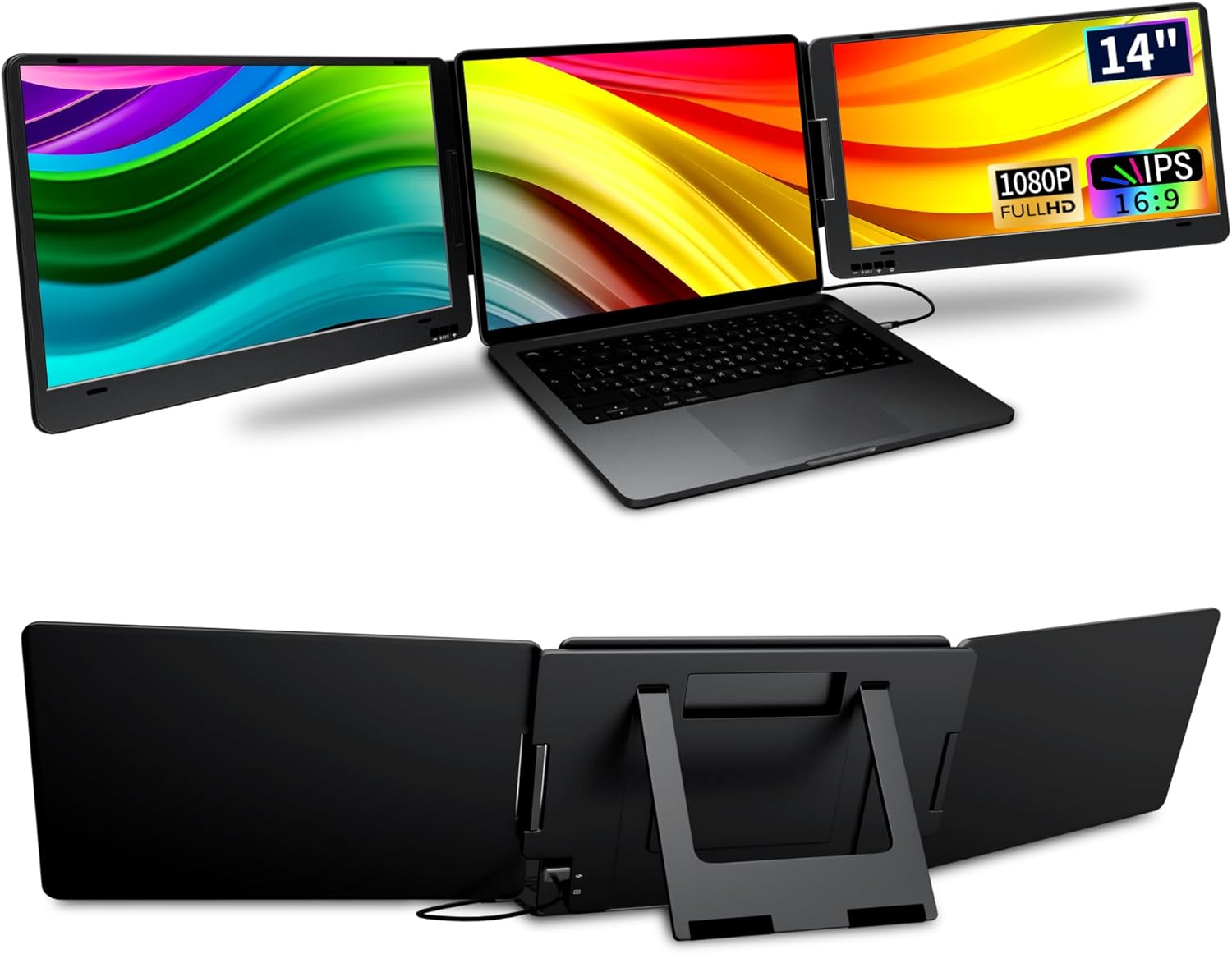
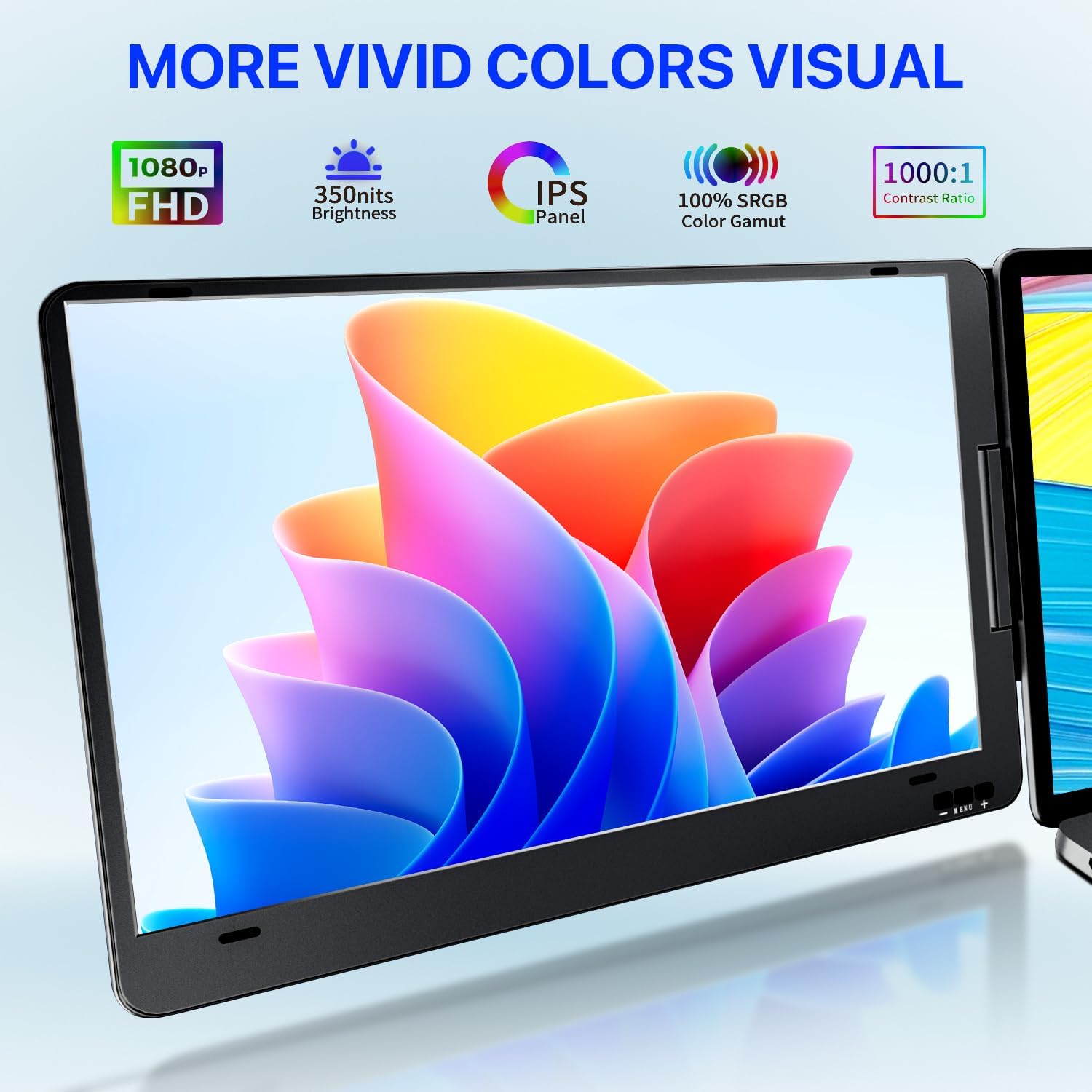
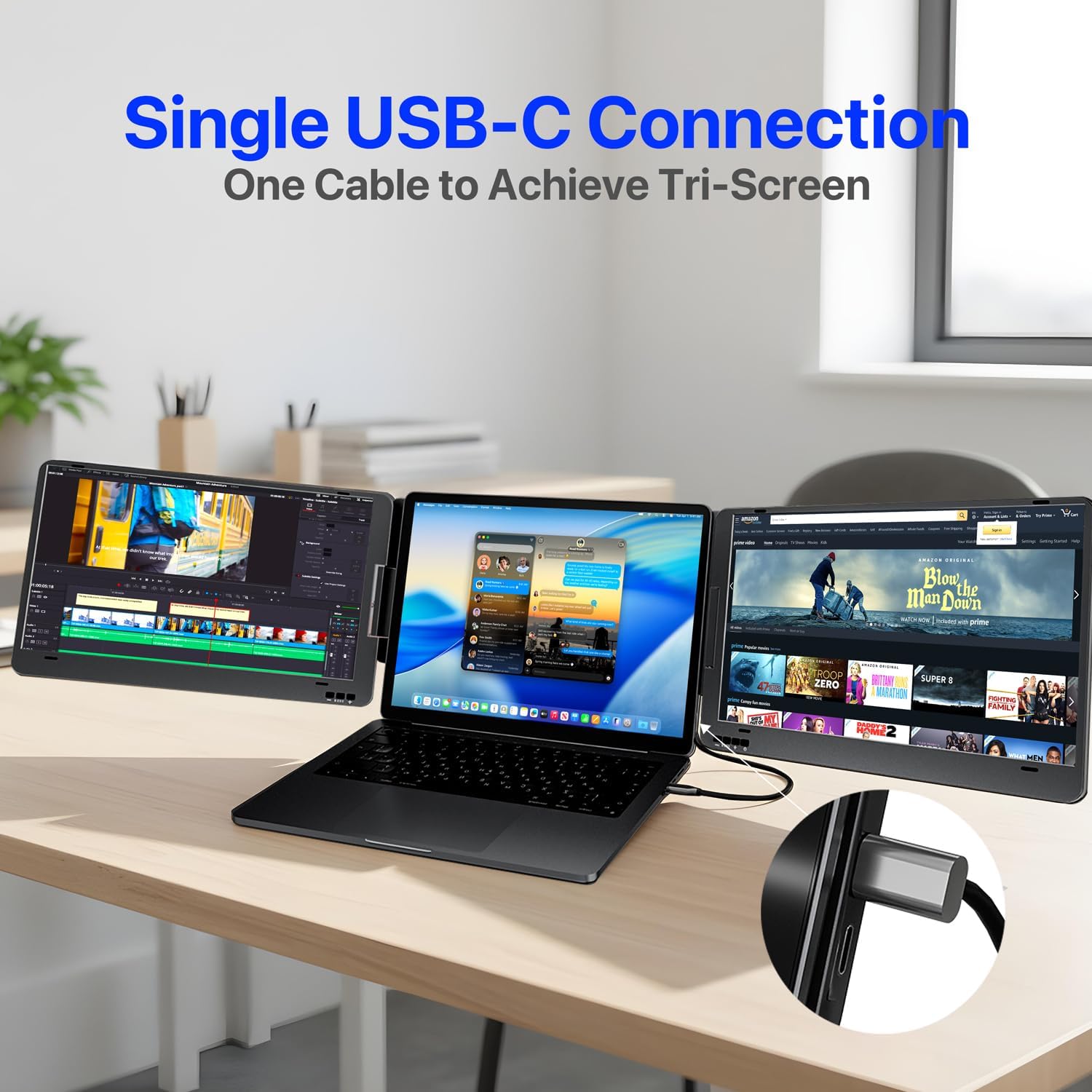
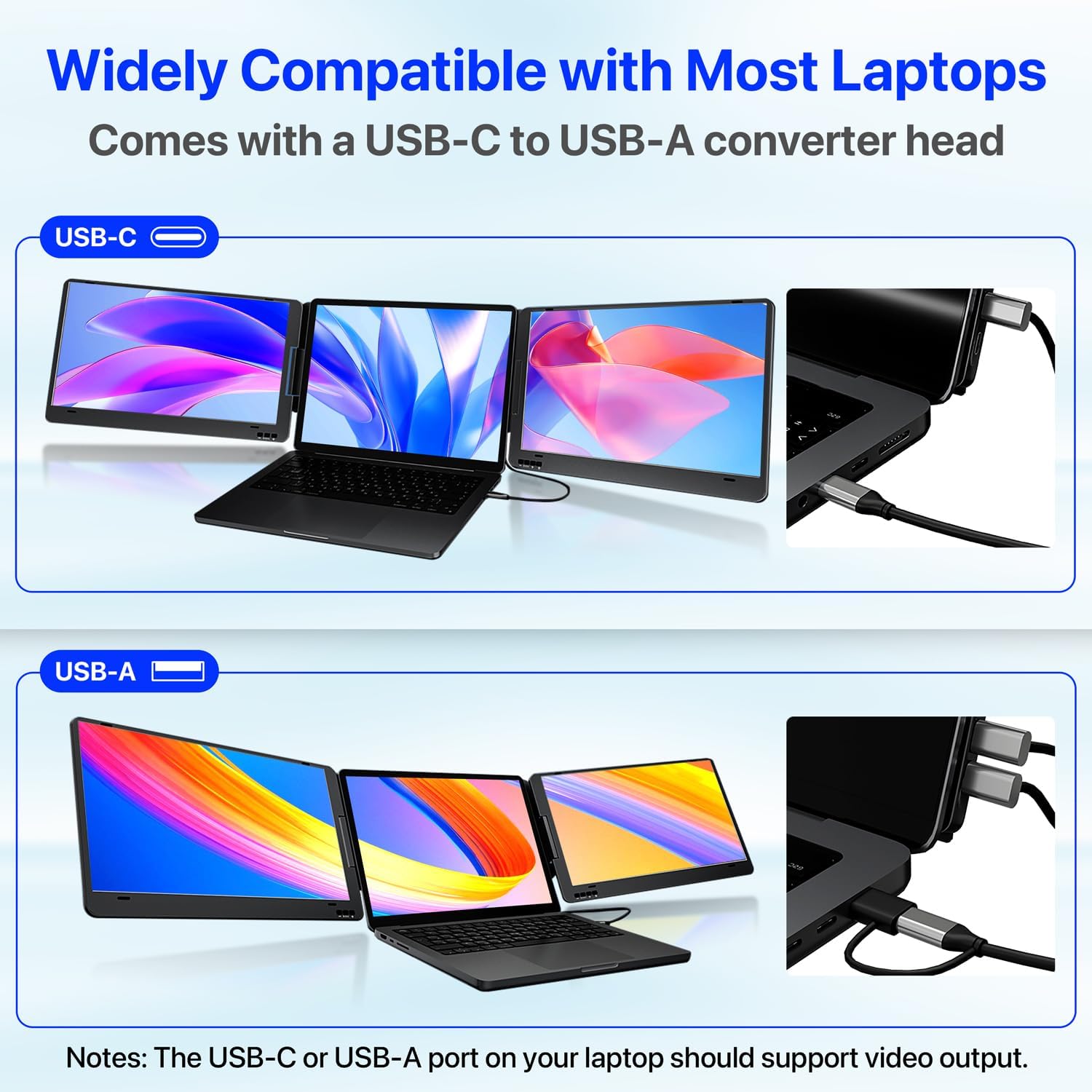
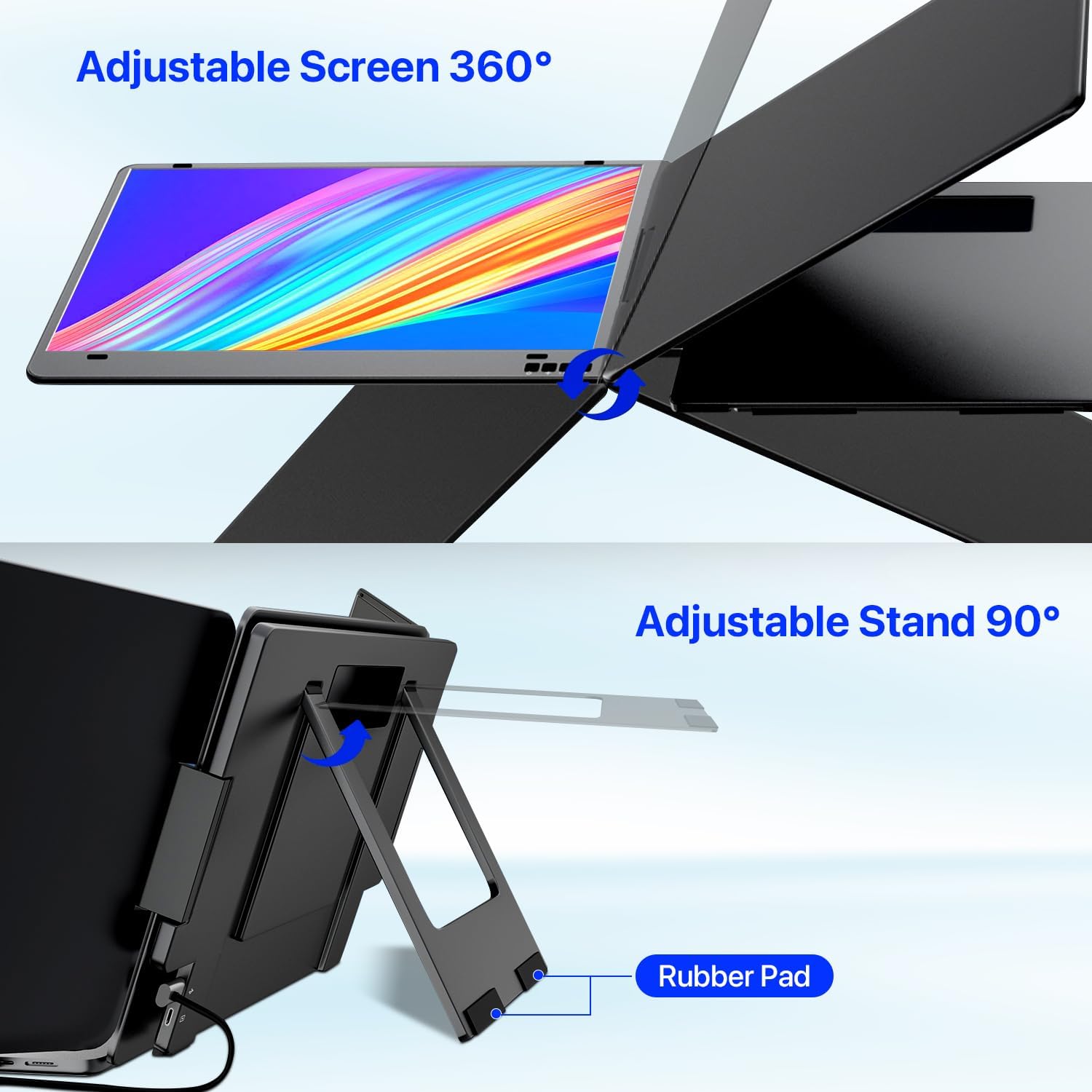
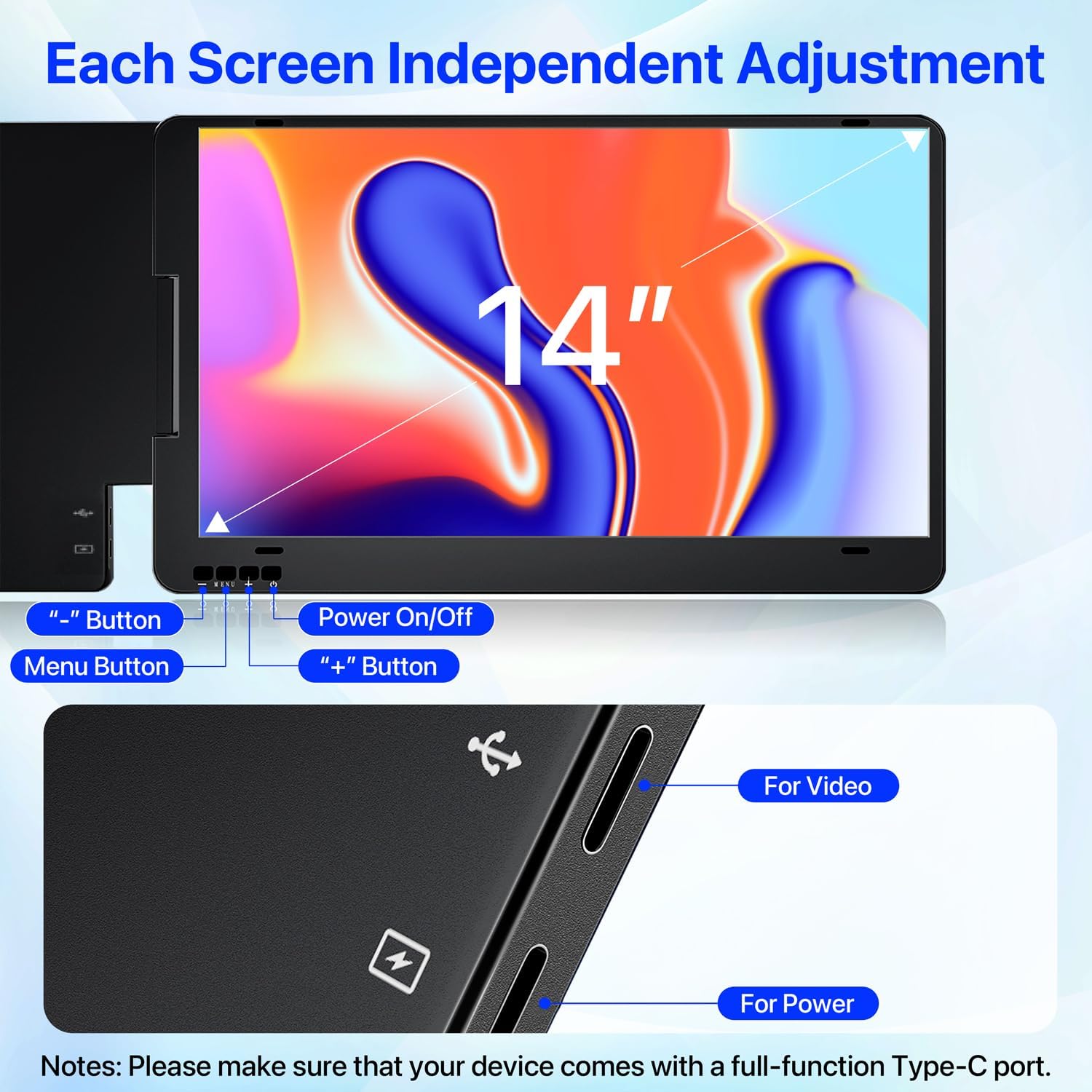
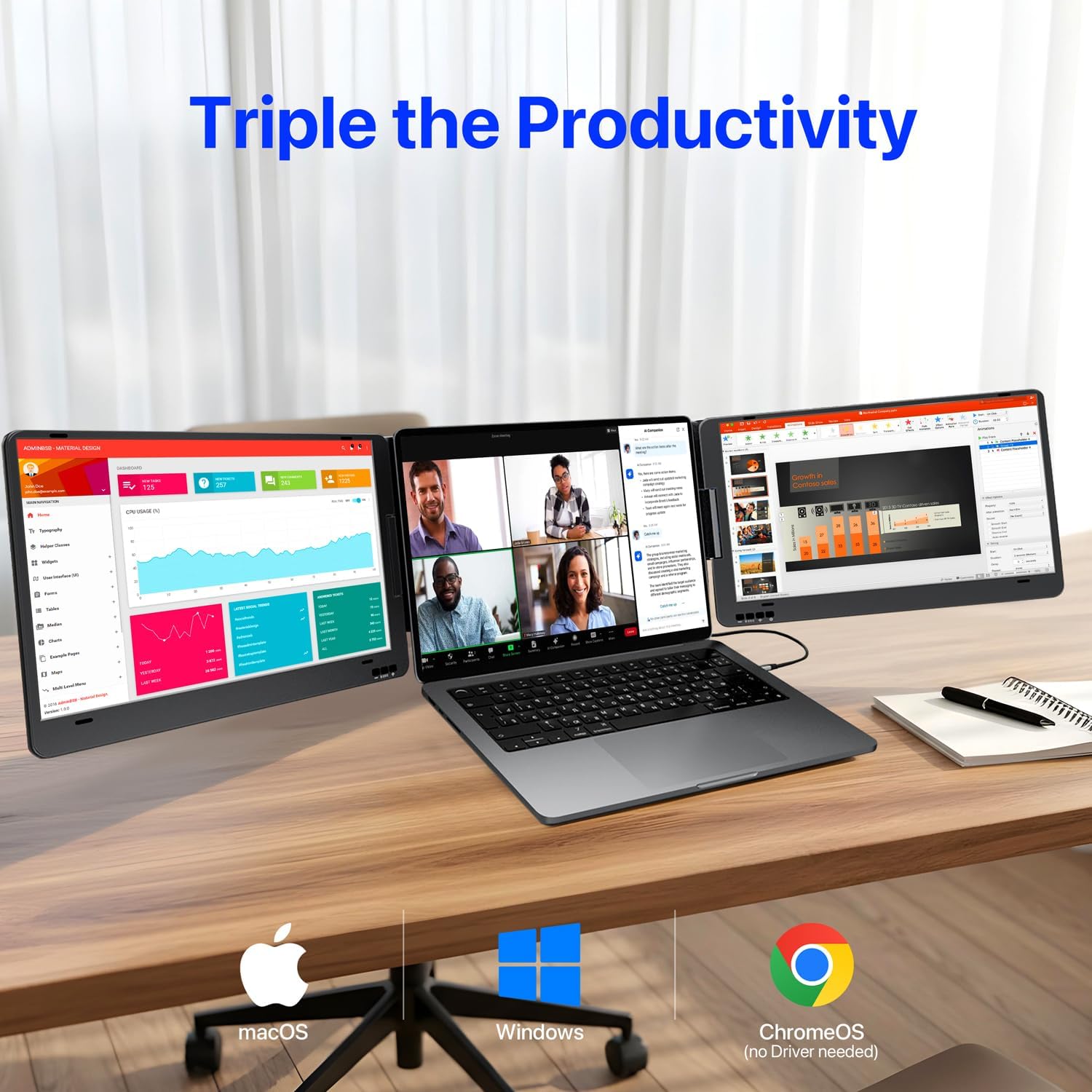
What it is and what it solves\nThe KPKUE X90A is a 14-inch laptop screen extender designed to convert a single laptop into a triple-monitor setup using just one USB-C cable. It’s aimed at reducing clutter and expanding your workspace without piling on extra hardware. On paper, the concept is straightforward: a lightweight, foldable triple-screen dock that attaches to most 11.6–15.6 inch laptops and supports macOS, Windows and ChromeOS. Practically, it’s a compact way to gain additional display real estate for multitasking, data comparison or creative workflows while keeping cables tidy.\n\n## How it’s built and what it feels like to use\nThe unit features a metal body with a hinged, foldable design. Each 14-inch panel rotates from 0 to 360 degrees, and there’s an integrated stand to adjust tilt from 0° to 90°. The aim is to keep the setup stable without extra accessories. The displays offer 1920 x 1080 resolution, 350 nits brightness, IPS panels with 178° viewing angles and a 1000:1 contrast ratio. A low blue light option is noted, which can help during long work sessions. A single all‑in‑one control button per screen simplifies basic tasks, though some users may still need to install a driver for full compatibility.\n\n## What stands out day to day\nIf you prioritise a cleaner desk and the flexibility to work with more information visible at once, this extender can deliver. The lack of clips means it won’t scratch the laptop, and it isn’t height‑restricted by the base of the laptop alone. It genuinely reduces cable clutter compared with traditional dual or triple monitor docks. You’ll likely notice more seamless window management and potentially fewer transitions between apps when you have more screen real estate.\n\n## Benefits and limitations\nOn the upside, the single‑cable setup is simple to deploy and the materials feel sturdy for everyday use. The wide viewing angles and decent colour coverage help with general productivity and media tasks. On the downside, performance can depend on your laptop’s USB-C/USB‑A port and driver support. If your notebook is older or has limited USB-C video output, you might encounter compatibility hurdles or require extra setup. It’s not a dedicated high‑end workstation display and the 14-inch panel size means it won’t replace a larger external monitor for all use cases.\n\n## Who it’s for\nThis extender is well suited for remote workers, students or commuters who want to boost productivity without investing heavily in a full multi‑monitor desk setup. It’s particularly appealing if you value a tidy workspace and value‑for‑money practicality over cutting‑edge performance.\n\n## Who it isn’t for\nIf you need standard external monitors with very high brightness, colour accuracy, or ultra‑fast response times, this solution may fall short. Also, if your laptop lacks a reliable USB‑C video output, you may not achieve a true triple‑screen experience.\n\n## Before you buy: what to check\n- Ensure your laptop supports USB‑C video output (or has an appropriate USB‑A video path).\n- Be prepared to install a driver for full compatibility on macOS, Windows or ChromeOS.\n- Consider desk space and whether a foldable, tripod‑style mounting works in your environment.\n- Check that your expectations match 1080p resolution per panel and the 14‑inch form factor.\n\n## Practical comparison and use cases\nIf you already use a single external monitor but crave more workspace, a traditional multi‑monitor desk setup will still offer higher resolution options and more robust colour fidelity. For travellers or small offices, the KPKUE X90A provides a neat compromise: more screens without a complicated hardware overhaul. It works best for tasks that benefit from side‑by‑side windows, such as data analysis, coding, or content comparison, where you don’t require top‑tier graphic performance.\n\n## FAQ (practical answers)\n- Does it require a driver? A driver may be necessary for full compatibility depending on OS and hardware.\n- What ports are used? It uses USB‑C (or USB‑A with an adapter) for video output.\n- Can I fold the screens away when travelling? Yes, the design supports folding for portability.\n\n## Final decision\nIs it worth it? Worth considering if you want a compact, low‑friction way to add a triple‑screen experience to a compatible laptop and you’re prepared for potential driver steps. It’s most appealing for light to medium workloads and for users prioritising desk cleanliness over ultra‑premium display specs.\n\n## What you’ll notice in use\nAs soon as it’s set up, you’ll feel the difference in how you organise windows. You can dedicate one panel to code, another to reference material and keep emails on the third, potentially reducing window hopping and boosting focus. It’s a practical add‑on rather than a stand‑alone replacement for a high‑end external monitor setup.