

StarTech.com Quad USB-C to DisplayPort workstation dock (4K60/4K120, 140W PD passthrough) – QUAD-USB-DP-ADAPT
Product description
What it is and what it’s for
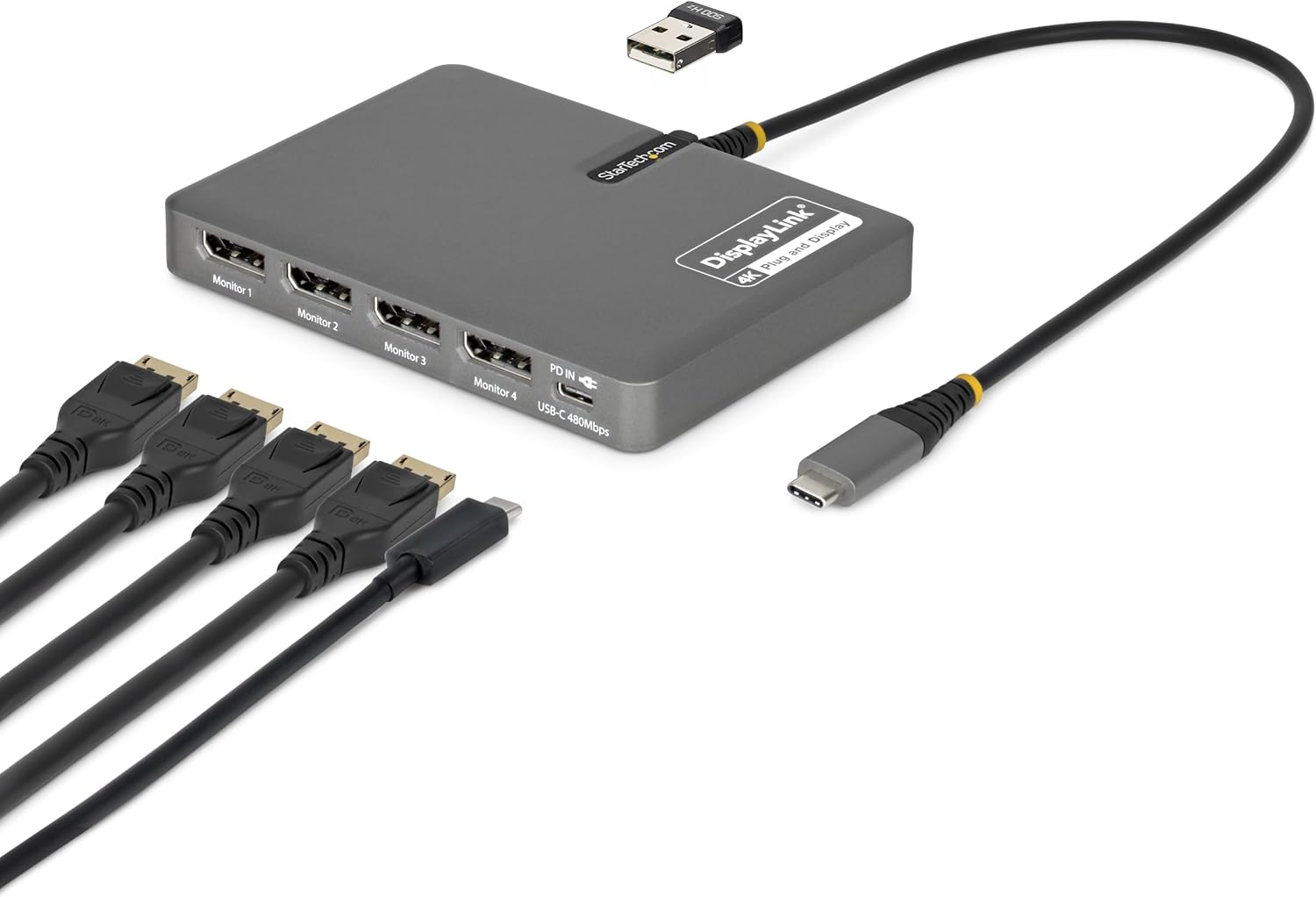
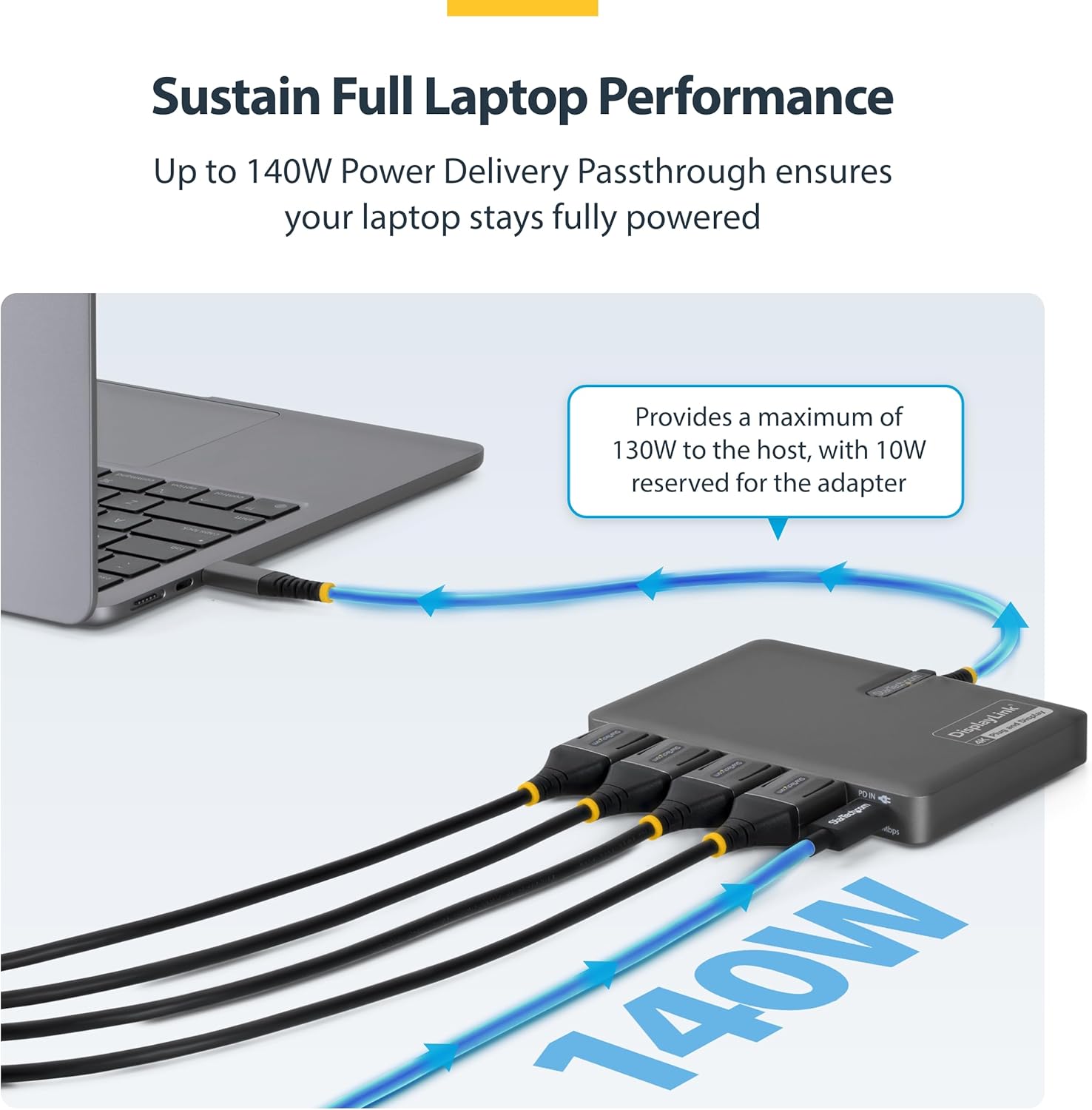
This StarTech.com USB-C to Quad DisplayPort workstation adapter is built for one specific job: turning a single USB-C host connection into a multi-monitor workstation. The pitch is straightforward on paper—connect four DisplayPort monitors, power/charge your laptop through the same dock using 140W USB-C PD passthrough, and add USB for a keyboard or mouse.
It also leans into the reality of modern workplace setups. Depending on your device, the display side uses DisplayLink technology, which typically shifts the “multi-display” experience into the software/driver route rather than relying purely on native graphics outputs. That matters when you’re planning deployment or you want fewer cables and less juggling at desk level.
Where it really shines
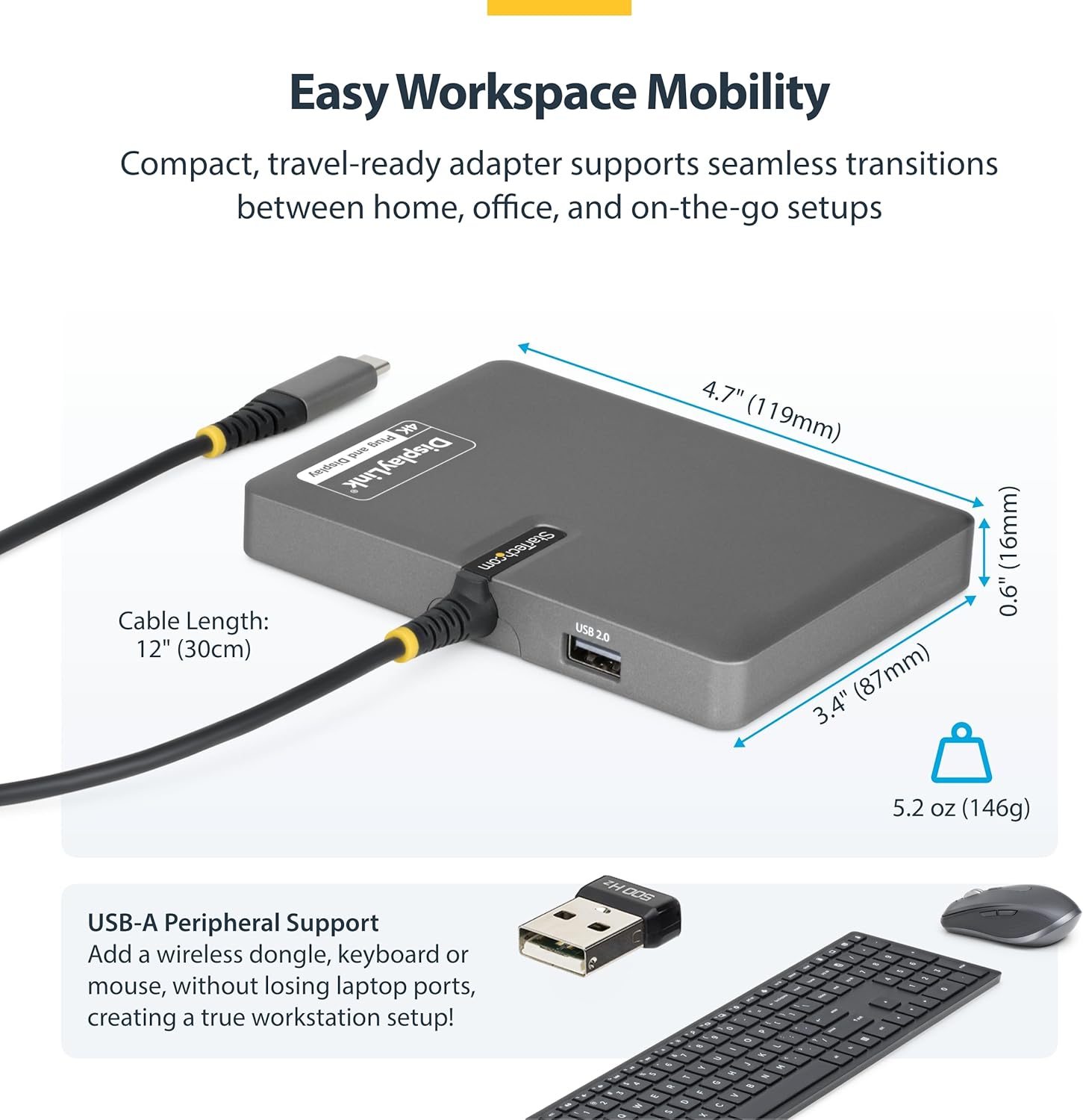
If you’re working in roles or teams that need powerful, repeatable desk configurations—IT, finance, engineering, education—this kind of dock is usually chosen for consistency. On the manufacturer’s side, it’s positioned as a compact, travel-ready workstation adapter that’s meant to move between home and office without you rebuilding the whole setup each time.
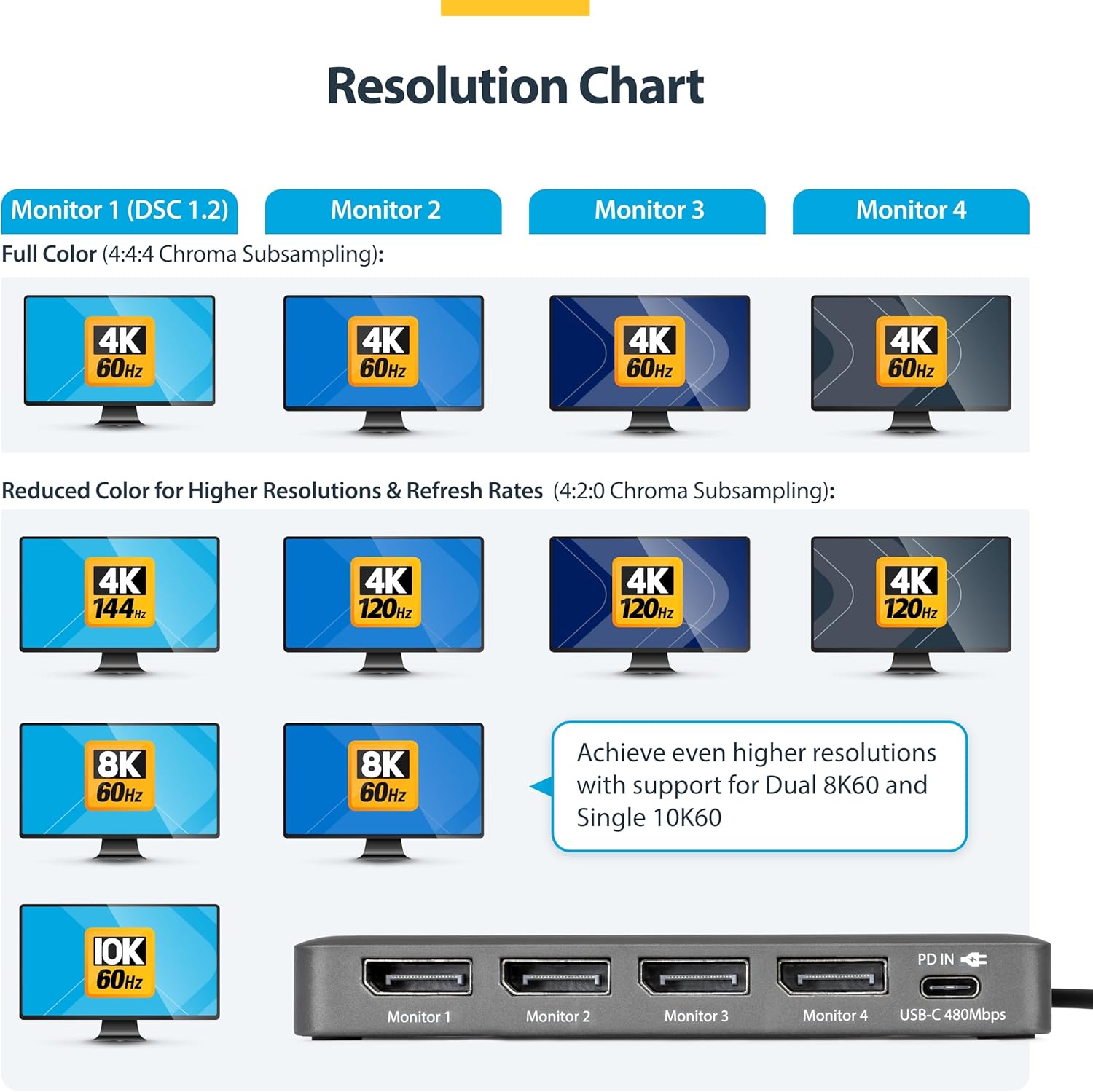
In everyday use, the “convenience stack” is the point: four 4K 60Hz DisplayPort monitors via one USB-C connection, while charging your laptop and keeping at least one USB link for peripherals such as a mouse, keyboard, or a wireless dongle.
There’s also an enterprise-friendly angle: it’s described as rigorously tested in StarTech.com’s Innovation Lab, with a focus on reliability and durability for large-scale deployments. If you’ve ever had a dock that works… until it’s pushed in a busy environment, you’ll know why that’s worth considering.
Key takeaways (and the part to be careful with)
The strongest advantage here is integration: multi-display plus laptop charging plus USB peripherals, all through one host connection.
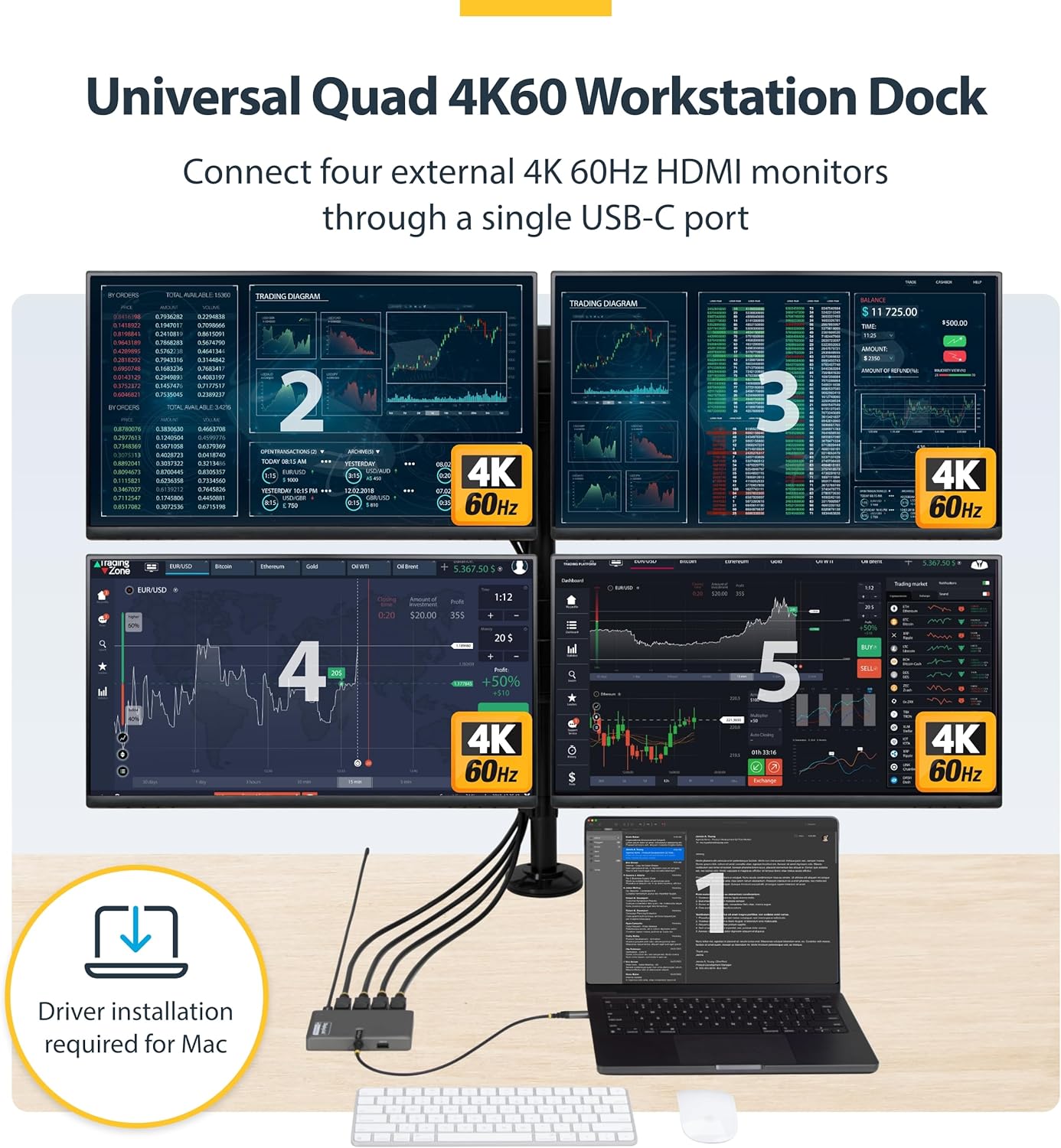
The part that can catch people out is software behaviour. The dock is described as plug-and-play on most Windows and ChromeOS systems because DisplayLink drivers install automatically. For macOS devices, manual driver installation is required. So if you’re buying for a mixed Apple fleet—or you personally don’t want to touch drivers—that’s a practical limitation worth factoring in.
Also, it’s explicitly aimed at workstation-style productivity rather than being a simple “one extra screen” accessory. If your expectation is ultra-minimal setup with no driver considerations, you may find it less comfortable than more straightforward display-out approaches.
Tech specs you should know before buying
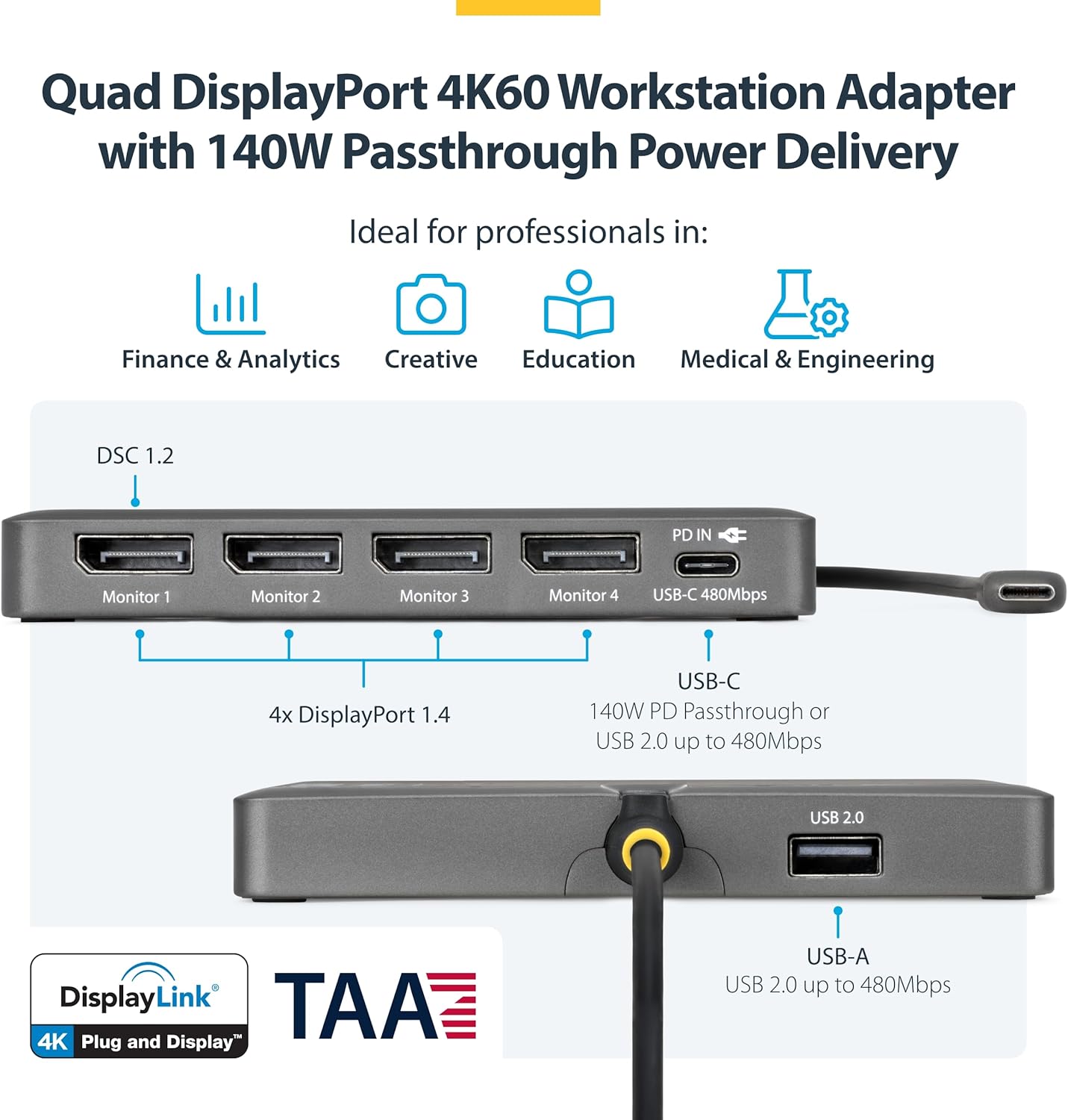
- Type: USB-C to Quad DisplayPort workstation adapter (QUAD)
- Supports up to four 4K 60Hz DisplayPort monitors (quad display)
- Power: 140W USB-C PD passthrough to charge the laptop through the adapter
- USB peripherals: USB-A 2.0 passthrough for mouse, keyboard, or wireless dongle
- Software approach: DisplayLink DL7400 is referenced, drivers install automatically on most Windows and ChromeOS
- macOS note: manual driver installation required
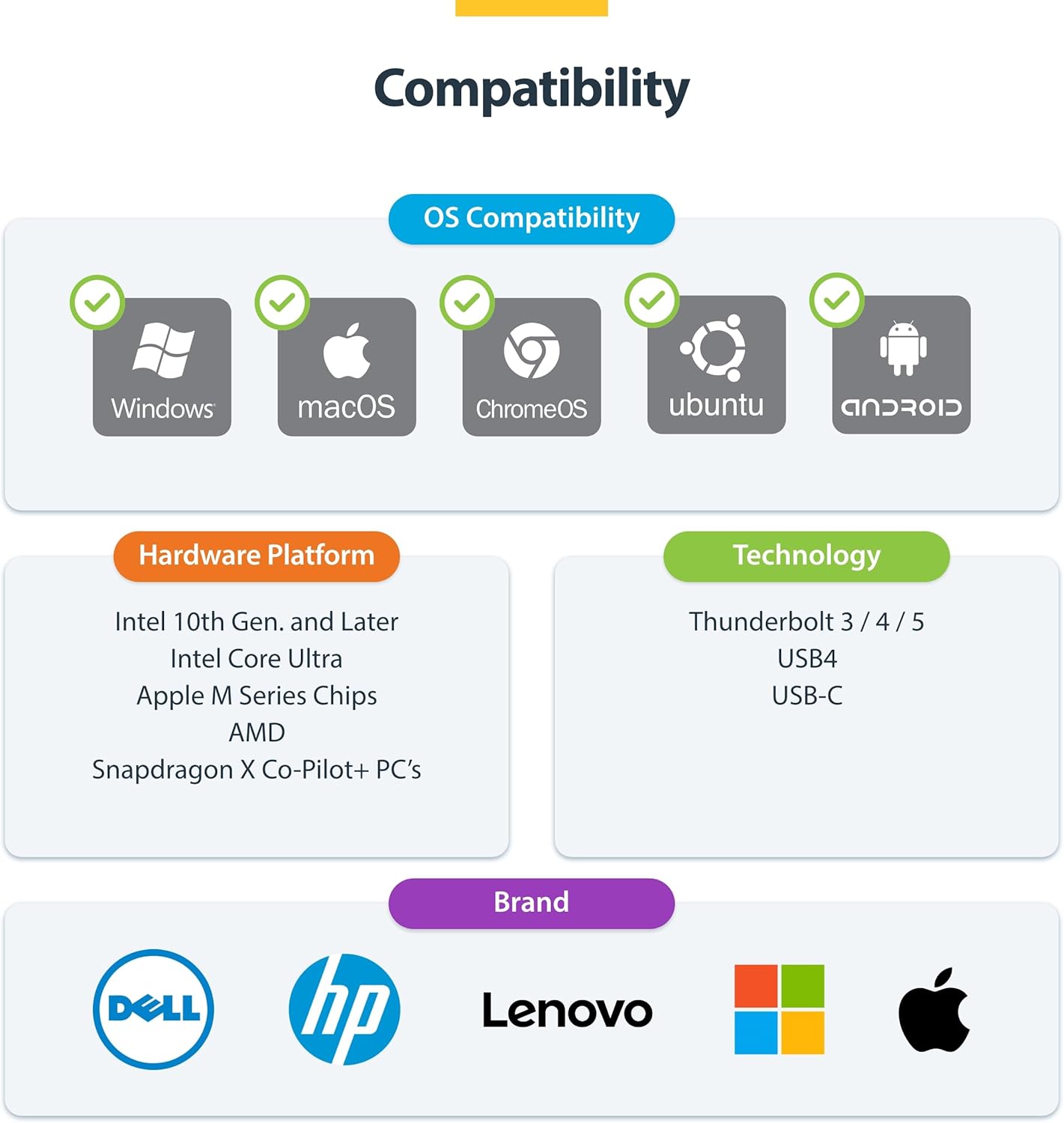
- Host compatibility mentioned: Windows, Mac M1–M5, USB4, Thunderbolt
- Compliance: TAA (QUAD-USB-DP-ADAPT)
- Deployment: described as suitable for enterprise environments and Windows 11 upgrades
Usage tips: setting it up in a real desk scenario
For a typical office day, you’re likely to do something like this: connect your laptop to the dock via USB-C, plug in four DisplayPort monitors, then use the USB-A port for your keyboard/mouse (or a wireless dongle). Because DisplayLink drivers are said to auto-install on most Windows and ChromeOS setups, it’s reasonable to expect less tinkering than some “installer-heavy” display adapters.
Where it depends a lot is the machine you’re using. If you’re on macOS, plan a little time for manual driver installation first—especially if this is for work rather than personal use.
Who it’s for (and who should look elsewhere)
It suits you if you want a single-dock, multi-monitor workstation approach and you don’t mind that display output is handled via DisplayLink drivers.
It also makes sense if you’re buying for an IT/education environment where consistent multi-display capability matters, and where a compact adapter that travels between locations is actually useful.
It may not suit you if you’re trying to avoid driver steps entirely (especially on macOS), or if your setup only needs one or two screens—then a simpler add-on may be less hassle.
Is it worth it?
A solid buy if your priority is turning one USB-C connection into four DisplayPort screens while keeping laptop charging and basic USB peripheral connectivity in the same place. The driver story is a key part of the value: automatic installation is expected on most Windows and ChromeOS systems, while macOS needs manual driver installation.
You may want to skip it if you’re buying for a macOS environment where driver management isn’t welcome, or if you only need a small, minimal desk upgrade. On balance, it sits in the “workstation adapter” category rather than the casual “extra monitor” lane—so it’s best when that’s exactly what you’re trying to achieve.