

Meatanty Upgraded 2 Buttons USB Mouse Jiggler (driver-free, with display & mode switch)
Product description
If you regularly step away from your desk but still want your computer to stay “active”, a USB mouse jiggler is the kind of tool that can save hassle. The Meatanty model is designed around a simple idea: move the cursor automatically, so your screen and status don’t go idle while you’re away.
It’s not perfect for everyone—because it’s still a little hardware gadget plugged into your USB port—but for the right scenario it’s straightforward, and the built-in display and mode switching make it easier to manage than more basic jigglers.
The essentials
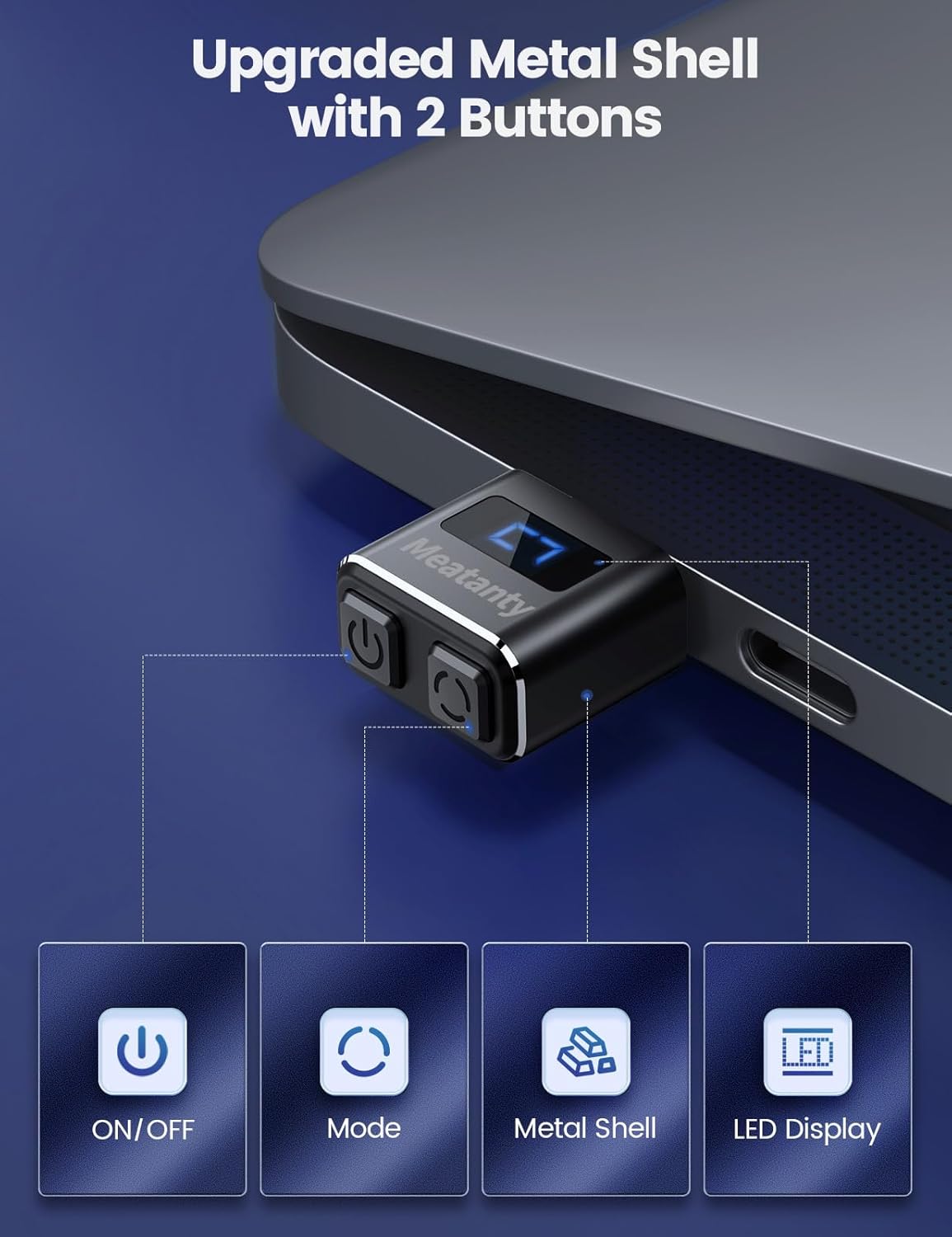
Meatanty’s Upgraded USB mouse mover focuses on three things: easier control, clear feedback, and multiple movement “tracks”. Instead of relying on repeated plug/unplug to change behaviour, it uses an on/off switch plus a mode selection button on the device itself.
On paper, that’s exactly what you want in day-to-day use. You plug it in once, switch it on when you’re stepping away, then switch modes without messing with your USB connections.
What you’ll notice in everyday use
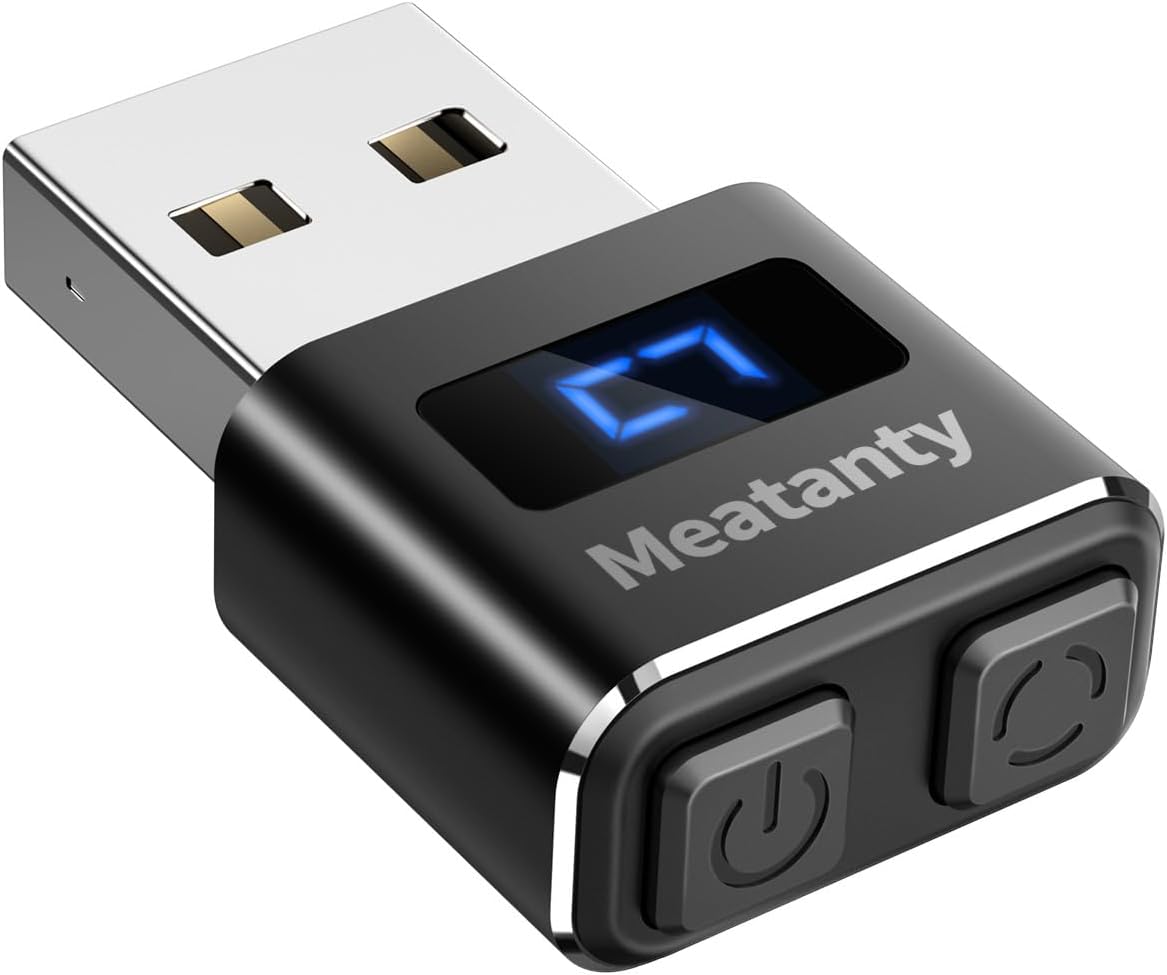
The most practical touch here is the digital display and its protective cover. When you start the mouse wiggler, the display lights up with a spinning blue circle. Then, when you press the mode button, the display shows “Track 1”, “Track 2” or “Track 3”, before returning to the rotating state.
That kind of simple feedback matters more than people think. If you’ve ever used a no-display mouse mover, you know the annoyance: you’re guessing whether it’s running or what mode it’s in. With this one, you can confirm status at a glance.
Also, the included on/off & mode controls mean fewer “USB port dance” moments. Less unplugging and replugging can help preserve your ports over time, even if it’s a small thing.
Multi-track movement and memory function
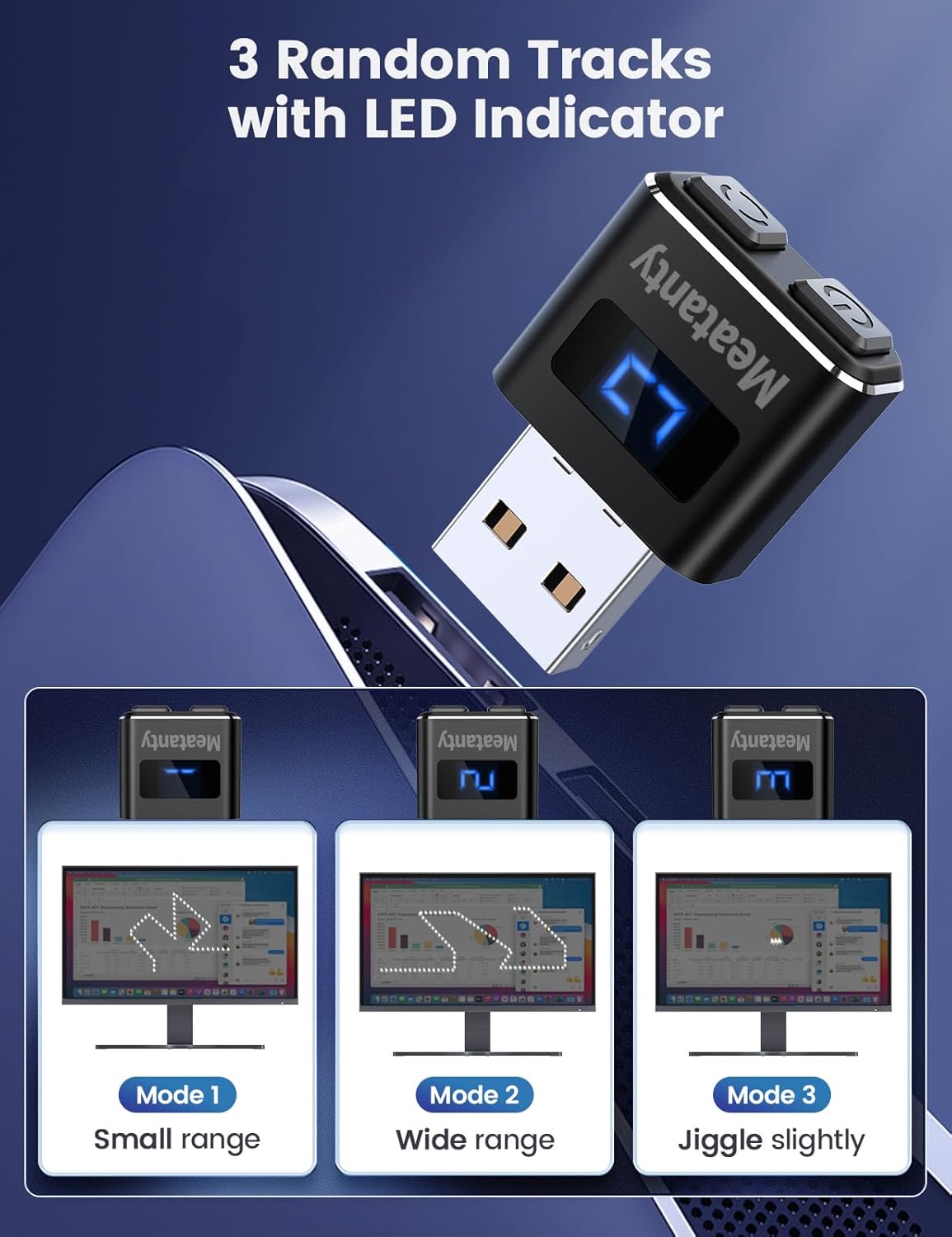
This mouse mover offers 3 optional tracks, selected via the mode button. The idea is that the cursor moves randomly with different trajectories and amplitudes depending on the track you choose.
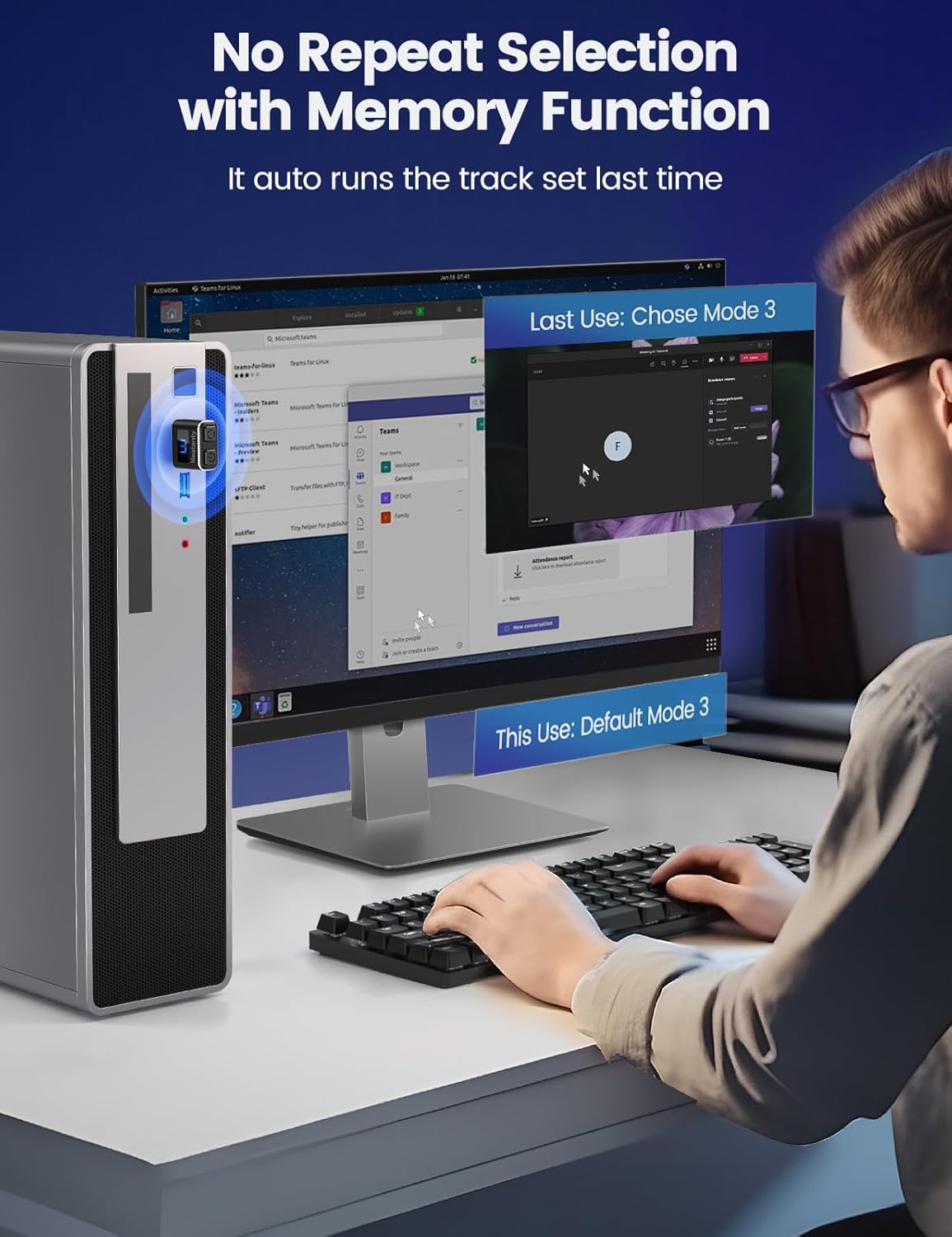
There’s also a memory function: the next time you turn it on, it continues moving according to the previously selected trajectory. So you don’t have to keep re-selecting a mode every time.
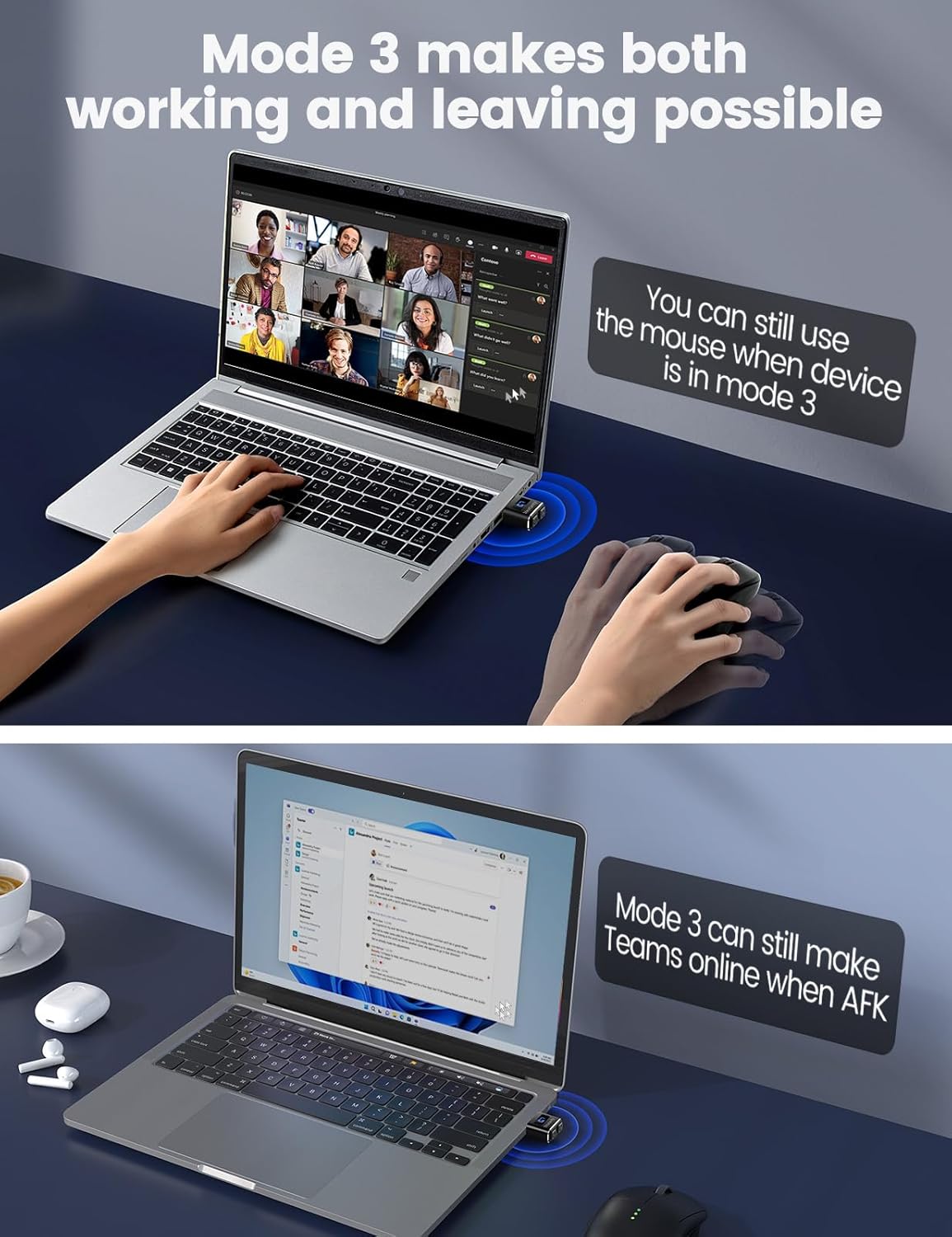
One nuance worth keeping in mind: Mode 3 is described as not affecting normal typing, clicking programs, clicking websites, etc. That doesn’t mean it’s guaranteed to be invisible in every scenario, but it does suggest this mode is intended to be gentler for active computer use.
The “undetectable” angle and keeping your PC active
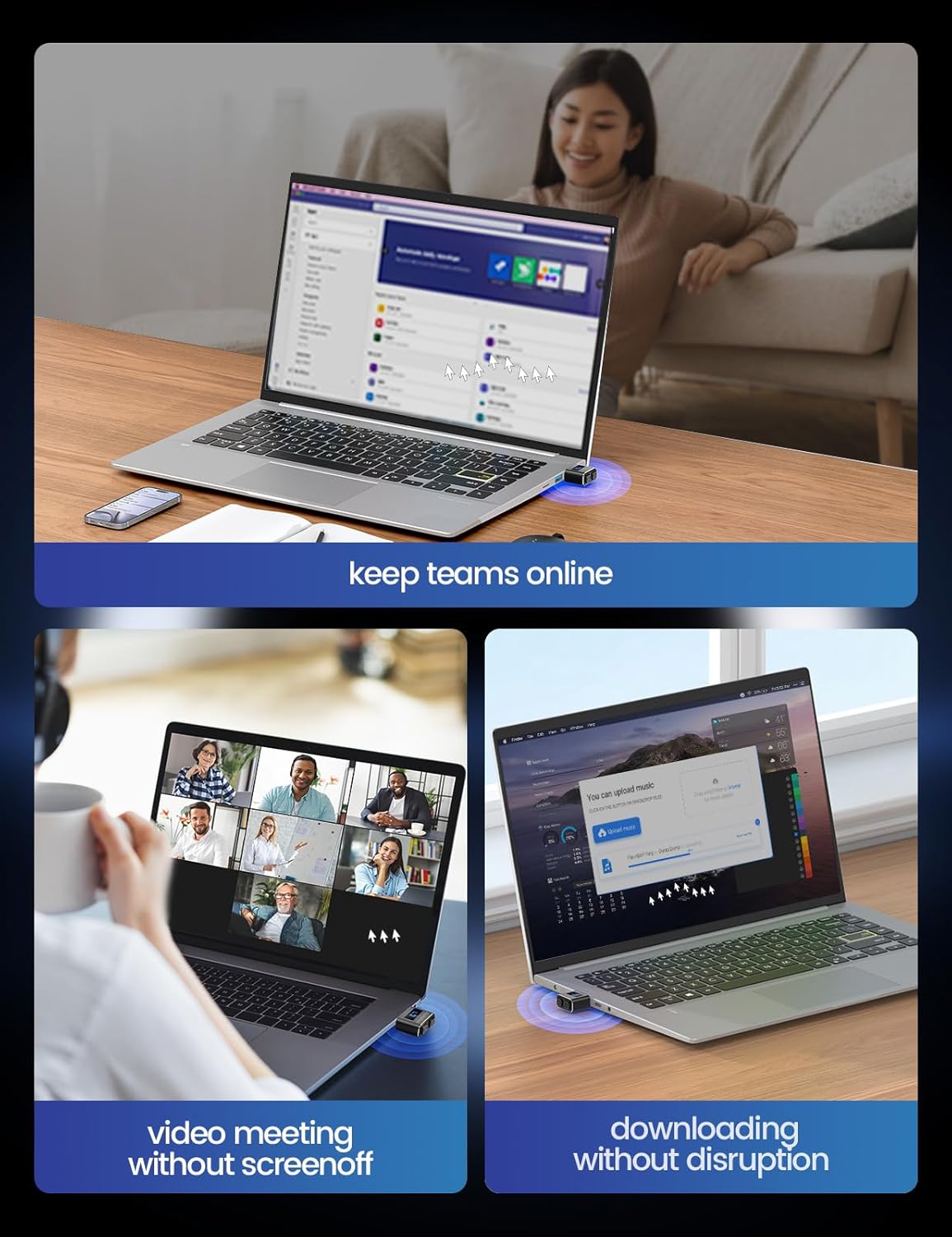
Meatanty positions this as an “undetectable” mouse jiggler and says it works by the IT side ignoring it as another normal mouse device. The practical goal is clear: keep your PC/laptop active by moving the cursor automatically when you need to step away—like grabbing a coffee, doing chores, or being out for a longer period.
It’s also aimed at keeping communication tools online (they specifically mention Microsoft Teams, Lync and Skype staying online). If you’ve got a routine where you can’t stay glued to the screen, this is the sort of accessory that can help.
At the same time, it’s sensible to be cautious about expectations. If your workplace uses strict monitoring rules, or you’re trying to bypass policies, the “undetectable” claim may not hold up in all environments. For personal or controlled use, it’s easier to judge whether this is appropriate.
Compatibility and setup (driver-free, plug-and-play)
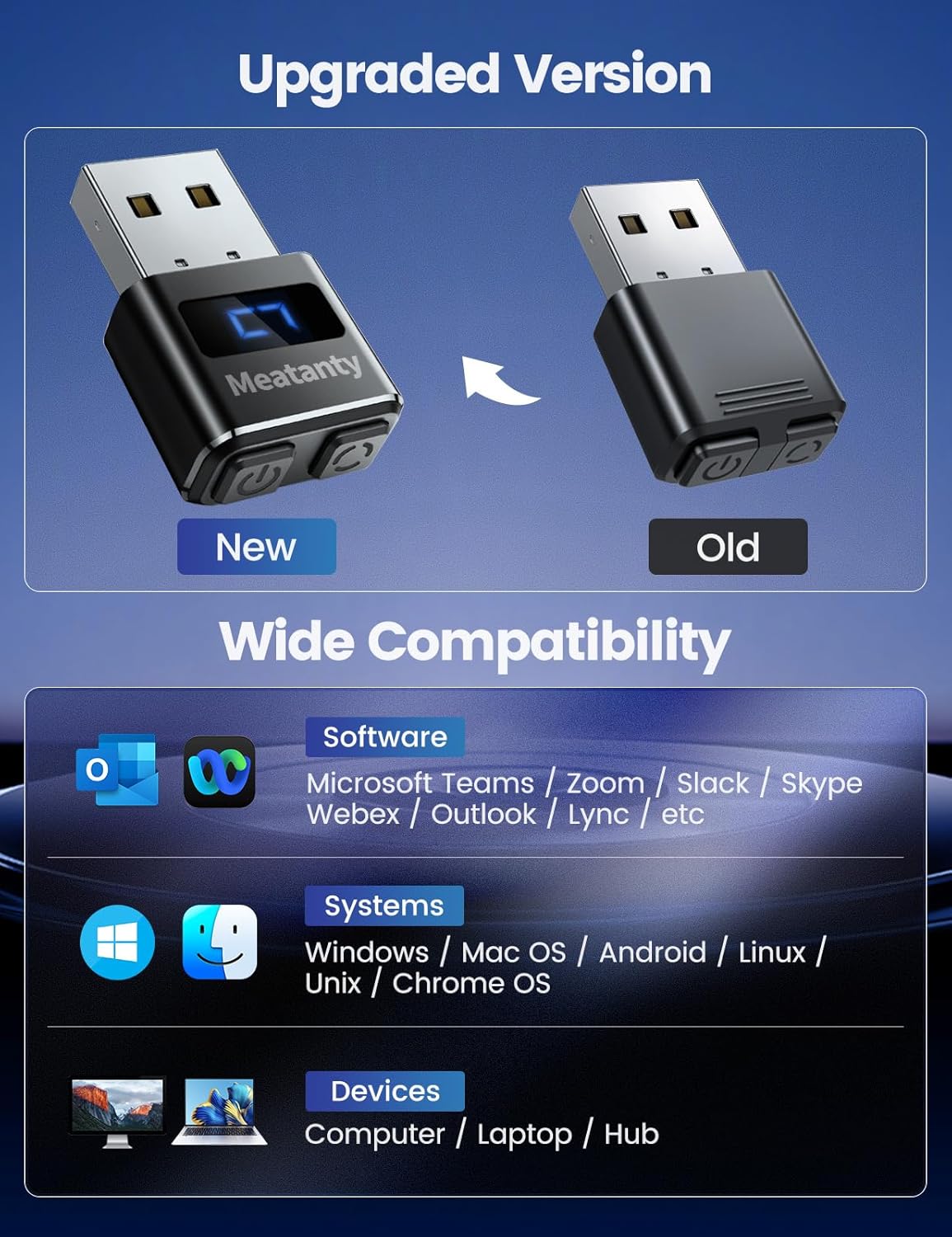
This device is described as driver-free and plug-and-play, supporting popular systems including iOS, Win7, Win8, Win10 and Linux. Based on the information provided, it should also support plug and unplug.
In terms of setup, the workflow is simple: connect the mouse jiggler to a USB port, and the computer should stay active with the cursor movement while the device is running.
If you’re buying for a laptop you travel with, the protective cover and the on-device controls make it feel more “transportable” than bare plug-in movers.
Pros and limits to consider
What stands out
- On/off and mode selection buttons on the device itself, to avoid repeated unplugging
- Digital display that indicates whether it’s running and which track is selected
- 3 track options, plus a memory function so it can keep your last chosen behaviour
- Mode 3 is specifically described as not affecting normal typing and clicking
Where it may not suit
- It’s still a workaround device, if your environment reacts to cursor/mouse movement, it may not achieve the outcome you expect
- “100% undetectable” is a strong claim—so it’s worth checking whether your use case is compatible with your organisation’s rules
Who it’s for (and who should skip it)
It makes the most sense if you want a USB mouse jiggler for occasional step-outs and you prefer controls that are easy to operate without rummaging for a cable or constantly unplugging.
It may not be the best fit if you’re looking for a high-end mouse replacement, or if you need something that fully integrates into complex workflows where a moving cursor could interfere. Also, if you’re unsure about whether your workplace allows this kind of workaround, you may want to think twice before buying.
Is it worth it?
Worth considering if you want a driver-free USB mouse mover with on-device switching and a display that tells you what’s going on. The track selection, track memory, and the note about Mode 3 being less disruptive for typing/clicking make it feel more thought-through than very basic jigglers.
Better avoided if your setting is strict and cursor activity is monitored in a way that could flag this, or if you want a tool that behaves like a normal mouse rather than a simulated movement device.
If you mostly need your screen and status to stay active while you’re away from your desk, this is the sort of plug-in gadget that can do that job with less friction.
Mini FAQ
How do I switch between tracks?
Use the mode selection button on the device. The digital display shows Track 1, Track 2 or Track 3 when you change modes.
Does it remember the last track I used?
Yes. It’s described as having a memory function so that when you turn it on again, it continues using the previous trajectory.
Is it driver-free?
Yes, it’s described as driver-free and plug-and-play.
Which systems does it support?
The information provided says it supports iOS, Win7, Win8, Win10 and Linux.
Can Mode 3 affect typing and clicking?
Mode 3 is specifically described as not affecting normal typing, clicking programs and clicking websites, but as with any cursor movement tool, results can depend on your specific setup.