
HUION Kamvas 13 (Gen 3) pen display with 13.3-inch screen and PenTech 4.0
Product description
The essentials
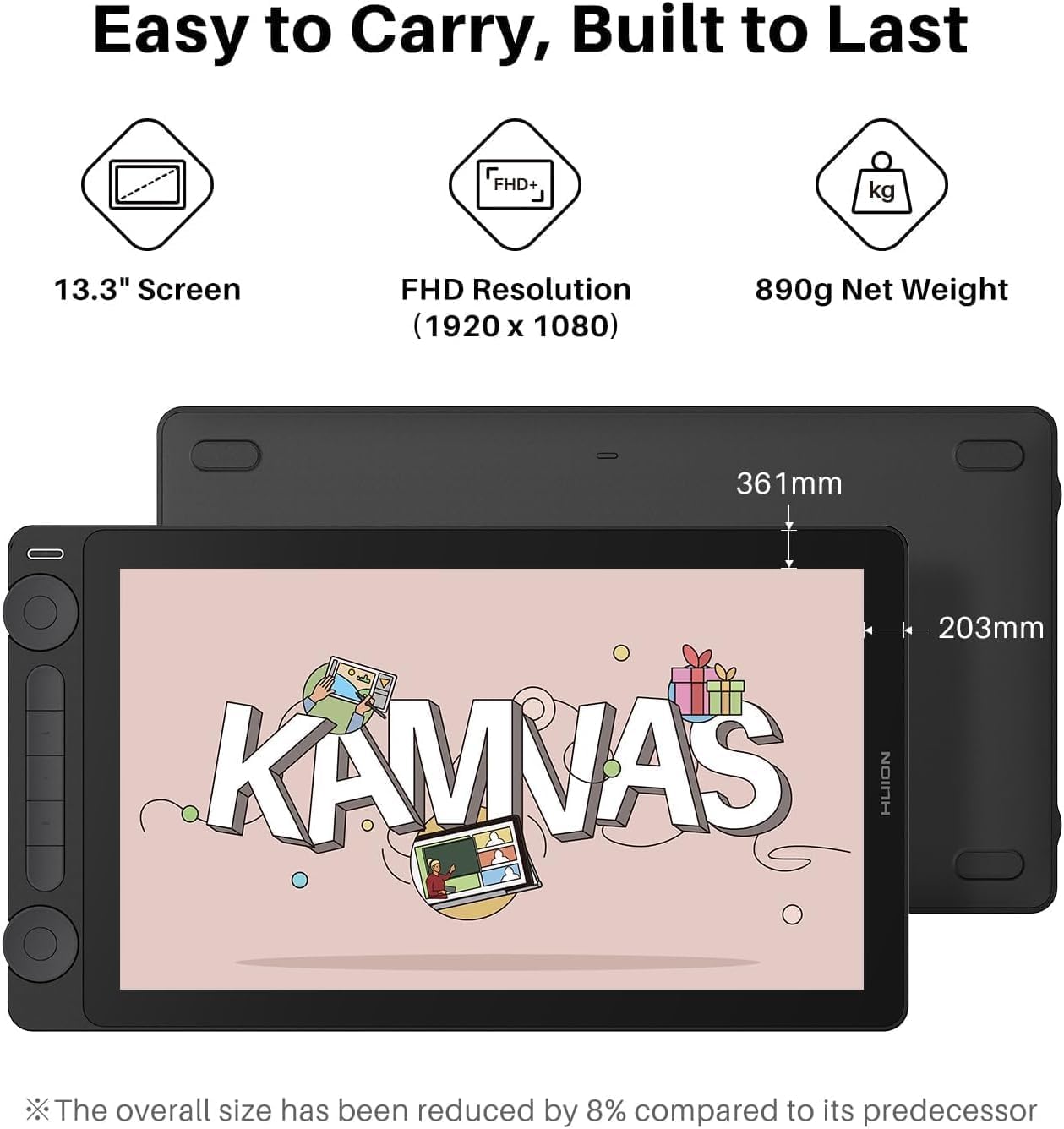
HUION Kamvas 13 (Gen 3) is a 13.3-inch drawing monitor (a pen display) designed for PC-based digital art. The big idea here is simple: draw directly on the screen, with a laminated canvas-glass surface aimed at reducing glare and helping you stay accurate as you work. If you’ve been using a graphics tablet without a display, this is the kind of upgrade that changes your workflow more than you might expect.
On paper, it sits in a practical, mid-sized category: small enough to be desk-friendly, but large enough for illustration work, sketching, and detail tasks without needing a huge space. That said, it’s not trying to be a studio-grade monster—so if your work demands very large canvases or you’re chasing the highest-end calibration experience, you may find bigger displays or higher-spec options more satisfying.
What you’ll notice when drawing
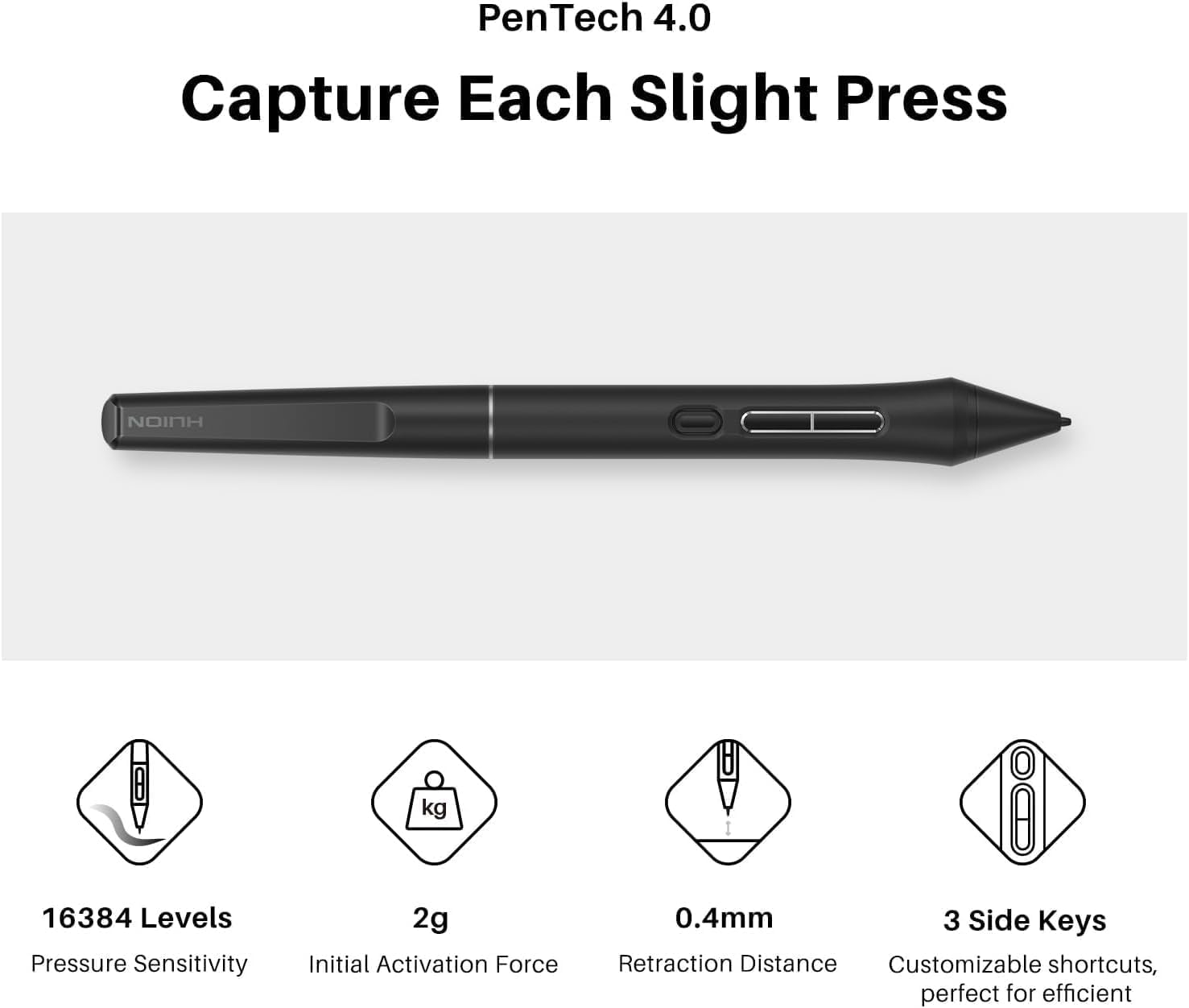
The Kamvas 13 (Gen 3) leans on PenTech 4.0 and a pressure sensitivity figure of 16384 levels, plus a stated 2g IAF for a fluid, natural drawing feel. In practice, the main value of this kind of spec is whether it helps your line control: lighter strokes should feel more responsive, and pressure changes should translate consistently.
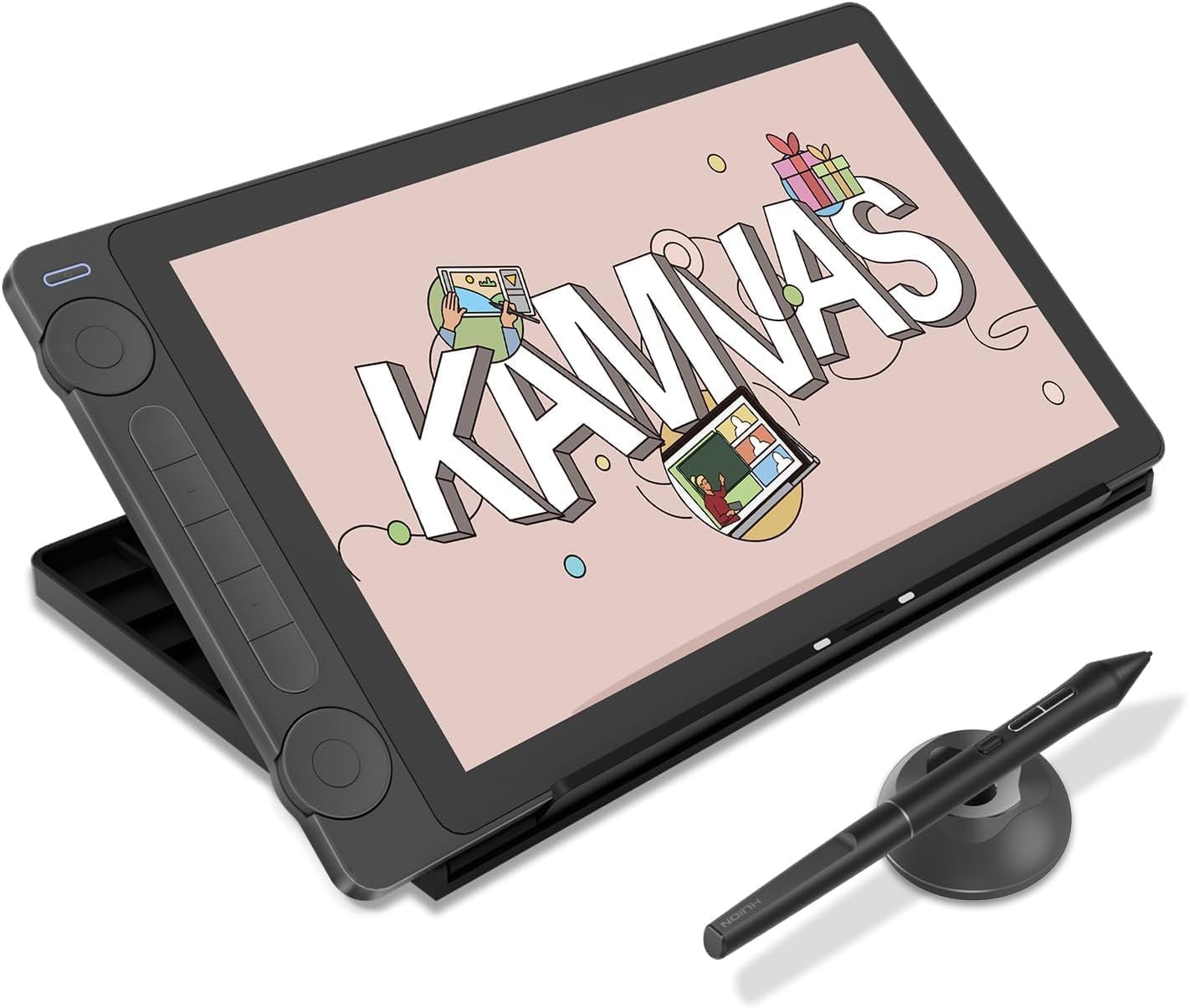
There are also three customised pen side buttons. Depending on how you like to work, that can be more than a convenience—it helps keep your hands moving less while you sketch, shade, or refine shapes.
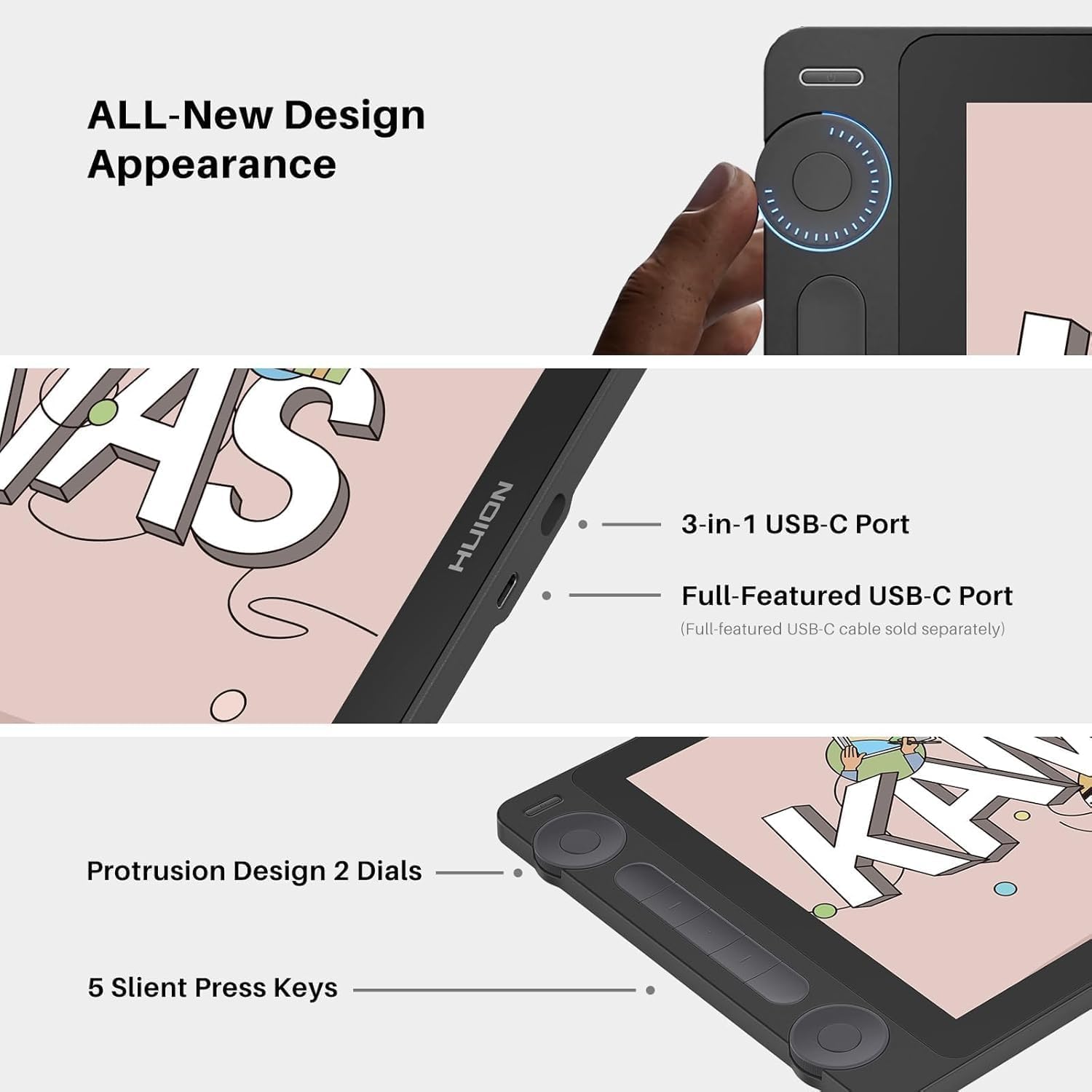
And because it has dual dials and 5 express keys, you’re not relying entirely on keyboard shortcuts. It’s the sort of setup that can speed up repetitive tasks like brush size adjustments, zooming, rotation, or quick tool changes.
Screen, colour accuracy and glare
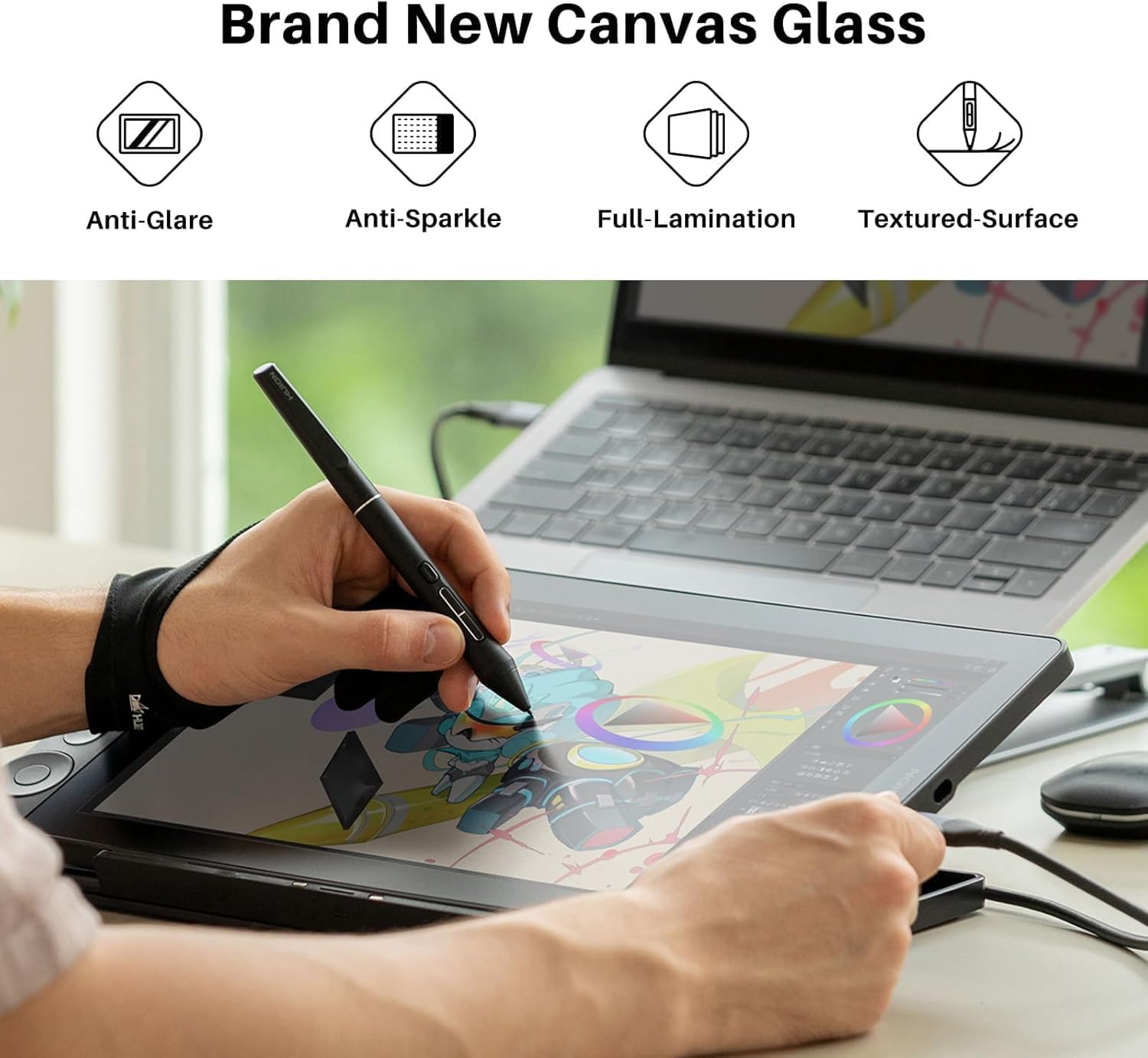
This model uses a fully laminated 13.3-inch screen and “canvas glass” with anti-sparkle design to reduce glare. The surface is built to feel less like drawing on slick glass and more like working on a controlled canvas—again, not perfect for everyone, but the aim is clear.
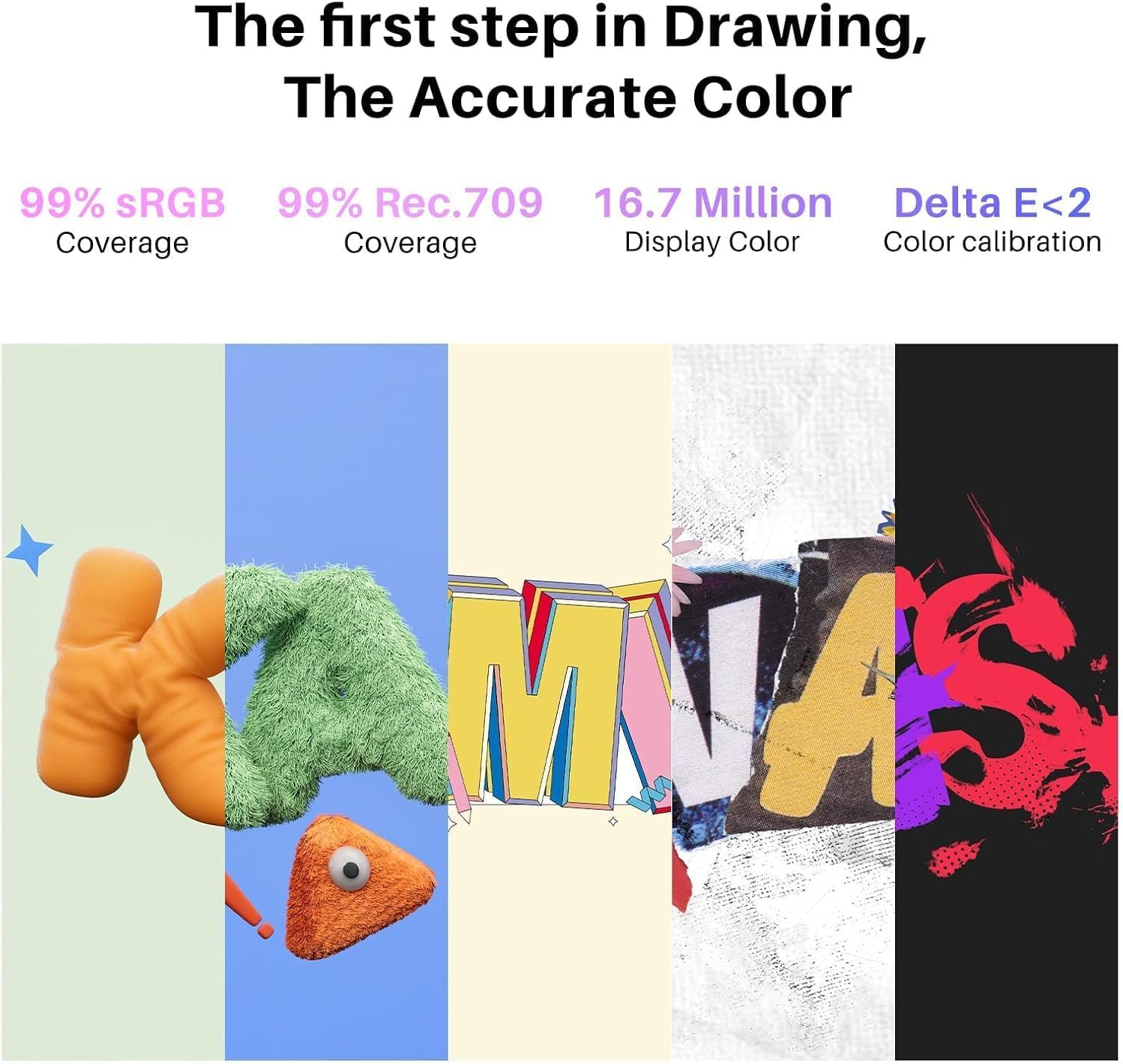
For colour, HUION quotes 99% sRGB coverage and the Rec.709 standard colour gamuts. It also mentions enhanced colour accuracy with an average ΔE<1.5 target, plus 16.7 million display colours. If you’re doing illustrations where colours need to look right (not just roughly pleasing), those figures are worth paying attention to.
One more detail that’s easy to overlook: it includes a factory calibration report. That doesn’t guarantee your entire workflow will be “plug-and-play” for every creative programme, but it does add a layer of confidence compared with screens that don’t state any calibration information.
Connectivity and day-to-day workflow
HUION lists a USB-C single-cable connection, which is genuinely helpful if you’re trying to keep your desk neat and avoid hunting for multiple leads. There are also 5 programmable shortcut keys and the dual dial buttons for shortcuts and adjustments.
A quick, realistic example: say you’re tightening line art. You can map one dial to brush size, another to zoom, and use the express keys to switch tools or toggles. The benefit of this kind of layout is that you spend less time reaching for the keyboard—especially during longer sessions.
The limitations to consider
The Kamvas 13 (Gen 3) has a 13.3-inch canvas, so it can feel limiting if your style tends to rely on very large compositions or you regularly work with lots of on-screen reference panels. Also, while the provided specs point to strong colour performance for its class, the entry-to-mid range of a screen this size means it’s unlikely to satisfy professionals who need the most demanding colour-critical workflows.
Finally, PenTech 4.0 and the pressure/IAF figures help the drawing feel, but every artist’s pen technique is different. If you’re very particular about pen glide and resistance, it’s worth being realistic: this is a good match for many, but it may not replicate the exact feel you already love.
What matters most before you buy
Before committing, it’s worth checking whether your main creative work actually benefits from a pen display. If you do a lot of sketching, inking, or retouching where hand-eye coordination matters, going from a non-display tablet to a screen-based monitor usually delivers the “click” effect quickly.
Also, consider screen size versus desk space. A 13.3-inch display can be ideal for portability and smaller desks, but it won’t replace the feeling of a much larger workspace.
For software workflow, think about whether you’ll use the express keys, dual dials, and the three pen side buttons. If you prefer keyboard-only control, you might not get the full value.
Should you buy it?
It makes sense if you want a compact PC pen display with a laminated anti-sparkle canvas-glass approach, strong listed colour performance (99% sRGB and Rec.709 coverage), and a pressure-sensitivity setup aimed at natural line control. You’ll likely appreciate the practicality of the single USB-C connection and the shortcut controls for keeping your drawing flow moving.
You may want to skip it if your projects demand a larger on-screen canvas, or if you’re chasing the kind of colour assurance and calibration rigour typically associated with higher-end professional displays. It’s a sensible creative upgrade rather than a no-compromise studio replacement.
Mini FAQ
Is the anti-sparkle canvas glass meant to reduce glare?
Yes, the product description specifically calls out anti-sparkle canvas glass designed to reduce glare and improve accuracy.
How good is the colour performance for illustration work?
HUION quotes 99% sRGB coverage, Rec.709 standard colour gamuts, and an average ΔE<1.5 target, which should be helpful for colour consistency in day-to-day creative tasks.
Does it connect with just one cable?
It’s listed as a USB-C single cable connection, which is convenient if you want fewer connections to manage.
What controls are available for workflow?
There are 5 express keys plus dual dial buttons, and the pen includes three customised side buttons for quicker access to actions.
What kind of user is it most suitable for?
It’s aimed at designers, artists, and illustrators who want to draw directly on-screen on a desk-friendly 13.3-inch display, especially if you’re moving beyond a tablet without a screen.