

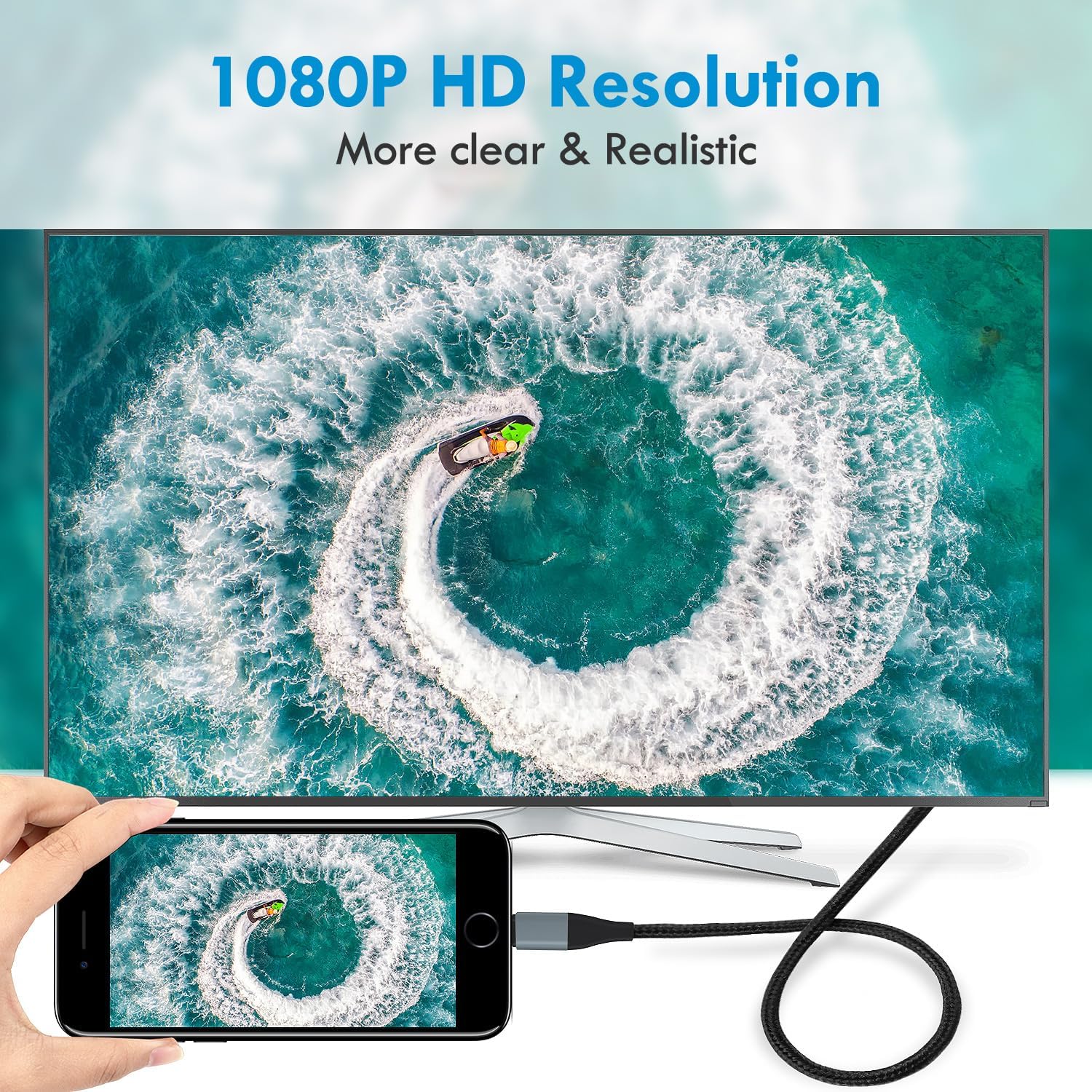
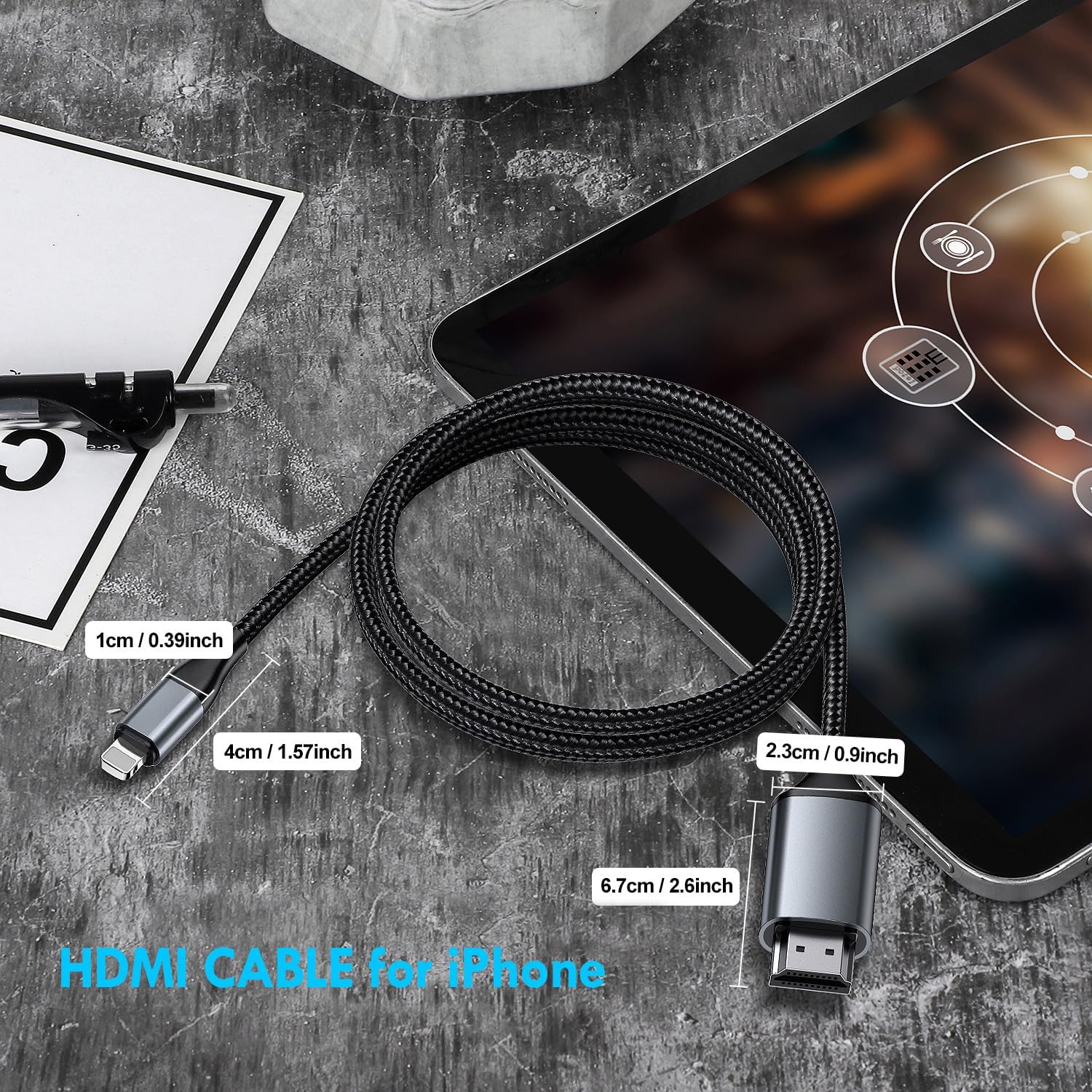
lulaven Lightning to HDMI Adapter 1080P for iPhone
Reviews
Price
Product description
This Lightning to HDMI adapter from lulaven turns an iPhone into a plug-and-play source for TVs, projectors and monitors, making it simple to mirror photos, videos and presentations in full HD. It is suited for casual streaming, mobile gaming on a larger screen, and showing slides or clips during meetings.
Key Points
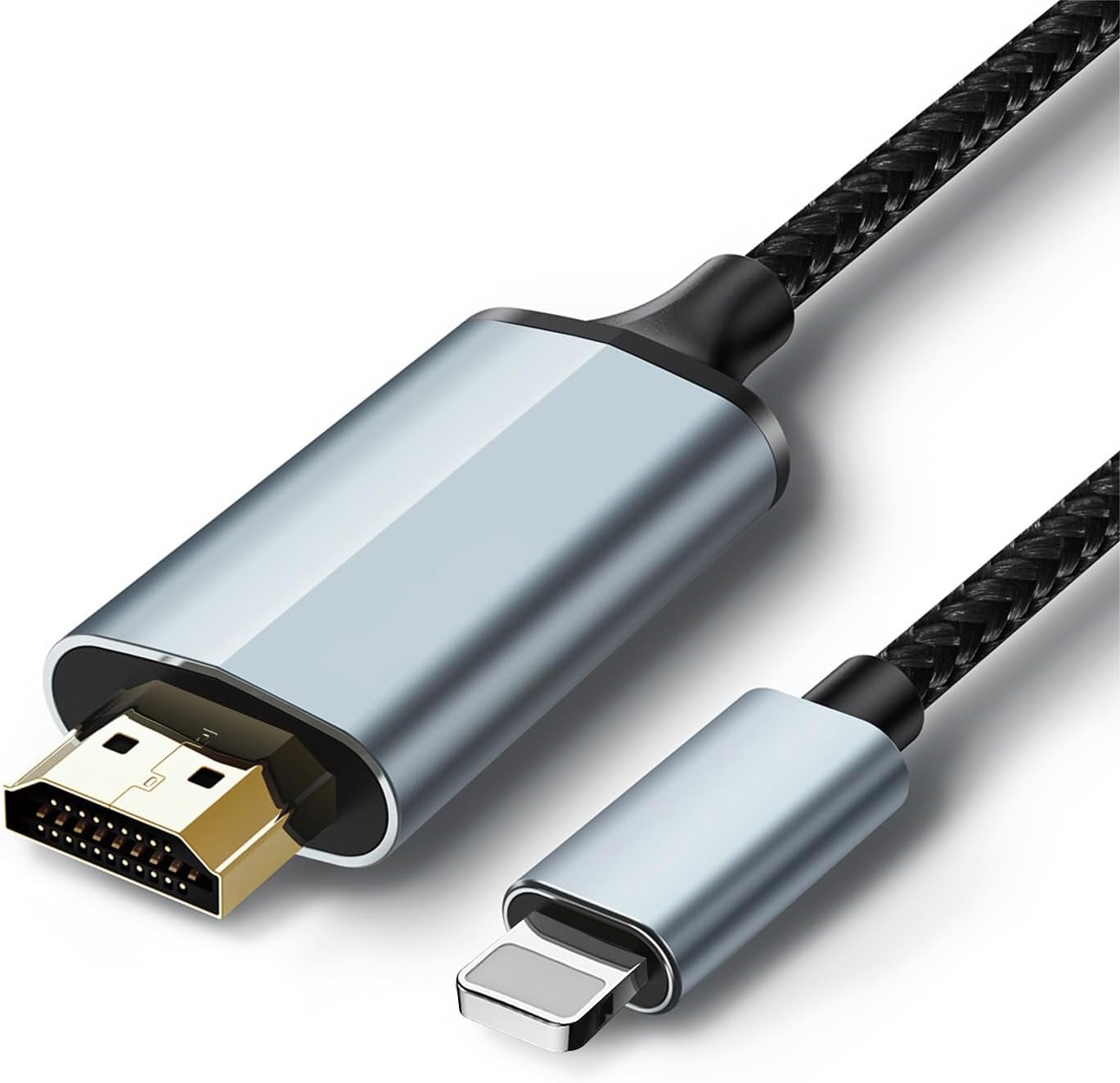
This adapter connects directly from a Lightning port to an HDMI input so no extra dongles are needed. It supports audio output along with video so sound plays through the target display or speaker system. The cable is roughly 6.6 feet long which gives flexibility for living rooms and conference rooms alike. Note that, according to the manufacturer, some protected streaming apps like Netflix and other paid services may block playback over HDMI. Also it is not compatible with USB-C models such as iPhone 15, 16 or 17 and several iPad USB-C generations.
Technical Specifications
- Name: lulaven Lightning to HDMI Adapter
- Resolution: 1080p HD maximum
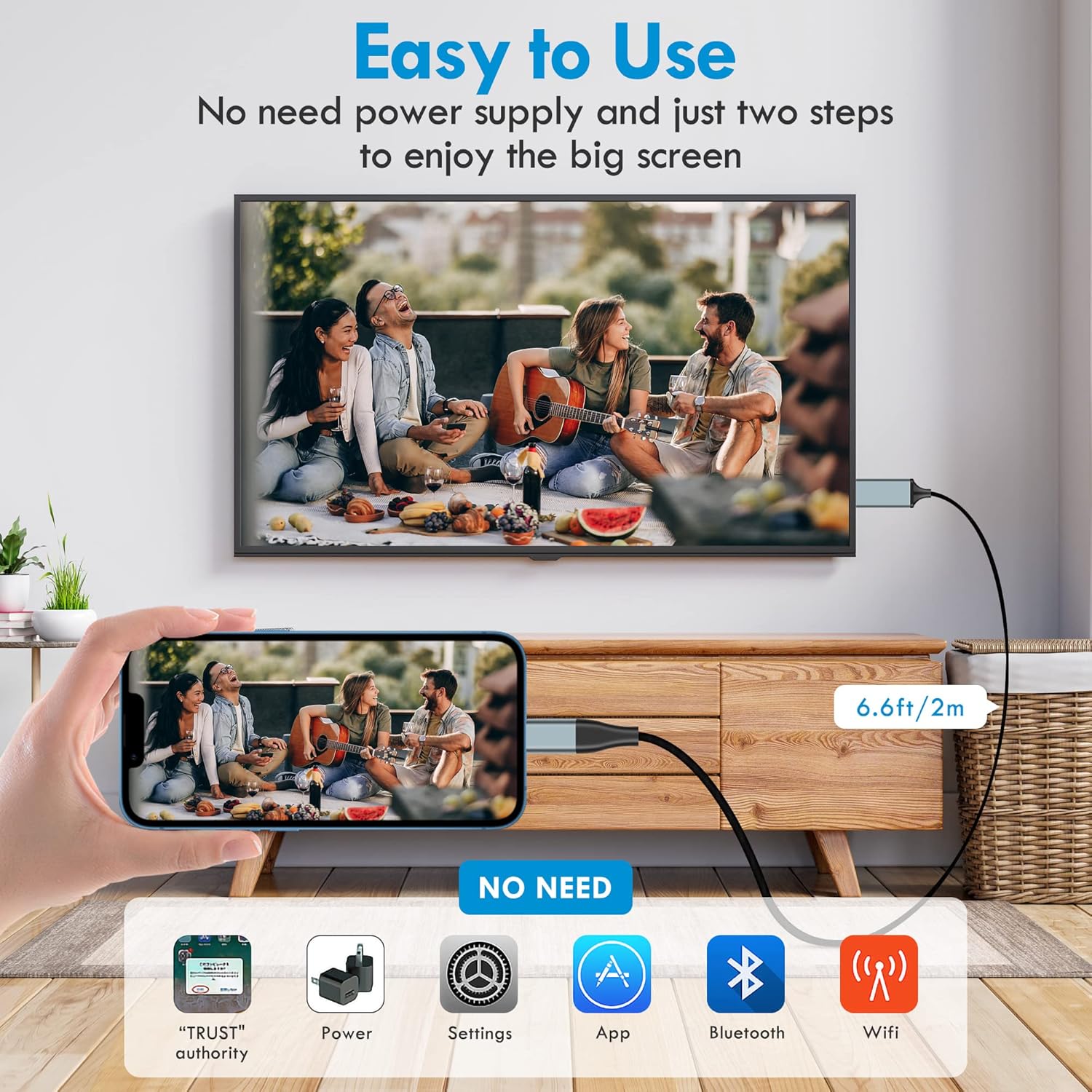
- Cable length: 6.6FT (approximately 2 meters)
- Compatible devices: iPhone models with Lightning connector up through iPhone 14 according to the manufacturer
- Audio: Supports digital audio output alongside video
Usage Recommendations
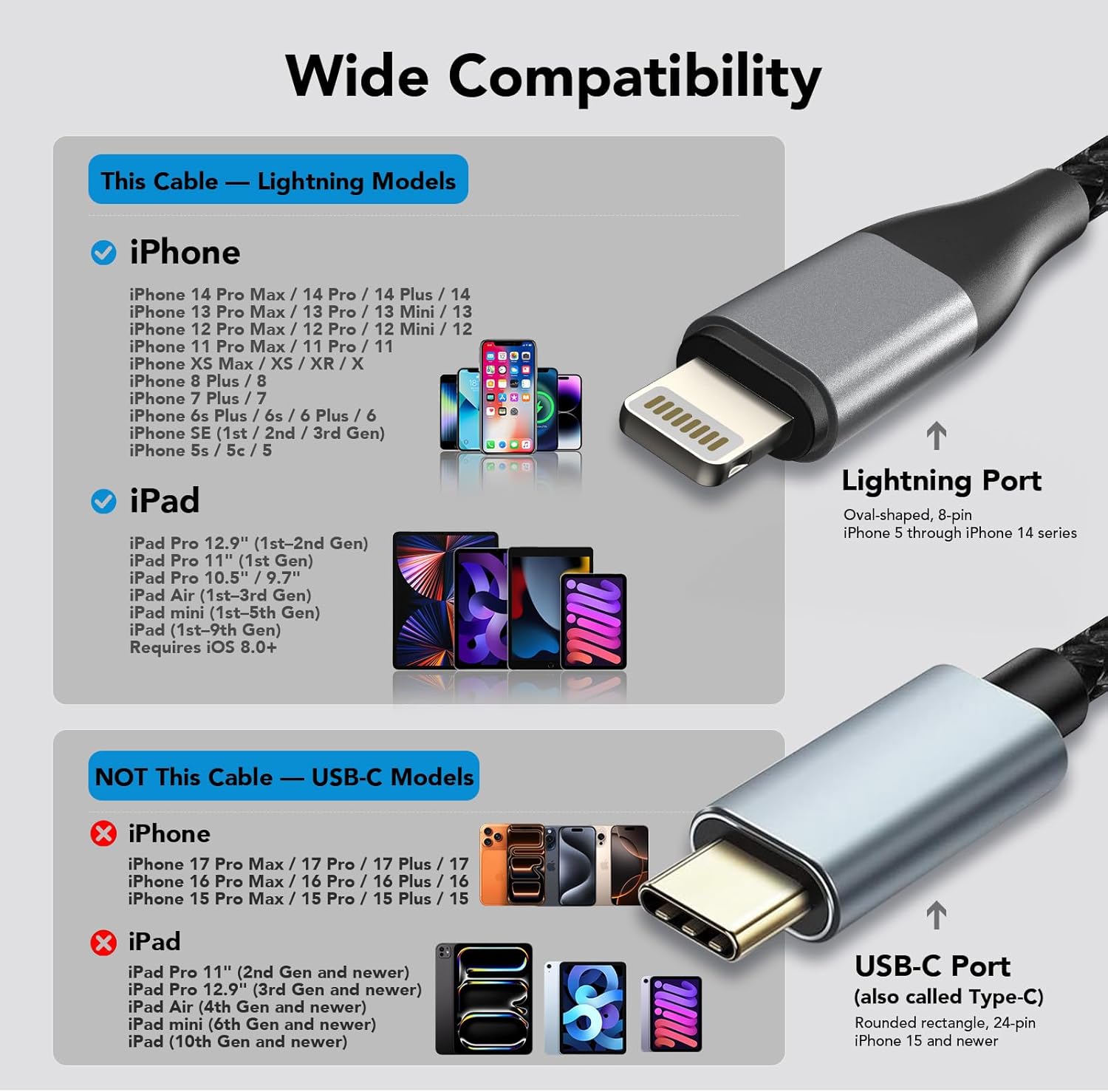
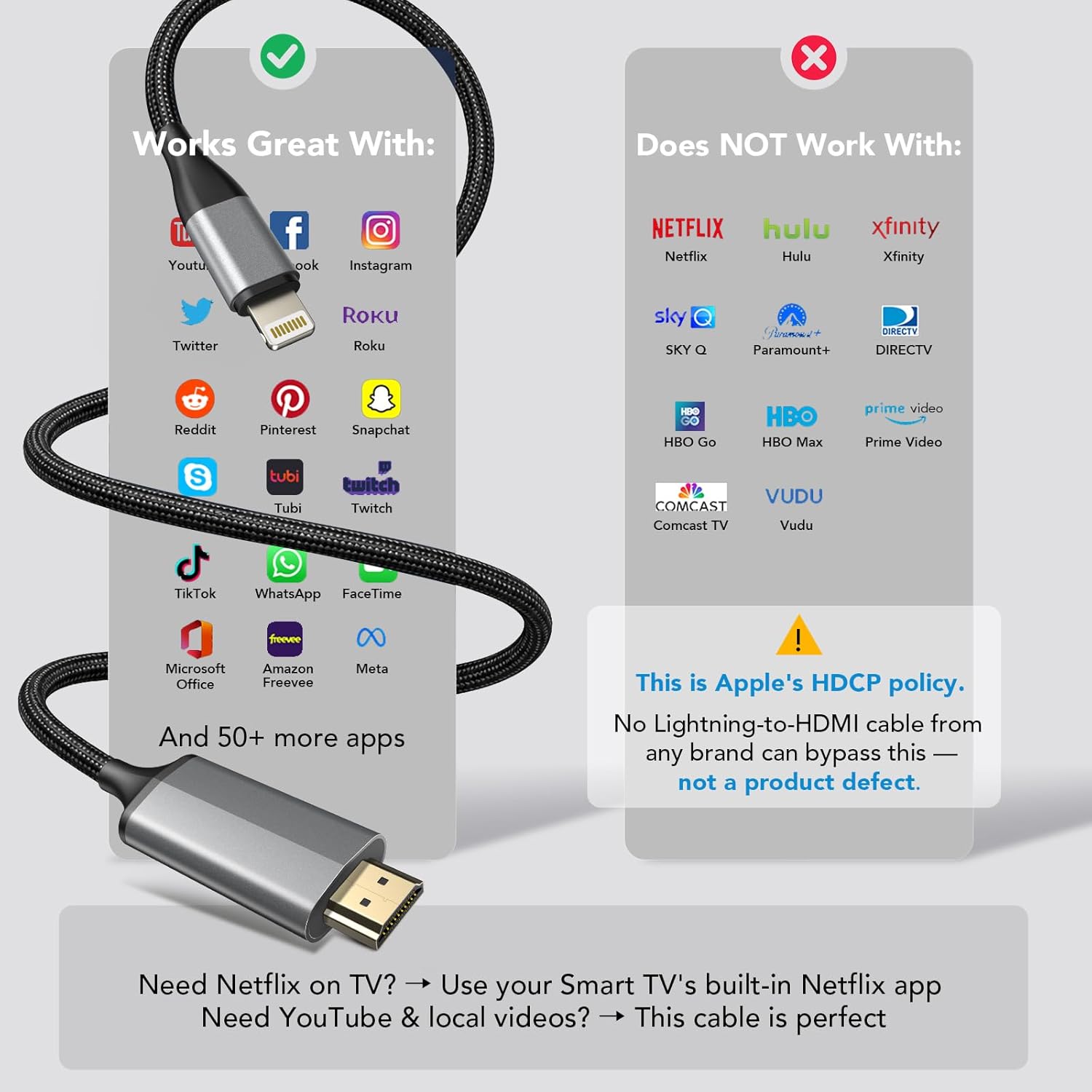
For the smoothest connection plug the adapter into the iPhone Lightning port and then into an HDMI port on the TV or projector. If the TV has multiple HDMI inputs pick the active input, then select the matching HDMI source on the display. For presentations place the device near the display to avoid tension on the cable. When streaming DRM-protected content be aware that playback of certain paid apps may be blocked, so test playback beforehand if you plan to show protected movies or TV shows. 🎬
Advantages
The main advantage is straightforward setup and wide device compatibility across many Lightning iPhones which avoids wireless lag or pairing issues. The 1080p support delivers clearer images than standard-definition alternatives and the included audio pass-through means no separate audio cable is necessary. The longer cable length reduces the need to reposition devices while presenting or sharing media. 📱🖥️
Practical Tips
If the TV shows no signal check both ends of the cable and try a different HDMI input or HDMI cable. Some displays require changing the resolution in the iPhone display settings or restarting the phone after first connection. Consider using the adapter with media files stored locally or apps known to allow HDMI output when you need guaranteed playback.