

VEDINDUST USB C KVM Switch Dock 4K 120Hz
Reviews
Price
Product description
If you need to run two computers from one laptop setup, this VEDINDUST USB C KVM Switch docking station helps you streamline desk space and peripherals. It supports dual HDMI monitor setups with either mirrored or extended display modes, while sharing common inputs like keyboard and mouse. It also adds essential connectivity such as USB ports, Gigabit Ethernet, and audio connectivity, so you can stay focused on work rather than constantly swapping cables.
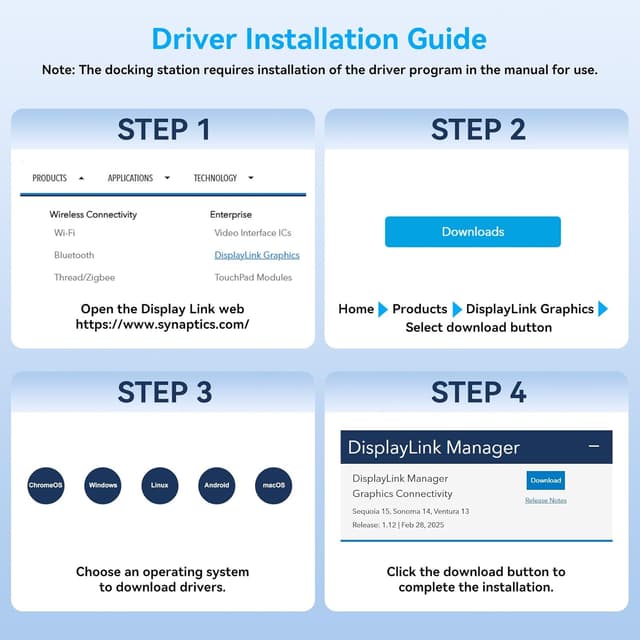
One key point to keep in mind is that this type of dock depends on your computer meeting the stated port and controller requirements. For smooth operation, the relevant DisplayLink controller must be downloaded and installed according to the included guidance, and your laptop needs a USB 3.0 or better input port. 🧩
Key points
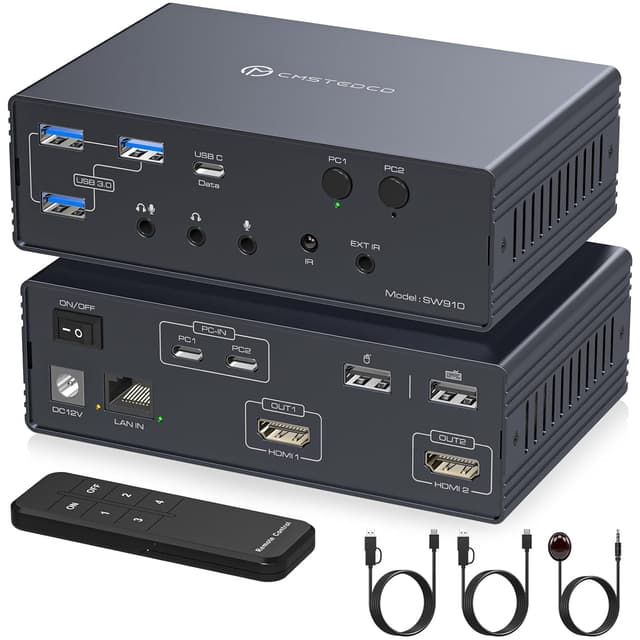
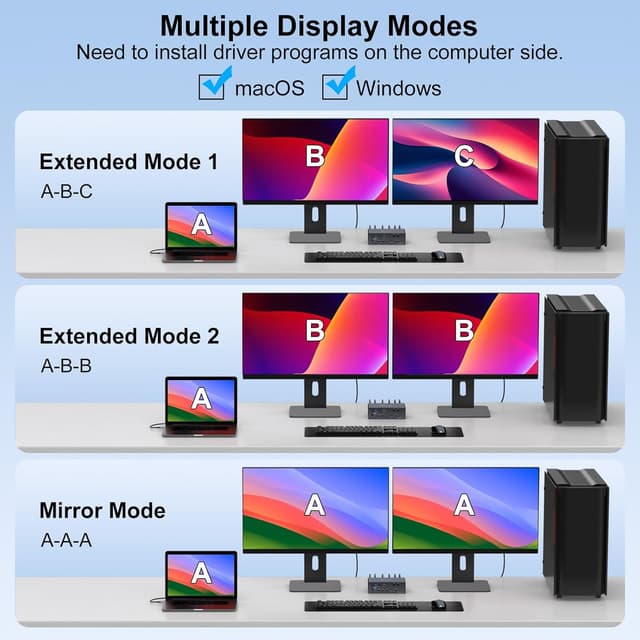
This docking station is designed around a practical KVM workflow, letting you control two computers through a single keyboard and mouse while viewing them across two HDMI displays. That makes it useful when you regularly switch between work and personal machines, or when you want the same monitor space for different tasks like spreadsheets, documents, and general office work. Depending on the setup you choose, you can run mirrored or extended views, which helps when you want consistency across screens or more workspace at once.
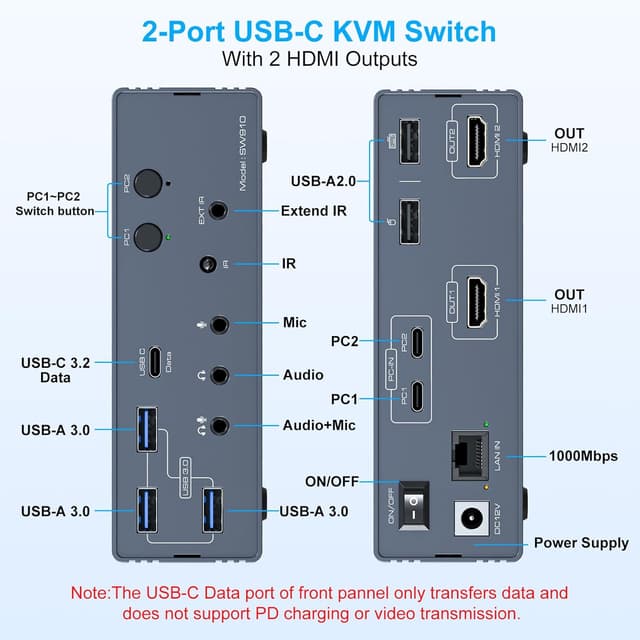
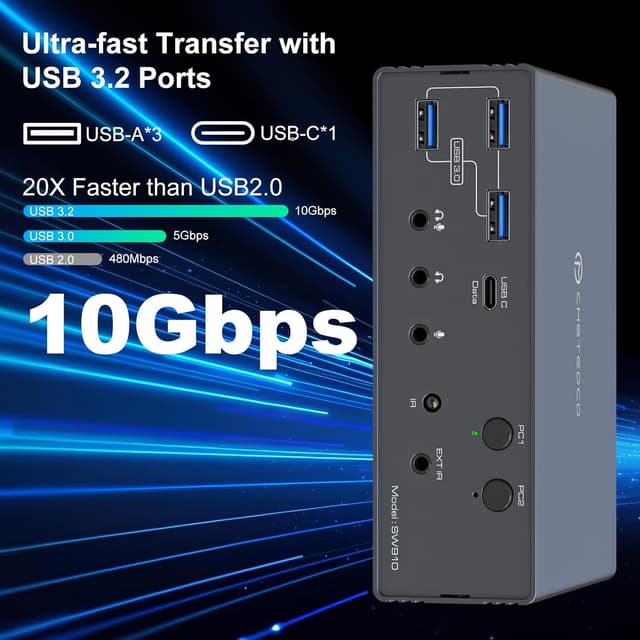
The dock also addresses everyday desk problems caused by limited laptop ports. It provides multiple USB connections for peripherals, along with a USB-C 3.2 port and additional USB-A ports, so you can plug in devices without constantly reconfiguring your cable layout. For wired connectivity, Gigabit Ethernet is included, which can be a reliable option for video calls, file transfers, and stable online access. 🎧
For people working on a Mac and on Windows, the dock is set up to support both environments, provided your system requirements are met. You should also note that the dock does not support charging laptops, so it is intended for data and display use rather than powering your device. If you are trying to add charging via the dock, you may need to keep your laptop charger connected separately.
A further practical detail is the switching method. You can switch either remotely using a cable-linked infrared approach, or directly using buttons on the base, depending on how you want the dock positioned on your desk. The device is also described as using system resources while running, so it is best paired with a capable setup, with the guidance recommending a CPU of 17 or more and at least 16 GB of memory. 🖥️
Tech specs
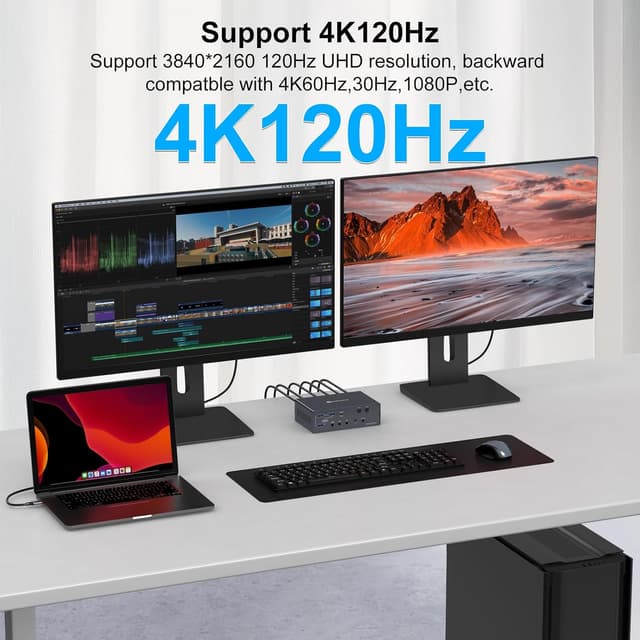
This dock supports high resolution dual display output and includes a range of ports for common peripherals. Specifications below are based on the manufacturer description provided.
- Name: VEDINDUST USB C KVM Switch Docking Station
- Type: KVM docking station
- Resolution: Dual 4K 120Hz supported
- Refresh rate: 120Hz
- Data transfer: USB-A 3.2 up to 10Gbps
- Network: Gigabit Ethernet
- Audio: 3.5 mm microphone and headphone jack
What matters most
The standout performance here is the ability to drive two HDMI displays, including support for dual 4K at 120Hz, depending on both your HDMI cables and your monitors meeting the stated requirement. If you do not have 4K 120Hz capable monitors, the description also indicates compatibility with earlier resolutions and refresh rates such as 4K60Hz, 1080p at 60Hz, and 720p. This flexibility helps if your current screens are lower spec, while still giving you a path to take advantage of higher refresh once your display gear supports it.
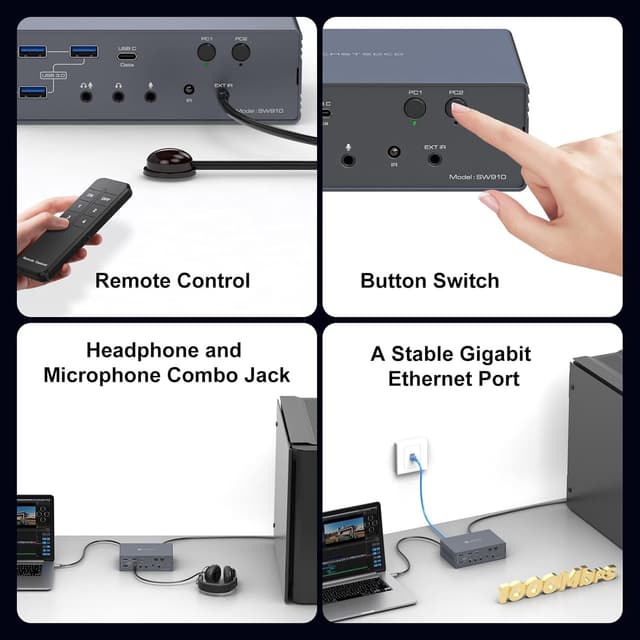
From a workflow perspective, the KVM function is what keeps things efficient. Instead of reaching for extra peripherals or swapping keyboard and mouse connections between two machines, you can switch between PC1 and PC2 using the base buttons or through remote control. That reduces downtime when you move between tasks that live on different systems, such as developing on one machine and writing on another.
It is also worth thinking about your port availability and controller needs before purchasing. The dock requires a USB 3.0 or superior input, and it also requires the DisplayLink controller to be installed for it to function properly, so plan for that installation step rather than assuming it is instantly plug and play. The manufacturer also notes that the dock cannot be used if your computer lacks the required USB 3.0 or higher port. 🔌
Finally, this is not described as laptop charging equipment, and it may use system resources while operating. If your goal is purely display, USB peripherals, audio, and network through a shared setup, then the design aligns well with that use case. If you need a single cable to both charge and connect, you may find it does not cover that requirement, since charging is explicitly not supported. ✅
What you’ll notice day to day
In daily use, you are likely to notice fewer cable swaps and a cleaner desk layout, especially if your laptop normally struggles with limited USB outputs. The dock offers multiple USB-A ports for peripherals, plus a USB-C 3.2 connection, which can help you keep frequently used accessories connected such as a mouse dongle, webcam access, or storage devices. With Gigabit Ethernet available, you can also reduce reliance on Wi Fi when your workspace needs consistent connectivity.
Switching should feel straightforward, because the dock supports both remote switching and button switching. Remote switching can be helpful if you prefer to keep the dock hidden or placed further away from where you work, while button switching suits setups where the base is within easy reach. One limitation to be aware of is that the description states that keyboard shortcut keys are not compatible, so switching relies on the listed methods rather than shortcut hotkeys.
It suits people who want two monitor flexibility across two computers, along with shared control of keyboard and mouse, all in one dock. If you are running a setup that meets the controller and port requirements, it should fit naturally into a dual system routine where you regularly move between different devices throughout the day. If your laptop does not meet the USB input requirement, or if you expected charging support through the dock, it may not be the right match for your expectations. The dock can still be a strong choice when your priority is switching and connectivity rather than charging.