

KPKUE X90A 14" Dual Portable Laptop Screen Extender (1080P FHD IPS, USB-C)
Product description
If you constantly juggle tabs and windows, a laptop screen extender can feel like the missing piece—especially when you’re working away from a desk. The KPKUE X90A is a portable, dual-screen approach designed to add extra workspace with a single connection, rather than turning your setup into a cable nest.
That said, it’s not a true replacement for a proper external monitor. It’s more of a travel-friendly productivity add-on. It also depends quite a bit on whether your laptop port supports video output, so it’s worth checking before you buy.
The essentials: what this screen extender is for
The KPKUE X90A laptop screen extender is built to extend your laptop display into additional screens, aiming to reduce the constant switching between windows, web pages, and apps. In practice, it suits people who do a lot of side-by-side work—think spreadsheets plus a dashboard, a coding editor alongside documentation, or trading-style layouts where you want information visible at the same time.
The “dual portable monitor” idea here is that you get two extra viewing areas, and you can use different display modes such as extended, mirror, collaboration, and a 2nd mode. If your main goal is more on-screen real estate while staying mobile, it’s aligned with that.
What stands out (and how it helps day to day)
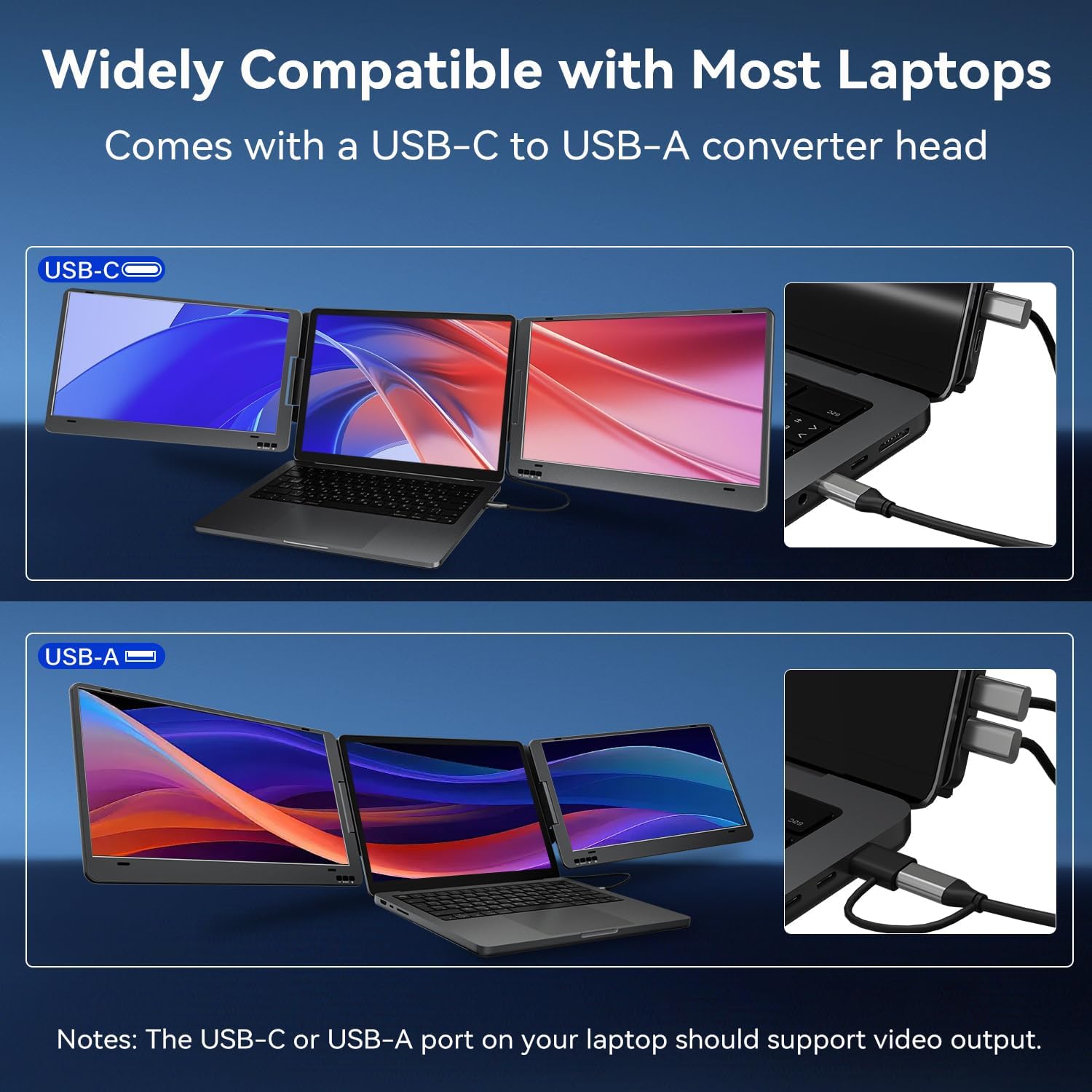
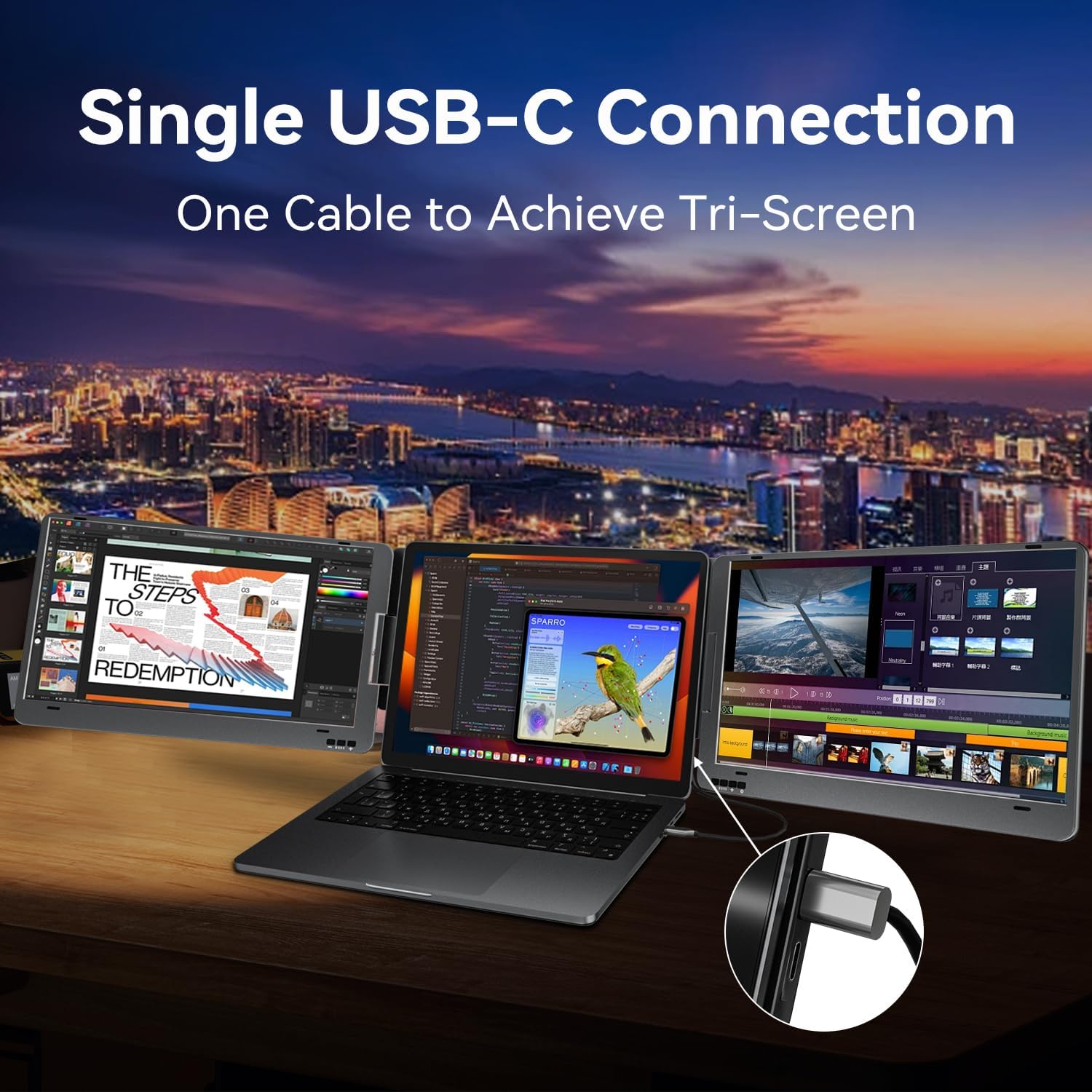
The biggest selling point, on paper, is the “one cable connection” concept: you connect the portable extender using a USB-C to USB-C cable. If your laptop needs it, there’s also a USB-A converter head mentioned (with the note that driver installation may be required). This matters because the best screen extenders are the ones you actually use often—not the ones that become a hassle.
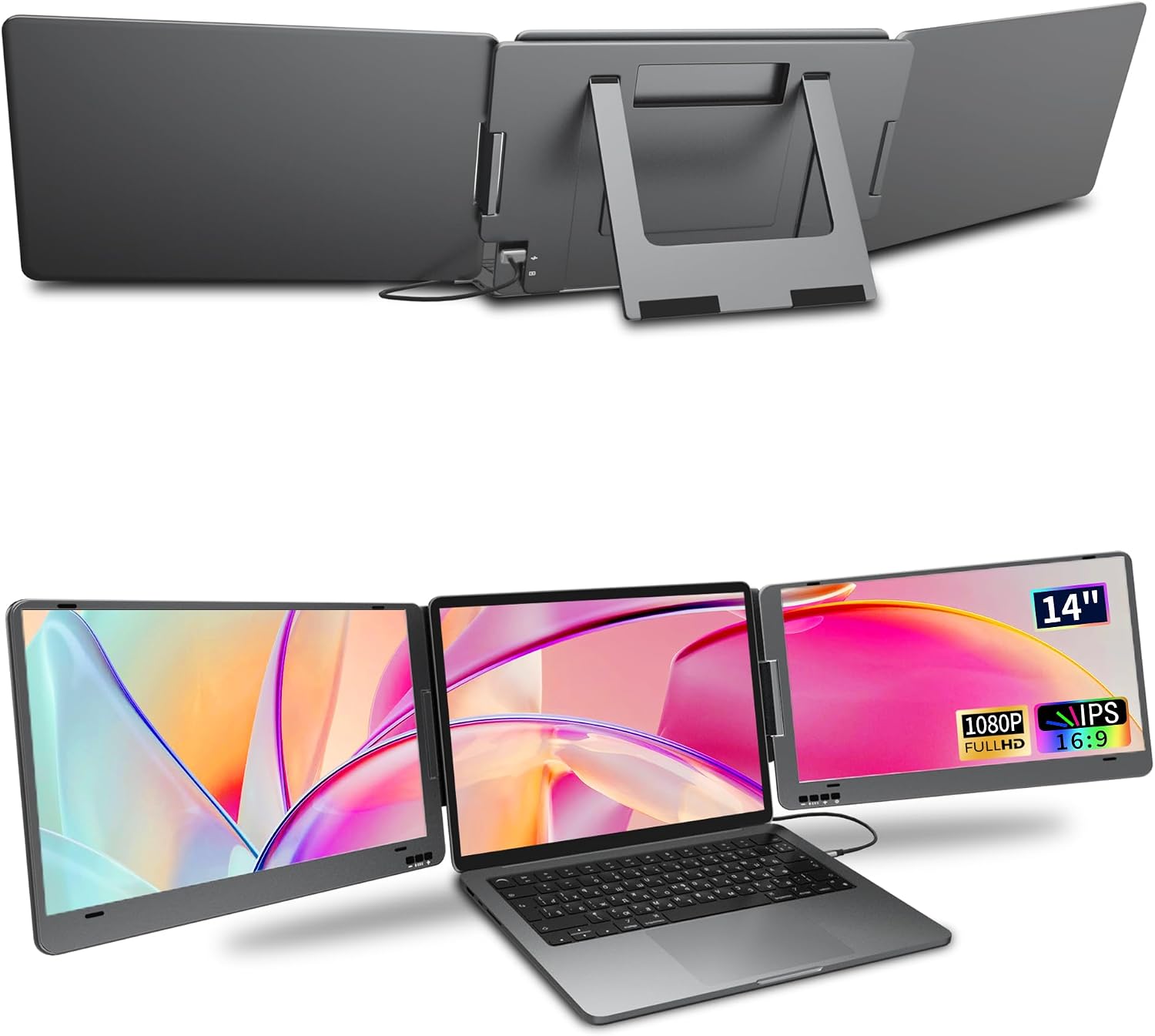
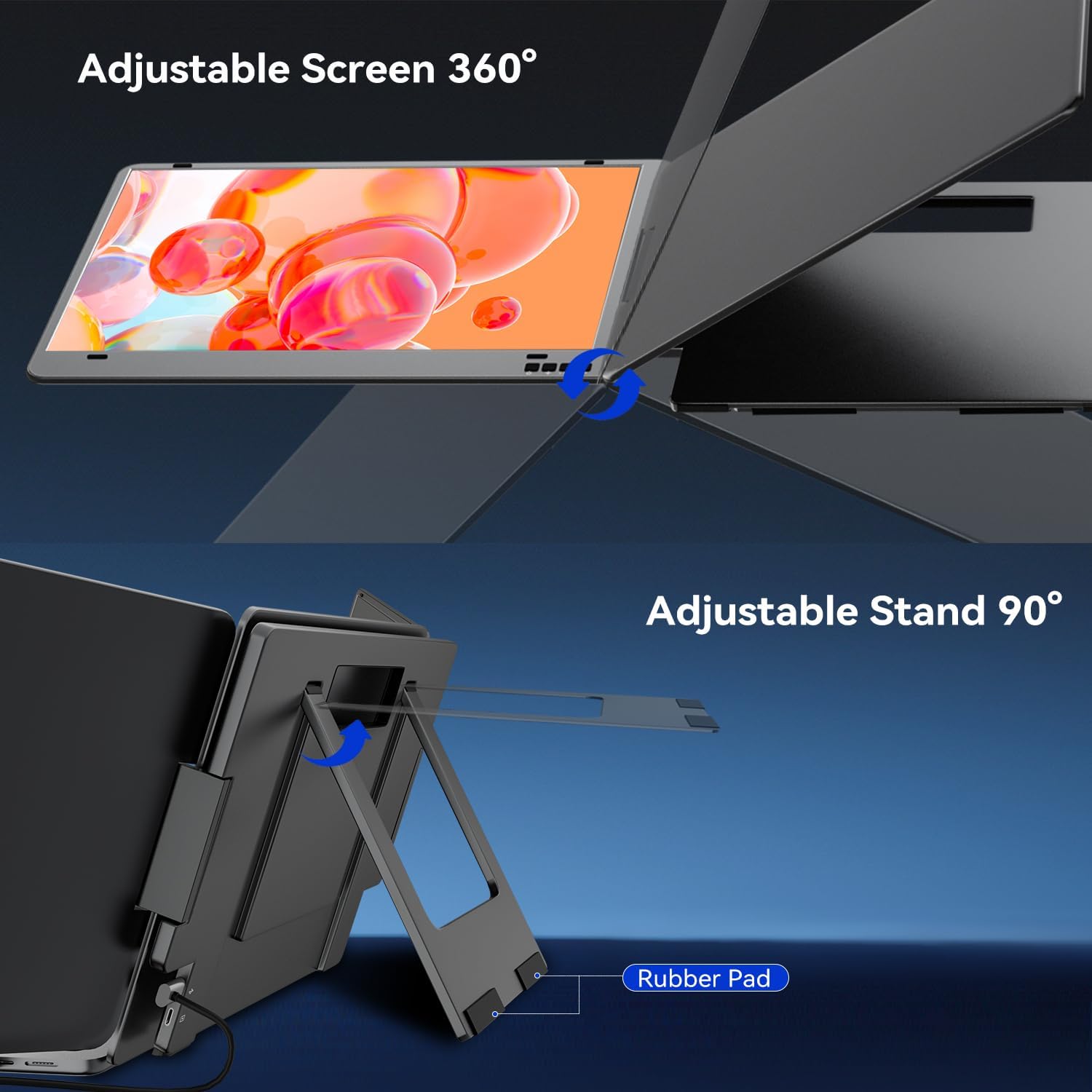
There’s also a practical physical design angle: each screen has an all-in-one button for multiple functions, and it supports 0–360° rotation for folding and positioning. Plus, the kickstand is there to help with stable placement when you’re not holding it.
A small detail that feels useful for real-world setups is the “no clip design”, meaning it’s not limited to the height of your laptop. It’s designed to be used without being strapped to the top edge.
Display quality: the specs you can judge quickly
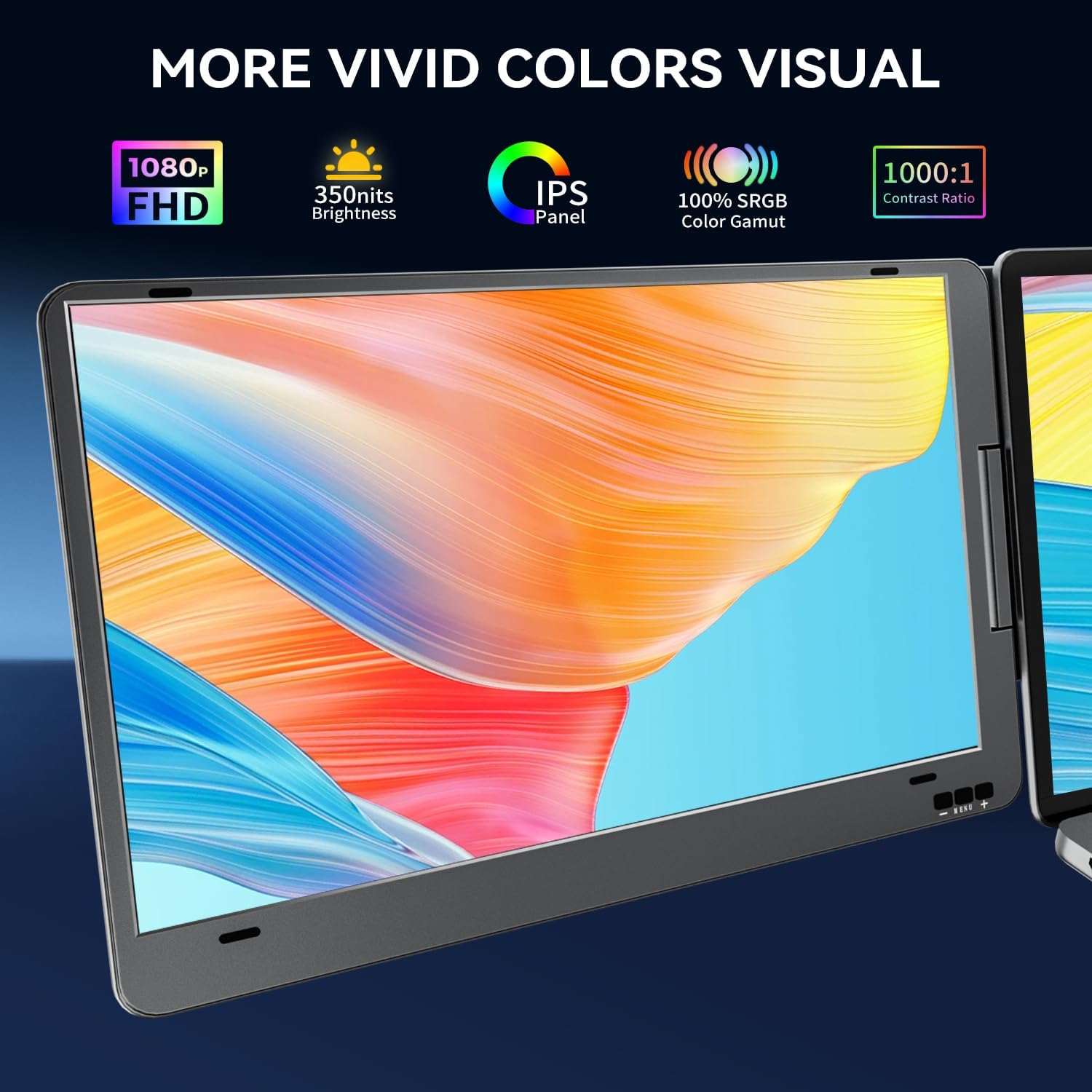
This model is specified as 1080 x 1920 resolution per screen, using an IPS panel approach, and it’s rated at 350 nit brightness with a 72% NTSC colour gamut. Contrast is listed as 1000:1.
For typical office use—reading, spreadsheets, code, and general browsing—those numbers suggest it should be reasonably clear. The 72% NTSC figure hints it’s not aimed at colour-critical work, but more at everyday productivity. It also mentions a low blue light aspect.
One limitation to keep in mind: portable extenders like this often prioritise convenience over absolute colour accuracy and peak brightness in harsh lighting. If you regularly work under very strong daylight or you’re doing professional creative grading, you may find it comes up short.
Modes and rotation: when they’re actually useful
You’re not locked into just one layout. The extender supports multiple modes including: - extended (more workspace) - mirror (same view) - collaboration (sharing-focused behaviour) - 2nd mode
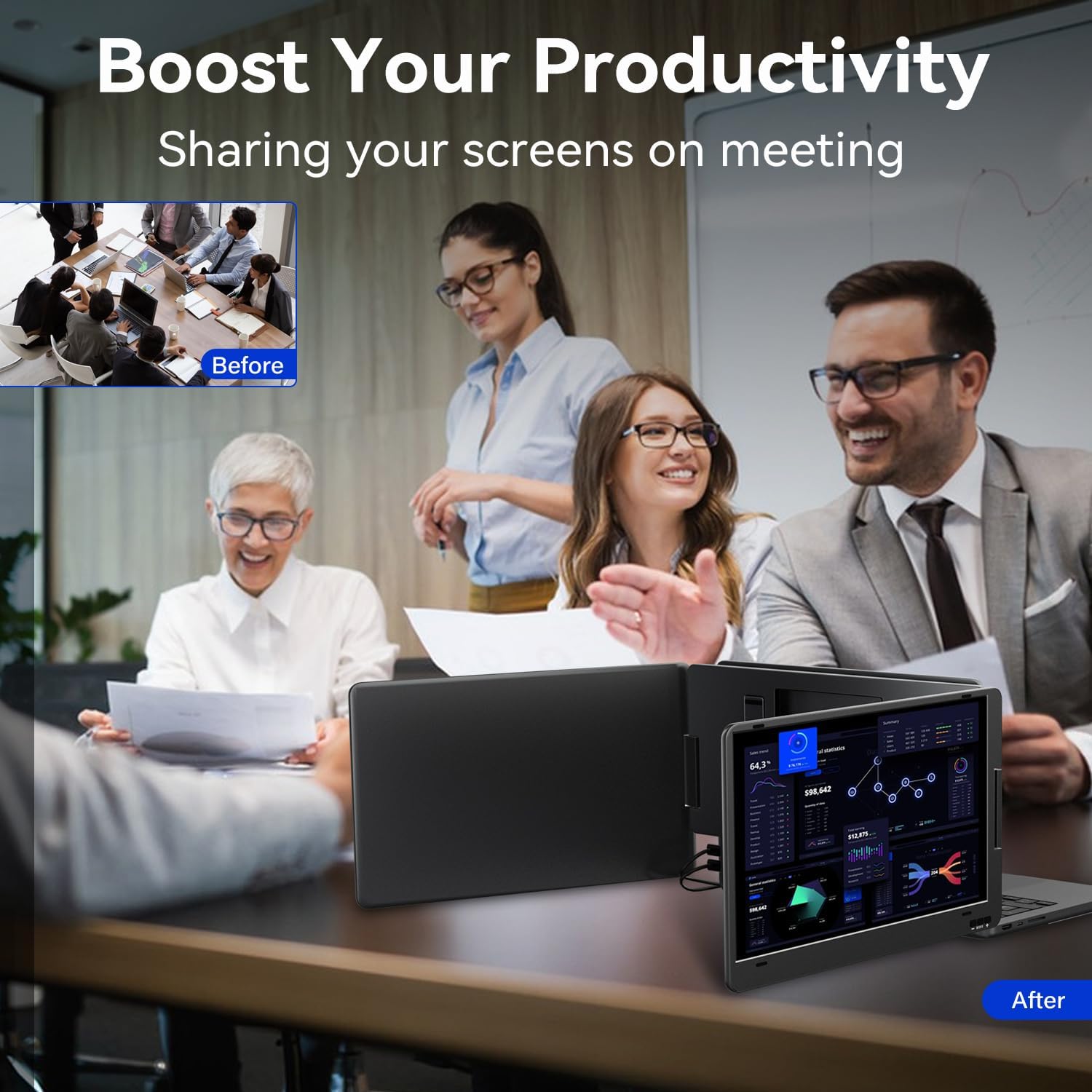
And because the screen can rotate, the idea of sharing during meetings becomes more practical—rather than you constantly changing your laptop angle or leaning the device awkwardly.
A quick micro-scenario: imagine you’re on the move with a laptop, and you set your main app on the laptop while keeping research notes or a spreadsheet visible on the extender. Switching becomes less frantic because you’re not alt-tabbing as much. It’s a small change, but it adds up if you live in multiple windows.
Tech specs (what to verify before buying)
The key requirement is compatibility with the laptop’s video output support. The product is described as requiring that your laptop’s USB-C or USB-A port supports video output.
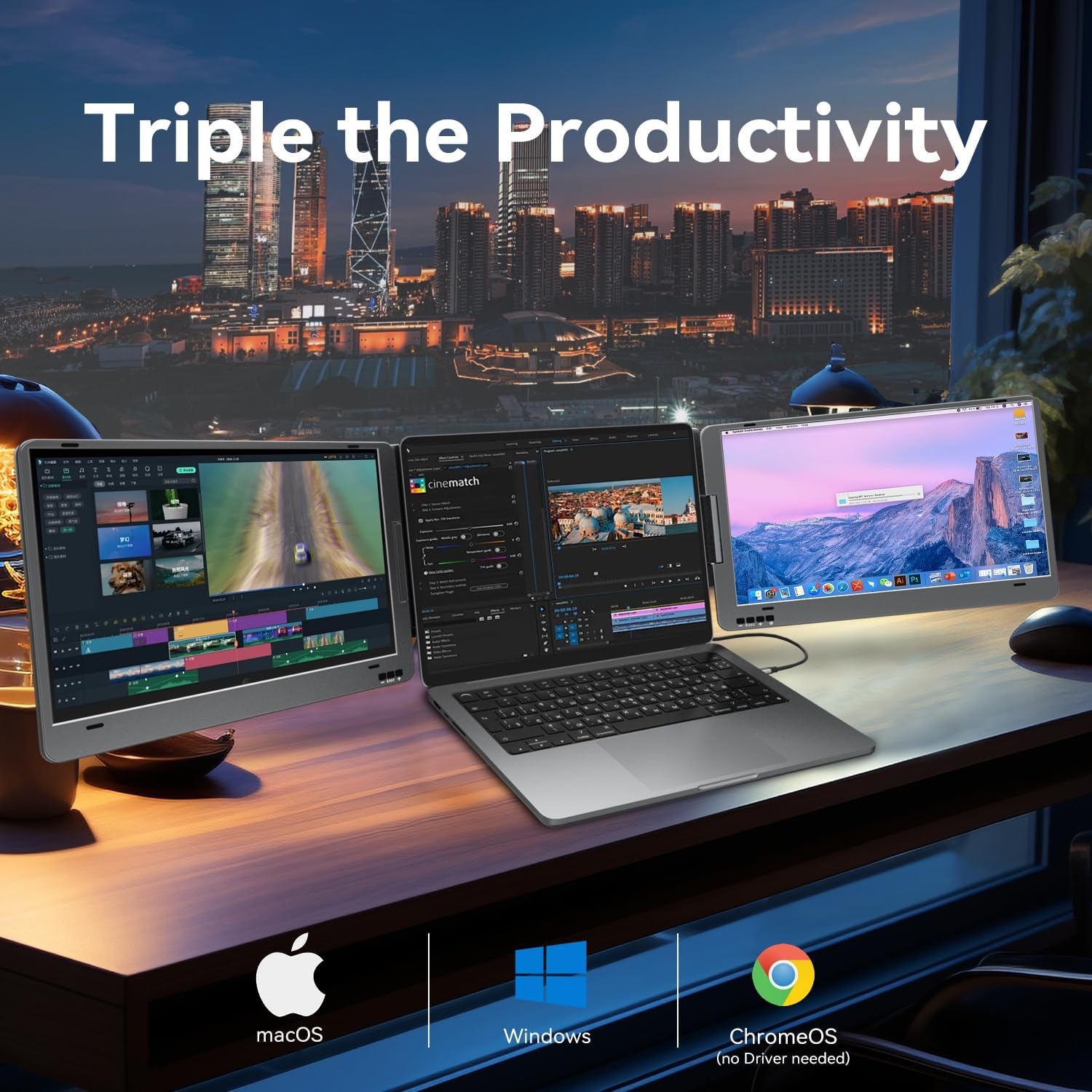
For broader compatibility, it’s stated as compatible with 11.6" to 15.6" laptops, and supports macOS (including M1/M2/M3 clips), Windows, and ChromeOS.
Connectivity is based on a provided USB-C to USB-C cable, plus a USB-A converter head if needed.
A note to take seriously: while the brand states compatibility across those systems, it also mentions that driver installation may be required depending on your connection setup. That’s normal for some display adapters, but it’s still a potential extra step.
Pros, cons, and who it suits
Worth it if: - You want extra workspace without using a multi-monitor desktop setup. - You frequently work with multiple windows and would benefit from less switching. - Portability and foldability matter more than maximum brightness and colour depth. - You’re on macOS, Windows, or ChromeOS and have the right port for video output.
You may want to skip it if: - Your laptop’s USB port doesn’t support video output (the extender depends on this). - You need colour-accurate creative work rather than productivity viewing. - You’re expecting it to behave exactly like a large, fixed external monitor in a permanent office setup.
It’s a decent productivity add-on in the “travel and flexible workspace” category, but it’s not positioned as a premium desktop replacement.
¿Merece la pena? (final decision guide)
The KPKUE X90A is one of those devices that can genuinely make laptop work feel less cramped—particularly if you spend hours juggling tabs, docs, and reference material. The convenience of a single USB cable connection and the rotation/folding approach are strong practical reasons to consider it.
However, the “it works” moment hinges on laptop port video output and, in some setups, driver installation. If you’re not sure what your laptop supports, it’s better to pause and double-check first, because that’s where these screen extenders can disappoint.
FAQ
What laptop size is it meant for?
It’s specified as compatible with laptops with a 11.6" to 15.6" (diagonal) size range.
Does it require USB-C?
It can use USB-C to USB-C, and it also mentions a USB-A converter head. But the laptop’s port must support video output.
What display modes does it support?
Extended, mirror, collaboration, and a 2nd mode are listed.
Will it work with macOS and Windows?
The description states support for macOS (including M1/M2/M3 chips), Windows, and ChromeOS, assuming your ports support video output.
Does it come with a guarantee?
It mentions a one-year guarantee, with customer care information provided via packaging or the user manual.