
Stylus Pen for Apple iPad (2018–2025) with Tilt Sensitivity, Palm Rejection & Fast Charge
Product description
If you want the feel of a pencil-style stylus for drawing, note-taking, or quick edits on your iPad, this Stylus Pen for Apple iPad is built around a few practical goals: easy wake/sleep without Bluetooth, tilt support for line thickness changes, and palm rejection so your hand can rest on the screen.
That said, it’s not a perfect match for everyone. The biggest “read this first” detail: it’s only compatible with iPads released in 2018 or later, and it doesn’t support pressure sensitivity. If those two points work for your iPad and your workflow, it can be a solid everyday upgrade.
The essentials
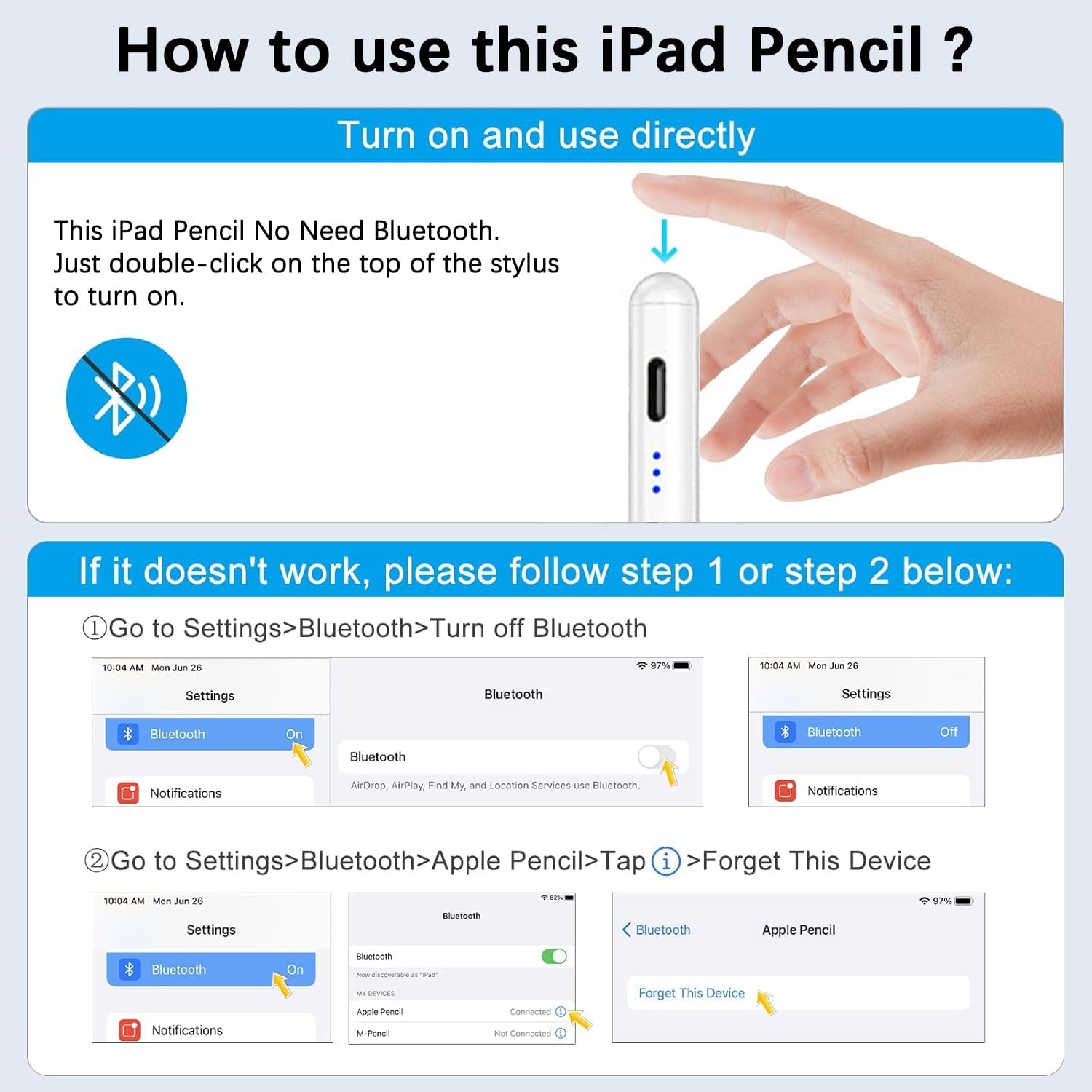
This is a non-Bluetooth stylus designed for iPads from 2018 onward (including multiple iPad, iPad Air, iPad Pro, and iPad Mini models listed in the product info). Instead of pairing like a Bluetooth pen, you can double-click the top of the stylus to turn it on or off.
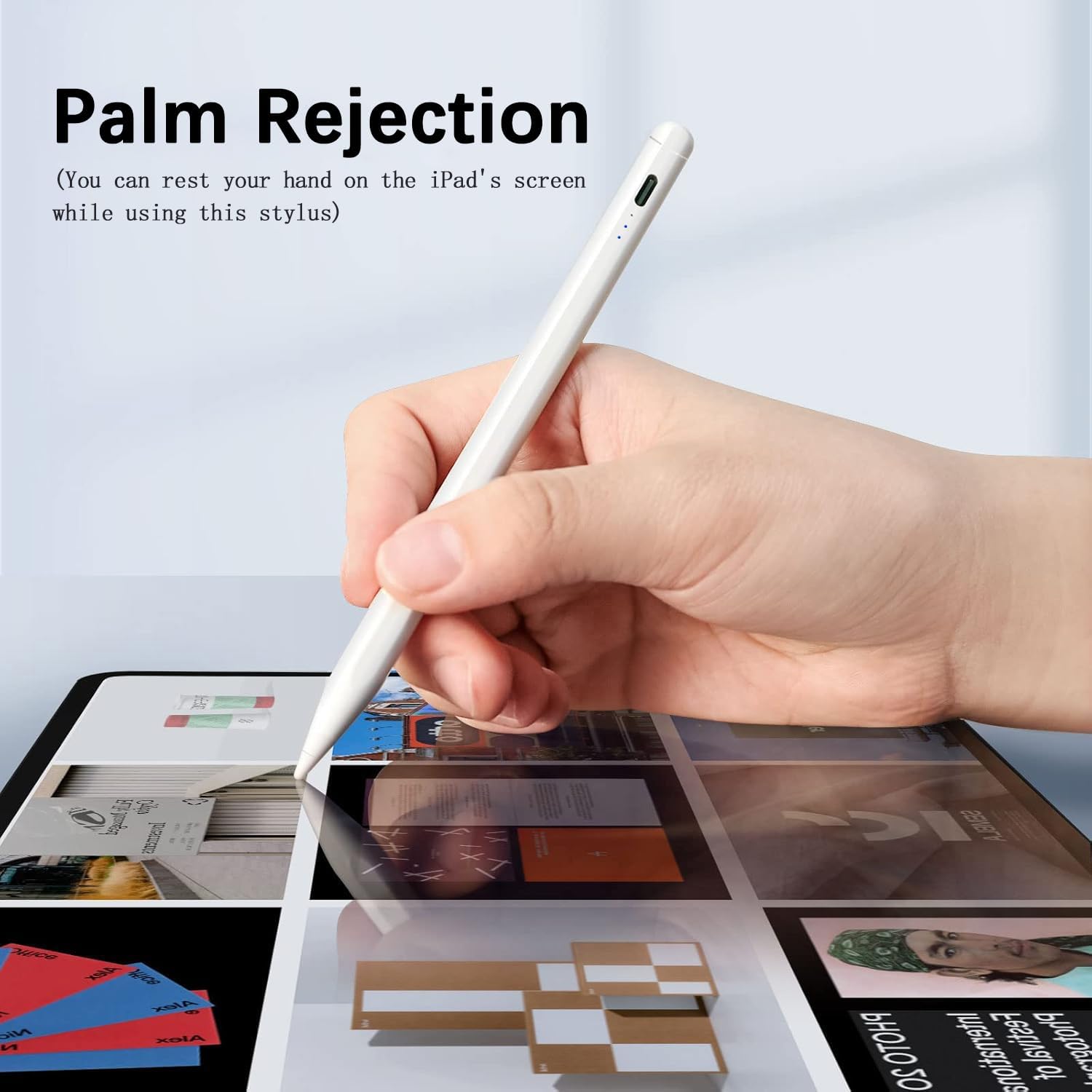
On paper, it’s aimed at people who want a responsive stylus for sketching and writing without worrying about accidental screen touches. The palm rejection feature is meant to let you rest your hand on the display while drawing, and the tilt sensitivity is meant to change line thickness based on the angle of the stylus.
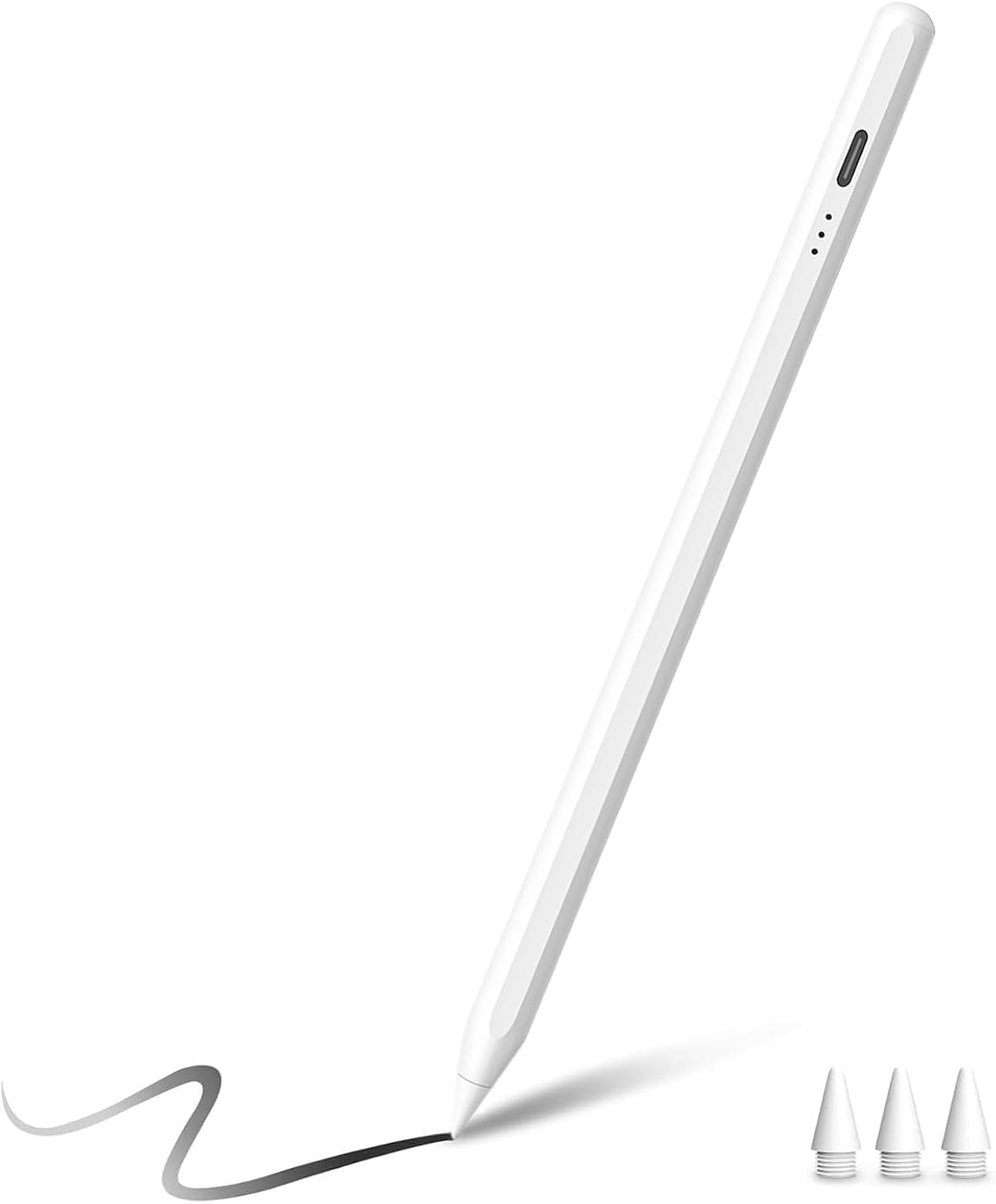
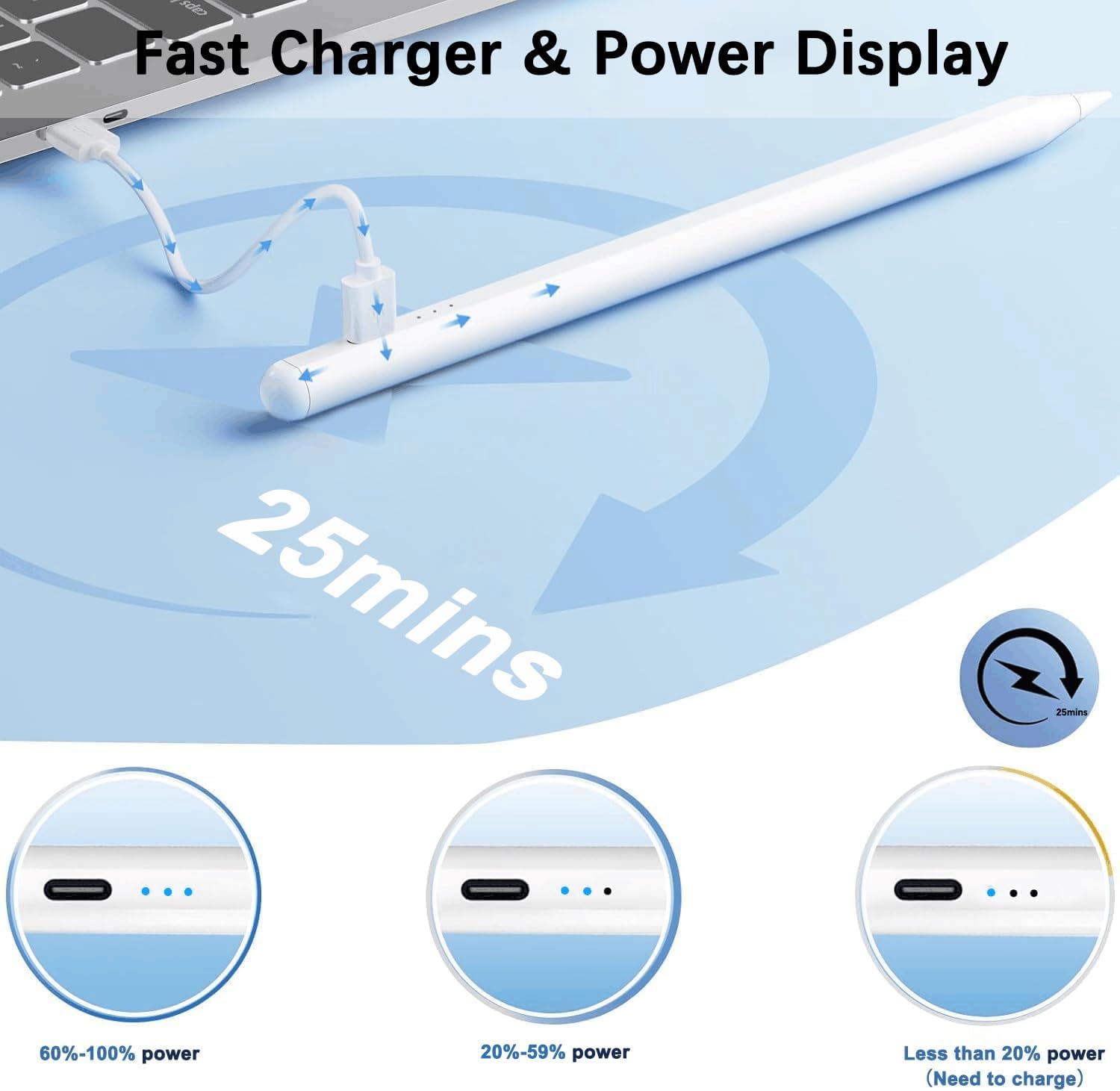
One more thing to keep in mind: the included charging/power behavior is part of the appeal. It has a power display indicator with multiple light states to show remaining battery, plus an auto shutoff after inactivity.
Key features that affect real use
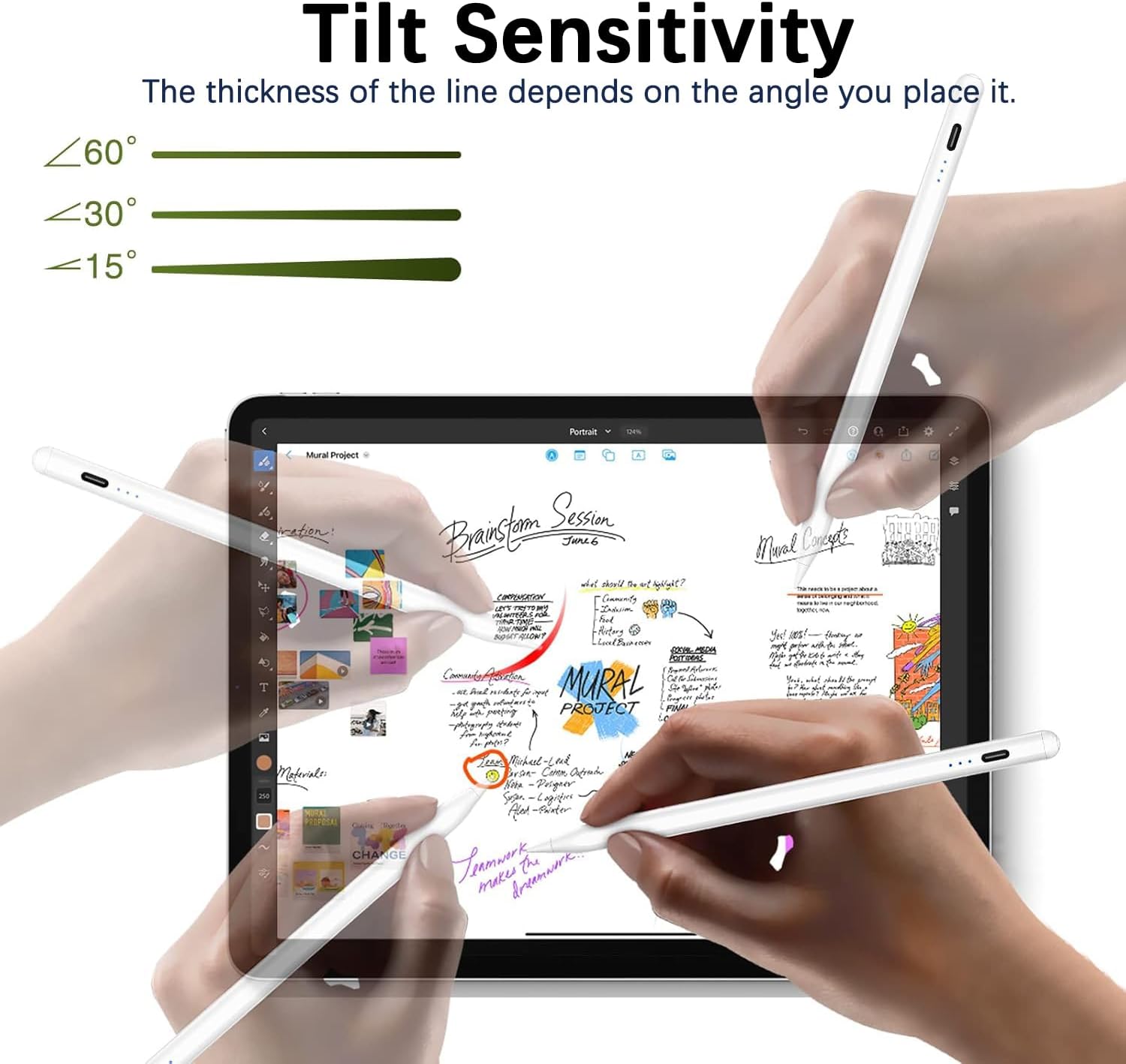
Tilt sensitivity and palm rejection are the two features you’ll actually notice during use. With tilt sensing, the stylus is described as able to draw lines of different thicknesses depending on how you hold it, which is useful for shading and natural-looking handwriting. It uses a 1.5mm tip and is positioned as more responsive than a passive stylus—specifically mentioning no delay, interruption, or skipping for finer details.
Palm rejection matters most if you write the “natural” way—hand resting on the screen while the stylus moves. This helps reduce accidental touches, so you can focus on the content rather than constantly re-placing your hand.
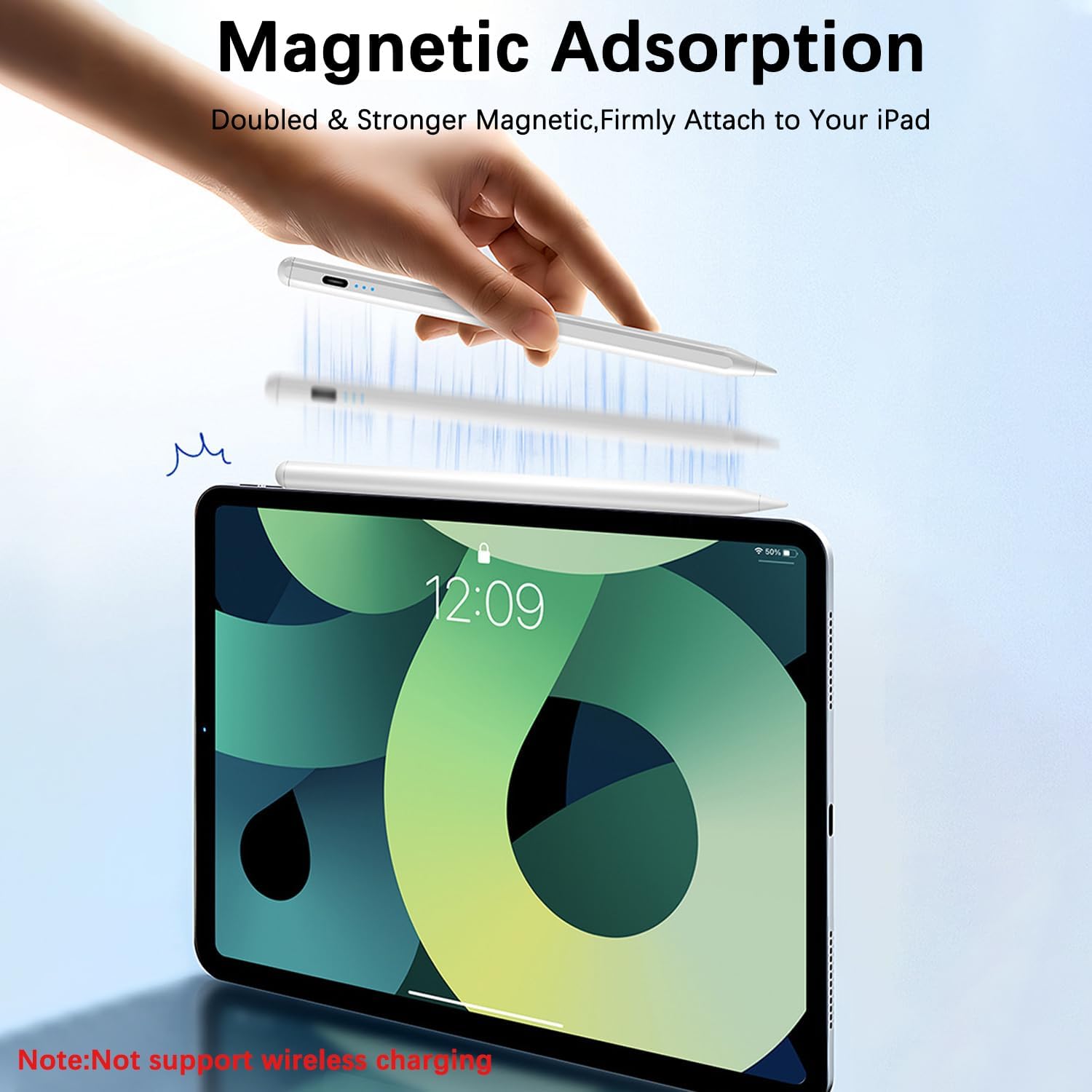
For portability, the stylus includes an upgraded built-in magnet intended to attach firmly to the side of the iPad. That can make a difference if you take your iPad around a lot.
Fast charging, battery indicator, and power behavior
The pen is described as fast-charge capable: a full charge in 25 minutes, with up to 10 hours of continuous use (based on the product information). It also auto shuts down after 5 minutes of inactivity to save power. The indicator lights are designed to make battery level obvious at a glance.
In practical terms, this is the kind of charging and power setup you tend to appreciate when you’re in a rush—charge briefly before a study session or commute, then rely on the indicator lights to avoid surprises.
Small limitation to flag: auto shutoff can be a blessing for battery life, but if you pause mid-task and come back, you may need to re-activate it using the stylus controls.
Compatibility and setup you should verify first
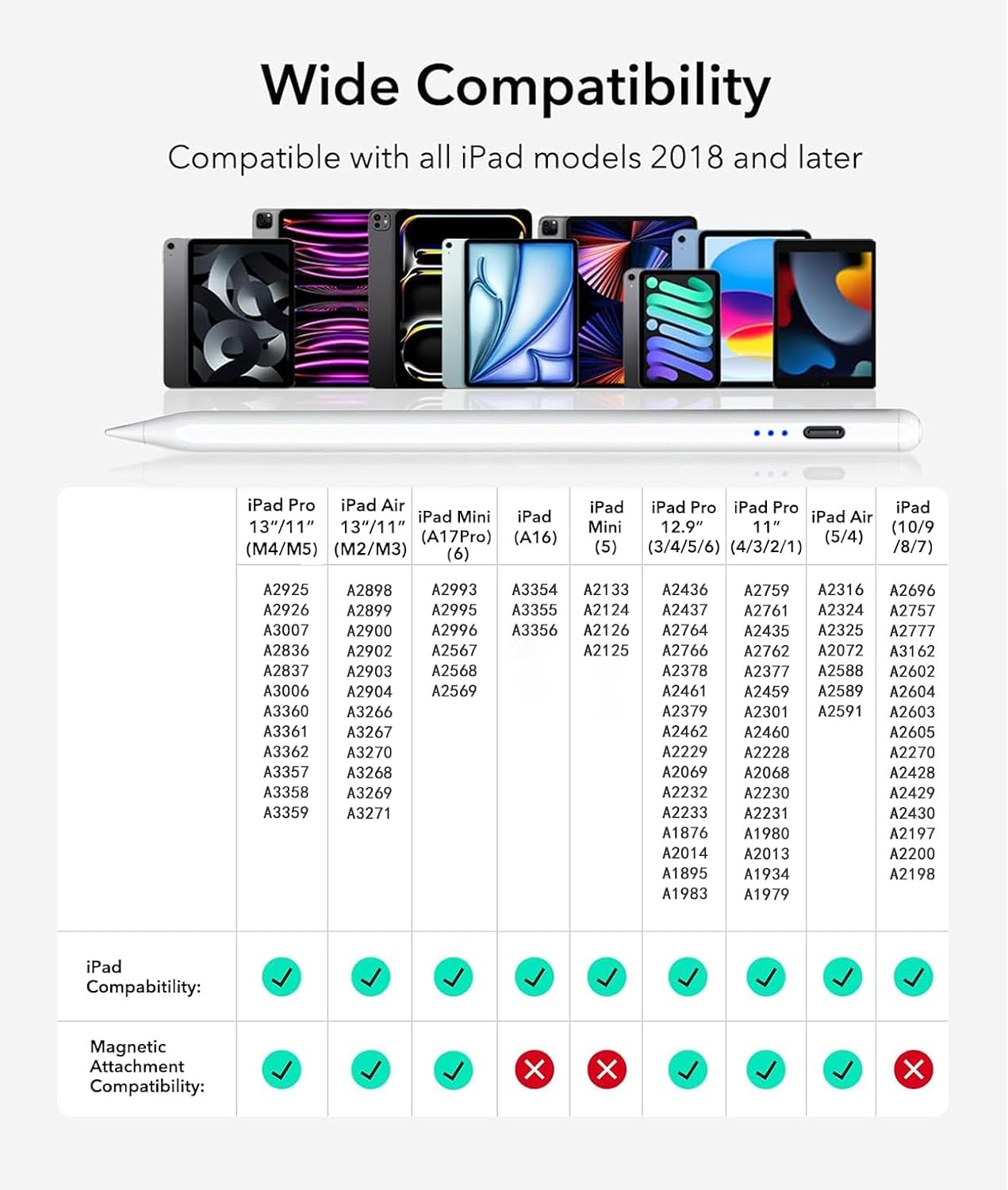
This model is only compatible with iPads released in 2018 or later. The listed compatible models include specific iPad A16/10th/9th/8th/7th/6th models, multiple iPad Pro sizes and generations (including 13-inch and 11-inch across listed M-series and generations), iPad Air (M3/M2/5th/4th/3rd), and iPad Mini (A17 Pro/6th/5th).
Because the product info explicitly asks buyers to confirm the iPad model, it’s worth doing before you order. The note suggests checking in Settings > General > About.
Also, if the stylus doesn’t work after turning it on, the instructions say to turn off Bluetooth (and/or disconnect the Bluetooth connection between your iPad and the Pencil under Settings > Bluetooth). The key point: it doesn’t use Bluetooth for operation, but Bluetooth status may interfere in some situations.
What’s included and what’s not
The product information mentions that the stylus pen comes with 3 replacement nibs, which is helpful for extending the usable life of the tip.
However, it also clearly states that the stylus doesn’t support pressure sensitivity. So if your drawing or note-taking apps rely on pressure levels for brush behavior, this may feel limiting compared with pressure-capable stylus options.
Who it’s for (and who should skip it)
It makes sense if you primarily want a tilt-capable stylus for writing, sketching, and everyday markup on a compatible iPad. The palm rejection angle also fits well for people who get annoyed by accidental touches during handwriting.
It may not suit you if you need pressure sensitivity for your apps, or if your iPad is older than the 2018 cutoff. And if you’re the type who hates troubleshooting, the Bluetooth-related “if it doesn’t work” instructions are something to factor in before buying.
Final verdict
Worth considering if your iPad is in the 2018–2025 range listed and you’re looking for a non-Bluetooth stylus with tilt sensitivity, palm rejection, and a battery/power indicator plus fast charging. For day-to-day notes and casual-to-serious sketching, it’s the kind of feature set that actually supports smoother use.
Skip it if pressure sensitivity is a must for how you create, or if your device doesn’t fall into the compatible model range. Also, do take a minute to confirm your iPad model in Settings—this one is compatibility-driven, and guessing is where buyers tend to get stuck.
Mini FAQ
Does this stylus need Bluetooth?
No. The instructions say it doesn’t have Bluetooth. You can use a double-click on the top to turn it on or off.
Is tilt sensitivity included?
Yes. The product info describes tilt-sensing technology that changes line thickness based on the angle of the stylus.
Does it support pressure sensitivity?
No. It does not support pressure sensitivity, so pressure-based brush controls won’t be available.
How fast does it charge?
The product information states it can fully charge in 25 minutes.
What should I do if it doesn’t work after turning it on?
The instructions suggest turning off Bluetooth in iPad settings and/or disconnecting the Pencil connection under Settings > Bluetooth.