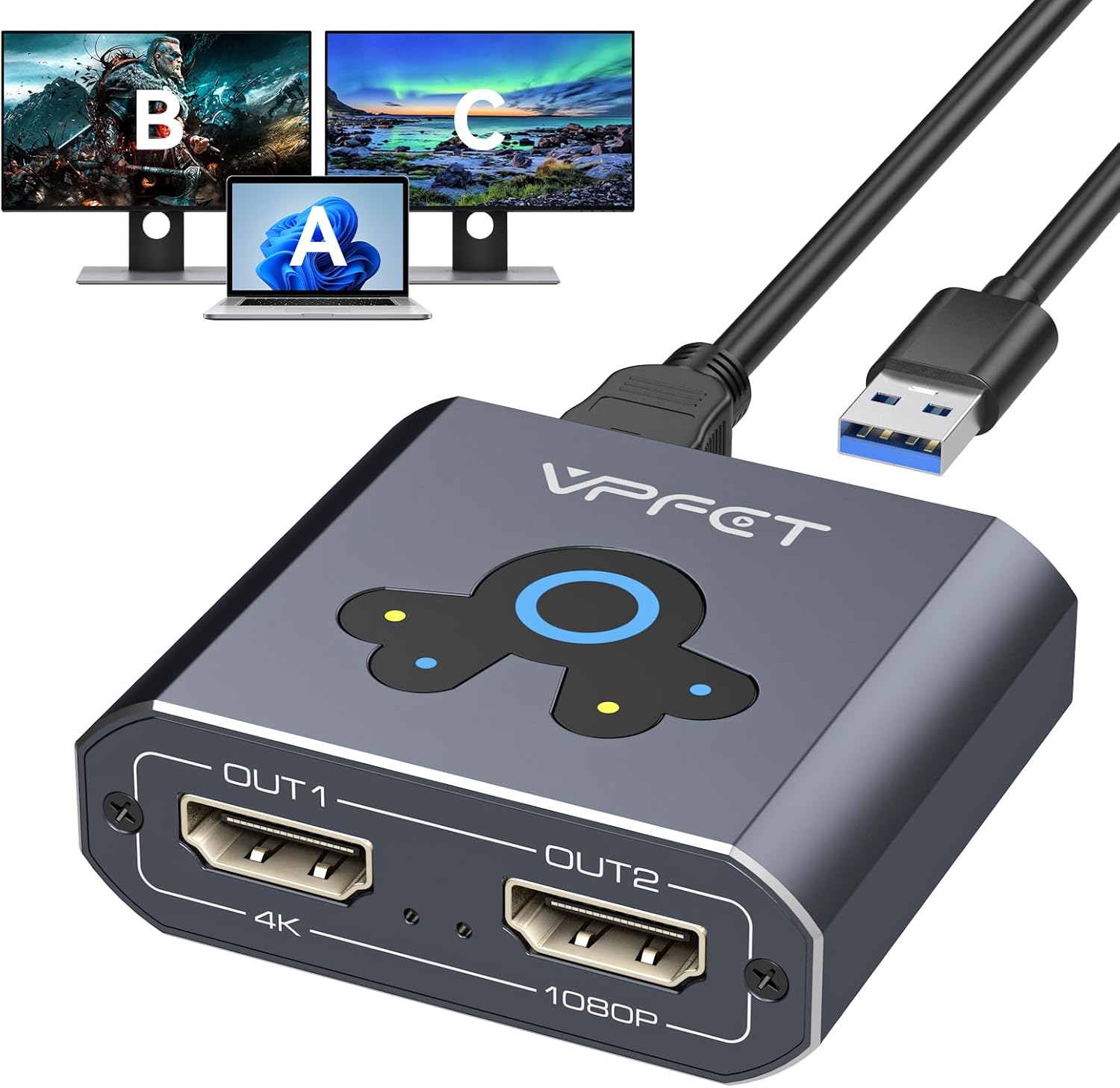
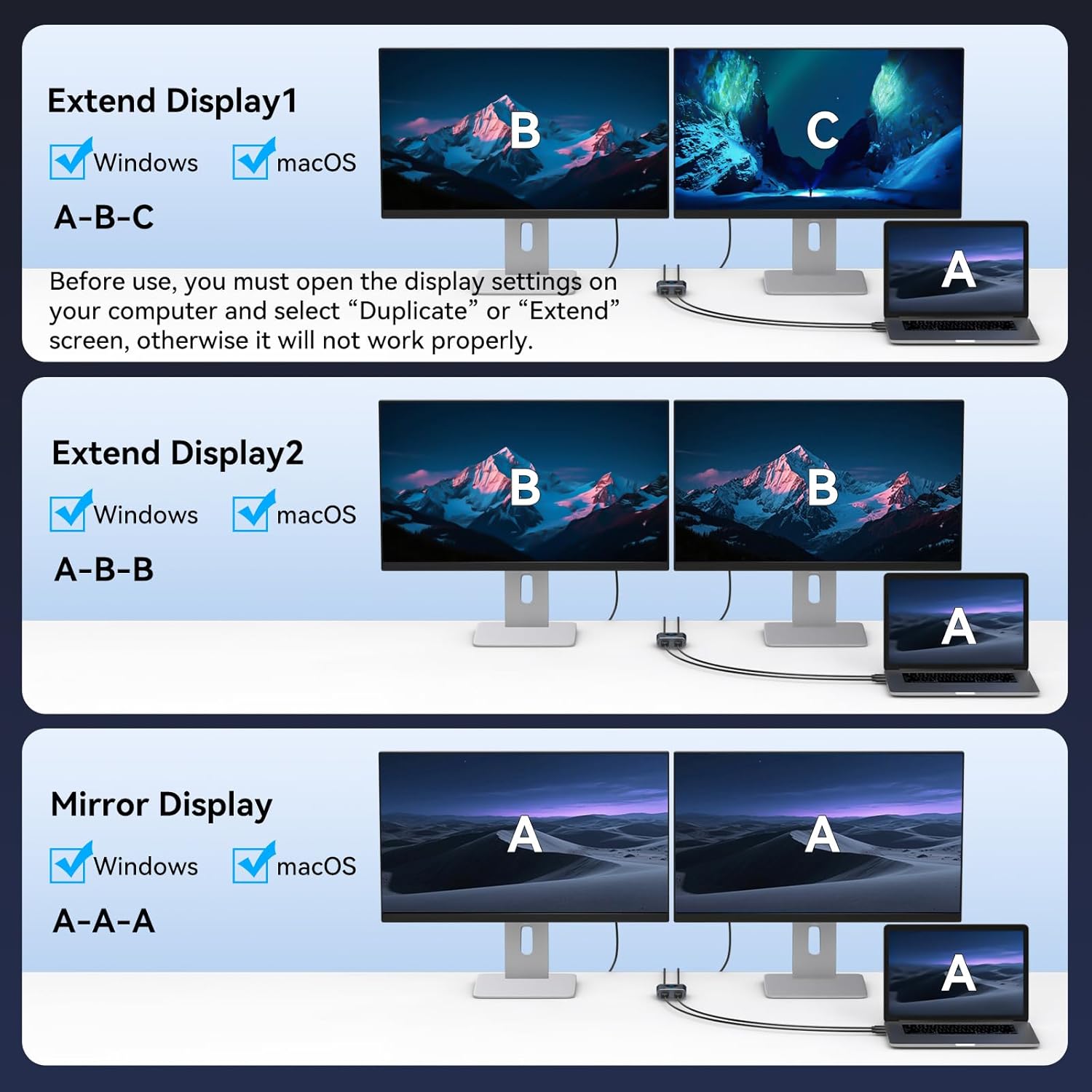
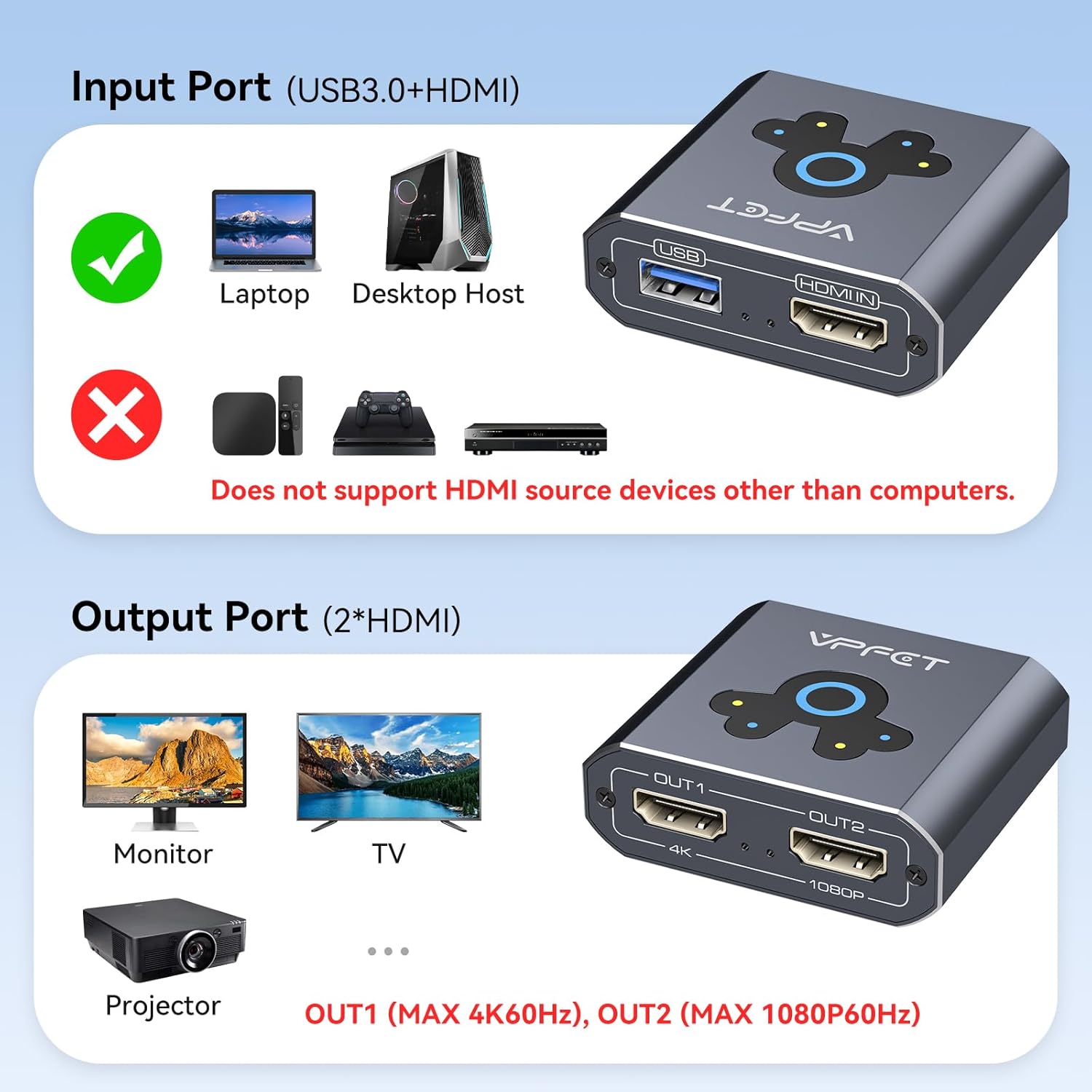
What it is and what it does\nThe VEDINDUST HDMI Splitter Extend is a 1-in-2-out adapter that lets you connect two external displays to a single HDMI port on your laptop. It supports both mirror and extend modes, so you can either show the same content on two screens or expand your workspace with two different displays. On paper, this can be handy for multitasking, presentations, or a simple desktop enlargement when you’re working away from your main monitor.\n\n## How it works and setup considerations\nA driver is required for use, and the device ships with a driver stored inside it. For Windows, you connect the USB cable to the computer and let the system recognise the device (or manually run the driver). For macOS, you install and run USB Display.app after plugging in the USB cable. One important detail: the display mode (Duplicate or Extend) must be selected in the computer’s display settings, otherwise the device may not function as intended. This setup means you’re not buying a plug-and-play HDMI splitter in the strictest sense, it relies on driver support and correct OS configuration.\n\n## Performance and limitations to note\nThe extension supports high definitions up to 4K@60Hz on the first output, with the second output capable of 1080P@60Hz. The actual resolution is influenced by the USB connection: USB 3.0 typically yields 1080P, while USB 2.0 may result in 720P. There is a clear dependency on the USB interface and proper driver updates, which may receive irregular updates. For speed and stability, ensure both USB and HDMI cables are connected when aiming for 4K on the primary output. The housing is aluminium, designed to aid heat dissipation and overall durability, with a compact footprint for portable use.\n\n## Who it’s for and practical use cases\nIt suits someone who needs a straightforward way to add a second screen to a laptop without a dedicated second HDMI port. Perfect for basic multitasking, light graphical work, or extending a presentation setup in a small office or home office. If you prioritise having two independent screens (rather than simply mirroring), this device offers that option—provided you configure the display mode correctly on your PC.\n\n## What to check before buying\n- Confirm your computer supports external driver installations and external display apps, especially on macOS.\n- Decide which port you want to use for 4K output (OUT1) and ensure you connect both HDMI and USB cables to realise 4K@60Hz.\n- Be prepared for driver updates that may occur and follow the included operation manual for updating steps.\n- Check your current monitors’ capabilities to ensure they can handle 4K@60Hz or 1080P@60Hz as needed.\n\n## Pros and cons at a glance\n- Pros: Adds a second display, supports mirror or extend, aluminium housing for durability, 4K@60Hz on the primary output.\n- Cons: Requires driver installation, 4K on OUT1 depends on USB bandwidth and may not be available on USB 2.0, OUT2 is limited to 1080P. The setup is not purely plug-and-play and relies on OS configuration.\n\n## FAQ (quick answers)\n- Do I need drivers for Windows and macOS? Yes, a driver is required for operation on both systems.\n- Can I mirror and extend at the same time? No—these modes are chosen in the OS display settings and apply as appropriate per setup.\n- Will this work with any USB port? The output resolution depends on USB bandwidth, USB 3.0 is more capable than USB 2.0 for higher resolutions.\n\n## Final thoughts: buying decision\nIs it worth it? A solid option if you need to add two displays from a single HDMI source and you’re prepared to manage drivers and display settings. It’s less ideal if you need straightforward, truly plug-and-play dual-monitor functionality or if you require consistent 4K@60Hz across both outputs. For basic at-desk expansion, especially where space and budget matter, it can offer real value, provided you’re comfortable with the setup steps.\n