
Calibrite Display 123 — User-Friendly Monitor Calibration Tool
Product description
What it is
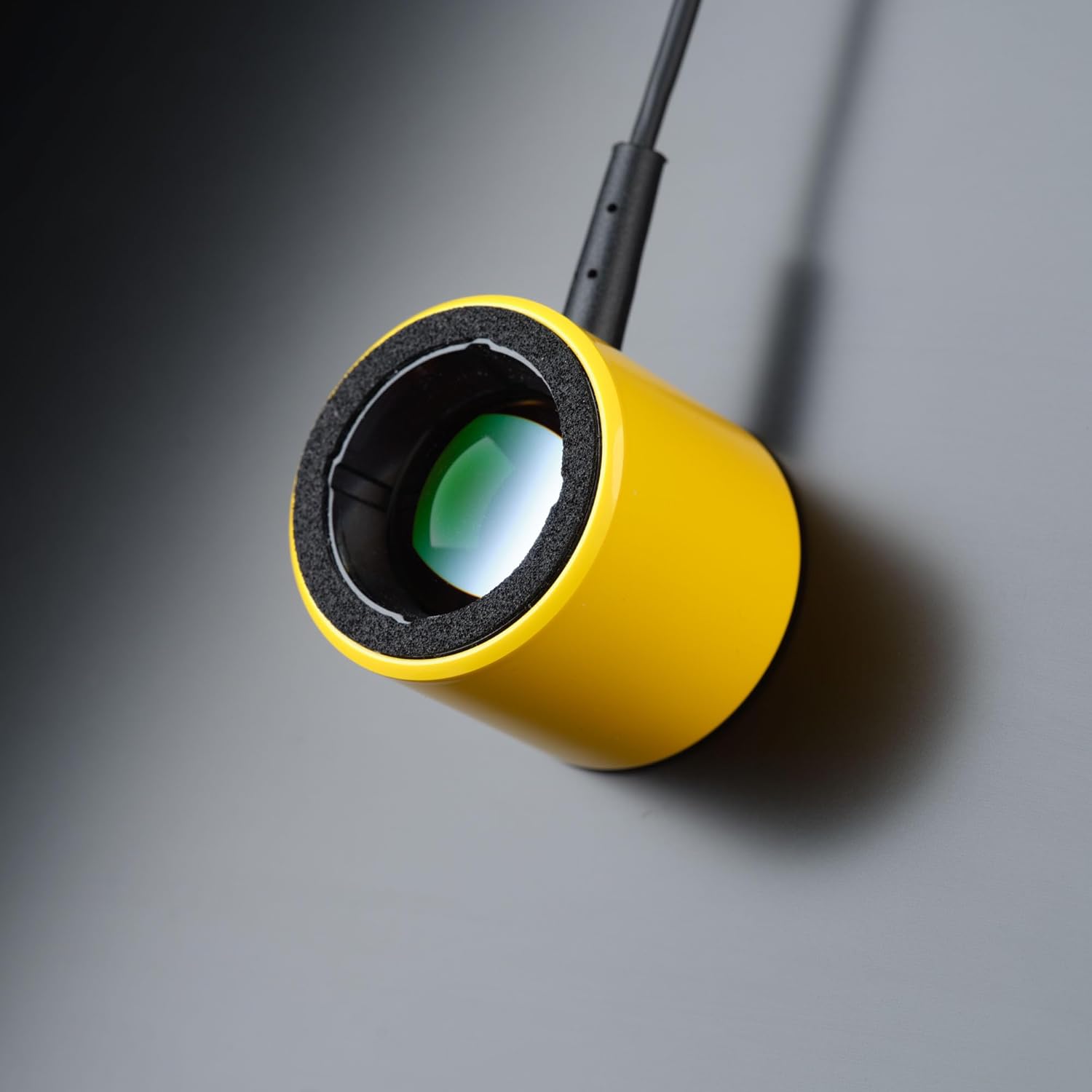
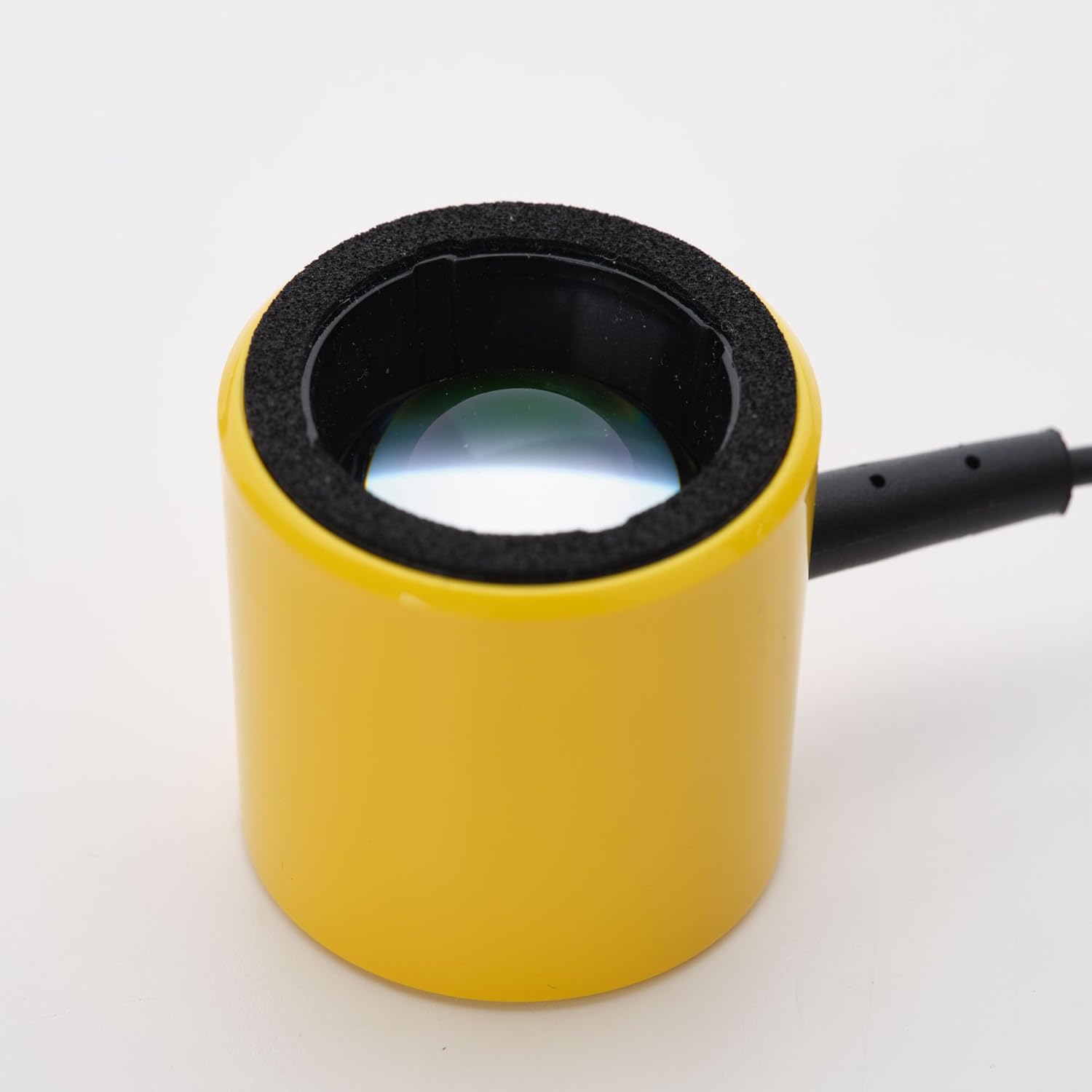
The Calibrite Display 123 is an entry‑level monitor calibration tool designed to deliver more accurate, true‑to‑life colours for activities like photo editing, gaming, shopping, and interior planning. It’s marketed as a straightforward option for those who want reliable screen colour without delving into complex setups.
How it works
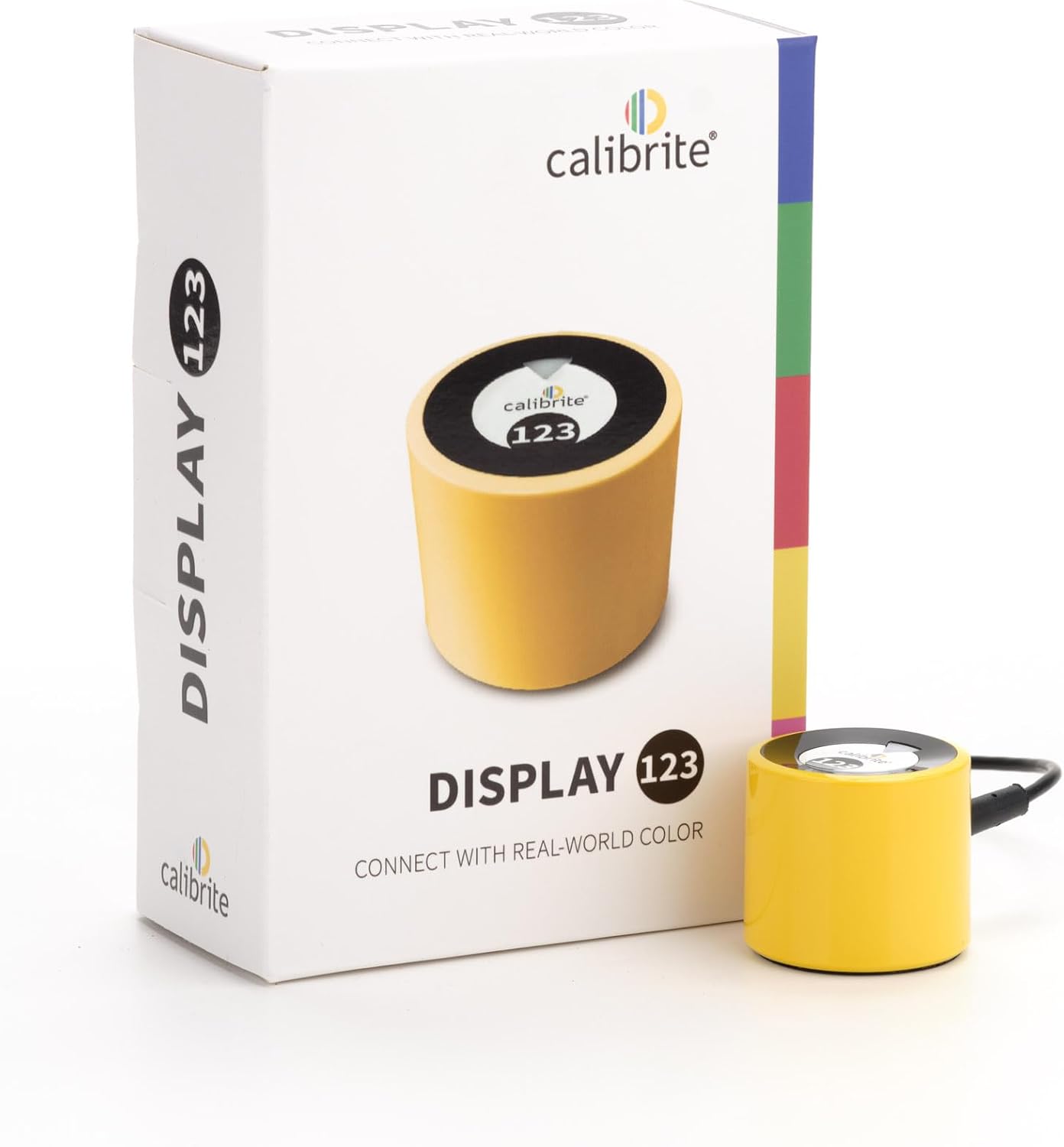
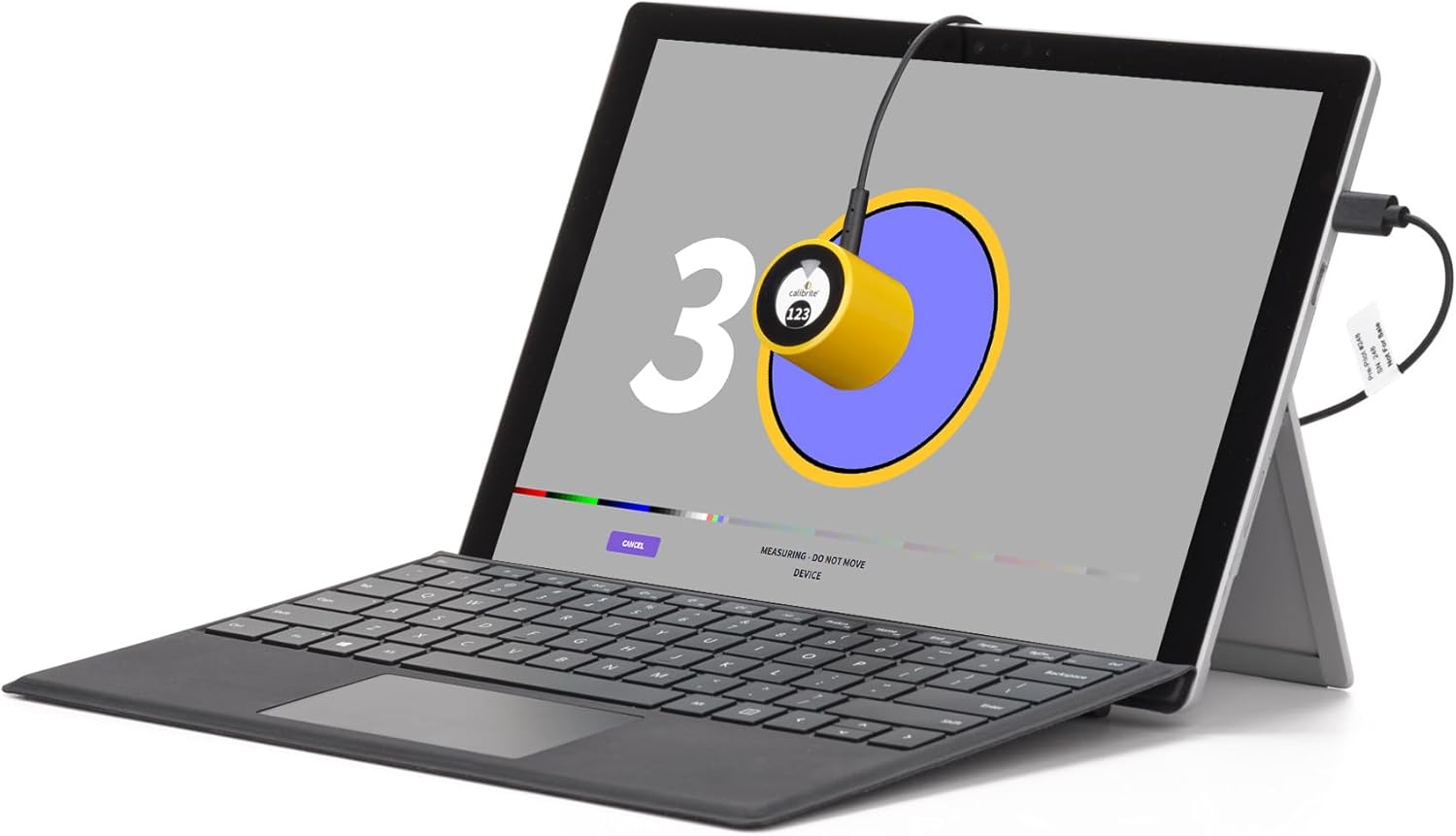
Setup is pitched as a simple three‑step process: connect via USB‑C, choose a brightness preset, and let the included Calibrite PROFILER software handle the rest. The reviewable output comes after calibration, showing Before & After results so you can gauge changes in real time. The solution supports up to two monitors per workstation, though dual‑display calibration requires a graphics card with Dual LUT support.
What stands out at a glance
On the surface, Display 123 trades on ease of use and quick results. It’s designed to be compatible with both Windows and macOS, lending it breadth in mixed‑device environments. The device is built as an entry‑level option but is positioned to meet the needs of creatives and gamers who prioritise on‑screen colour accuracy without a steep learning curve.
Strengths and practical use cases
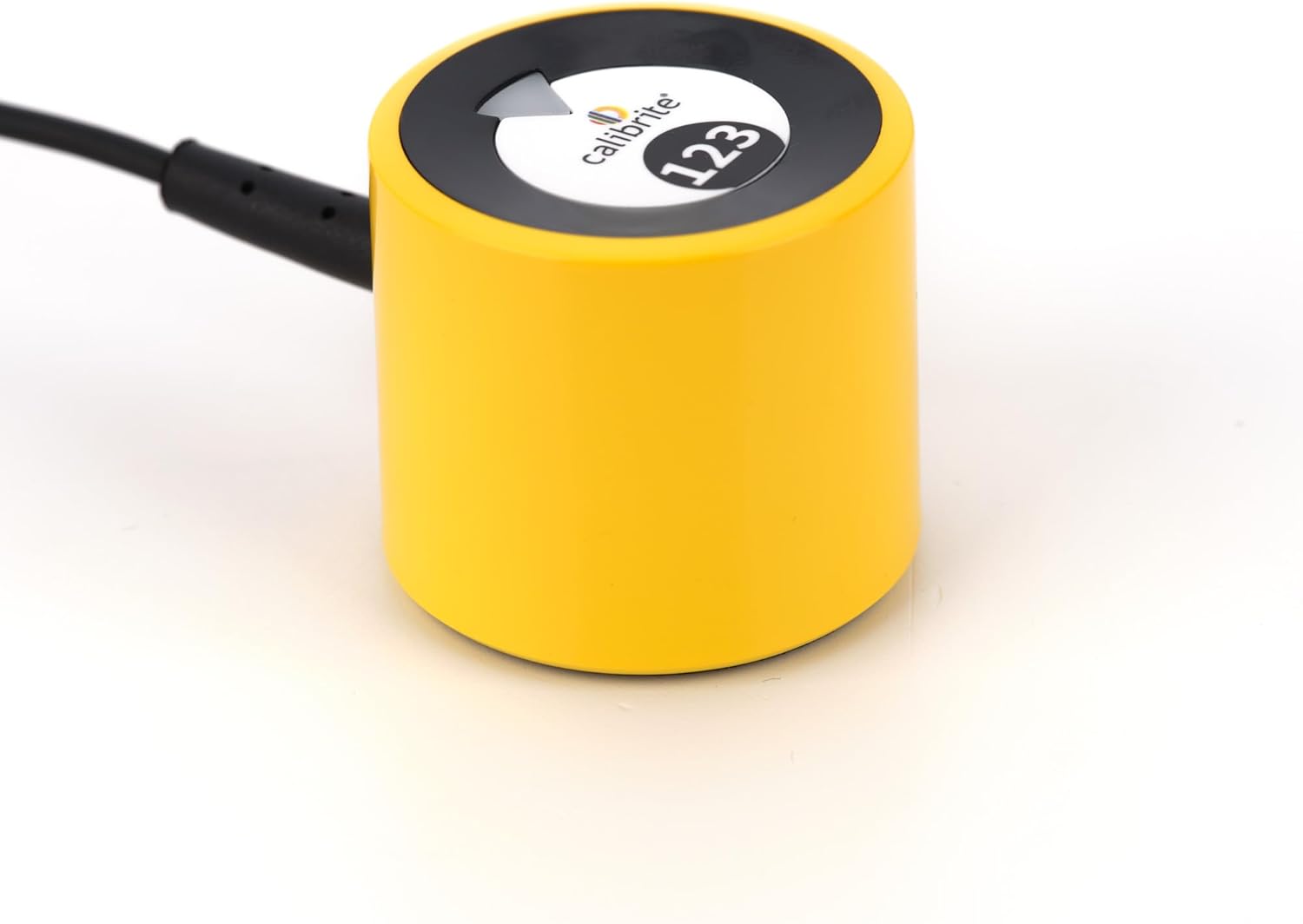
For someone who wants a practical starting point for colour accuracy, this tool offers a simple workflow that can be completed in minutes. It’s particularly appealing if you’re frequently switching between single and dual display setups and you value being able to review calibration differences in a concise Before/After view. A real plus is the low barrier to entry: USB‑C connectivity and an automatic process reduce friction for first‑time calibrators.
Limitations and caveats
While it’s positioned as beginner‑friendly, not all users will find it perfect for high‑end colour workflows. The requirement of a graphics card that supports Dual LUT for dual‑monitor calibration could constrain those with older GPUs. The brightness handling goes up to 1000 nits, which is adequate for standard laptops and displays, but may not satisfy specialists needing higher luminance capabilities or extremely wide‑gamut displays.
Who it’s for
If you’re starting with calibrated colour for on‑screen work—especially across one or two displays—and you value a straightforward setup, this could be a sensible option. It works well for entry‑level colour correction, everyday creation tasks, and general viewing accuracy where fuss‑free operation matters more than granular control.
Who it isn’t ideal for
Not ideal if you require advanced, professional‑grade colour management, or if your workflow depends on precise, custom LUTs beyond the dual‑display scenario. It may also be less compelling for users whose hardware lacks the required Dual LUT support for dual monitors.
What to check before buying
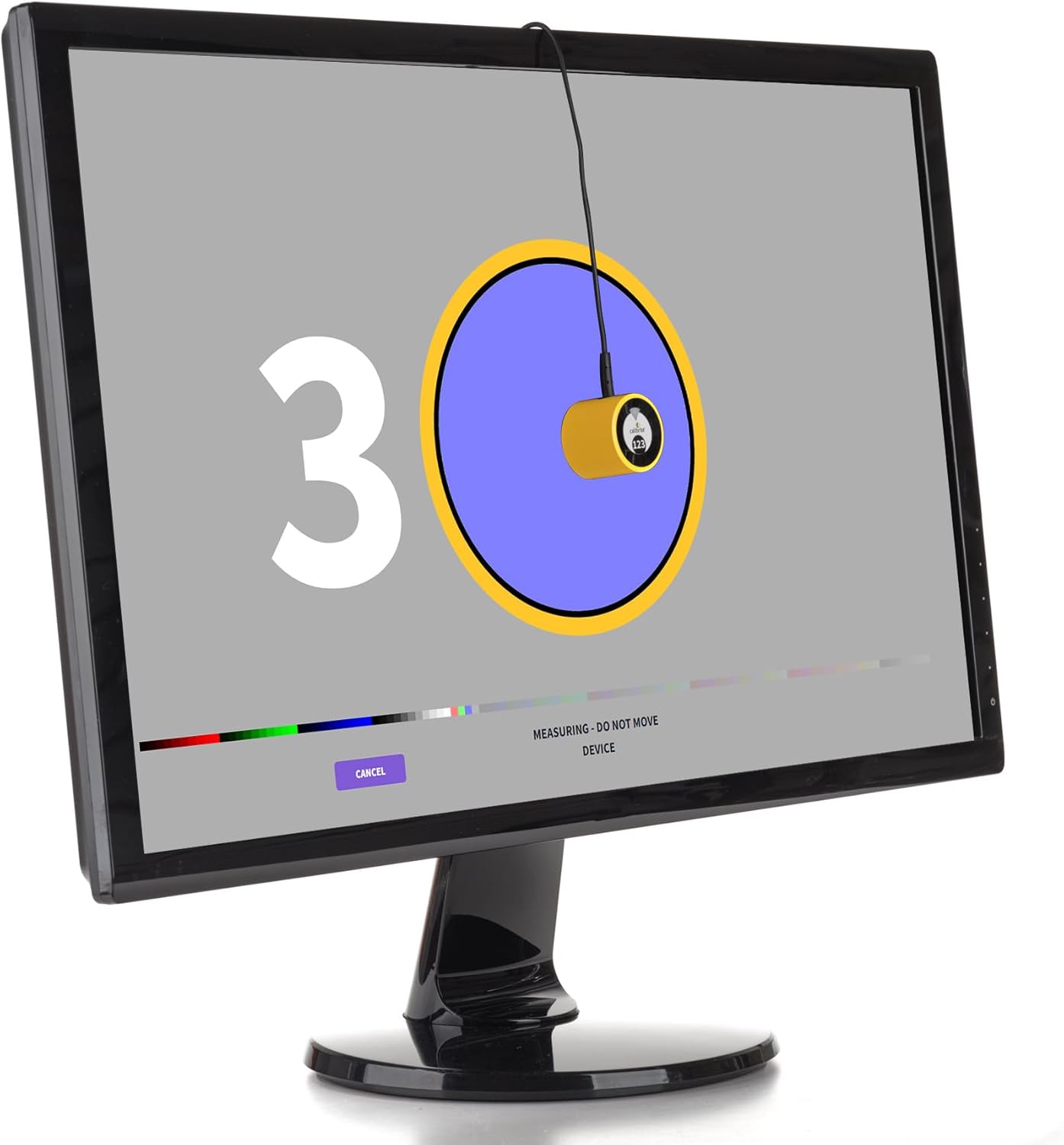
- Confirm you have a USB‑C port available for connection and that your workstation meets the dual‑monitor constraint if you plan to calibrate two displays.
- Check whether your graphics card supports Dual LUT needed for dual displays, without this, dual‑monitor calibration won’t function as expected.
- Consider your typical brightness needs, while 1000 nits is capable for standard devices, very bright or professional reference displays might push beyond its scope.
How it compares in the landscape
This tool appears positioned between basic consumer calibrators and higher‑end solutions. It’s worth considering if you prioritise ease of use and quick starting points over deep, custom LUT control. If you prefer more granular control, or if your setup demands widespread colour management across many devices, a step up in software features and hardware capabilities might make more sense.
What you get (in the box)
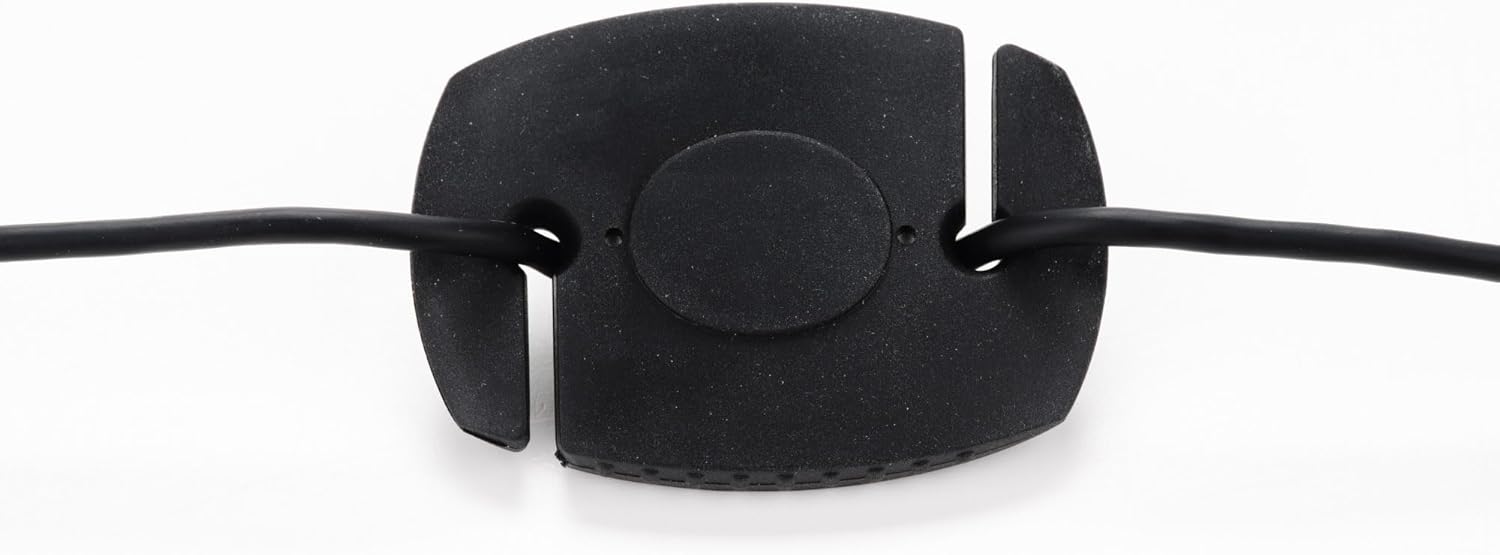
The provided information emphasises a compact, USB‑C driven device with PROFILER software, however, exact contents aren’t specified. If you need a clearly defined contents list, that’s something to verify in the product page or packaging before purchase.
FAQ (practical answers based on available data)
- Does it work with both Windows and macOS? Yes, it is described as compatible with both platforms.
- Can I calibrate two monitors at once? Yes, up to two monitors per workstation, with the caveat about graphics card Dual LUT support for dual‑monitor setups.
- Is it suitable for high‑end colour work? It’s described as an entry‑level solution, so professionals with demanding gamut and LUT needs may prefer more advanced tools.
Final verdict
Is it worth it? A solid pick if you want a straightforward, entry‑level calibration tool that covers single or dual displays and prioritises ease of use. It makes sense if you value a quick, guided setup and clear before/after results, and you’re working within a typical brightness range. If you need deep, custom LUT control or require calibration across many high‑end displays, you may want to explore more capable options.