

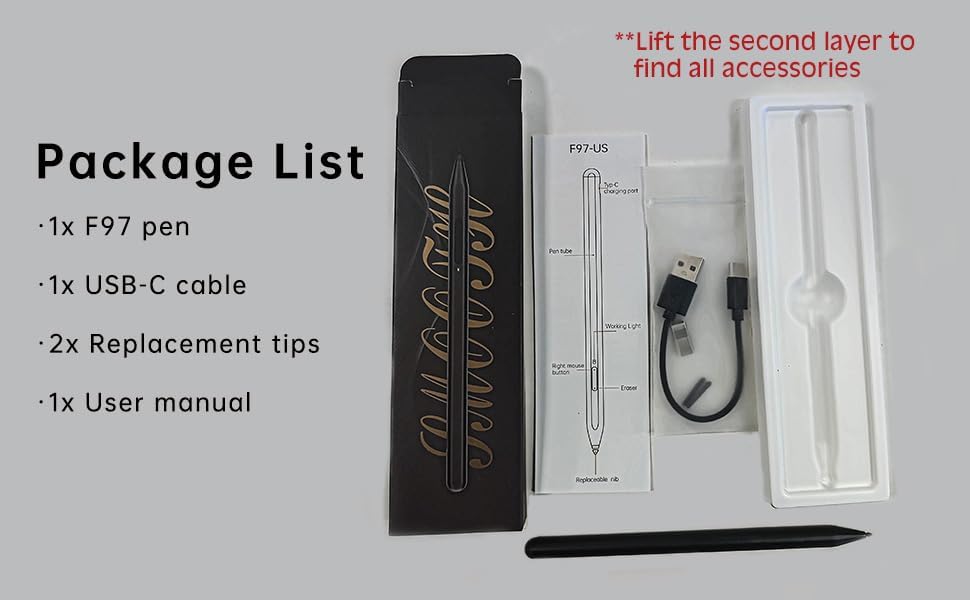
Milikilo F97 Stylus Pen for Microsoft Surface Pro, Surface Go, Surface Laptop (with eraser & right-click, 1024 pressure)
Product description
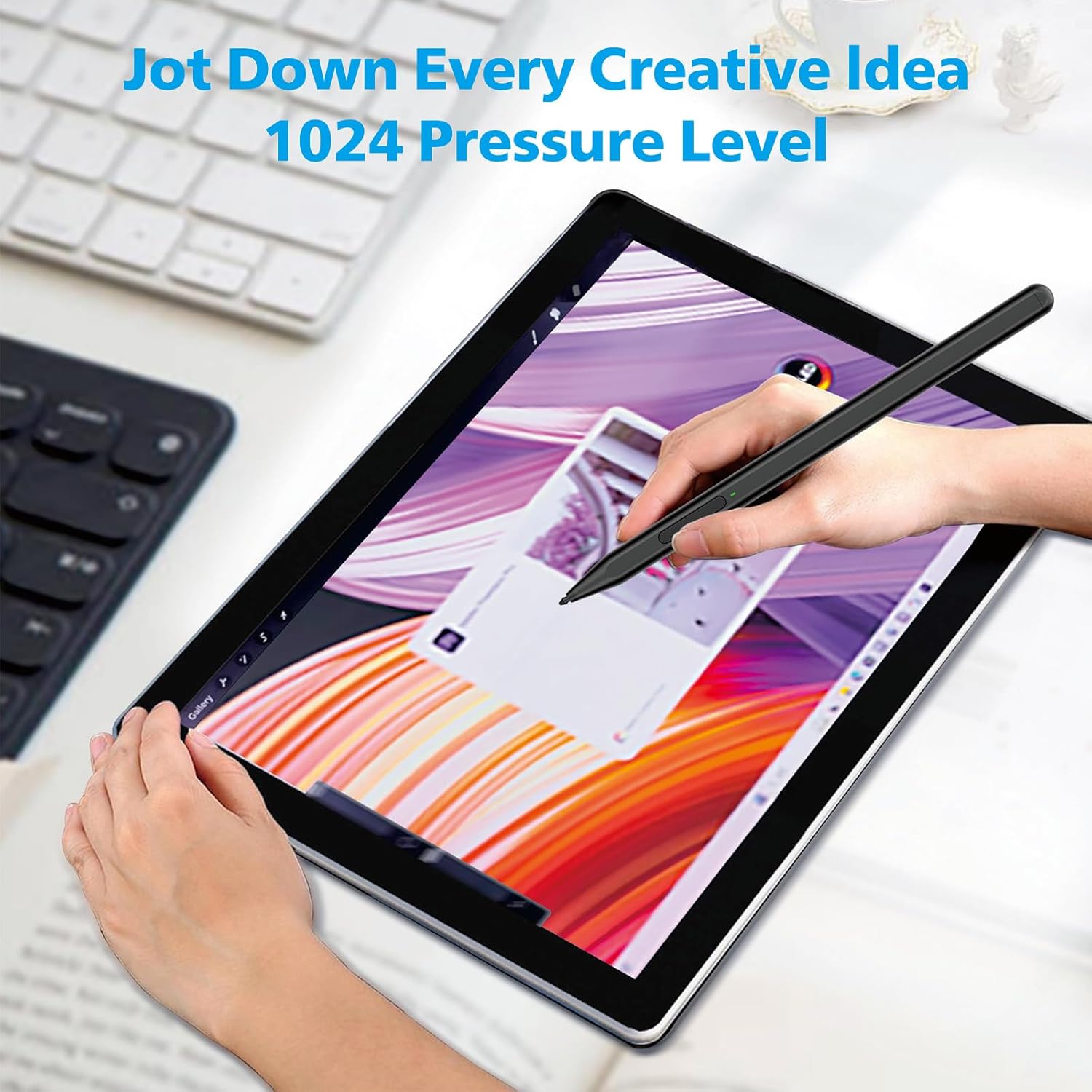
If you write and draw on a Microsoft Surface every day, the right stylus can feel like the difference between “workable” and actually comfortable. The Milikilo F97 is a stylus designed for a wide range of Surface Pro, Surface Go, Surface Laptop, Surface Studio, and Surface Book models, with features like 1024 pressure sensitivity, tilt support, palm rejection, and a built-in eraser/right-click control set.
That said, it’s not universally compatible. The input notes that it does NOT work with certain Surface Laptop Go / Laptop Go 2 / Laptop Go 3 variants and several other listed models, so checking your exact device model is part of buying this one smartly.
Key takeaways
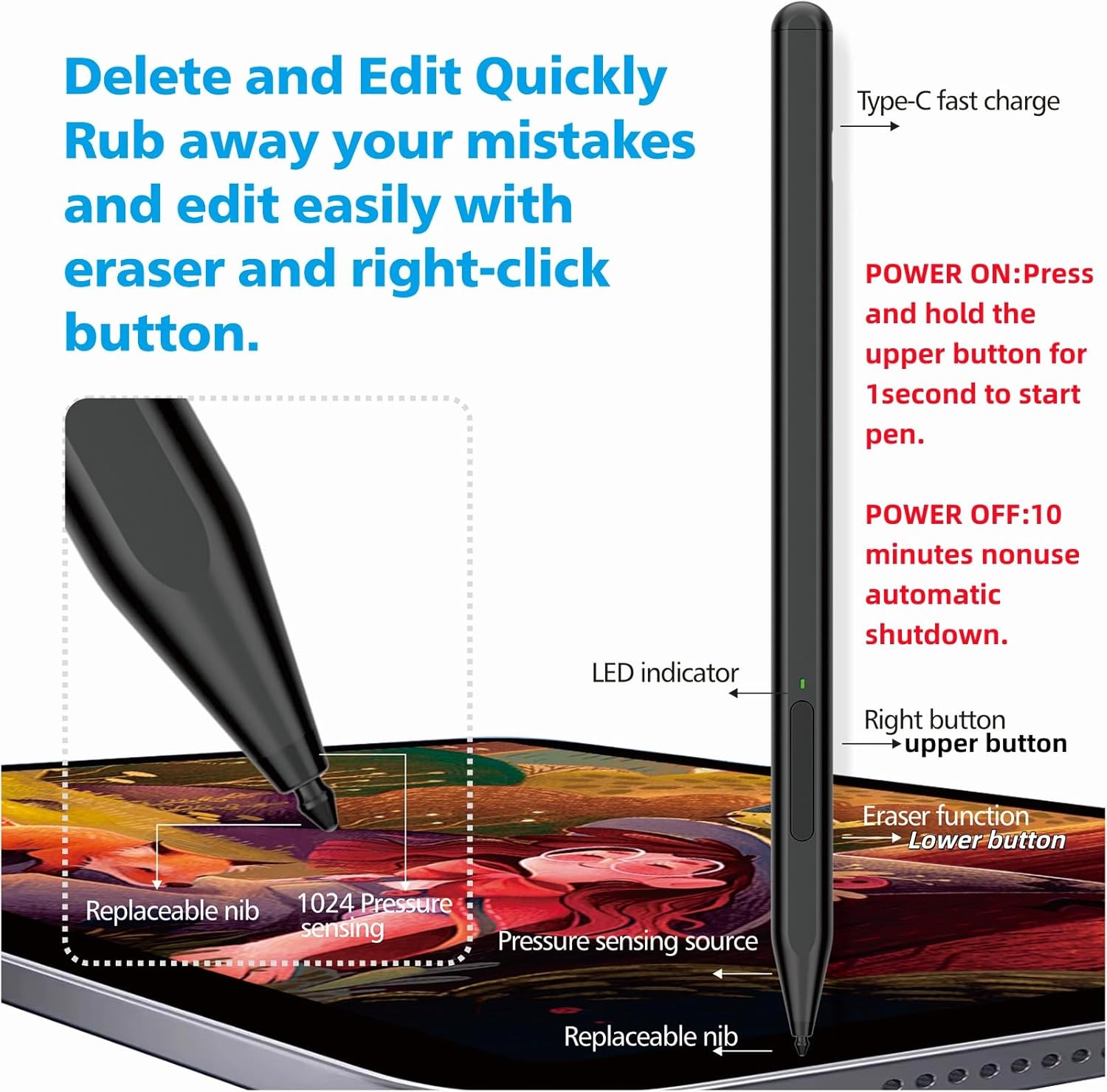
The F97 is built around everyday note-taking and drawing on compatible Surface screens. Over the paper, you get pressure sensitivity (1024 points), tilt-based line thickness, palm rejection to reduce accidental touches, and two physical buttons: one for eraser and one for right-click. You also don’t need Bluetooth to use it, and it uses a simple power-on/power-off routine.
What matters in real use (and what to expect)
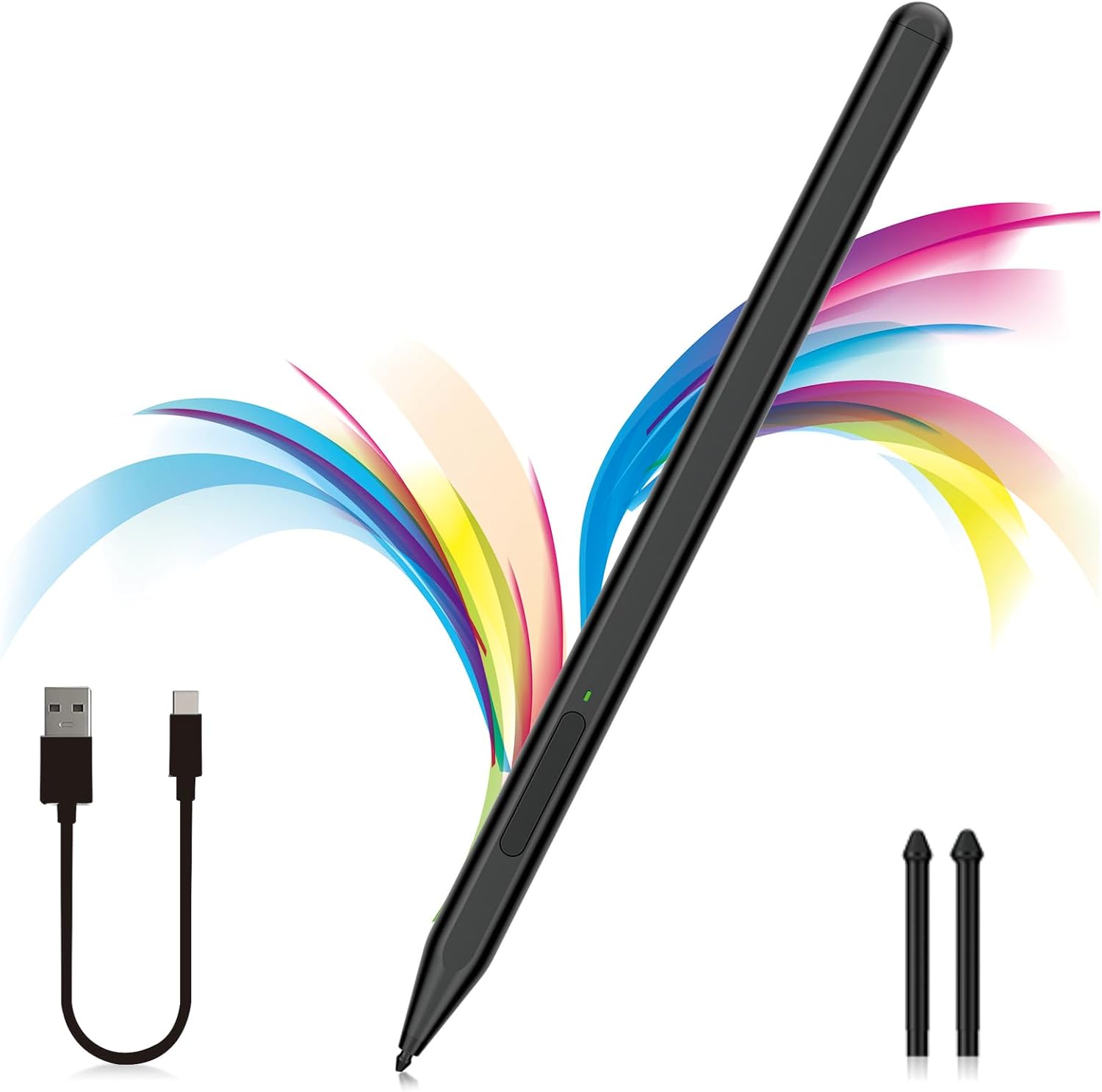
This stylus is trying to cover the “daily driver” needs: quick sketches, marking documents, taking class notes, and doing light-to-serious creative work where pen feel matters. The 1024 pressure points are there for more natural strokes—so light handwriting doesn’t turn into the same thick line every time. Tilt function also helps when you want thicker-looking lines for shading or more defined outlines.
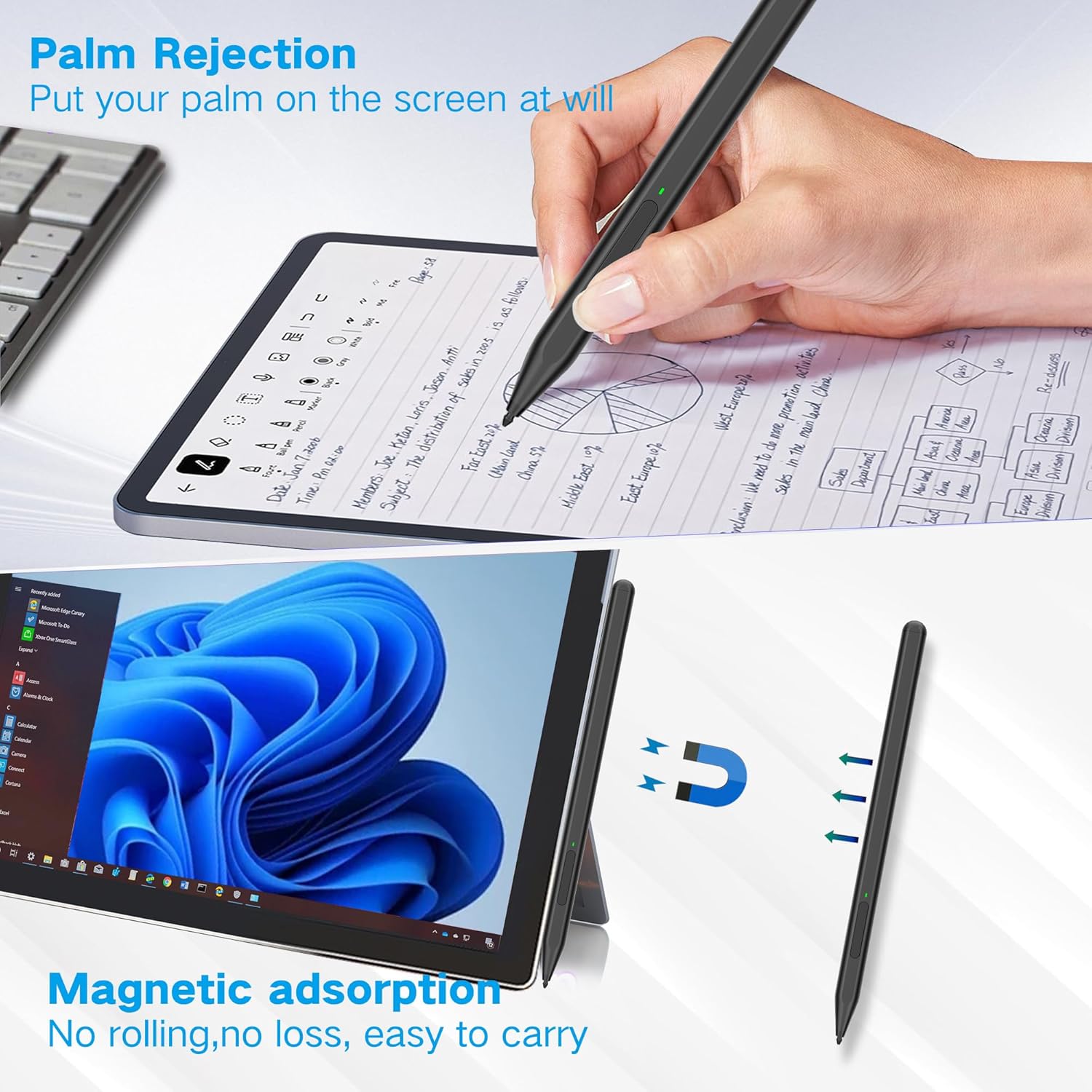
On top of that, palm rejection is a big deal if you naturally rest your hand while writing. Without it, you tend to hover more, or you get random marks. With palm rejection, you can usually work at a normal pace with less distraction.
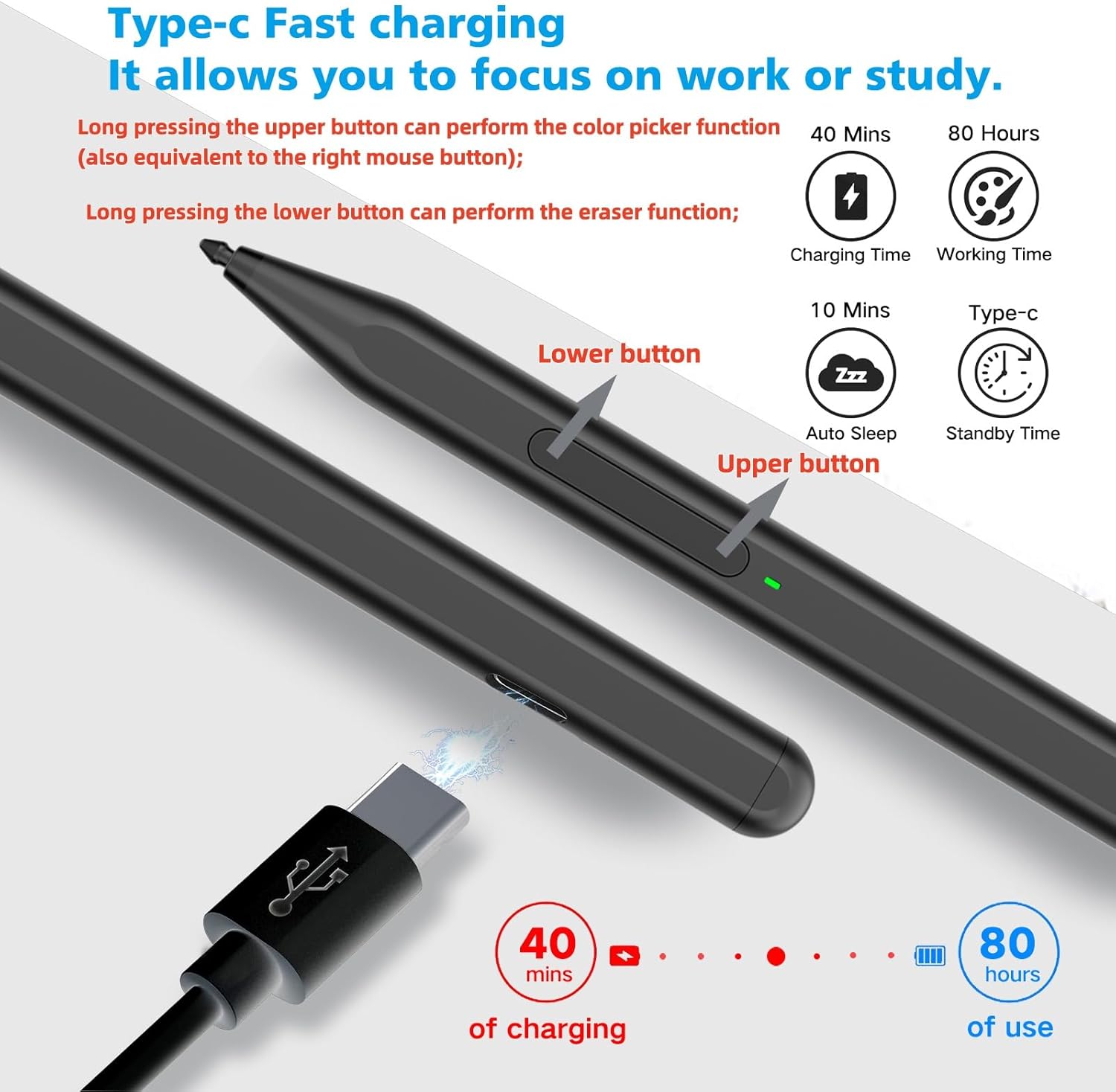
The eraser and right-click side controls are practical too. The lower key is the eraser, and the upper key acts like a right mouse button. In other words: you can correct mistakes and navigate without constantly touching the screen or reaching for UI buttons.
One small limitation to keep in mind: it’s not perfect for everyone, because compatibility depends heavily on the exact Surface model (and there’s at least one clear set of “not compatible” devices).
Compatibility: check before you buy
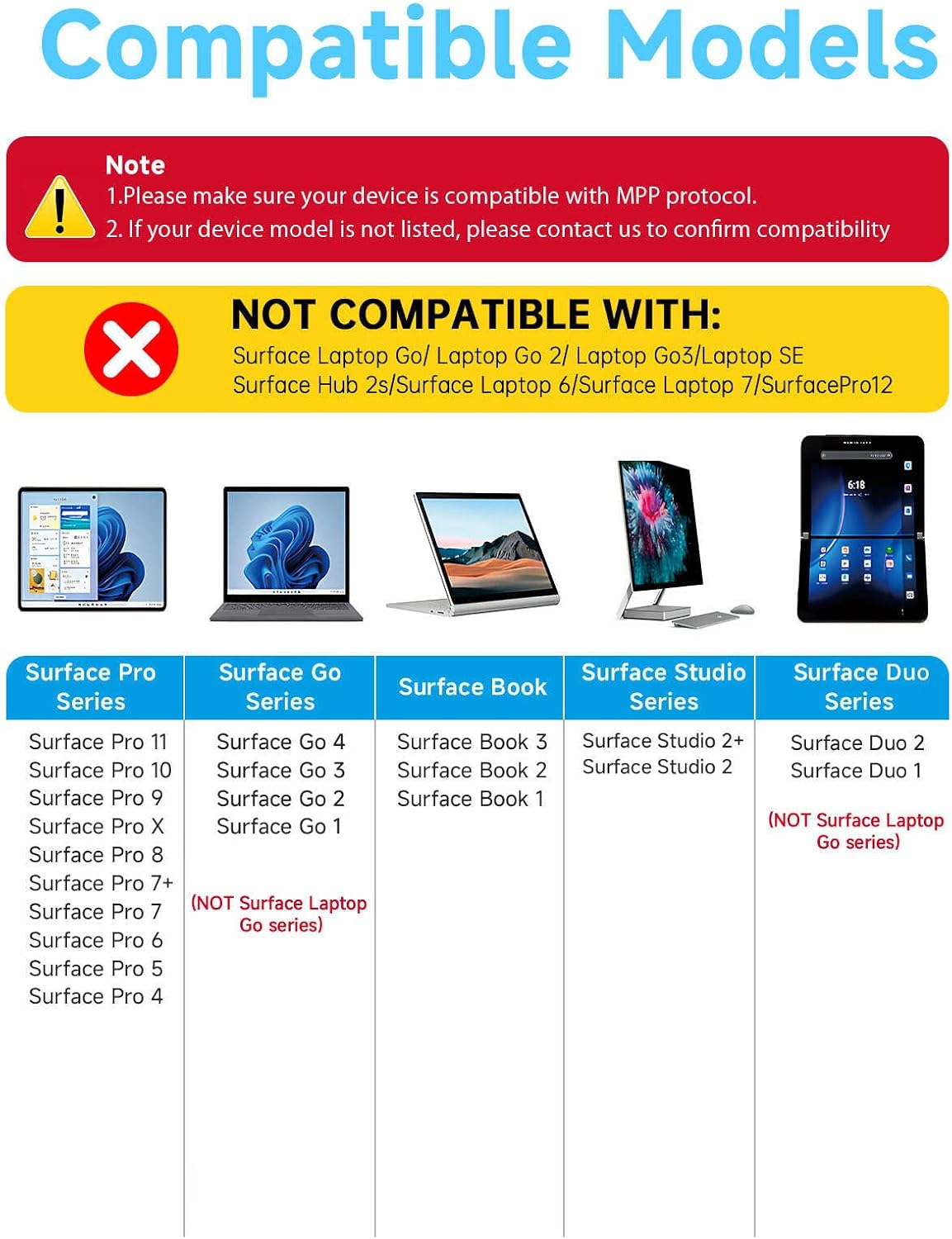
On paper, the F97 supports up to the MPP 1.15 protocol and is positioned as working with most Microsoft Surface devices listed in the input. Compatible models include: - Surface Pro 4, Pro 5th Gen, Pro 6, Pro 7, Pro 7+, Pro 8, Pro 9, Pro X, Pro 10, Pro 11, Pro 12 - Surface Book / Book 2 / Book 3 - Surface Laptop / Laptop 2 / Laptop 3 / Laptop 4 / Laptop 5 - Surface Go / Go 2 / Go 3 / Go 4 - Surface Studio 2 / Studio 2+
Where you need to be careful: the input specifically says it does NOT work with Surface Laptop Go / Laptop Go 2 / Laptop Go 3 / Laptop SE, Surface Hub 2s, Surface Laptop 6, and Surface Laptop 7.
If you’re buying for the “Go” or “Go 2/3” family, double-check the exact name on the device—don’t rely on screen size or the general word “Surface.”
Controls, tips, and build choices you’ll actually notice
This stylus comes with a small but thoughtful set of extras: - Replaceable pen tips: the package includes 2 extra nibs for easy replacement. - A CNC and gold-plated nib (as described), aiming for a smooth, crisp line.
If you’re the type who redraws, rewrites, or takes lots of notes, having replaceable tips can save you from the “worn tip = scratchy feel” situation that happens with any stylus over time.
The pen also uses two built-in magnets to attach firmly to compatible Surface tablets, so it’s designed to stay in place instead of floating around your bag.
Charging and power behavior
The input says the F97 uses USB-C charging and supports fast charge. It also describes a smart standby behavior: if you leave it unused for 10 minutes, it goes into sleep mode to save power.
Bluetooth isn’t required in this setup. The power routine is straightforward: long-press the upper button to turn on (the indicator light appears green), and then use it directly on compatible devices.
One practical “depends” moment: if you can’t use it after pairing your pen setup on the device, the input suggests disconnecting other pens first and then turning this one back on. That’s a good troubleshooting step if you have multiple pens associated with the device.
Pros and limits to consider before committing
What stands out is the feature set for the money-oriented buyer who still wants a real pen experience: 1024 pressure points, tilt function, palm rejection, and physical eraser/right-click controls.
The limit is also pretty clear: compatibility is selective. If your Surface is one of the explicitly “not compatible” models, this one won’t deliver what you’re looking for.
It’s not the best choice if you want guaranteed support for Surface Laptop Go variants or the newer Surface Laptop generations listed as incompatible. In that case, you’ll save time by choosing a stylus that’s explicitly confirmed for your exact device model.
Best use cases (who it suits)
This F97 makes the most sense if you’re using your Surface regularly for: - taking handwritten notes and annotating PDFs - drawing, outlining, and shading where tilt and pressure matter - marking documents where an eraser button and right-click access speed you up
It also fits students and business professionals who want to grab the pen and start writing without extra setup. For creators, the tilt + pressure combination is a solid foundation, though the overall experience will still depend on your Surface model’s support.
Quick FAQ
Does it require Bluetooth?
No. The input states it does not require a Bluetooth connection, it’s meant to work directly on compatible Surface devices.
What are the two buttons for?
The lower key is for eraser, and the upper key functions as a right mouse button.
What does palm rejection mean here?
The input indicates palm rejection technology lets you rest your hand naturally on the screen without triggering unwanted touches.
Is it compatible with all Surface models?
No. The input includes a specific compatible list and a specific list of models it does NOT work with, including several Surface Laptop Go variants.
Should you buy it?
It’s worth it if your Surface model is on the compatible list and you want a stylus that covers everyday notes plus more expressive drawing (pressure, tilt, palm rejection) with real physical eraser/right-click controls. It also makes sense if you prefer not dealing with Bluetooth setup and you want USB-C charging with sleep mode.
You may want to skip it if you own a Surface Laptop Go / Go 2 / Go 3 / Laptop SE, Surface Hub 2s, Surface Laptop 6, or Surface Laptop 7, since those are called out as not compatible in the input. Before ordering, verify your exact device model name and don’t assume “Surface” alone is enough.