

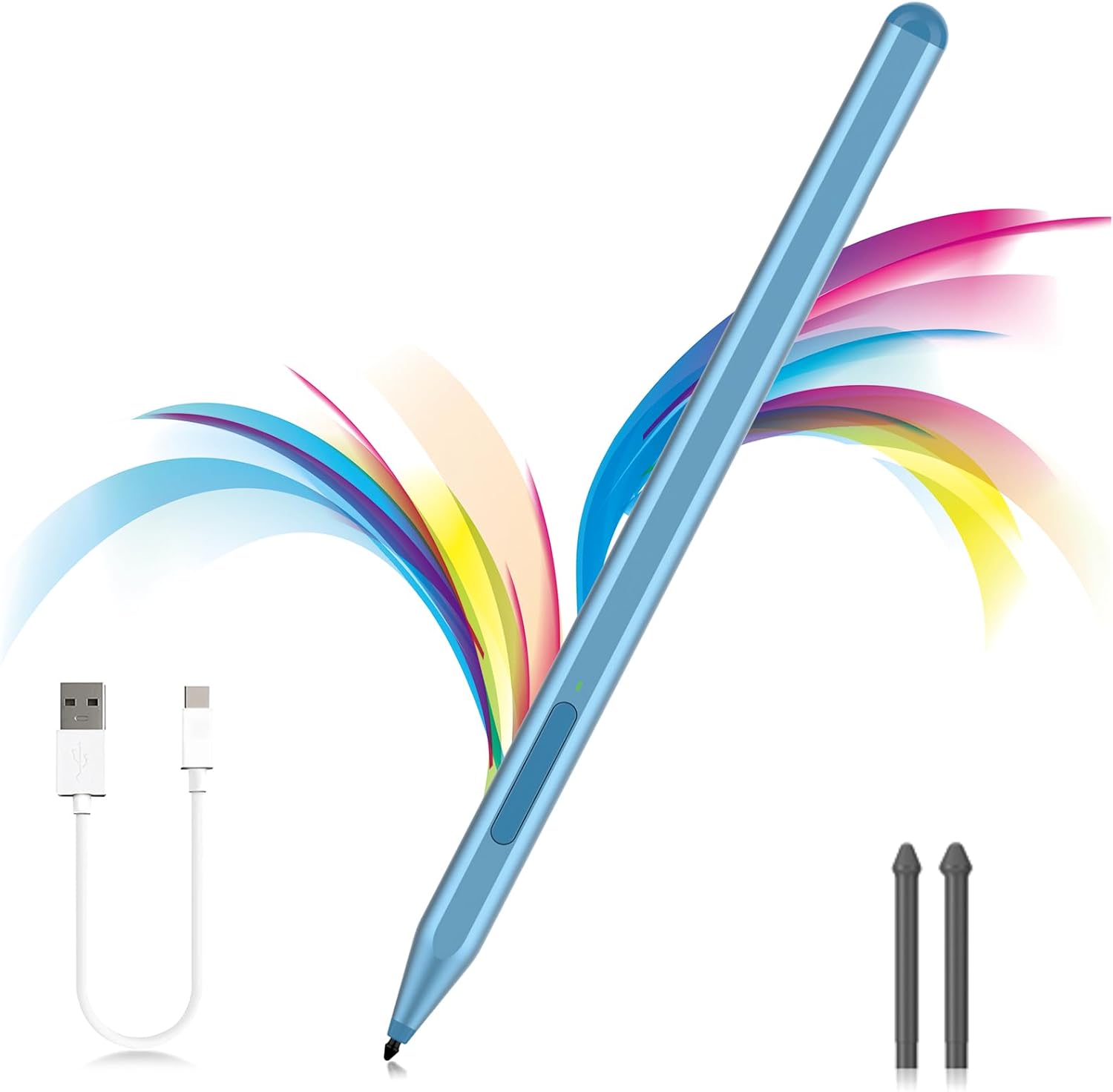
Milikilo F97 Stylus Pen for Microsoft Surface with Eraser Side Button, Palm Rejection, Tilt & 1024 Pressure
Product description
What it is and why you’d want it
This Milikilo F97 is a replacement-style active stylus aimed at Microsoft Surface owners who want pen input with common creative and note-taking features. On paper, it’s built for people who live in the Surface ecosystem: you can write, draw, and navigate with a side button, and you get palm rejection so you don’t have to hover your hand all the time.
One thing to be clear about: it’s not a universal Surface stylus. The compatibility note is quite specific, including a clear “does not work” call-out for certain Surface Laptop Go models. If you already have a Surface Pro or Surface Laptop (non-Go) type device, the odds are better—but it’s still worth checking your exact model before buying.
Key takeaways before you commit
The F97 stands out for the practical stuff that affects daily use rather than just marketing claims. It includes:
- No Bluetooth requirement: you press the side button and it shows an indicator light, then you use it directly on compatible devices.
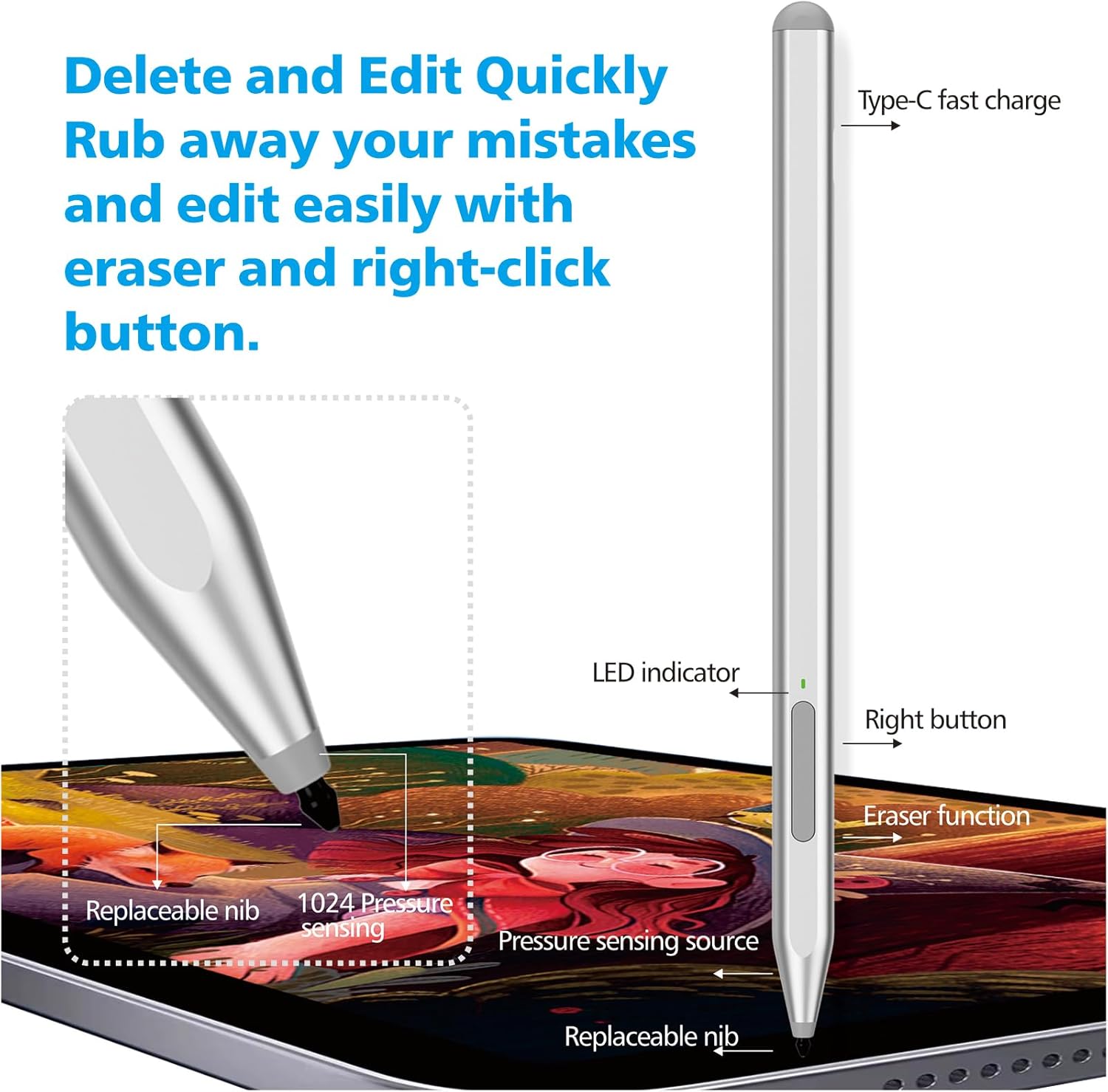
- Eraser and right-click controls: the lower key acts as the eraser, and the upper key works like a right mouse button.
- Replaceable tips: you get extra nibs in the box so you can swap when a tip wears down.
- Tilt function and pressure sensitivity: it supports tilt, and it offers 1024 pressure points for line control.
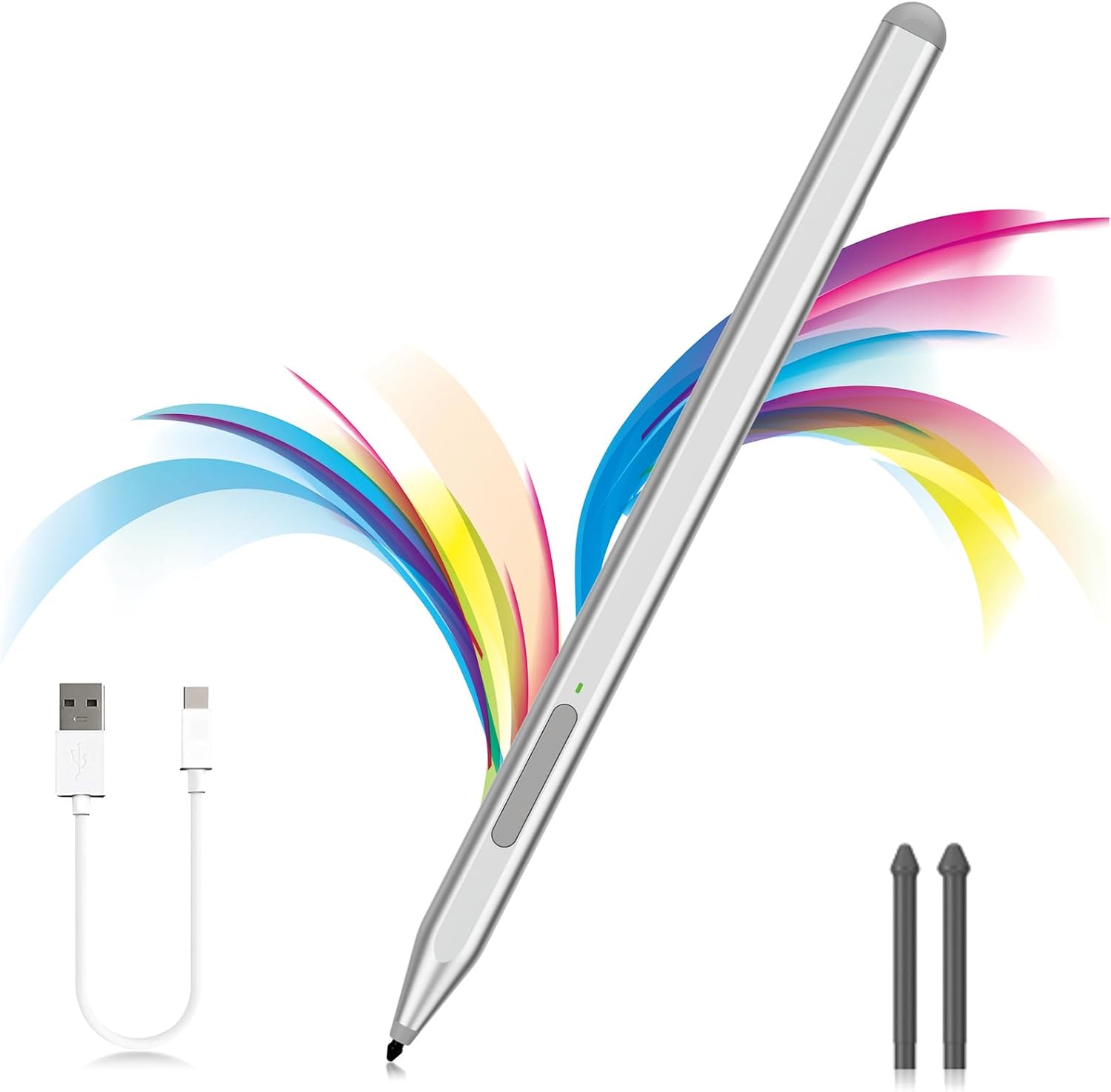
That combination is exactly what you’d look for if you’re switching from a tired original stylus or want something that behaves like a proper Surface pen.
Compatibility: where it fits (and where it doesn’t)
The product description provides a model list, so treat this like a checklist rather than a vague promise.
It’s stated to work with most devices that support the MPP1.15 protocol (up to MPP1.15), including:
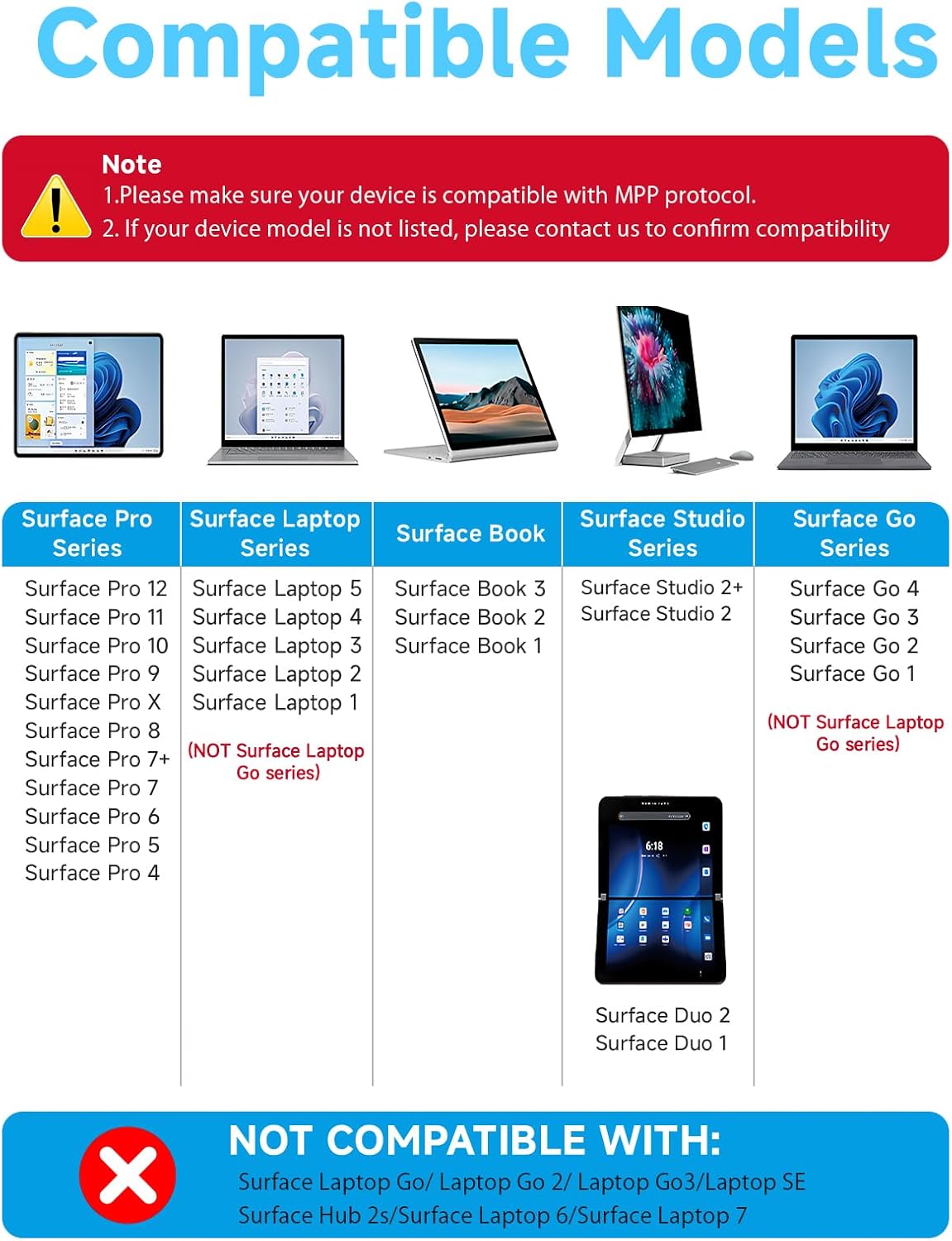
- Surface Pro generations listed: Pro 4, Pro (5th Gen), Pro 6, Pro 7, Pro 7+, Pro 8, Pro 9, Pro X, Pro 10, Pro 11, Pro 12.
- Surface Book models listed: Book, Book 2, Book 3.
- Surface Laptop models listed: Laptop, Laptop 2, Laptop 3, Laptop 4, Laptop 5.
- Surface Go models listed: Go, Go 2, Go 3.
- Surface Studio models listed: Studio 2, Studio 2+.
And importantly, it’s not compatible with the Surface Laptop Go series and several related devices called out in the description, including Surface Laptop Go / Go 2 / Go 3 and a few others (for example Surface Hub 2s). If your device is in the “Go” or “Laptop Go” family, you may want to skip this stylus.
Worth noting: the list is helpful, but “Surface 3” and “Surface 4” appear in the product name. If your model isn’t clearly confirmed in the list, it’s safer to double-check your Surface model against the stated compatibility.
What it’s like in use (notes, drawing, and desk comfort)
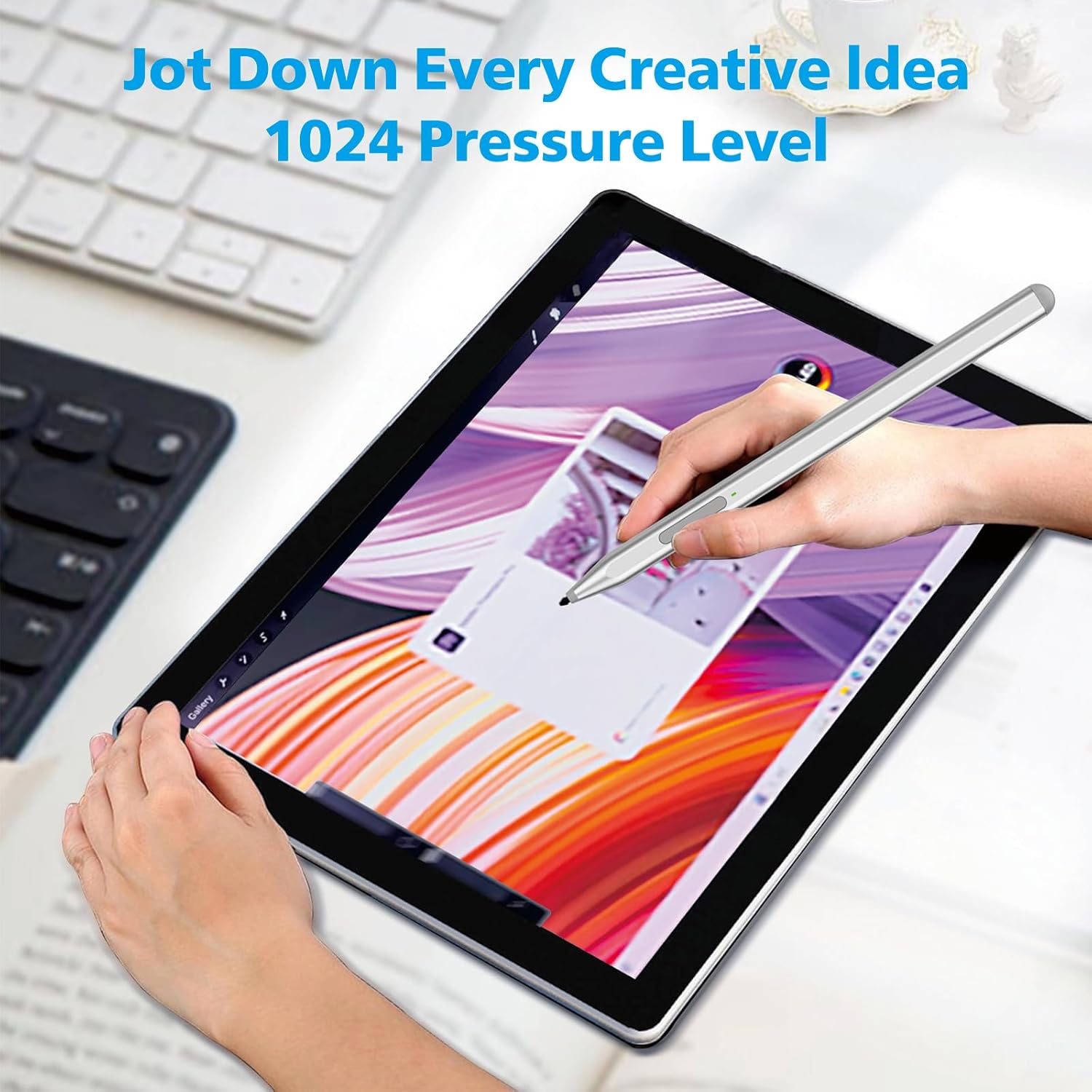
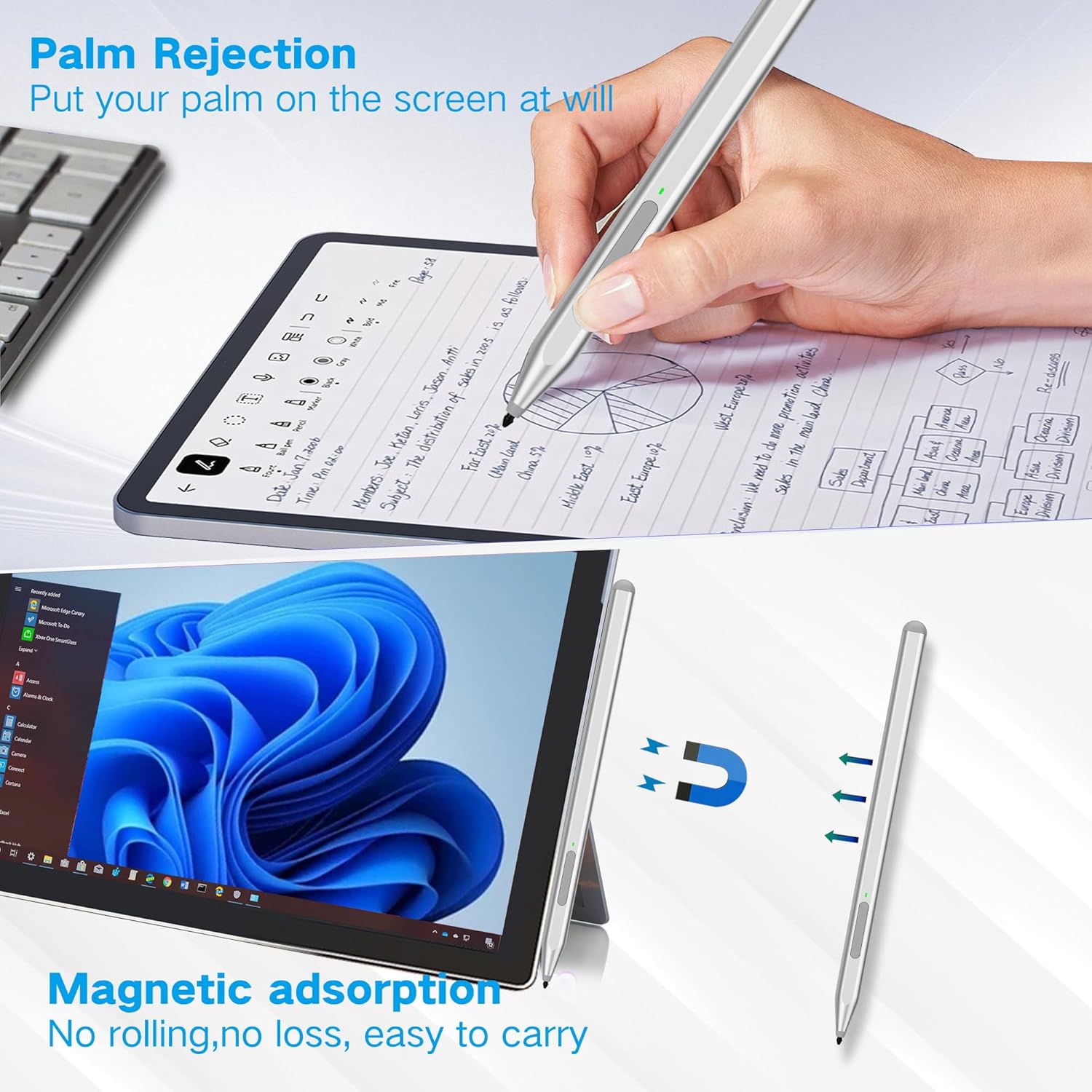
For everyday writing, the palm rejection matters more than people expect. It’s designed so you can rest your hand naturally on the screen without accidental touches getting in the way—handy for long study sessions, meeting notes, or sketching in the margins.
The controls are also aimed at workflow. The eraser side button (lower key) lets you switch to rubbing out without hunting in menus, while the right-click (upper key) helps with cursor-style actions when you’re working through documents or navigating apps.
For drawing, the tilt function is there for shading and thicker strokes: as you tilt the pen at a larger angle, the line becomes thicker. Combined with 1024 pressure points, it’s positioned as more than a basic scribble stick, especially if you’re doing outlines, quick roughs, or more considered sketches.
A small practical example: imagine taking notes during a lecture on a Surface Pro. You hold the stylus naturally, palm resting on the display, write normally, then when you need to correct a line you tap the eraser button rather than switching tools. That’s the kind of “feels right” usability this pen is targeting.
Charging, standby, and what to expect from the battery setup
The F97 uses USB-C fast charging. The description claims it takes about 40 minutes to fully charge and provides up to 80 hours of battery life. It also has smart standby, entering sleep mode after 10 minutes of idle time to save power.
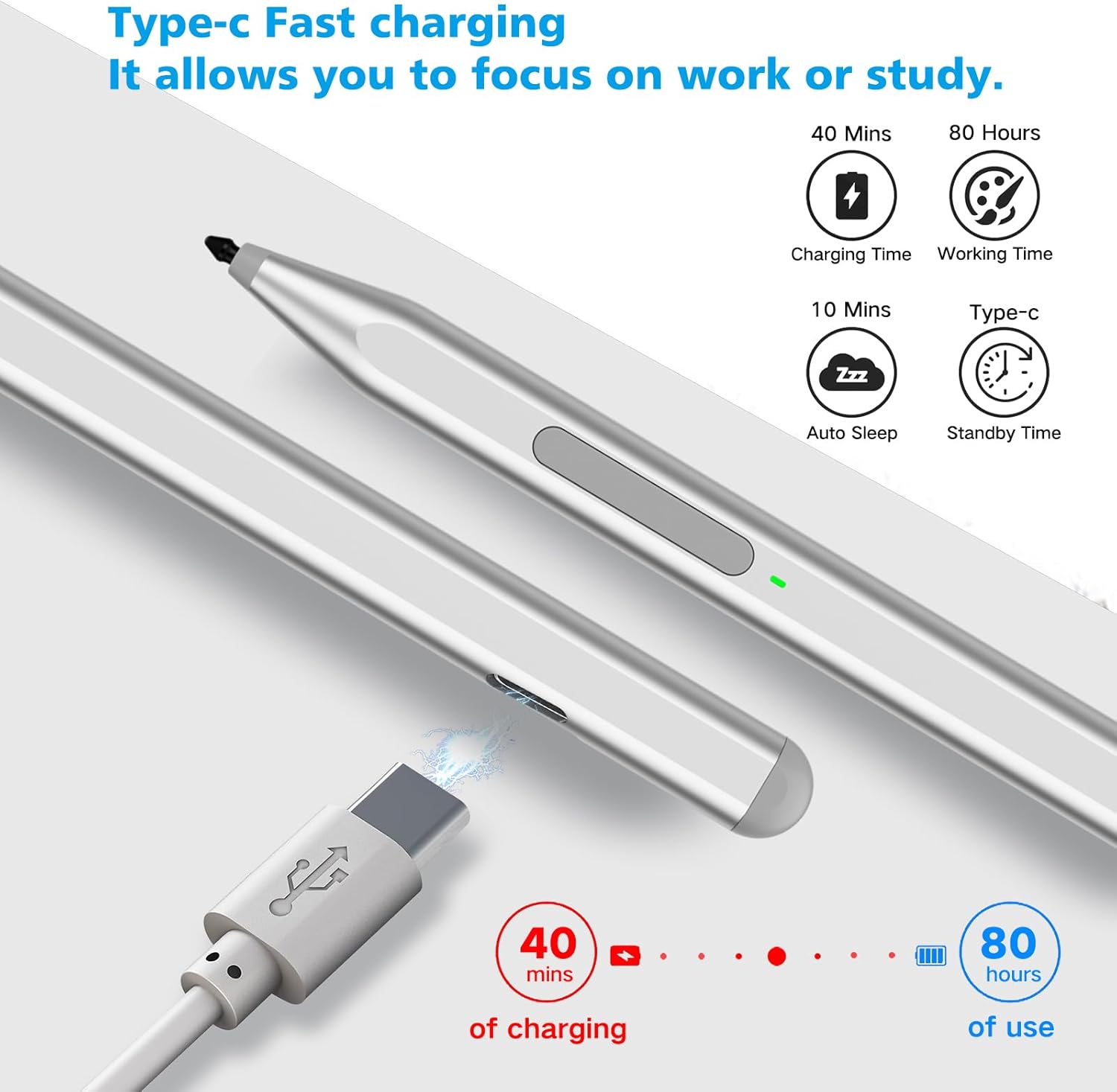
However, there’s one limitation stated plainly: you can’t turn the stylus off manually. That’s not necessarily a deal-breaker, but it does mean you’ll rely on sleep/standby behaviour rather than fully switching it off like some other pens.
The pen tips and “maintenance” reality
You get two replacement tips and the tips are described as easy to replace. That matters because styluses are the sort of accessory that slowly wears down through friction—so having spares in the box is a sensible inclusion.
Still, check your own habits. If you press hard or draw frequently on the same spot, the tip may wear sooner than you expect. The inclusion of spare nibs helps, but it’s not a guarantee against future replacements.
Pros and trade-offs to weigh
What you’ll like most, based on the spec notes provided - Works with a wide set of listed Surface Pro / Book / Laptop / Go and Studio models, using the MPP1.15 protocol. - No Bluetooth required for operation on supported devices. - Convenient side eraser and right-click functions. - Palm rejection, plus tilt and 1024 pressure points for more expressive line work. - Replaceable tips included, along with a USB-C cable.
Where it may not be the right fit - Compatibility is not universal: it explicitly won’t work with the Surface Laptop Go series (and some other listed devices). - If you’re expecting a stylus that you can manually power off like a typical device, the description says you can’t. - If your Surface model isn’t clearly in the provided list, you may find yourself stuck doing compatibility checks rather than just using it.
Should you buy it?
A solid buy if you own a compatible Surface Pro / Surface Book / Surface Laptop (non-Go) / Surface Go (as listed) / Surface Studio model, and you want an active stylus that covers the basics you actually use: palm rejection, a side eraser, right-click, replaceable nibs, and creative controls like tilt and pressure.
It might not be the best choice if your device is in the Surface Laptop Go family or another clearly excluded category from the compatibility note. In that situation, you risk spending time troubleshooting rather than getting straight to note-taking or drawing.
Also, if you prioritise total simplicity (plug in and forget, with minimal compatibility considerations), you’ll still want to confirm your exact Surface model first. The pen is clearly designed around MPP1.15 support, so matching your device matters.
Mini FAQ
How does it connect?
The description says it does not require Bluetooth. You press the side button, an indicator light appears green, and then you use it directly on compatible devices.
What if it doesn’t work on my Surface?
The instructions suggest checking whether your device is connected to other pens. If it isn’t, then you should recheck your device model against the compatibility list.
Does it have an eraser and right-click?
Yes. The lower side key is the eraser, and the upper side key is the right mouse button.
Are the tips replaceable?
Yes. The box includes replacement tips, and the description says they’re easy to replace.
Does it support tilt and pressure?
It’s stated to include tilt function and 1024 pressure points.