

Elgato Stream Deck Scissor Keys Workflow Controller
Reviews
Price
Product description
What it is and what it solves
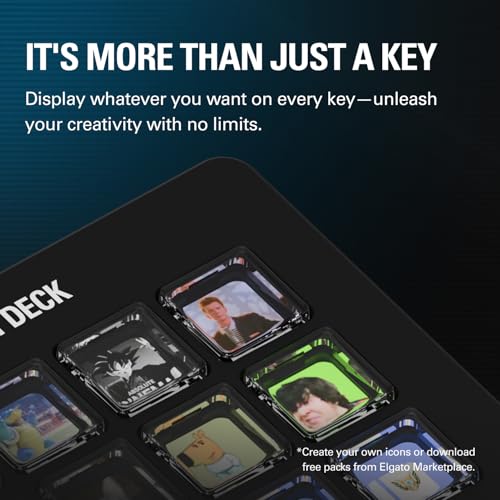
The Elgato Stream Deck Scissor Keys Workflow Controller is a compact macro-driven keypad designed to simplify routine tasks in live streaming, gaming, and content creation. It aims to reduce the number of clicks and Alt-Tab moments by letting you trigger actions with a single press. On the surface it provides tactile, responsive keys with a visual guide, so you know exactly which function you’re activating at a glance. If you value quick access to software controls and live system information, this device can streamline day-to-day workflows without pulling you away from the screen.
How it stands out in practice
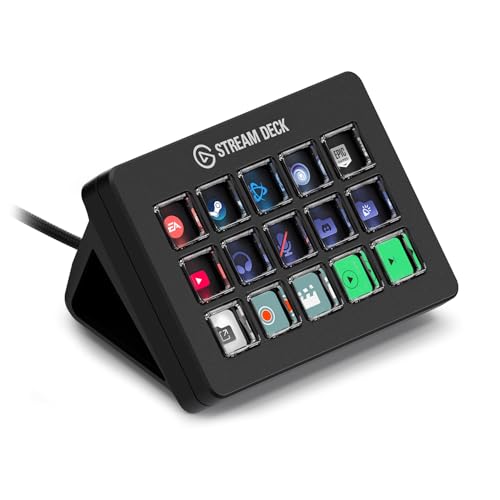
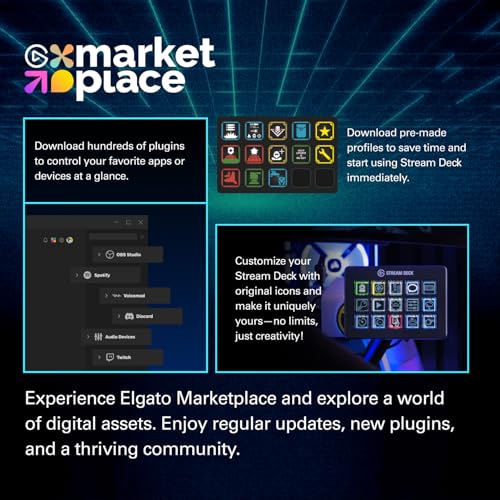
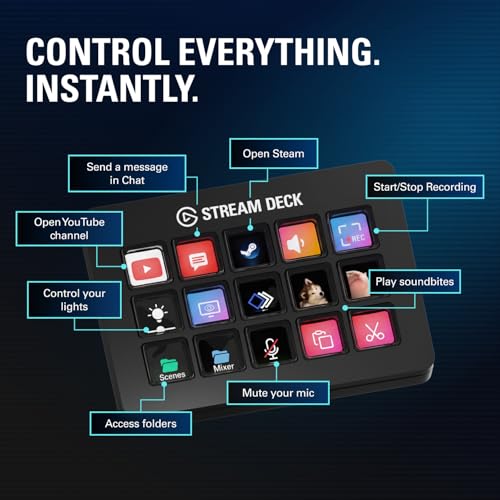
On the desk, the keyboard-like layout and infrared-ready LED icons on each key are meant to minimise hesitation in fast-paced moments. The real-time monitor capability—allocating keys to show CPU, GPU, ping, FPS, or other stats—offers a handy at-a-glance readout when you’re troubleshooting a stream or game. The ability to launch Discord, switch OBS scenes, or mute mic with a tap can feel second nature once you map the most-used actions. However, on the paper side, you’re relying on software plugins and updates to keep the feature set current, this means the value can shift as new community-created plugins emerge.
Who it’s for
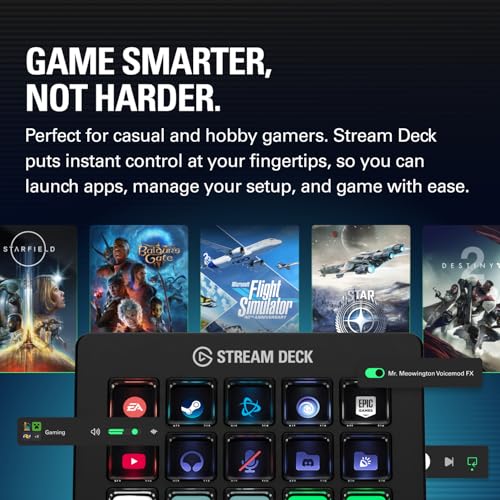
If you run a live stream, manage multiple apps during a session, or use macro-heavy workflows, this device can be appealing. It’s especially useful for creators who want to reduce screen-switching and keep essential controls within arm’s reach. Beginners may appreciate the LED icons guiding what each key does, while more experienced users may value the ability to tailor macros and stats to fit their exact setup.
Who it isn’t ideal for
It isn’t a universal error-proof control surface, its usefulness hinges on how well you map it to your software stack. If your workflows don’t require rapid, single-tap commands or if you prefer a more traditional keyboard approach, this may feel like an extra gadget rather than a necessity. Also, the long-term benefit depends on plugin support and updates, so if you’re wary of relying on third-party integrations, you might want to test how comfortable you are with community plugins.
When it makes sense to buy
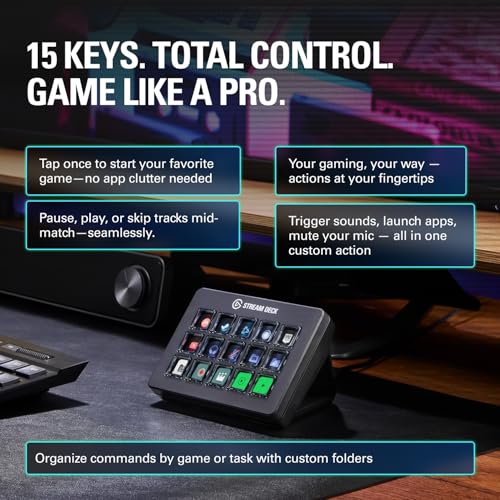
Consider this device if you prioritise quick-launch actions (Discord, OBS, games) and want real-time system visibility at a glance. It’s particularly handy for streamers who want to reduce visual clutter and keep reactions fast without losing focus on the main scene.
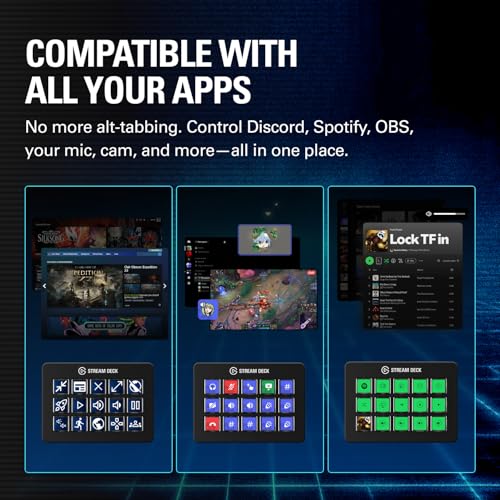
What to check before buying
- Ensure your intended actions map cleanly to the number of keys and to the software you use most. If you rely heavily on a specific plugin ecosystem, verify compatibility and community support.
- Consider how you’ll maintain and update your key mappings as software evolves. The value of the device grows with active plugin updates and a supportive user community.
- Reflect on the physical layout: does the scissor-key design feel comfortable for extended sessions, or would a larger pad be more suitable?
- If you need precise real-time stats, think about which metrics matter most to your workflow and whether the on-device display covers them adequately.
Practical use example
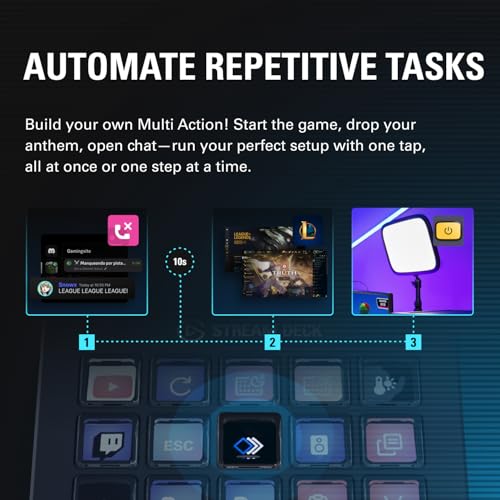
During a long streaming session, you could assign a dedicated key to mute the mic, another to switch OBS to a specific scene, and a third to trigger a Discord push-to-talk macro. If you’re troubleshooting, a key could display current CPU load while another shows FPS. It’s the kind of setup that helps you stay in the moment rather than hunting through software menus.
Tech specs
- Name: Elgato Stream Deck Scissor Keys Workflow Controller
- Type: Workflow controller with LED-lit keys
- Size: Standard compact keypad footprint
- Display: LED icons for quick recognition
- Connectivity: USB interface (as per product class assumptions, verify if needed)
- Material/Feel: Scissor-key mechanism designed for tactile feedback
Is it worth it?
Worth considering if you prioritise reducing on-screen navigation and want a tactile, dedicated control surface for macros and real-time stats. It may not be the best fit if you rarely use macros or you’re happy with on-screen shortcuts. If your setup benefits from plugin-driven enhancements, you’ll want to factor in ongoing updates and community plugins as part of the value equation.
FAQ
- Do the keys display dynamic system information? Yes, you can assign keys to show metrics such as CPU, GPU, ping, or FPS at a glance.
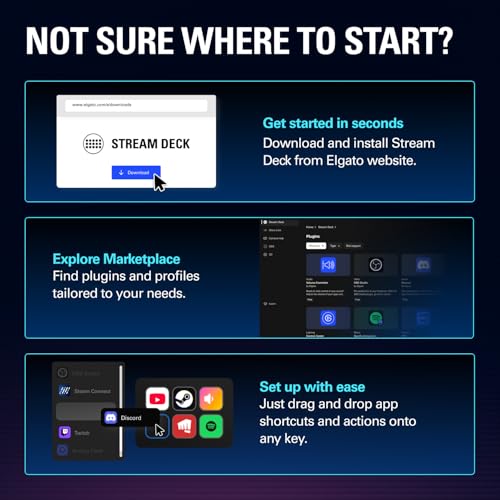
- Can I re-map keys easily for different games or apps? Mapping is supported through the Stream Deck ecosystem and compatible plugins, you’ll benefit from revisiting layouts as your workflow evolves.
- Is it suitable for long streaming sessions? The tactile keys reduce mispresses, but comfort depends on personal preference for keypad size and key travel.
Final verdict
If you need quicker access to common actions and live stats while keeping your main screen uncluttered, this device offers a sensible, practical approach. It isn’t a guaranteed game-changer, but its real strength lies in the potential to simplify day-to-day tasks through a well-thought-out macro layout and visible feedback. You’ll like it if you prioritise speed and organisation, you may want to pass if you rarely depend on macros or want a larger, more feature-rich setup.